Category: Mac Utilities

  • Aescripts AE Glass 1.3.0 for Mac

    Aescripts AE Glass 1.3.0 for Mac

    Aescripts AE Glass 1.3.0 for Mac

    Aescripts AE Glass 1.3.0 for Mac

    Mac Utilities
    Updated Aug 10, 2026
    Mac Utilities • Updated Aug 10, 2026

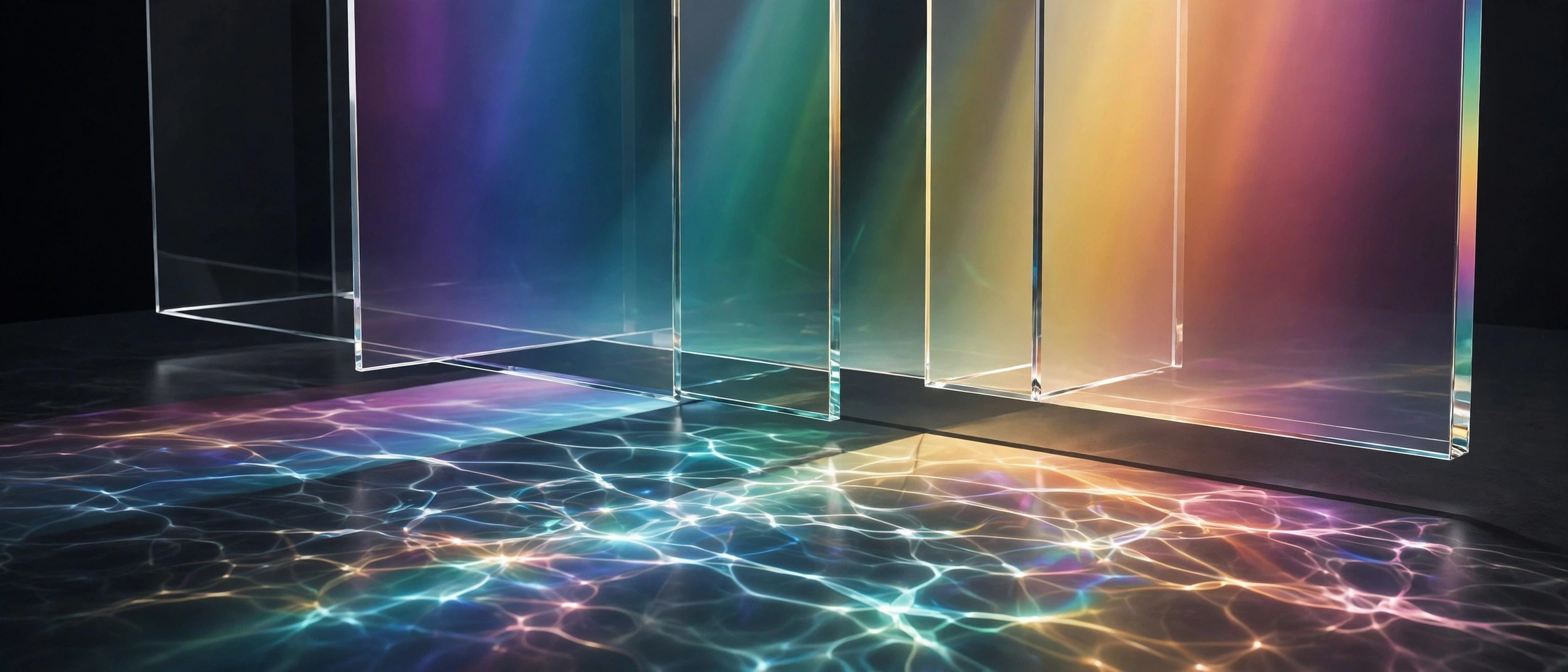
    AE Glass is a plugin for Adobe After Effects, sold through aescripts + aeplugins and made by SphereLab. Drop the effect onto a shape, a line of text, a logo or a mask, and that layer turns into convincing glass. The refraction is live, so the glass bends whatever sits behind it as your composition plays, and you can dial in frost, edge light and dispersion to taste. There are no displacement maps to build and no setup ritual.

    Key Features

    • Live refraction that bends the layers behind your glass in real time
    • Frost controls for clear, misted or heavily frosted glass looks
    • Edge light and dispersion for realistic glass borders and colour fringing
    • Works on shapes, text, logos, masks and layers via the adjustment layer switch
    • Native effect with no graphics card required, in 8 bit and 16 bit colour

    How to Download

    1. Use the download button on this page, or Download from the official site to open the product page.
    2. Get the plugin and install it with the aescripts + aeplugins manager app.
    3. Restart After Effects, apply AE Glass to a layer, and adjust the effect controls.

    System Requirements

    AE Glass needs Adobe After Effects 2025, 2026 or 2027 on macOS. It is a native effect plugin and needs no dedicated graphics card.

    FAQs

    Is AE Glass a standalone app?

    No. It is an effect plugin that lives inside Adobe After Effects, applied to layers in a composition like any other native effect.

    What can I turn into glass?

    Shapes, text, logos and masks all work, and the adjustment layer switch lets the effect work on many other sources too.

    How are updates and licences handled?

    Sales, licence keys and updates are handled through aescripts + aeplugins, and the manager app installs the plugin for you.


  • FotoMagico 6.11.0 for Mac

    FotoMagico 6.11.0 for Mac

    FotoMagico 6.11.0 for Mac

    FotoMagico 6.11.0 for Mac

    Mac Utilities
    Updated Aug 10, 2026
    Mac Utilities • Updated Aug 10, 2026

    FotoMagico from Boinx Software turns your photos and video clips into slideshows that feel like short films. You arrange images on a stage, add music and titles, and the app plays the result in full resolution without a long render. It suits photographers and families who want a travel story or event recap to look polished.

    Key Features

    • Build slideshows from photos, video clips, music and text on a visual stage
    • Play slideshows at once in full resolution with smooth pan and zoom animation
    • Add travel routes with the Map Assistant and chapters with ready made snippets
    • Record narration and lower music volume per slide when you present live
    • Share finished shows as video files or present them on Mac and iPad

    How to Download

    1. Use the download button on this page to get FotoMagico for your Mac.
    2. Open the file you saved and move the app into your Applications folder.
    3. You can also Download from the official site where Boinx lists the current release and its notes.

    System Requirements

    Recent FotoMagico 6 releases need macOS 14 or later and an Apple silicon or 64 bit Intel Mac. The same license also covers the companion iPad app.

    FAQs

    Is FotoMagico a video editor?

    Not in the usual sense. It focuses on slideshows, so you combine still photos with short clips, music and text. That narrower focus makes it faster to learn than a general video editor.

    Can I present a slideshow live?

    Yes. FotoMagico plays shows in full resolution without rendering first, and audio ducking on slides lets you speak over quieter music while you present.

    Does FotoMagico work on iPad too?

    Yes. FotoMagico runs on Mac and iPad, and projects can move between them through iCloud Drive, so you can start a show and present it from your iPad.

  • Aescripts RXXR 1.1.0 for Mac

    Aescripts RXXR 1.1.0 for Mac

    Aescripts RXXR 1.1.0 for Mac

    Aescripts RXXR 1.1.0 for Mac

    Mac Utilities
    Updated Aug 10, 2026
    Mac Utilities • Updated Aug 10, 2026

    RXXR is a plugin for Adobe After Effects on Mac, sold through aescripts. It is not a standalone app. It lives inside After Effects as an effect and rebuilds your footage as ASCII characters and chunky pixel patterns, giving clips a raw techno glitch look. Motion designers reach for it when a title or music visual needs that coded, terminal style energy.

    Key Features

    • Turns live footage into ASCII character art inside After Effects
    • Pixel based rendering modes for blocky digital glitch looks
    • Choice of character sets and fonts to shape the final texture
    • Controls for cell size, brightness response and colour behaviour
    • Animatable settings so the effect can flicker, grow and shift over time

    How to Download

    1. Use the download button on this page to get the RXXR package for Mac.
    2. Or Download from the official site through the aescripts product page.
    3. Install the plugin, restart After Effects and apply RXXR from the effects menu.

    System Requirements

    You need a Mac with Adobe After Effects installed, since RXXR runs only inside the host app. Check the aescripts product page for the exact After Effects versions supported by this release before you install it into a busy project machine.

    FAQs

    Is RXXR a standalone Mac app?

    No. RXXR is an After Effects plugin. You install it into After Effects and apply it to a layer, just like a built in effect.

    Can RXXR work on text and logos?

    Yes. It can process any layer you give it, including text, shapes and precompositions, which makes it popular for titles and logo treatments.

    Does the effect animate on its own?

    The look responds to your footage frame by frame, and you can keyframe its controls to push the glitch harder at chosen moments in the timeline.

  • Video Compressor ShrinkFile 2.12.0 for Mac

    Video Compressor ShrinkFile 2.12.0 for Mac

    Video Compressor ShrinkFile 2.12.0 for Mac

    Video Compressor ShrinkFile 2.12.0 for Mac

    Mac Utilities
    Updated Aug 10, 2026
    Mac Utilities • Updated Aug 10, 2026

    Video Compressor ShrinkFile is a small Mac app for shrinking video, image and audio files without sending them anywhere. Everything runs on your own machine, which suits phone clips and screen recordings that are too big to email or post.

    Key Features

    • Compresses MOV, MP4, M4V and MKV video while keeping the original codec where it can, including H.264, HEVC, VP9 and AV1
    • Smart bitrate control with an automatic mode or custom settings, plus adjustable output resolution up to 4K
    • Batch processing for video, image and audio files in a single run
    • Hardware acceleration through VideoToolbox, which keeps encoding quick on supported Mac hardware
    • All processing happens on your device with no internet connection required, so files never leave your Mac

    How to Download

    1. Click the download button on this page and save the app file to your Mac.
    2. You can also Download from the official site if you prefer the developer store listing.
    3. Open the app, add your first video, pick a size or bitrate setting and start the compression.

    System Requirements

    ShrinkFile needs macOS 14.0 or later and a Mac with an Apple M1 chip or later, per the current store listing. Keep some free space ready for your copies.

    FAQs

    Does ShrinkFile upload my videos to a server?

    No. Compression happens locally on your Mac and the app works without an internet connection, so your media stays on your own machine.

    Which file types can it handle?

    It covers MOV, MP4, M4V and MKV video, and it can also compress and convert image and audio files in batches.

    Will a smaller file look worse?

    It depends on the settings. Gentle settings keep quality close to the original, while very low bitrates trade more picture detail for a much smaller file.

  • Aescripts Amalgam 1.5.0 for Mac

    Aescripts Amalgam 1.5.0 for Mac

    Aescripts Amalgam 1.5.0 for Mac

    Aescripts Amalgam 1.5.0 for Mac

    Mac Utilities
    Updated Aug 10, 2026
    Mac Utilities • Updated Aug 10, 2026

    Amalgam is a plugin for Adobe After Effects, also sold through aescripts, that blends one shot into another so the join reads like a morph instead of a dissolve. It comes from Pixel Sorter Studio. Rather than fading opacity, it splits both images into frequency bands and blends each band through a mask, which hides seams and keeps detail sharp.

    Key Features

    • Blend a layer into a target layer with frequency based blending
    • Drive the reveal with brightness, a directional wipe or both
    • Control the blend with Transition, Smoothness and Pyramid Levels settings
    • Start from ready made presets and tune them to taste
    • Ships as an effect for After Effects plus a transition for Premiere Pro

    How to Download

    1. Use the download button on this page to get the Amalgam installer for your Mac.
    2. Quit After Effects, then install with the aescripts manager app or copy the plugin file to the MediaCore folder.
    3. You can also Download from the official site to get the plugin straight from Pixel Sorter Studio.

    System Requirements

    Amalgam needs Adobe After Effects on an Intel or Apple silicon Mac, or 64 bit Windows. It runs on the CPU and does not need a GPU.

    FAQs

    Is Amalgam a standalone app?

    No. Amalgam is a plugin that lives inside host apps, mainly Adobe After Effects on Mac. The same purchase also covers Premiere Pro, DaVinci Resolve and Nuke.

    How is it different from a cross dissolve?

    A dissolve fades one image out as the other fades in. Amalgam blends tones and detail in separate bands, so the change feels like one image turning into the next.

    What happens without a license?

    The plugin runs as a trial and draws a red X over the image. Adding your license key in the effect controls removes the mark.

  • DockFolders 1.0.2 for Mac

    DockFolders 1.0.2 for Mac

    DockFolders 1.0.2 for Mac

    DockFolders 1.0.2 for Mac

    Mac Utilities
    Updated Aug 10, 2026
    Mac Utilities • Updated Aug 10, 2026

    DockFolders is a small Mac utility for people whose Dock has grown into a long, crowded row. It lets you gather related apps and files into folders that sit in the Dock itself, so one click opens the group you need and everything else stays out of sight. It suits anyone who switches between clear sets of tools during the day, such as work apps and creative apps.

    Key Features

    • Create folders that group related apps together inside the Dock
    • Open a folder with one click and launch any item inside it
    • Keep rarely used apps close at hand without a crowded Dock
    • Organise groups by project, client or type of work
    • Leaves your apps and files where they are, grouping only the shortcuts

    How to Download

    1. Use the download button on this page to get the DockFolders installer for Mac.
    2. Open the downloaded file and move DockFolders into your Applications folder.
    3. Launch the app, build your first folder and add the apps you use most.

    System Requirements

    DockFolders runs on Mac and works with the standard macOS Dock. A recent macOS release is recommended, and the app itself is light enough for everyday use on modest hardware.

    FAQs

    Does DockFolders replace the macOS Dock?

    No. It works alongside the normal Dock and simply adds folder based grouping to it, so your usual way of launching apps stays familiar.

    Will grouping move my apps or files?

    No. Your apps stay in Applications and your files stay where they live. The folders hold shortcuts, so removing a folder never deletes the real items.

    Can I have more than one folder?

    Yes. Making several folders is the whole point, for example one for work, one for writing and one for games, each ready in the Dock.

  • Currency Assistant 3.7.1 for Mac

    Currency Assistant 3.7.1 for Mac

    Currency Assistant 3.7.1 for Mac

    Currency Assistant 3.7.1 for Mac

    Mac Utilities
    Updated Aug 10, 2026
    Mac Utilities • Updated Aug 10, 2026

    Currency Assistant from MaBaSoft is a flexible currency conversion calculator for Mac. It suits anyone who shops, invoices or travels across currencies. You can keep several converters open at once and record every result on the built in tape.

    Key Features

    • Converts between 173 world currencies, including the 21 Eurozone legacy currencies
    • Updates exchange rates from the European Central Bank, the International Monetary Fund and the Bank of Italy
    • Lets you create as many converter windows as you need, each holding up to 24 currencies with its own tape
    • Converts a pasted or imported series of amounts in one pass, and can convert the result of typed expressions
    • Logs, copies, saves, exports and prints your conversions for use in other apps

    How to Download

    1. Click the download button on this page and save the installer to your Mac.
    2. You can also Download from the official site to get the app straight from MaBaSoft.
    3. Open the file, move Currency Assistant into your Applications folder and launch it to set your base currency.

    System Requirements

    Version 3.7.1 requires macOS 12 or later and runs natively on both Apple silicon and Intel Macs. An internet connection is needed to refresh the exchange rates.

    FAQs

    Where do the exchange rates come from?

    Rates come from the European Central Bank, the International Monetary Fund and the Bank of Italy, and you can choose which source each currency uses.

    Can I convert many amounts at once?

    Yes. Paste a series of amounts into a converter or import them from a file, and the app converts them all and logs the results on the tape.

    Can I use it without an internet connection?

    You can keep converting with the rates already stored in the app. Fresh updates simply wait until you are back online.

  • Aescripts Glitch Control 1.1.2 for Mac

    Aescripts Glitch Control 1.1.2 for Mac

    Aescripts Glitch Control 1.1.2 for Mac

    Aescripts Glitch Control 1.1.2 for Mac

    Mac Utilities
    Updated Aug 10, 2026
    Mac Utilities • Updated Aug 10, 2026

    Glitch Control is a modular effect plugin for Adobe After Effects and Premiere Pro, sold through aescripts and made by MEGAKRUNCH. It builds classic glitch looks from separate parts that you can switch on, tune and stack, instead of forcing one fixed style on your footage. It is handy for music videos, titles and social clips.

    Key Features

    • Build glitch looks from modular parts you can enable and tune one by one
    • Shift and slice image blocks like a damaged video signal
    • Split and offset color channels for a strong broken screen mood
    • Add noise, scan lines and pixel breakup
    • Native effect inside After Effects and Premiere Pro

    How to Download

    1. Use the download button on this page to get Glitch Control for your Mac.
    2. Quit After Effects and Premiere Pro, then run the installer or use the aescripts manager app.
    3. You can also Download from the official site on aescripts and manage the license from your account.

    System Requirements

    Glitch Control needs Adobe After Effects or Premiere Pro on macOS or Windows. As a native effect plugin it follows the host app for memory and rendering, so a current Adobe release is best.

    FAQs

    Is Glitch Control a standalone app?

    No. It is an effect plugin, so you apply it to a layer or clip inside After Effects or Premiere Pro and adjust its controls in the effect panel of the host app.

    Can beginners get a good result quickly?

    Yes. Because the effect is modular, you can start with a light touch, such as small slices and a slight color split, then add more parts where the shot needs energy.

    Does it work in Premiere Pro as well?

    Yes. It works in both apps, so editors can add glitch moments during a normal edit without sending clips elsewhere.

  • Aescripts Hacksaw 1.1.2 for Mac

    Aescripts Hacksaw 1.1.2 for Mac

    Aescripts Hacksaw 1.1.2 for Mac

    Aescripts Hacksaw 1.1.2 for Mac

    Mac Utilities
    Updated Aug 10, 2026
    Mac Utilities • Updated Aug 10, 2026

    Hacksaw is a displacement plugin for Adobe After Effects and Premiere Pro on Mac, made by MEGAKRUNCH and sold through aescripts. It is not a standalone app. You apply it to a layer and it pushes the image around using randomly generated displacement patterns, turning clean footage into torn, shifted and glitchy visuals in seconds. Editors use it for music videos and trailers where a rough digital edge is the point.

    Key Features

    • Displacement effect driven by randomly generated pattern shapes
    • Fresh pattern at the press of a button for endless variations
    • Controls for pattern scale and displacement strength to fine tune the tear
    • Works on footage, text and graphics layers in your timeline
    • Runs inside both After Effects and Premiere Pro projects

    How to Download

    1. Use the download button on this page to get the Hacksaw package for Mac.
    2. Or Download from the official site through the aescripts product page.
    3. Install the plugin, restart your Adobe app and apply Hacksaw from the effects panel.

    System Requirements

    You need a Mac with Adobe After Effects or Premiere Pro installed, since Hacksaw runs only inside those apps. Check the aescripts page for the host versions this release supports.

    FAQs

    Is Hacksaw a standalone Mac app?

    No. Hacksaw is a plugin effect. It has no window of its own and works on layers inside After Effects or Premiere Pro timelines.

    Can I control how strong the distortion looks?

    Yes. Pattern scale and displacement strength controls let you move from a light wobble to a heavily torn image, and a new random pattern is always one click away.

    Does Hacksaw suit titles as well as footage?

    Yes. Because it processes whatever layer it sits on, it works on text and logo layers too, which makes broken title treatments quick to build.

  • DYMO Connect 1.6.4 for Mac

    DYMO Connect 1.6.4 for Mac

    DYMO Connect 1.6.4 for Mac

    DYMO Connect 1.6.4 for Mac

    Mac Utilities
    Updated Aug 10, 2026
    Mac Utilities • Updated Aug 10, 2026

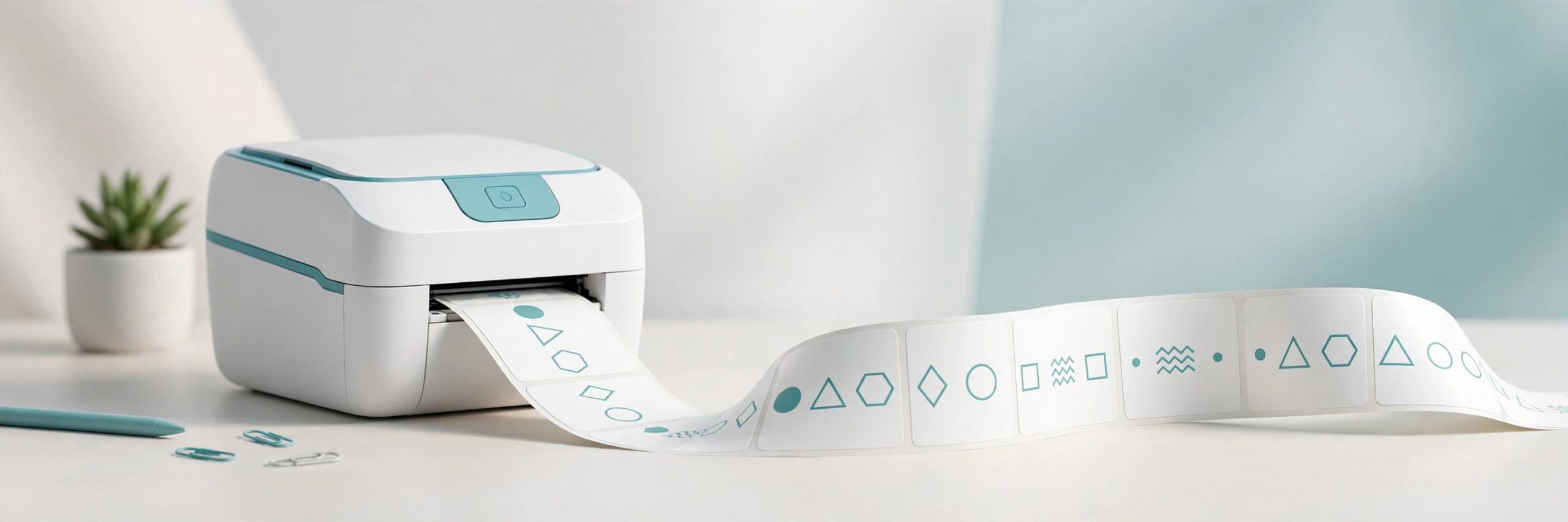
    DYMO Connect for Desktop is the official DYMO software for designing and printing labels on a Mac. If you run a LabelWriter or LabelManager printer, this is the app that drives it. You build a label from a template, drop in text, addresses, barcodes or images, and print in a few clicks.

    Key Features

    • Designs and prints labels on DYMO LabelWriter and LabelManager printers from one desktop app
    • Starts you off with ready made templates for address, shipping, file folder and badge labels
    • Adds barcodes, QR codes, images, shapes and counters to a label design
    • Pulls names and addresses from your contacts to fill mailing labels
    • Installs the Mac printer drivers plus the DYMO Web Service, which lets other programs print to your printer

    How to Download

    1. Click the download button on this page and save the Mac installer package.
    2. You can also Download from the official site through the DYMO Software Download Center.
    3. Run the installer with administrator rights, finish the setup, then connect your printer and print a test label.

    System Requirements

    The current DYMO download page lists DYMO Connect for Desktop 1.6.4 for macOS 14 or later. You also need a compatible DYMO label printer and an administrator account for the installation.

    FAQs

    Is DYMO Connect free?

    Yes. DYMO offers it as a free download from its own Software Download Center.

    Which printers need DYMO Connect?

    The LabelWriter 550 series and the LabelWriter 5XL require DYMO Connect. Many older LabelWriter and LabelManager models can use it as well.

    My printer does not appear after installing. What helps?

    Install the software before plugging the printer in, use an administrator account, then connect the printer and check whether the DYMO service is running from the menu bar icon.