Category: Mac Utilities

  • Time to Leave 4.0.0 for Mac

    Time to Leave 4.0.0 for Mac

    Time to Leave 4.0.0 for Mac

    Time to Leave 4.0.0 for Mac

    Mac Utilities
    Updated Aug 8, 2026
    Mac Utilities • Updated Aug 8, 2026

    Time to Leave is a small desktop app for tracking your working hours, with no spreadsheets and no complicated time system. You record when you start, when you take lunch and when you finish, and the app works out what time you should leave. It suits employees and freelancers who want a clear view of overtime and a gentle prompt to stop on time.

    Key Features

    • Log start, lunch and finish times in day or month view
    • Calculates your leaving time from the hours you work each day
    • Sends a notification when it is time to leave
    • Add waivers for holidays, sick days and other days away from work
    • Choose from light, dark and Cadent Star themes and set your own working days

    How to Download

    1. Use the download button on this page to get the Mac package.
    2. Download from the official site if you prefer to take the app straight from the project page.
    3. Open the file, move the app to Applications, and launch it to set your daily hours.

    System Requirements

    The app runs on Mac computers and keeps its data locally, with no database setup needed. Check About This Mac and the notes on the project download page if you are unsure about your system.

    FAQs

    Is Time to Leave free?

    Yes. The project describes itself as free and open source, and the code is published on GitHub for anyone to inspect.

    Does it track my activity in the background?

    No. You enter your own times for starting, breaks and finishing, and the app does the maths on those entries. It never watches your screen.

    Can it handle days when I do not work?

    Yes. Waivers let you record holidays, sick leave and other absences with a short reason, so your monthly balance stays accurate.

  • Path Finder 26.1.10 for Mac

    Path Finder 26.1.10 for Mac

    Path Finder 26.1.10 for Mac

    Path Finder 26.1.10 for Mac

    Mac Utilities
    Updated Aug 8, 2026
    Mac Utilities • Updated Aug 8, 2026

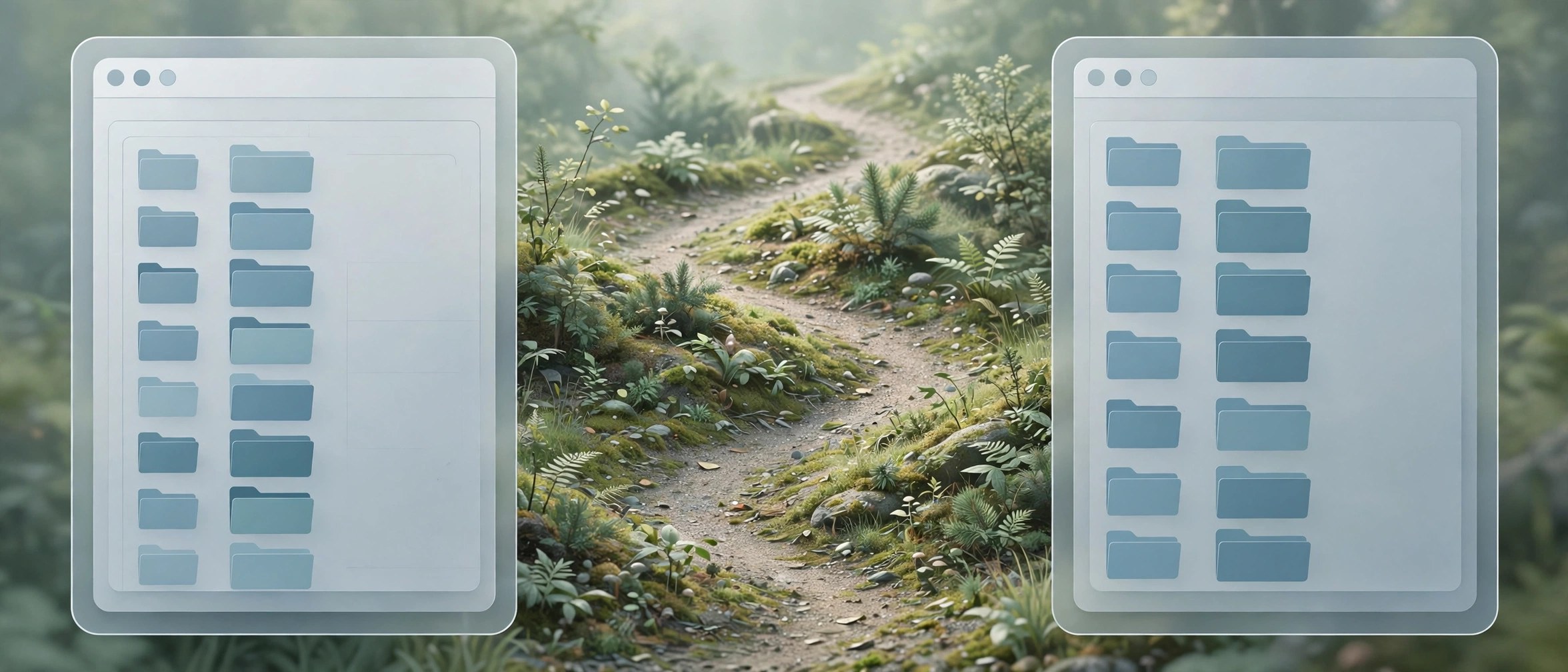
    Path Finder from Cocoatech is a full file manager for people who move, rename and organise large sets of files every day and want far more control than the standard Finder gives them. Photographers, developers and office users with busy folders will feel at home here.

    Key Features

    • Dual pane browsing lets you view two folders side by side and copy files between them quickly
    • Folder sync keeps two locations matched so backups and shared project folders stay up to date
    • Batch rename tools rename many files at once using clear rules you control
    • Modules for preview, info and a terminal sit inside the window and adapt to your workflow
    • Drop Stack holds files in a temporary pile while you gather items from different folders

    How to Download

    1. Use the download button on this page and save the installer file to your Mac
    2. Open the saved file and move Path Finder into your Applications folder
    3. For the vendor release, visit Download from the official site and follow the steps shown there

    System Requirements

    Path Finder runs on current Mac systems with Intel or Apple silicon processors. Check your macOS version under About This Mac before installing, and keep some free disk space ready for the app and its cache files.

    FAQs

    Does Path Finder replace the Finder completely?

    No. It works alongside the Finder, and you can open it only when you need its extra tools.

    Can I try Path Finder before buying?

    Cocoatech offers trial information on its own site, so check the current terms there before you commit.

    Does it work on Apple silicon Macs?

    Yes. Current builds run on Apple silicon Macs as well as Intel models, according to the vendor.

  • MeshLab 2025.07 for Mac

    MeshLab 2025.07 for Mac

    MeshLab 2025.07 for Mac

    MeshLab 2025.07 for Mac

    Mac Utilities
    Updated Aug 8, 2026
    Mac Utilities • Updated Aug 8, 2026

    MeshLab is a free tool for working with 3D triangular meshes on your Mac. It is built for cleaning, editing and converting mesh data from 3D scans and photogrammetry, rather than for drawing models from nothing. It suits researchers, makers and print enthusiasts who need to repair and inspect meshes before using them elsewhere.

    Key Features

    • Opens and saves many mesh formats, including PLY, OBJ, STL and 3MF files
    • Large filter library for cleaning, smoothing, filling holes and simplifying meshes
    • Aligns several scans and merges them into a single combined model
    • Measuring tools that report distances, volume and other mesh properties
    • Point cloud handling for raw scan data before it becomes a surface

    How to Download

    1. Download from the official site by going to the download section of the MeshLab site.
    2. Pick the macOS build that matches your Mac, Apple silicon or Intel.
    3. Open the downloaded file, place the app in Applications, and load a mesh to begin.

    System Requirements

    The 2025.07 release provides builds for Apple silicon and Intel Macs. Check your chip and macOS release in About This Mac, and leave plenty of free disk space, since scan meshes can be very large.

    FAQs

    Is MeshLab free to use?

    Yes. MeshLab is free and open source from the Visual Computing Lab in Italy, and its source code is public.

    Can I create a model from scratch in MeshLab?

    Not really. MeshLab is made for processing existing meshes and point clouds. Most people create or scan a model elsewhere, then use MeshLab to clean and convert it.

    Can MeshLab help with files for 3D printing?

    Yes. Its repair and export tools can fix common mesh faults and save formats such as STL that slicing software for printers can read.

  • Compositor 0.10.2 for Mac

    Compositor 0.10.2 for Mac

    Compositor 0.10.2 for Mac

    Compositor 0.10.2 for Mac

    Mac Utilities
    Updated Aug 8, 2026
    Mac Utilities • Updated Aug 8, 2026

    Compositor takes a different approach to LaTeX. Rather than writing code and compiling it to see the result, you type directly in the rendered document and watch the page update as you go. When you need precise control, a source editor sits one switch away. It suits students, researchers and writers who love what LaTeX produces but find the usual cycle slow and distracting.

    Key Features

    • Edit the rendered document directly and see changes at once as you type
    • Switch to a source editor with syntax highlighting and smart completions
    • Build formulas visually from a large catalogue of equation blocks
    • Ships with its own basic LaTeX distribution based on TeX Live, ready to use
    • Reads and writes plain text tex files, so your work stays compatible

    How to Download

    1. Use the download button on this page to get the Mac disk image.
    2. Download from the official site if you prefer the preview build from the developer.
    3. Open the disk image, drag the app into Applications, and launch it to start a new document.

    System Requirements

    Compositor requires macOS 12.0 or newer and runs on Intel Macs and Macs with Apple silicon. Everything needed to typeset is included, so no separate LaTeX install is required.

    FAQs

    Do I need to install TeX Live separately?

    No. It includes a basic LaTeX distribution of its own and can fetch packages your documents reference when they are missing.

    Can I open documents I wrote in other LaTeX editors?

    Yes. It works with plain text tex files, so documents created elsewhere open and edit fine, and your files stay usable in other tools.

    Is Compositor finished software?

    It is offered as a free preview that is still evolving. Core editing works today, but some document classes and packages have limits, listed openly on the site.

  • WARP by Cloudflare 2026.8.2115.0 for Mac

    WARP by Cloudflare 2026.8.2115.0 for Mac

    WARP by Cloudflare 2026.8.2115.0 for Mac

    WARP by Cloudflare 2026.8.2115.0 for Mac

    Mac Utilities
    Updated Aug 8, 2026
    Mac Utilities • Updated Aug 8, 2026

    WARP by Cloudflare is a consumer app that sends your internet traffic through an encrypted tunnel to the Cloudflare network. It suits Mac owners who use shared or public networks often and want a calmer, more private connection without learning complex network settings first.

    Key Features

    • Encrypted tunnel protects traffic between your Mac and the Cloudflare network with one simple switch
    • Built on the WireGuard protocol for a fast connection that sips battery and stays stable
    • Uses the 1.1.1.1 resolver so site requests can resolve quickly and stay private
    • Simple menu bar controls let you pause, resume and check connection status in seconds
    • Optional WARP Plus routing can improve speed on busy routes when you hold a valid plan

    How to Download

    1. Use the download button on this page and save the Mac installer package to your Mac
    2. Open the package, follow the installer prompts and allow the network extension when macOS asks
    3. For the vendor build, use Download from the official site and pick the macOS download shown there

    System Requirements

    Cloudflare lists macOS Sequoia 15.1 or later for the current client, including Tahoe 26 and Golden Gate 27, on Intel or M series Macs with at least 8 GB of memory and about 1 GiB of free disk space.

    FAQs

    Is WARP a full VPN for changing my location?

    No. WARP focuses on speed and privacy. It is not designed to make you appear in another country.

    Is the basic WARP service free to use?

    Cloudflare offers a free tier, and WARP Plus is an optional paid upgrade with faster routing.

    Will WARP slow my Mac down?

    Most users notice little change. Speed depends on your network, distance and current local congestion.

  • Puffin Secure Browser for Mac

    Puffin Secure Browser for Mac

    Puffin Secure Browser for Mac

    Puffin Secure Browser for Mac

    Mac Utilities
    Updated Aug 8, 2026
    Mac Utilities • Updated Aug 8, 2026

    Puffin Secure Browser takes a different route from a normal Mac browser. Pages are loaded on CloudMosa servers and the result is streamed to the app on your Mac, so the heavy work happens away from your machine. It suits people with an older Mac, and anyone who likes the extra layer remote browsing puts between websites and their computer.

    Key Features

    • Remote rendering, where company servers load pages and stream them to your Mac
    • Encrypted traffic between the app and the Puffin servers while you browse
    • Isolation, since page code runs on the server rather than on your machine
    • Light demands on your Mac, which helps older hardware feel responsive
    • Desktop style controls with mouse and keyboard support for web apps and games

    How to Download

    1. Download from the official site and choose the desktop option for Mac.
    2. Open the downloaded file and follow the install steps shown on screen.
    3. Launch the browser and complete any account or plan steps the app presents.

    System Requirements

    Because pages load on remote servers, a steady internet connection matters more than power on your Mac. Check your macOS release in About This Mac before installing.

    FAQs

    How is Puffin different from Safari or Chrome?

    Those browsers load and run pages on your Mac. Puffin loads pages on CloudMosa servers and sends the display to you.

    Is Puffin Secure Browser free?

    CloudMosa has sold the desktop version with a subscription after trial periods in the past. Check the current terms on the official site before you commit to a plan.

    Does Puffin work without an internet connection?

    No. The browser depends on its servers to load every page, so it cannot browse at all while your Mac is offline.

  • Hide Icons 2.27 for Mac

    Hide Icons 2.27 for Mac

    Hide Icons 2.27 for Mac

    Hide Icons 2.27 for Mac

    Mac Utilities
    Updated Aug 8, 2026
    Mac Utilities • Updated Aug 8, 2026

    Hide Icons does one small job well. It hides every icon on your Desktop so the wallpaper shows clean, which is ideal before a presentation, a screen share or a screenshot. Nothing is moved or deleted. The app places a picture of your empty Desktop over the real one, so files stay exactly where they were. It suits anyone whose Desktop gathers clutter.

    Key Features

    • Hide or show all Desktop icons from the menu bar in one click
    • Works across multiple displays and Spaces at once
    • Control it through macOS Services with a changeable keyboard shortcut
    • Set a custom solid colour wallpaper or keep your real wallpaper
    • Refresh the Desktop view on a timer as your wallpaper changes

    How to Download

    1. Use the download button on this page to get the app.
    2. Download from the official site if you prefer the developer page from Parker Software.
    3. Move the app to Applications, launch it, and use the menu bar item to hide your icons.

    System Requirements

    The developer says the app supports macOS 10.13 or later, up through recent releases. It is a small Swift app with modest needs and can be added as a login item.

    FAQs

    Does Hide Icons delete or move my files?

    No. Your files never leave the Desktop folder. The app covers the Desktop with an image taken without the icons, and removing the cover restores the normal view.

    Can I still open files while the icons are hidden?

    Yes. Open Finder and go to the Desktop folder. Everything is there and works as usual while the Desktop looks empty.

    What happens when I switch Spaces?

    The app learns which Desktop belongs to which Space as you visit each one. If the wrong picture appears, Force Desktop refresh in the menu sorts it out.

  • Exposure Bundle 7.3.2 for Mac

    Exposure Bundle 7.3.2 for Mac

    Exposure Bundle 7.3.2 for Mac

    Exposure Bundle 7.3.2 for Mac

    Mac Utilities
    Updated Aug 8, 2026
    Mac Utilities • Updated Aug 8, 2026

    The Exposure Bundle from Exposure Software brings three tools together for photographers who want editing, enlarging and artistic effects in one place. The main app, Exposure X7, handles RAW editing and organising without a catalog, while Blow Up and Snap Art cover print enlargements and natural media looks.

    Key Features

    • Exposure X7 edits RAW files without changing originals and organises photos without any catalog import step
    • Hundreds of film based presets give portraits, landscapes and street shots a warm analog feel fast
    • Layers and masking tools let you apply effects to chosen areas and blend them with care
    • Blow Up enlarges images for large prints while keeping edges clean and detail believable
    • Snap Art turns photos into paintings and sketches that mimic real brush and pencil work

    How to Download

    1. Use the download button on this page and save the bundle installer to your Mac
    2. Open the installer and follow the prompts to install the apps and any plug in components
    3. For the vendor trial, go to Download from the official site and choose the bundle option

    System Requirements

    The vendor lists macOS 10.13 High Sierra or newer, an Apple M1 or Intel Core 2 processor or newer, and at least 8 GB of memory, with 16 GB recommended for smooth editing of large RAW files.

    FAQs

    Does Exposure need a photo catalog?

    No. You simply point the app at your existing folders and start editing right away.

    Can the bundle work inside Photoshop and Lightroom?

    Yes. The bundle includes plug in versions for supported Adobe Photoshop and Lightroom editions.

    Is a subscription required to keep using it?

    The vendor sells the bundle without a subscription, and its site lists a trial so you can test it first.

  • Pascal Free Ruler 2.0.19 for Mac

    Pascal Free Ruler 2.0.19 for Mac

    Pascal Free Ruler 2.0.19 for Mac

    Pascal Free Ruler 2.0.19 for Mac

    Mac Utilities
    Updated Aug 8, 2026
    Mac Utilities • Updated Aug 8, 2026

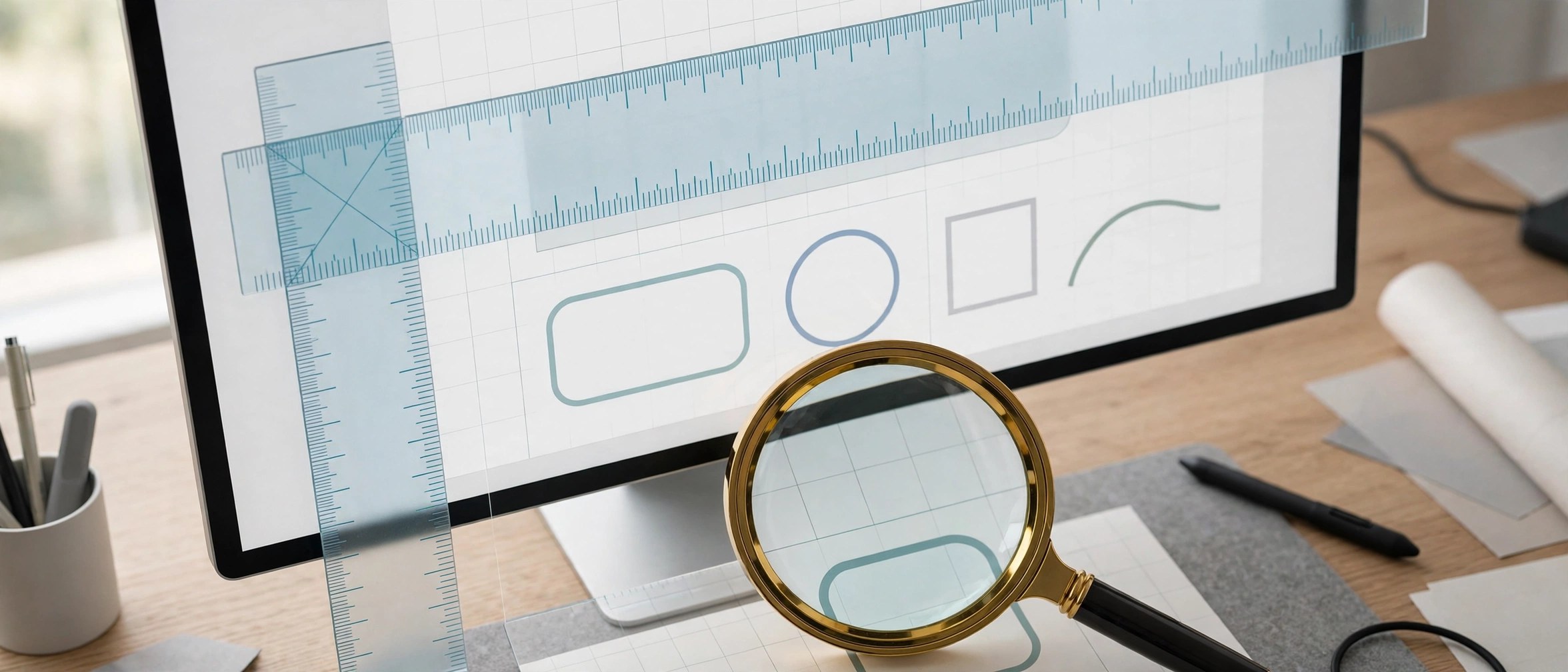
    Pascal Free Ruler puts simple rulers on your Mac screen so you can measure windows, images and layouts without guessing. The rulers float above your other apps and report sizes in pixels, millimeters or inches. It suits designers, developers and anyone checking spacing or dimensions while they work.

    Key Features

    • Horizontal and vertical rulers that sit on top of your screen content
    • Measures in pixels, millimeters or inches, with a key press to switch units
    • Rulers can float above other applications or drop behind them
    • Move rulers on their own or grouped together in a single window
    • Drag the end of a ruler to resize it, and align it at the mouse position

    How to Download

    1. Download from the official site and use the download link on the Free Ruler page.
    2. Open the downloaded file and move the app into your Applications folder.
    3. Launch the app and position the rulers over whatever you want to measure.

    System Requirements

    The developer states that Free Ruler requires macOS Sonoma or later, with older builds on the releases page for earlier systems. Check your macOS release in About This Mac. The app is small and needs little disk space.

    FAQs

    Is Free Ruler really free?

    Yes. It is free and open source, and the developer welcomes donations. Direct downloads are signed and notarized, as the official page explains.

    How do I change the measurement units?

    Press the U key to cycle between pixels, millimeters and inches. Other actions also have keys, such as F to toggle floating and G to group the rulers.

    Can the rulers stay above my design app?

    Yes. Floating is a core part of the app. Toggle it with the F key and the rulers remain visible above other windows while you measure your layout.

  • KDE RKWard 0.8.3 for Mac

    KDE RKWard 0.8.3 for Mac

    KDE RKWard for Mac

    KDE RKWard 0.8.3 for Mac

    Mac Utilities
    Updated Aug 8, 2026
    Mac Utilities • Updated Aug 8, 2026

    RKWard gives the R language a proper graphical home. R itself is powerful for statistics and graphics, but it expects you to type commands. RKWard wraps it in menus, dialogs and a workspace browser, so common analysis work can be done by pointing and clicking while the underlying R code stays visible. It suits students, researchers and analysts who want the strength of R without living on the command line.

    Key Features

    • Run common statistical tests and plots through guided dialogs
    • Browse data frames and other R objects in a clear workspace view
    • Edit R scripts with syntax highlighting and run code step by step
    • See results, plots and help pages in organised output windows
    • Extend the app with plugins, including dialogs built by the community

    How to Download

    1. Use the download button on this page to get the Mac build.
    2. Download from the official site for the KDE project pages and install notes.
    3. Install R first if your Mac lacks it, then open RKWard and load your data.

    System Requirements

    RKWard is a front end, so a working install of R is required alongside it. Needs are otherwise modest. Check About This Mac if unsure, and follow the Mac notes on the project site.

    FAQs

    Is RKWard the same thing as R?

    No. R is the language and engine that does the computing. RKWard is the friendly window around it and sends your choices to R as ordinary code.

    Do I need to know R code to use it?

    Not for routine work. Many tests and plots have dialogs that build the code for you, though a little R helps with custom analysis.

    Is RKWard free?

    Yes. It is open source software from the KDE community, released under the GNU General Public License, for study and research use.