Category: Mac Utilities

  • SwitchHosts 5.0.3 for Mac

    SwitchHosts 5.0.3 for Mac

    SwitchHosts 5.0.3 for Mac

    SwitchHosts 5.0.3 for Mac

    Mac Utilities
    Updated Aug 8, 2026
    Mac Utilities • Updated Aug 8, 2026

    SwitchHosts is a free open source app for managing the hosts file on your Mac. Instead of editing a plain text system file by hand, you keep several named hosts profiles and switch between them with a click. It suits web developers, testers and support staff who move between live, staging and local environments.

    Key Features

    • Create and edit multiple hosts profiles in one tidy window
    • Switch the active profile instantly without reopening system files
    • Organise profiles into groups and folders for different projects
    • Import entries from a remote hosts address and keep them updated
    • Back up and restore your hosts data before making big changes

    How to Download

    1. Use the download button on this page to get the Mac build.
    2. Download from the official site if you prefer the latest release from the project repository.
    3. Open the downloaded file, move SwitchHosts into Applications, and approve the admin prompt when you first apply a profile.

    System Requirements

    SwitchHosts runs on modern Macs with either Apple silicon or Intel chips. Check your macOS version under About This Mac, and note that changing the hosts file always needs your admin password.

    FAQs

    Why does SwitchHosts ask for my password?

    The hosts file belongs to the system, so macOS requires admin approval before any app can change it. The prompt appears when a profile is applied.

    Will switching profiles break my internet?

    Normal browsing keeps working. Entries you add only affect the names you list, and you can switch back to the default profile at any time.

    Is SwitchHosts free?

    Yes. It is open source software, and the Mac version can be downloaded and used at no cost.

  • Logi Tune for Mac

    Logi Tune for Mac

    Logi Tune for Mac

    Logi Tune for Mac

    Mac Utilities
    Updated Aug 8, 2026
    Mac Utilities • Updated Aug 8, 2026

    Logi Tune is the Logitech app for people who spend their day on calls. It gathers controls for supported Logitech headsets, webcams and docks into one small window beside your meeting apps. You can shape how you sound, frame how you look and keep device firmware current without digging through system settings. It suits remote workers, teachers and anyone who presents online from a Mac.

    Key Features

    • Adjust headset equaliser and sidetone so your voice sounds natural on calls
    • Frame webcam shots with zoom and field of view controls on supported cameras
    • See meeting alerts and join upcoming calls from the app calendar view
    • Download and install firmware updates for connected Logitech devices
    • Works as a small companion window that stays out of the way during calls

    How to Download

    1. Use the download button on this page to get the Mac installer.
    2. Download from the official site for the Logitech download page for desktop.
    3. Run the installer, open the app, and connect your headset or webcam.

    System Requirements

    Logi Tune needs a Mac and at least one supported Logitech device, such as a Zone headset or a supported webcam. Check About This Mac for your system version and the Logitech page for supported models.

    FAQs

    Is Logi Tune free?

    Yes. Logitech provides the desktop app at no cost for owners of supported devices, and the mobile companion is free too.

    What is the difference between Logi Tune and Logi Options+?

    Logi Tune focuses on headsets, webcams and meeting life, while Options+ focuses on mice and keyboards. Some newer models appear in both apps.

    Can I use Logi Tune without a Logitech device?

    It installs on its own, but its controls only matter with a supported device connected. Without one there is nothing to adjust or update.

  • Scratch Desktop for Mac

    Scratch Desktop for Mac

    Scratch Desktop for Mac

    Scratch Desktop for Mac

    Mac Utilities
    Updated Aug 8, 2026
    Mac Utilities • Updated Aug 8, 2026

    Scratch Desktop is the offline editor from the Scratch team at MIT, built around colourful coding blocks that snap together like puzzle pieces. It suits children, beginners and teachers who want to create games, stories and animations on a Mac without needing a live internet connection.

    Key Features

    • Drag and drop coding blocks teach logic, loops and events without typing complex syntax
    • Full offline editing lets projects continue in classrooms, on trips and anywhere without Wi Fi
    • Built in sprites, backdrops and sounds give new creators plenty to build with right away
    • Paint and sound editors inside the app let users draw characters and record their own audio
    • Projects save as local files that can later be shared to the online Scratch community

    How to Download

    1. Use the download button on this page and save the Mac installer file to your computer
    2. Open the saved file and drag the Scratch app into your Applications folder
    3. For the vendor copy, go to Download from the official site and choose the macOS option there

    System Requirements

    Scratch Desktop is a light app made for typical home and school Macs. Check the current macOS needs on the vendor download page before installing, and keep some free space ready for saved projects.

    FAQs

    Is Scratch Desktop free to use?

    Yes. Scratch is free, and no account is needed to create projects with the desktop editor.

    Can I use it without the internet?

    Yes. Creating and running projects works offline. You only need a connection to share or download extras.

    What age group is Scratch made for?

    Scratch was designed mainly for young people aged 8 to 16, though beginners of any age enjoy it.

  • Emby Server 4.10.2.0 for Mac

    Emby Server 4.10.2.0 for Mac

    Emby Server 4.10.2.0 for Mac

    Emby Server 4.10.2.0 for Mac

    Mac Utilities
    Updated Aug 8, 2026
    Mac Utilities • Updated Aug 8, 2026

    Emby Server turns your Mac into a home media server for your own collection. It organises films, TV shows, music and photos into a neat library with artwork and details, then streams everything to your other devices. It suits anyone who keeps a personal media library and wants it playable on the TV, phone or tablet.

    Key Features

    • Automatic library organisation with posters, artwork and episode details
    • Streaming to smart TVs, phones, tablets and web browsers
    • Live TV and DVR support when paired with a compatible tuner
    • Parental controls and separate user profiles for the household
    • Conversion of media into formats each device can play smoothly

    How to Download

    1. Use the download button on this page to get the Mac server package.
    2. Download from the official site if you want the current Mac build and setup notes from Emby.
    3. Install the server, open the startup wizard in your browser, and point it at your media folders.

    System Requirements

    You need a Mac that stays switched on while you stream, plus enough storage for your media library. Check your macOS version under About This Mac and keep the server updated for the best device support.

    FAQs

    Is Emby Server free?

    The server and basic streaming are free. An optional Emby Premiere subscription adds extras such as downloads to mobile devices and some live TV features.

    Does Emby provide films or shows?

    No. Emby only organises and streams media you already own and store on your own drives. It does not supply any content itself.

    Can family members have their own profiles?

    Yes. You can create separate users with their own libraries, viewing history and parental control settings on the same server.

  • Rnote 0.14.2 for Mac

    Rnote 0.14.2 for Mac

    Rnote 0.14.2 for Mac

    Rnote 0.14.2 for Mac

    Mac Utilities
    Updated Aug 8, 2026
    Mac Utilities • Updated Aug 8, 2026

    Rnote is a free and open source vector drawing app built for handwritten notes, quick sketches and marking up documents and pictures. It suits students, teachers and anyone who writes with a stylus or drawing tablet and wants notes that stay sharp at any zoom level.

    Key Features

    • Pressure sensitive stylus input with configurable stroke styles for natural handwriting
    • Infinite canvas plus fixed page and continuous layouts for different kinds of notes
    • Import PDF files and pictures, then write and draw directly over the pages
    • Shape, selection and typewriter tools for tidy diagrams and typed notes
    • Export pages or selections to SVG, PDF and Xopp formats for easy sharing

    How to Download

    1. Use the download button on this page to get the Mac build of Rnote.
    2. You can also Download from the official site and pick the Mac app bundle there.
    3. Open the downloaded file, move Rnote into Applications and launch it.

    System Requirements

    Rnote runs on current Mac hardware with a recent version of macOS. You can check your system version under About This Mac in the Apple menu before installing.

    FAQs

    Is Rnote free to use?

    Yes. Rnote is free software released under an open license, and the complete app is available without payment, accounts or trials.

    Can I annotate PDF documents in Rnote?

    Yes. Import a PDF, write or draw over its pages with the pen tools, and export the marked copy when you finish.

    Do I need a drawing tablet to use Rnote?

    A tablet or stylus gives the most natural handwriting feel, but you can also draw, type and arrange notes with a mouse and keyboard.

  • TomatoBar 3.6.1 for Mac

    TomatoBar 3.6.1 for Mac

    TomatoBar 3.6.1 for Mac

    TomatoBar 3.6.1 for Mac

    Mac Utilities
    Updated Aug 8, 2026
    Mac Utilities • Updated Aug 8, 2026

    TomatoBar is a small open source Pomodoro timer that lives quietly in the macOS menu bar. It suits students, writers and developers who work in focused bursts, want clear break reminders, and prefer a tool that does one job well instead of tracking their whole life.

    Key Features

    • Configurable work and rest intervals let you match classic Pomodoro timing or your own rhythm
    • Menu bar countdown stays visible at a glance without covering the app you are working in
    • Optional sounds and discreet notifications mark the end of each interval without startling you
    • A global hotkey starts and stops the timer from any app with one quick press
    • Event log in JSON format records timer changes if you like reviewing your focus patterns later

    How to Download

    1. Use the download button on this page and save the app archive to your Mac
    2. Open the archive and move TomatoBar into your Applications folder, then launch it once
    3. For the project release, visit Download from the official site and take the latest release file

    System Requirements

    Current TomatoBar releases need macOS Big Sur or later, since older systems and Touch Bar support sit in versions before 3.0 according to the project notes. The app itself is tiny and light on resources.

    FAQs

    Is TomatoBar free?

    Yes. It is free and open source under the MIT license, published through the project page on GitHub.

    Does it need an account or cloud sync?

    No. The timer runs locally on your Mac and asks for no sign in at all.

    Can other tools read its timer events?

    Yes. The app writes a JSON event log, and it also responds to its own URL scheme for control.

  • Flock 2.2.513 for Mac

    Flock 2.2.513 for Mac

    Flock 2.2.513 for Mac

    Flock 2.2.513 for Mac

    Mac Utilities
    Updated Aug 8, 2026
    Mac Utilities • Updated Aug 8, 2026

    Flock is a team communication app that gathers chat, channels, calls and shared files into one desktop window. Rather than scattering talk across email threads, your team keeps each project in its own channel and finds past decisions with search. It suits small businesses, remote teams and community groups working from Macs.

    Key Features

    • Direct messages and group channels for every team and project
    • Video and audio calls with screen sharing from the desktop app
    • File sharing with searchable message history across conversations
    • Shared to do lists, reminders and polls inside your chats
    • Connections to popular work tools through the Flock app store

    How to Download

    1. Use the download button on this page to get the Mac installer.
    2. Download from the official site if you prefer to fetch the current desktop build from Flock itself.
    3. Run the installer, sign in with your team account, and pick the workspace you want to open.

    System Requirements

    Flock needs a Mac running a recent version of macOS and an internet connection for messaging and calls. Check your system version under About This Mac before installing, and keep the app updated from within its settings.

    FAQs

    Is Flock free to use?

    Flock offers a free plan for basic team messaging. Paid plans add more message history, storage and admin controls for larger teams.

    Can I use Flock on my phone as well?

    Yes. Alongside the Mac app there are mobile apps and a web version, and your conversations stay in sync between them.

    Does Flock replace email completely?

    For day to day team talk it often does, since quick questions and file sharing happen in chat. Most teams still keep email for outside contacts.

  • Grisbi Finance Manager 3.92.0 for Mac

    Grisbi Finance Manager 3.92.0 for Mac

    Grisbi Finance Manager 3.92.0 for Mac

    Grisbi Finance Manager 3.92.0 for Mac

    Mac Utilities
    Updated Aug 8, 2026
    Mac Utilities • Updated Aug 8, 2026

    Grisbi is a personal accounting application that helps you follow your money day by day without handing your data to a cloud service. It suits home users, freelancers and small associations who want careful records of accounts, income and spending in one calm desktop program.

    Key Features

    • Manage several accounts, currencies and users inside a single file
    • Organise transactions with payees, categories and budget lines
    • Plan ahead with scheduled transactions for bills and regular income
    • Build reports and summaries to see where money goes each month
    • Import and export QIF, OFX and CSV files to move data between apps

    How to Download

    1. Use the download button on this page to get the Mac version of Grisbi.
    2. You can also Download from the official site and choose the macOS package there.
    3. Open the downloaded file and follow the steps to place Grisbi in Applications.

    System Requirements

    Grisbi is a light desktop app that runs on modern Mac computers. Check your macOS version under About This Mac in the Apple menu if you are unsure about your system.

    FAQs

    Is Grisbi free?

    Yes. Grisbi is open source software released under the GPL, so you can download and use it without paying or creating an account.

    Does Grisbi store my finances online?

    No. Your accounts live in a file on your own Mac, and the app works offline. Keep your own backups of that file for safety.

    Can Grisbi import data from my bank?

    In most cases yes, as long as your bank lets you export statements as QIF, OFX or CSV files that Grisbi can read.

  • Epson Remote Printer Driver 1.2.6.4 for Mac

    Epson Remote Printer Driver 1.2.6.4 for Mac

    Epson Remote Printer Driver 1.2.6.4 for Mac

    Epson Remote Printer Driver 1.2.6.4 for Mac

    Mac Utilities
    Updated Aug 8, 2026
    Mac Utilities • Updated Aug 8, 2026

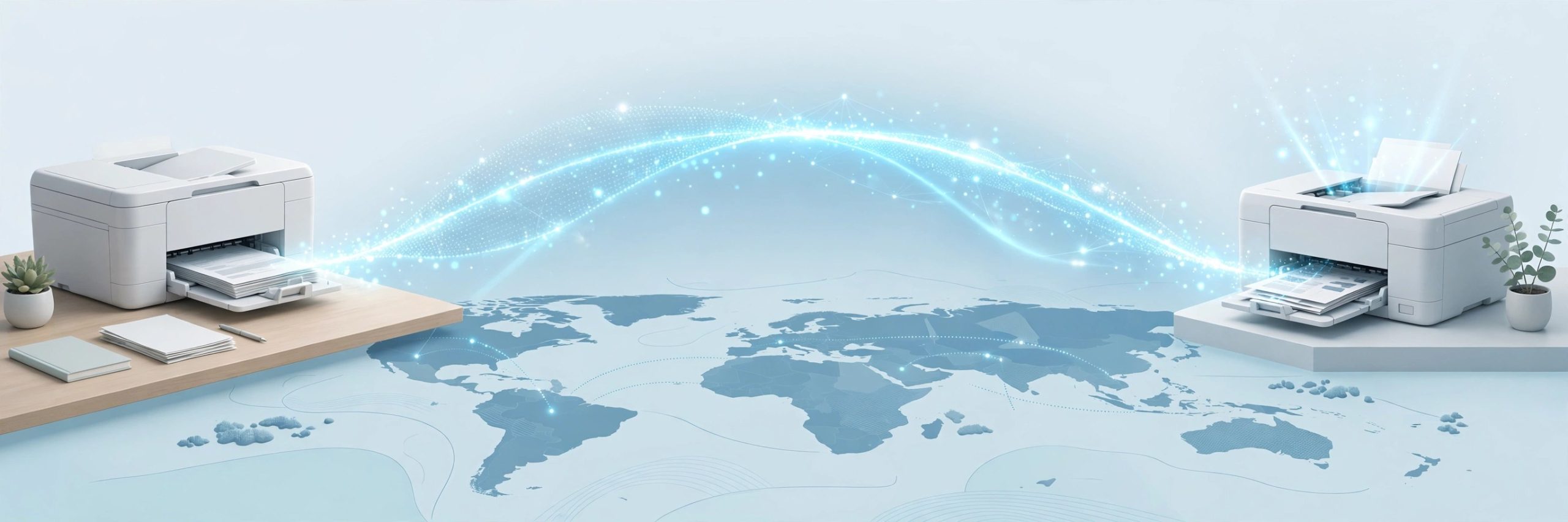
    Epson Remote Printer Driver lets your Mac print to an Epson printer that sits somewhere else, perhaps at home while you work from another town. It suits people who share a printer across two places, small teams, and families who like documents waiting on the tray when they return.

    Key Features

    • Prints to an Epson Connect printer over the internet from almost any Mac app
    • Works through the normal Mac print dialog like a local printer
    • Adds the remote printer by name so you can pick it when printing
    • Handles everyday documents and photos in common file formats
    • Lets you review basic print settings before a job is sent

    How to Download

    1. Use the download button on this page to get the driver installer for your Mac.
    2. Open the downloaded file and follow the setup prompts until the install finishes.
    3. Register the printer with Epson Connect, add it in the setup tool, and select it to print.

    System Requirements

    Your Mac needs an internet connection and a macOS version your Epson model supports, which you can confirm in About This Mac. The printer must be on, online, and registered with Epson Connect before remote jobs reach it.

    FAQs

    Does this driver work with every Epson printer?

    No. It works with Epson models that support Epson Connect and Remote Print. Check your model support page on the Epson site if you are unsure.

    Do I need to be on the same network as the printer?

    No, and that is the point of this driver. Your Mac and the printer each need an internet connection, and the printer must be registered first.

    Why does my remote printer not appear when I print?

    Check that the printer is on and online, then confirm its Epson Connect registration.

  • Geph 5.9.1 for Mac

    Geph 5.9.1 for Mac

    Geph 5.9.1 for Mac

    Geph 5.9.1 for Mac

    Mac Utilities
    Updated Aug 8, 2026
    Mac Utilities • Updated Aug 8, 2026

    Geph is a privacy focused connection tool from Gephyra that helps you reach the open Internet when networks are filtered or blocked. Unlike an ordinary VPN, it was designed from the start to stay resilient against strong censorship systems. It suits travellers, journalists and everyday Mac users on restricted networks.

    Key Features

    • Routing designed to resist blocking by networks and national filters
    • Open source software whose full code can be inspected by anyone
    • Zero knowledge authentication that separates your identity from your activity
    • Free tier for everyday browsing, with a paid Plus option for more speed
    • Matching apps for phones and other computers, all under one account

    How to Download

    1. Use the download button on this page to get the Mac build.
    2. Download from the official site if you want the current release and guidance straight from Gephyra.
    3. Install the app, create your account, and press connect to start browsing through Geph.

    System Requirements

    You need a Mac running a recent version of macOS and an internet connection to sign in and connect. Check your system under About This Mac, and update Geph when new builds appear for the latest blocking resistance.

    FAQs

    How is Geph different from a normal VPN?

    Geph focuses on getting through heavy filtering rather than offering long lists of exit countries. That design goal shapes how it routes and disguises traffic.

    Does Geph log my browsing?

    Gephyra states that Geph uses zero knowledge authentication, so your account cannot be linked to your browsing activity by design.

    Is Geph free?

    There is a free tier with modest speeds for everyday use. The optional Plus plan raises speeds and gives access to more servers.