Category: Mac Utilities

  • Tapeify 1.0.1 for Mac

    Tapeify 1.0.1 for Mac

    Tapeify 1.0.1 for Mac

    Tapeify 1.0.1 for Mac

    Mac Utilities
    Updated Aug 13, 2026
    Mac Utilities • Updated Aug 13, 2026

    Clean digital footage often looks too clean. For music videos, titles and retro edits, designers still reach for the worn look of old videotape, with its soft colour bleed, tracking lines and restless noise. Tapeify, sold through aescripts for After Effects, packages that character into a dedicated tool instead of a stack of hand built layers.

    Key Features

    • Applies a vintage videotape treatment to footage, text and graphics
    • Tracking lines and tape noise for an authentic worn playback feel
    • Colour bleed and softness controls that mimic ageing tape stock
    • Adjustable intensity so the look can stay subtle or go fully degraded
    • Works within the normal After Effects panel and effects workflow

    How to Download

    1. Use the download button on this page to get the installer package for your Mac.
    2. Run the installer or follow the included steps, which usually involve the aescripts manager app.
    3. Open After Effects, apply Tapeify to a layer, and shape the effect from its controls.

    System Requirements

    Tapeify runs inside Adobe After Effects on macOS, so a current After Effects installation is required. Apple Silicon Macs with more memory preview heavy compositions more smoothly.

    FAQs

    What kind of projects suit Tapeify?

    Anything aiming at a retro mood, such as music videos, social clips, horror titles or nostalgic montages. A light setting also adds texture to clean footage.

    Can I control how strong the effect is?

    Yes. The individual controls let you balance noise, tracking and colour effects, so the result can range from a gentle hint of tape to a badly worn cassette rescued from a drawer.

    Does Tapeify work on text and shape layers?

    Yes. Like other After Effects effects, it can be applied to footage, text, solids and adjustment layers, which makes it easy to treat a whole composition or just one element.


  • HextEdit 1.1 for Mac

    HextEdit 1.1 for Mac

    HextEdit 1.1 for Mac

    HextEdit 1.1 for Mac

    Mac Utilities
    Updated Aug 13, 2026
    Mac Utilities • Updated Aug 13, 2026

    HextEdit is a native hex editor for macOS, built for anyone who needs to look inside a file at the byte level. Open any file and you see its raw bytes beside their text form, ready to inspect or change. Developers use it to patch executables, check file headers and hunt down data problems a text editor cannot show. It stays quick even with big files.

    Key Features

    • View and edit the raw bytes of any file in hexadecimal and text form
    • Byte inspector shows values as integers, floats and doubles in either byte order
    • Displays values in binary, decimal and hexadecimal for quick checks while you work
    • Fast search that finds byte patterns quickly, even inside large files
    • Native Swift app that runs on both Apple Silicon and Intel Macs with low overhead

    How to Download

    1. Click the download button on this page and save the HextEdit file to your Mac.
    2. You can also Download from the official site to see the app from its developer.
    3. Move HextEdit into your Applications folder, open it, then open a copy of a file to inspect.

    System Requirements

    HextEdit needs macOS 12.0 or later. It is a small app and runs natively on Apple Silicon and Intel Macs, with nothing extra to install.

    FAQs

    What is a hex editor used for?

    It shows and edits the raw bytes inside a file, which helps with patching, checking headers and fixing data.

    Should I edit my only copy of a file?

    No. Always work on a copy. Changing the wrong byte can make a file unreadable, and a spare copy lets you start again safely.

    Does HextEdit work on Apple Silicon?

    Yes. It runs natively on Apple Silicon and on Intel Macs, so both kinds of machine get full speed without translation layers.

  • Camo Studio 2.9.0 for Mac

    Camo Studio 2.9.0 for Mac

    Camo Studio 2.9.0 for Mac

    Camo Studio 2.9.0 for Mac

    Mac Utilities
    Updated Aug 13, 2026
    Mac Utilities • Updated Aug 13, 2026

    The camera in your phone is far better than the one built into most laptops, and Camo Studio puts it to work on your Mac. Studio receives the phone feed, lets you shape it with scenes, backgrounds and overlays, and passes a clean virtual camera to Zoom, Teams, OBS and similar tools. Recent releases add streaming and recording, so one setup covers a team call in the morning and a live show in the evening.

    Key Features

    • Use an iPhone or Android phone as a sharp camera for calls and streams
    • Adjust zoom, focus, exposure, color and framing from the Mac app
    • Build scenes with layers, backgrounds and overlays for a polished look
    • Stream and record in landscape and portrait at the same time
    • Works with Zoom, Google Meet, Microsoft Teams, OBS and many other video apps

    How to Download

    1. Click the download button on this page, or Download from the official site if you prefer to go direct.
    2. Install Camo Studio, then install the companion Camo Camera app on your phone.
    3. Connect by cable or wireless pairing, then choose Camo in your video app.

    System Requirements

    Camo Studio needs macOS 12.3 or later, plus a phone running Camo Camera. A cable gives the most stable feed, while wireless pairing gives more freedom.

    FAQs

    Do I need the phone app as well?

    Yes. Studio runs on your Mac and shapes the picture, while Camo Camera on your phone provides the feed.

    Can I connect without a cable?

    Yes. Wireless pairing lets you position the phone freely. For long recordings, a cable remains the safer choice.

    Which apps can use the Camo camera?

    Almost any app that accepts a camera. Once Studio runs, Camo appears as a camera choice in meeting, recording and streaming software.

  • Lockdown 4.1.0 for Mac

    Lockdown 4.1.0 for Mac

    Lockdown 4.1.0 for Mac

    Lockdown 4.1.0 for Mac

    Mac Utilities
    Updated Aug 13, 2026
    Mac Utilities • Updated Aug 13, 2026

    Lockdown is a plugin for Adobe After Effects that tracks surfaces which bend, fold and wrinkle as they move. A shirt twisting on a dancer, a flag in wind, a phone screen in a moving hand: Lockdown builds a mesh over the surface and follows it frame by frame.

    Key Features

    • Track warping surfaces such as clothing, flags and skin with a mesh
    • Place points with the AI assisted tools in version 4
    • Give a track depth and export to Cinema 4D, Blender or Alembic
    • Paint and composite on tracks with bundled Paint Link and Composite Brush tools
    • Add fast motion blur so graphics sit naturally on moving footage

    How to Download

    1. Download from the official site or use the button on this page to get the installer
    2. Install it with the free aescripts manager app, which places the Mac plugin correctly
    3. Open After Effects, apply Lockdown to a footage layer and place your tracking points

    System Requirements

    Lockdown needs a Mac running Adobe After Effects 2022 or a later release. A strong graphics card helps on long tracks, and spare disk space helps with preview caches.

    FAQs

    Does Lockdown work on Apple silicon Macs?

    Yes. It installs into the After Effects plugin folder as a Mac plugin, on Apple silicon and Intel Macs alike.

    Can I try Lockdown before buying?

    Yes. A free edition covers simple one and two point tracks. The full edition unlocks mesh tracking for bending surfaces.

    What can I do with a finished track?

    Attach graphics and paint work in After Effects, or export the data to Cinema 4D, Blender and other 3D apps via Alembic.

  • KnockKnock 4.1.0 for Mac

    KnockKnock 4.1.0 for Mac

    KnockKnock 4.1.0 for Mac

    KnockKnock 4.1.0 for Mac

    Mac Utilities
    Updated Aug 13, 2026
    Mac Utilities • Updated Aug 13, 2026

    KnockKnock is a free Objective See tool that answers one question: what runs automatically on your Mac? Malware stays useful by persisting, launching again at every login or restart. KnockKnock scans the known places where persistent software hides, from launch agents and login items to browser extensions and cron jobs, and lists everything it finds in one window. Each item shows its path and signing status, and binaries can be checked against VirusTotal.

    Key Features

    • Scans launch agents, launch daemons, login items, extensions and other persistence spots
    • Shows each item with its full path, icon and code signing status
    • Checks executable files against VirusTotal and highlights known malware in red
    • Save scan results as a file and compare later scans to spot new or changed items
    • Command line mode for scripted scans, plus an option to scan at every login

    How to Download

    1. Click the download button on this page and save the KnockKnock archive to your Mac.
    2. You can also Download from the official site to get the tool straight from Objective See.
    3. Open the archive and double click KnockKnock.app, grant Full Disk Access, then press Start Scan.

    System Requirements

    KnockKnock needs macOS 10.15 or later. There is nothing to install; you run the app from wherever you keep it and delete it when done.

    FAQs

    Does an item in the list mean my Mac is infected?

    No. Most persistent items are normal software. KnockKnock simply lists them all. Check the signer and the VirusTotal result before worrying.

    Does KnockKnock remove malware?

    No. It reveals persistent items and flags known malware, but removal is up to you. Its job is to show you exactly what runs automatically.

    Is KnockKnock free?

    Yes. It is a free open source tool from the Objective See Foundation, created by Patrick Wardle.

  • Light Volume 1.1 for After Effects for Mac

    Light Volume 1.1 for After Effects for Mac

    Light Volume 1.1 for After Effects for Mac

    Light Volume 1.1 for After Effects for Mac

    Mac Utilities
    Updated Aug 13, 2026
    Mac Utilities • Updated Aug 13, 2026

    A spotlight in After Effects lights a layer, but the beam itself stays invisible. Light Volume fixes that. This plug in renders the lights already in your composition as visible volumes in 3D space, so a stage light, a lamp or a flashlight looks like it is cutting through the air. You shape the beam, soften its edges, stir in some dust, and a flat scene gains depth and mood.

    Key Features

    • Render point lights and spotlights as visible beams inside your composition
    • Shape each beam with controls for softness, falloff, source size and distortion
    • Add dust particles inside the beam for a natural, atmospheric feel
    • Use a depth map to limit where the volume appears in the scene
    • GPU processing keeps previews responsive with several lights in play

    How to Download

    1. Click the download button on this page to get the installer for Mac.
    2. Run the installer to add the plug in to After Effects.
    3. Open a composition, add a light, and apply Light Volume to see the beam.

    System Requirements

    You need a Mac with Adobe After Effects installed. A capable graphics card matters, because the plug in uses the GPU to draw the volumes.

    FAQs

    Which lights does it work with?

    Spotlights and point lights, the light types most 3D scenes rely on. Both render as volumes and share the same shaping controls.

    Is it hard to learn?

    Not really. If you can add lights to a composition, you are most of the way there. The rest is trial with softness and falloff until the beam feels right.

    Does it slow down rendering?

    Volumetric effects ask more of your machine than a plain layer. GPU acceleration keeps things moving, and simpler settings render faster than dense, dusty beams.

  • Syncplay 1.7.6 for Mac

    Syncplay 1.7.6 for Mac

    Syncplay 1.7.6 for Mac

    Syncplay 1.7.6 for Mac

    Mac Utilities
    Updated Aug 13, 2026
    Mac Utilities • Updated Aug 13, 2026

    Syncplay lets friends watch the same video at the same moment, even in different homes. Everyone opens their own copy of the file, joins the same virtual room, and Syncplay keeps each copy in step. One person pauses, and every screen pauses.

    Key Features

    • Syncs play, pause and seek for everyone in the same virtual room
    • Works with popular Mac media players including mpv, VLC and IINA
    • Streams nothing itself, since each viewer plays a local copy
    • Join public servers, or run your own server for a private group
    • Chat with the group in a simple built in chat box

    How to Download

    1. Download from the official site or use the button on this page for the Mac disk image
    2. Open the image and move Syncplay into your Applications folder
    3. Pick your player, join a server room with friends and open the video

    System Requirements

    Syncplay 1.7.6 needs macOS 15 or later, a supported player such as mpv, VLC or IINA, your own copy of the video, and an internet connection.

    FAQs

    Does Syncplay stream the video to my friends?

    No. It only sends playback commands like play, pause and seek. The video never leaves your Mac, so each viewer needs their own copy.

    Do we all need the exact same file?

    That works best. Files with a different length or frame rate can drift apart, so agree on one release before you start.

    Is Syncplay free to use?

    Yes. Syncplay is free and open source, the public servers are free to join, and the project is run by its community.

  • Ledger Live 4.24.1 for Mac

    Ledger Live 4.24.1 for Mac

    Ledger Live 4.24.1 for Mac

    Ledger Live 4.24.1 for Mac

    Mac Utilities
    Updated Aug 13, 2026
    Mac Utilities • Updated Aug 13, 2026

    Ledger Live is the companion app for Ledger hardware wallets, now also presented by Ledger under the Ledger Wallet name. The app holds no keys. Your private keys stay inside the device, and the Mac app handles adding accounts, checking balances, sending and receiving crypto, staking, and firmware updates. Every outgoing transfer must be approved on the device screen itself.

    Key Features

    • Add accounts and view balances for your Ledger device in one dashboard
    • Send and receive crypto with every transfer confirmed on the device screen
    • Buy, swap and stake options inside the app through integrated partner services
    • Install and remove coin apps and update device firmware from the manager view
    • Portfolio overview that tracks the value of your accounts over time

    How to Download

    1. Click the download button on this page and save the Ledger Live file to your Mac.
    2. You can also Download from the official site and only ever use the Ledger site for this app.
    3. Open the file, move the app into Applications, launch it and follow the device setup steps.

    System Requirements

    Ledger Live needs macOS 12.0 or later, a free USB port or Bluetooth depending on your device model, and a Ledger hardware wallet for real account use.

    FAQs

    Do I need a Ledger device to use this app?

    You can install and explore it without one, but accounts and transfers need a Ledger device connected and unlocked.

    Will the app ever ask for my recovery phrase?

    Never. Your 24 word recovery phrase belongs only on the hardware device. Any app, site or message asking for it is a scam.

    Is Ledger Live free?

    Yes, the app is free. Partner services inside it, such as buying or swapping, set their own fees, which are shown before you confirm.

  • iTop VPN 2.9.8 for Mac

    iTop VPN 2.9.8 for Mac

    iTop VPN 2.9.8 for Mac

    iTop VPN 2.9.8 for Mac

    Mac Utilities
    Updated Aug 13, 2026
    Mac Utilities • Updated Aug 13, 2026

    iTop VPN adds a layer of privacy to your Mac in a simple way. One click connects you through an encrypted tunnel, hiding your traffic from the network around you. That matters most on cafe, hotel and airport connections, where strangers share the same wireless network. A free plan covers light daily use, and paid plans unlock more data and more servers.

    Key Features

    • Connect in one click and let the app pick a suitable server
    • Choose server locations around the world to match the task at hand
    • Encryption protects your traffic on public networks at cafes, hotels and airports
    • Auto connect can start protection when your Mac starts or joins a network
    • Free plan for everyday browsing, with paid plans for heavier use

    How to Download

    1. Click the download button on this page, or Download from the official site if you prefer to go direct.
    2. Open the downloaded file and move iTop VPN into your Applications folder.
    3. Launch the app and press connect to start your session.

    System Requirements

    iTop VPN needs macOS 10.15 or later and an internet connection. It runs quietly in the background on Apple Silicon and Intel Macs.

    FAQs

    Is iTop VPN free to use?

    Yes. The free plan suits light browsing and trying the service, but it has limits, so regular users will likely prefer a paid plan.

    Does a VPN hide my IP address?

    Yes. Sites you visit see the VPN server address instead of your own, and your internet provider sees encrypted traffic rather than the pages you open.

    Will it slow my connection down?

    A little slowdown is normal, since your traffic travels an extra leg. Nearby servers usually feel fastest, so pick a close location when speed matters.

  • Logitech Sync for Mac

    Logitech Sync for Mac

    Logitech Sync for Mac

    Logitech Sync for Mac

    Mac Utilities
    Updated Aug 13, 2026
    Mac Utilities • Updated Aug 13, 2026

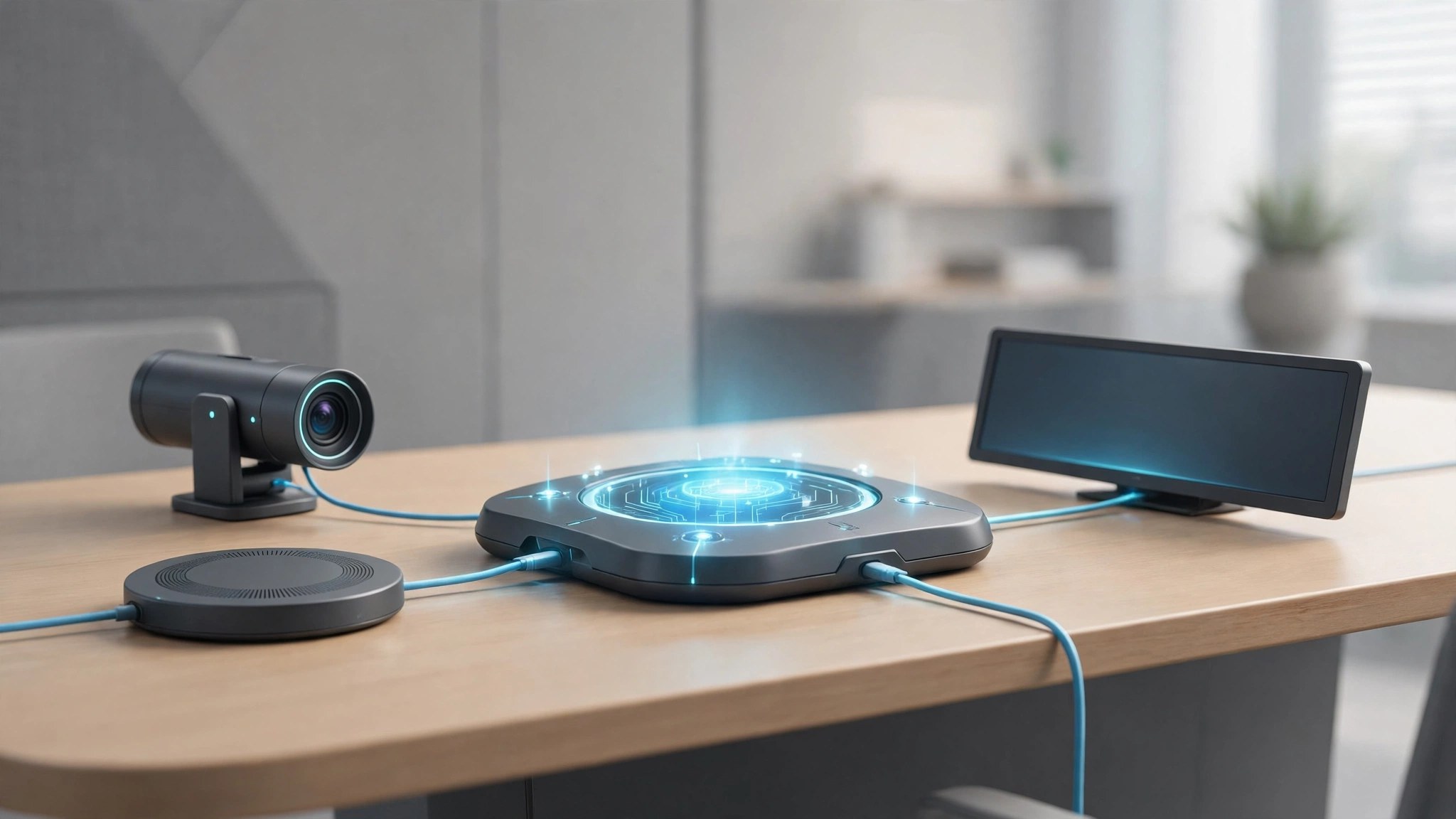
    Logitech Sync is the cloud platform Logitech offers for looking after video conferencing rooms at work. An IT admin opens the Sync Portal in a browser and sees every camera, video bar and touch controller in one place: which rooms are healthy, and which devices need an update.

    Key Features

    • Monitor device health and status across every site from one dashboard
    • Push firmware and software updates to rooms or groups, on your schedule
    • Keep a live inventory of devices and spaces for the whole organization
    • Apply settings to groups of rooms at once, not room by room
    • Raise and track support tickets inside Sync, next to the device data

    How to Download

    1. Download from the official site for plan details, or use the button on this page
    2. Create a Sync account for your organization and sign in to the Portal
    3. Install the Sync app on each room computer and provision your devices

    System Requirements

    The Portal runs in any modern browser, including Safari on macOS. You need Logitech conferencing devices to manage, a Sync account, and the Sync app on each room computer.

    FAQs

    Is Logitech Sync an app for my personal Mac?

    Not really. Sync is built for workplaces, managing meeting room systems and work devices for IT teams, not personal webcams at home.

    Does Sync record meeting audio or video?

    No. Logitech states that Sync neither collects nor transmits audio, video or shared content. It reports device status and settings only.

    Can Sync work alongside Teams or Zoom tools?

    Yes. Sync complements the Microsoft Teams admin center and Zoom Device Management with deeper Logitech device control.