Category: Mac Utilities

  • PixelTools DCTLs Plug Ins for DaVinci Resolve for Mac

    PixelTools DCTLs Plug Ins for DaVinci Resolve for Mac

    PixelTools DCTLs Plug Ins for DaVinci Resolve for Mac

    PixelTools DCTLs Plug Ins for DaVinci Resolve for Mac

    Mac Utilities
    Updated Aug 13, 2026
    Mac Utilities • Updated Aug 13, 2026

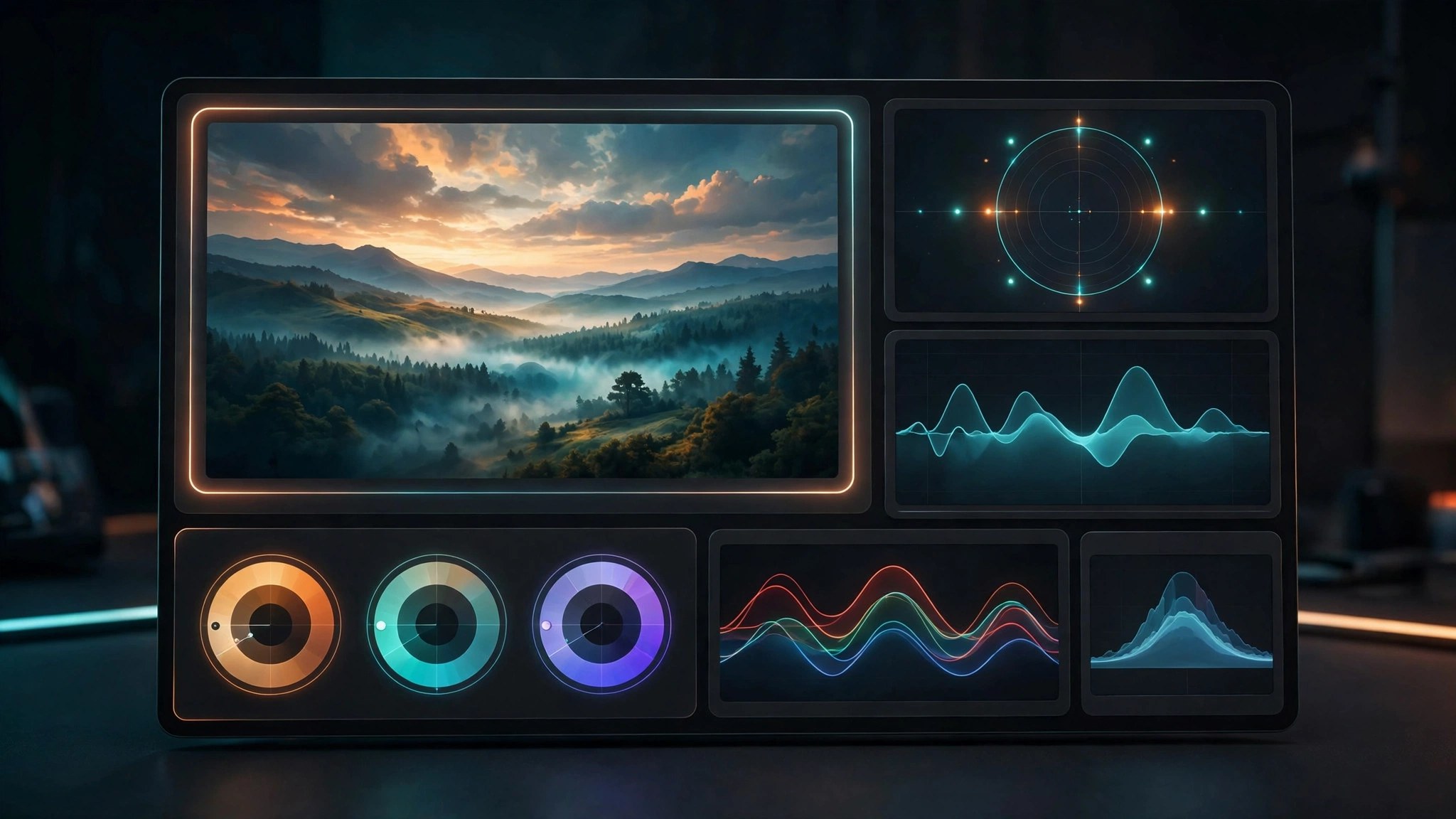
    PixelTools is a family of DCTL plug ins for DaVinci Resolve, built by a working colorist for people who grade for a living. Instead of one giant tool, you get focused instruments. One handles exposure in real photographic stops. Another shapes hue and saturation with unusual care. Others cover primaries, split toning and film style contrast.

    Key Features

    • A growing family of tools covering exposure, primaries, hue work and split toning
    • Each tool runs inside a Resolve node, so grades stay flexible and editable
    • Built for color managed workflows such as DaVinci Wide Gamut and ACES
    • Included PowerGrades show how each grade is built, node by node
    • An installer app places the files in the correct Resolve folder

    How to Download

    1. Click the download button on this page, or Download from the official site if you prefer to go direct.
    2. Run the installer to place the DCTL files in the right folder.
    3. Restart Resolve, add a node on the Color page, and apply the tool from the DCTL list.

    System Requirements

    DCTL plug ins require DaVinci Resolve Studio on macOS and do not run in the free edition. Many current tools ask for Studio 19.1 or Studio 20 or later.

    FAQs

    Do these plug ins work in the free version of Resolve?

    No. DCTLs are a Studio only feature, so the paid Studio edition must be installed before these tools will appear or run.

    What exactly is a DCTL?

    It is a small program in the DaVinci Color Transform Language that processes your image directly and offers custom controls native to Resolve.

    Can I try any of the tools first?

    Yes. PixelTools offers a free grading toolkit with sample DCTLs and a PowerGrade when you join the mailing list, a sensible way to test the tools.

  • SyncTwoFolders for Mac

    SyncTwoFolders for Mac

    SyncTwoFolders for Mac

    SyncTwoFolders for Mac

    Mac Utilities
    Updated Aug 13, 2026
    Mac Utilities • Updated Aug 13, 2026

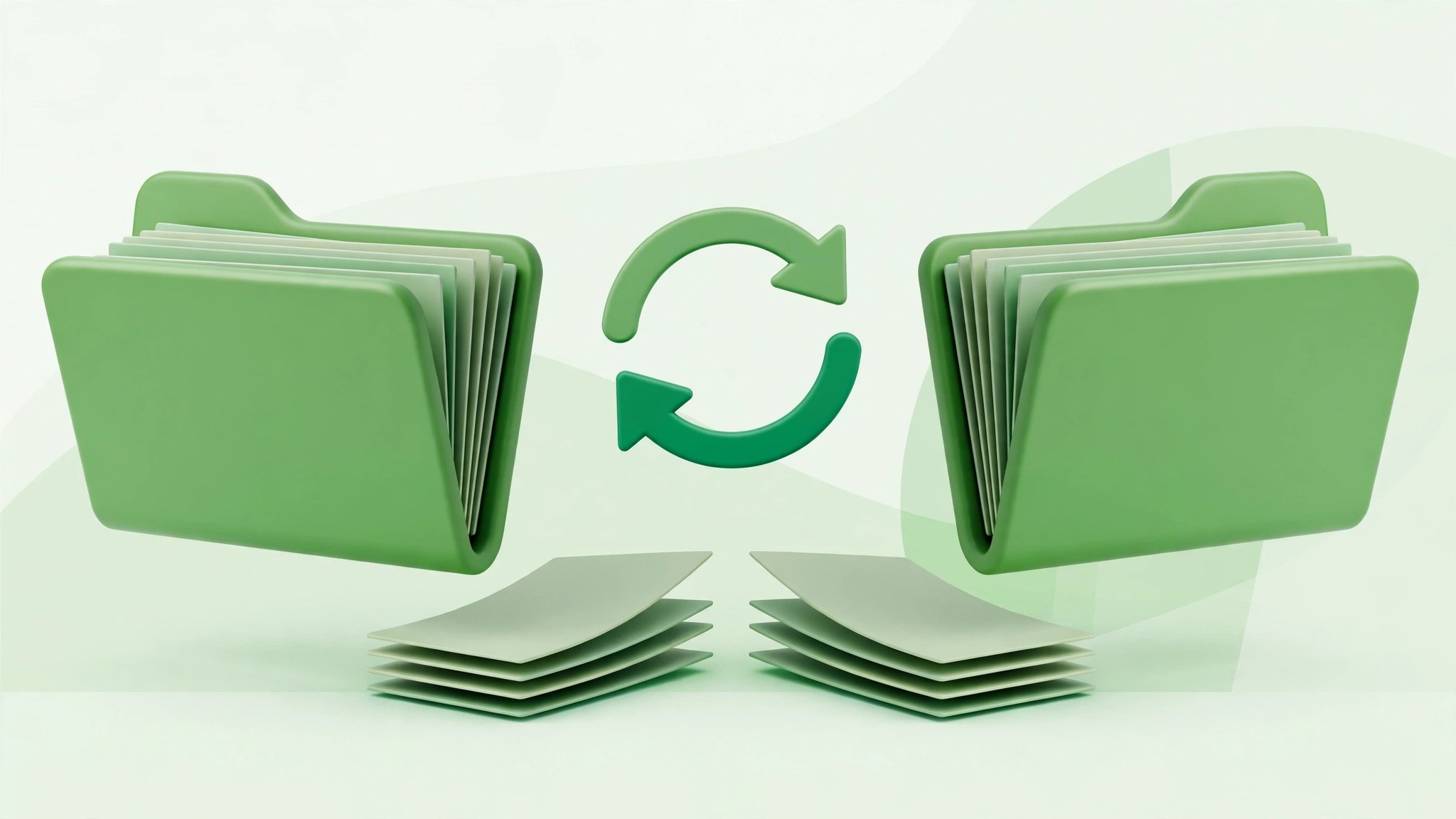
    SyncTwoFolders does one job plainly: it makes two folders hold the same files. Point it at a source folder and a target folder, say a project on your Mac and its copy on an external drive, and it copies what is missing and replaces what is old.

    Key Features

    • Sync any two folders Finder can see, including folders on external drives
    • Choose each run direction: both ways, source to target, or target to source
    • Match files by date, so the newest version wins in a two way sync
    • Preview a full run in simulation mode before any file changes
    • Read a log after each run listing copies, replacements and deletions

    How to Download

    1. Use the download button on this page, then move the app to Applications
    2. Open SyncTwoFolders and choose your source and target folders
    3. Pick a mode, run a simulation to preview changes, then start the sync

    System Requirements

    You need a Mac running macOS, free space on the target drive for copied files, and a good backup of anything important before your first real run.

    FAQs

    Can SyncTwoFolders delete my files?

    It can remove target files in some modes, since matching folders can mean deleting what left the source. Run the simulation first and keep a separate backup.

    Can I sync to an external drive?

    Yes. Any drive or network share Finder can open can hold your source or target folder, which suits simple drive mirroring.

    Is this a full backup program?

    No. It mirrors folders as they are now, with no history of older versions. It does not replace a real backup system.

  • Downie 4.13.4 for Mac

    Downie 4.13.4 for Mac

    Downie 4.13.4 for Mac

    Downie 4.13.4 for Mac

    Mac Utilities
    Updated Aug 13, 2026
    Mac Utilities • Updated Aug 13, 2026

    Downie is a small Mac app with one clear job. You paste a video link, and it saves that video to your Mac. It works with YouTube, Vimeo and a list of other sites, and it tries to fetch the best quality the site offers, including 4K where available. There is no clutter and no complicated setup. You drop in a link, watch the progress bar, and the file lands in your downloads folder.

    Key Features

    • Downloads video from YouTube, Vimeo and over a thousand other sites
    • Fetches the highest quality available, including 4K and HD streams
    • Post processing can convert files to MP4 or extract the audio only
    • Browser extensions send links from Safari, Chrome and Firefox in one click
    • Download history syncs through iCloud across your own Macs

    How to Download

    1. Download from the official site to get the current Mac build.
    2. Open the downloaded file and drag Downie into your Applications folder.
    3. Launch the app, paste a video link and start your first download.

    System Requirements

    Downie 4 needs macOS 13 or later according to the developer, and it runs on both Intel and Apple Silicon Macs. It is a light app, so any Mac that runs a current macOS should handle it comfortably.

    FAQs

    Can Downie save only the audio from a video?

    Yes. Set the post processing option to audio only and Downie will keep just the sound track, which is handy for talks and lectures.

    What if a site stops working?

    Sites change often, and the developer ships updates every week or two to fix broken sites. Keeping Downie updated solves most problems.

    Is Downie sold on the App Store?

    No. The developer sells it directly from the official site because Apple does not allow video downloading apps on the App Store.

  • Wireshark 4.6.9 for Mac

    Wireshark 4.6.9 for Mac

    Wireshark 4.6.9 for Mac

    Wireshark 4.6.9 for Mac

    Mac Utilities
    Updated Aug 13, 2026
    Mac Utilities • Updated Aug 13, 2026

    When a network misbehaves, guessing gets old fast. Wireshark shows you what is actually moving across the wire. It captures traffic from your Mac network connections and lets you open it up packet by packet, following conversations between devices and reading the protocols underneath your apps. Engineers use it to find faults, developers use it to debug their software, and curious users use it to learn how the internet talks.

    Key Features

    • Capture live traffic from your network interfaces and inspect every packet in detail
    • Open capture files saved earlier, so problems can be studied later
    • Filter huge captures down to a single conversation with powerful display filters
    • Follow a stream to read a whole exchange between two endpoints
    • Hundreds of protocol dissectors, kept current with each release

    How to Download

    1. Click the download button on this page, or Download from the official site if you prefer to go direct.
    2. Open the disk image and move Wireshark into your Applications folder.
    3. Launch the app, pick your active network interface, and start your first capture.

    System Requirements

    Wireshark provides a universal Mac build for Apple Silicon and Intel machines running a recent macOS. Live capture needs permission to access your network interfaces, which setup explains.

    FAQs

    Is Wireshark free?

    Yes. Wireshark is free, open source software from the Wireshark Foundation and a large community of contributors. The full application costs nothing.

    Can it read the content of encrypted traffic?

    It shows addresses, timing and protocol details. Content protected by modern encryption stays encrypted, so what is private remains private.

    Is it okay to capture traffic on any network?

    Only capture traffic on networks you own or have clear permission to test. Using it on other peoples networks without permission can cause real trouble.

  • OmniFocus Pro 4.10.1 for Mac

    OmniFocus Pro 4.10.1 for Mac

    OmniFocus Pro 4.10.1 for Mac

    OmniFocus Pro 4.10.1 for Mac

    Mac Utilities
    Updated Aug 13, 2026
    Mac Utilities • Updated Aug 13, 2026

    OmniFocus Pro is the task manager people move to when a simple list stops being enough. Made by The Omni Group, it gives every thought a place: capture it in seconds, file it into a project, add tags and dates, then trust the system to surface it on time.

    Key Features

    • Capture tasks fast with the Inbox and Quick Entry, no filing first
    • Structure work with projects, folders, tags, due dates and defer dates
    • Plan the day with Forecast, which lays tasks against your calendar
    • Build custom perspectives that filter and group tasks your way, a Pro feature
    • Automate routine work with Omni Automation and AppleScript on the Mac

    How to Download

    1. Download from the official site or use the button on this page for the Mac app
    2. Move OmniFocus into your Applications folder and launch it
    3. Start the free trial, pick the Pro feature set, and set up sync

    System Requirements

    Current OmniFocus 4 releases need macOS 15.2 or later. One purchase also covers iPhone, iPad, Apple Watch and Vision Pro, with sync through an Omni account.

    FAQs

    What does Pro add over Standard?

    Custom perspectives, Focus mode and automation tools such as Omni Automation and AppleScript. Standard still covers projects, tags, Forecast and Review.

    Can I try OmniFocus before paying?

    Yes. The free trial lasts two weeks, long enough to load real projects in and feel how the weekly Review works.

    Does it sync with iPhone and iPad?

    Yes. Tasks sync across Mac, iPhone, iPad, Apple Watch and Vision Pro, and a web companion covers other computers.

  • OpenCore Legacy Patcher 2.5.1 for Mac

    OpenCore Legacy Patcher 2.5.1 for Mac

    OpenCore Legacy Patcher 2.5.1 for Mac

    OpenCore Legacy Patcher 2.5.1 for Mac

    Mac Utilities
    Updated Aug 13, 2026
    Mac Utilities • Updated Aug 13, 2026

    OpenCore Legacy Patcher is a free tool from the Dortania community that helps older Intel Macs run newer versions of macOS. Apple drops support for ageing models over time. This patcher builds a tailored OpenCore setup for your exact model, creates a USB installer, and then applies root patches after installation so things like graphics acceleration and WiFi work again. It asks for patience and care, but the steps are guided.

    Key Features

    • Installs newer macOS releases on Intel Macs Apple no longer supports
    • Builds an OpenCore configuration matched to your specific Mac model
    • Creates a bootable USB installer from within the app itself
    • Root patches restore graphics, WiFi, Bluetooth and other hardware features
    • Updates arrive through System Settings in a near native way

    How to Download

    1. Download from the official site and follow the Dortania guide for your model.
    2. Back up your Mac fully, then run the patcher and build OpenCore for your machine.
    3. Create the USB installer, boot from it and install macOS, then apply the root patches.

    System Requirements

    The patcher is for Intel based Macs only and does nothing for Apple Silicon models. Check the official supported models list for your machine before you start, and keep a full backup ready.

    FAQs

    Is OpenCore Legacy Patcher free?

    Yes. It is a free community project released as open source software. The only safe place to get it is the official Dortania site.

    Will every feature work on my old Mac?

    Most core features work well on supported models, but some newer Apple features may be limited by your hardware. The official guide lists known limits per model.

    Do macOS updates remove the patches?

    Updates can wipe the root patches, so you may need to run the patcher again after a system update.

  • Objective See KextViewr 2.0.0 for Mac

    Objective See KextViewr 2.0.0 for Mac

    Objective See KextViewr 2.0.0 for Mac

    Objective See KextViewr 2.0.0 for Mac

    Mac Utilities
    Updated Aug 13, 2026
    Mac Utilities • Updated Aug 13, 2026

    Kernel extensions, or kexts, are the deepest layer of software on a Mac. They load into the core of the system, making them powerful and worth watching. KextViewr gives you a clear window onto that layer. Instead of wrestling with a terminal command, you get a tidy list of every loaded kernel module, who it belongs to and where it lives, with search and filtering to find the entries you care about.

    Key Features

    • Lists all loaded kernel modules with name, bundle id and full path
    • Shows whether a module belongs to Apple or a third party developer
    • Filter with the search box or ready made tags for Apple and non Apple modules
    • Displays each module collection, address, size and architecture
    • Export the full list as JSON for records or later troubleshooting

    How to Download

    1. Click the download button on this page, or Download from the official site if you prefer to go direct.
    2. Open the downloaded archive and unpack the app inside it.
    3. Open KextViewr and use the filter box to show only third party modules.

    System Requirements

    KextViewr is a small, free macOS utility with no installer and no account. Behind the scenes it uses the system kmutil tool for its information.

    FAQs

    Can KextViewr remove kernel extensions?

    No. It is a viewer, not a remover. Removal is done through the app or driver that installed the module.

    Why are there so many Apple modules?

    That is normal. The list shows every loaded module by design, and most belong to macOS. Filter to third party modules for a much shorter list.

    Will it reveal a hidden rootkit?

    Not always. A module hidden from the system tools stays hidden from KextViewr too, so treat it as a viewer, not a guarantee.

  • Desktop Stickers 2.97 for Mac

    Desktop Stickers 2.97 for Mac

    Desktop Stickers 2.97 for Mac

    Desktop Stickers 2.97 for Mac

    Mac Utilities
    Updated Aug 13, 2026
    Mac Utilities • Updated Aug 13, 2026

    Desktop Stickers puts short, kind reminders where you cannot miss them: on your desktop. Pick a sticker with an affirmation, place it on screen, and it greets you each time you sit down at your Mac. Your own favorite photos can become stickers too.

    Key Features

    • Choose from a ready library of motivational stickers and affirmations
    • Pin stickers to the desktop so chosen words stay in view
    • Turn photos of family, trips and happy moments into stickers
    • Grow a small board of good memories over time
    • Stay private, since the App Store listing states the developer collects no data

    How to Download

    1. Download from the official site or use the button on this page to reach the listing
    2. Install Desktop Stickers from the Mac App Store and open it
    3. Browse the library, pick your stickers, and confirm to place them

    System Requirements

    Desktop Stickers needs macOS 10.15 or later, as its App Store page lists. It is a light app that sits quietly on the desktop beside your normal work apps.

    FAQs

    Can I use my own photos as stickers?

    Yes. Alongside the built in affirmations, you can add custom photos and pin them to the desktop: family, pets, places and good moments.

    What is the point of desktop affirmations?

    Repetition. Reading a short positive line in passing, several times a day, helps many people steady their self talk and start tasks calmer.

    Does the app collect my data?

    No. Its App Store privacy section states the developer collects no data from the app, so photos and choices stay on your Mac.

  • Topaz Video 1.7.2 for Mac

    Topaz Video 1.7.2 for Mac

    Topaz Video 1.7.2 for Mac

    Topaz Video 1.7.2 for Mac

    Mac Utilities
    Updated Aug 13, 2026
    Mac Utilities • Updated Aug 13, 2026

    Topaz Video is an AI powered video enhancement app from Topaz Labs. It takes footage that looks soft, noisy or low in resolution and rebuilds it for modern screens. Old family recordings, compressed downloads and shaky phone clips are its usual material. You pick a model that matches the problem, preview the result, and export a cleaner file. It is demanding software, built for serious restoration work.

    Key Features

    • AI upscaling lifts low resolution footage up to crisp 4K output
    • Noise reduction and sharpening clean grainy or soft looking clips
    • Frame interpolation creates smooth slow motion from ordinary footage
    • Stabilisation calms shaky handheld and action camera recordings
    • Conversion tools turn standard footage into HDR style output

    How to Download

    1. Download from the official site and sign in with a Topaz account.
    2. Run the Mac installer and let the app download the models it needs.
    3. Open a clip, choose an enhancement model, preview it and export your video.

    System Requirements

    Topaz Video is heavy software that leans on your graphics hardware. A modern Mac with Apple Silicon, generous memory and plenty of free storage will give the best experience, and long exports on older machines can take considerable time.

    FAQs

    Can Topaz Video fix very old recordings?

    It can improve them a lot, especially noisy, soft or interlaced material. It cannot invent detail that was never captured.

    Does it work inside video editors?

    Topaz Video works as a stand alone app, and Topaz also offers integrations for editing software. Check the official site for which hosts the current version supports.

    Is Topaz Video a one time purchase?

    Topaz now sells its apps mainly through subscription plans. Read the plan details on the official site so you know exactly what your payment covers.

  • What’s Your Sign? 3.2.2 for Mac

    What’s Your Sign? 3.2.2 for Mac

    What's Your Sign? 3.2.2 for Mac

    What’s Your Sign? 3.2.2 for Mac

    Mac Utilities
    Updated Aug 13, 2026
    Mac Utilities • Updated Aug 13, 2026

    Downloads all claim to be one thing, but the signature tells the real story. What's Your Sign is a small utility from Objective See that shows the signing information of any file, right inside Finder. You simply right click a file and read who signed it, whether Apple has notarized it, and whether the code changed since signing.

    Key Features

    • Adds a Finder menu item so signing details are one right click away
    • Shows the signer name and the full certificate chain behind a file
    • Reports notarization status so you can see if Apple checked the file
    • Displays file hashes that you can compare with values from a vendor
    • Works on apps, installer packages, disk images and single files alike

    How to Download

    1. Use the download button on this page to get the installer, or Download from the official site instead.
    2. Open the downloaded archive and move the app into your Applications folder.
    3. Launch it once to enable the Finder extension, then right click any file to view its signing information.

    System Requirements

    What's Your Sign runs on macOS 10.15 or later, as listed by the developer. It is lightweight, needs no account, and works on Intel and Apple Silicon Macs.

    FAQs

    Is What's Your Sign free to use?

    Yes. Objective See offers its tools free of charge. Donations are accepted on the developer site but are not required.

    What does an unsigned file mean?

    It means no developer certificate signed the file, so macOS cannot confirm who made it or whether it changed after release. That alone does not prove harm, but it is a reason to be careful.

    Does it scan files for malware?

    No. It reports signing facts only, such as the signer, the certificate chain and the hashes. Judging safety is still up to you.