Category: Mac Utilities

  • CorelDRAW Graphics Suite 2026 27.2.0.135 for Mac

    CorelDRAW Graphics Suite 2026 27.2.0.135 for Mac

    CorelDRAW Graphics Suite 2026 27.2.0.135 for Mac

    CorelDRAW Graphics Suite 2026 27.2.0.135 for Mac

    Mac Utilities
    Updated Aug 15, 2026
    Mac Utilities • Updated Aug 15, 2026

    CorelDRAW Graphics Suite 2026 is a complete design toolkit for logos, brochures, signs, packaging and social graphics on a Mac. CorelDRAW handles vector illustration and page layout, while Corel PHOTO PAINT covers photo editing in the same suite. The 2026 release adds AI tools for exploring ideas faster, including image generation from text prompts and quick background removal, while you stay in control of every shape, colour and letter. It suits solo designers and small teams who want one suite for print and screen work.

    Key Features

    • Vector illustration and page layout for logos, signs and multi page documents
    • Corel PHOTO PAINT for photo editing, retouching, masking and colour correction
    • AI Generate tools for creating images and vectors from text prompts
    • Font Manager to browse and use fonts without installing every file
    • Templates, clipart, photos and fills to help new projects start faster

    How to Download

    1. Download from the official site and choose the Mac trial or licence option.
    2. Run the installer, sign in with your Corel account if asked, and finish setup.
    3. Open CorelDRAW from Applications and start a new document or template.

    System Requirements

    A recent Mac with a current version of macOS, ample free disk space for the suite and content libraries, and internet for activation and updates. Large print files run better with more memory.

    FAQs

    Is it good for print work?

    Yes. It has strong colour management, layout and output tools that print shops use for signs, packaging and marketing material.

    Can I try it before buying?

    The vendor offers a trial on the official site. Test your real files and exports before you pay.

    Does it work for web graphics too?

    Yes. Design logos, banners and social images, then export web formats while keeping the source editable.
  • Compresto 1.32 for Mac

    Compresto 1.32 for Mac

    Compresto 1.32 for Mac

    Compresto 1.32 for Mac

    Mac Utilities
    Updated Aug 15, 2026
    Mac Utilities • Updated Aug 15, 2026

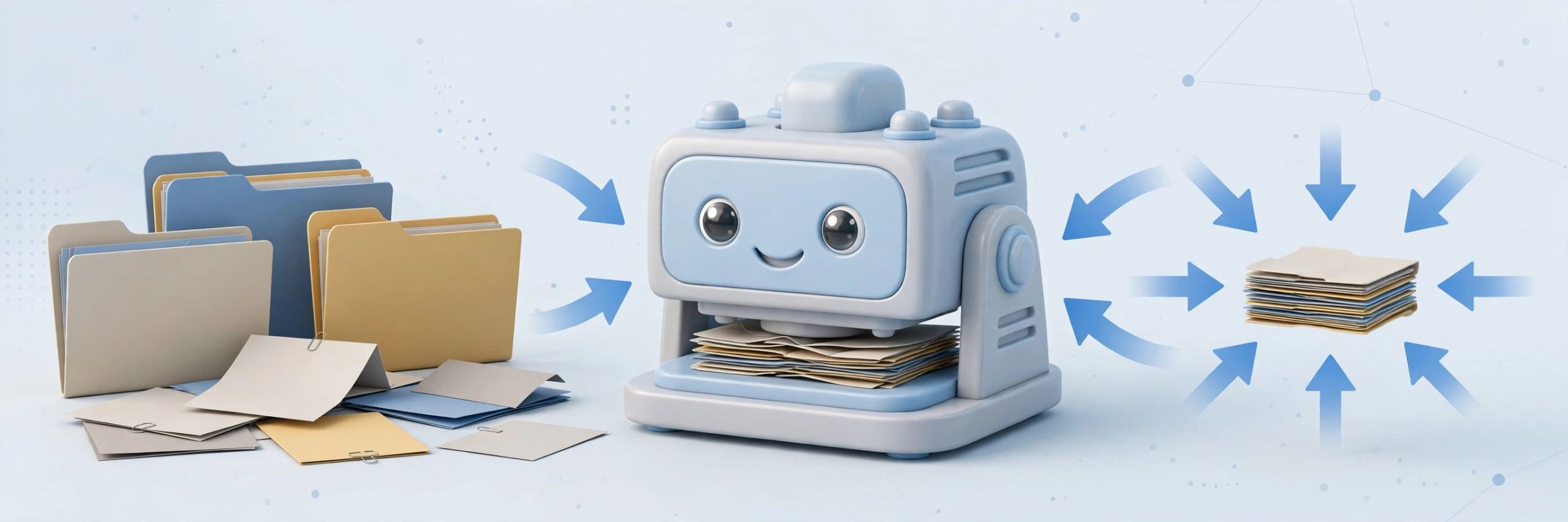
    Compresto tackles a familiar problem. Video clips, photos and PDFs quietly eat your disk until sharing a file means a long upload and a grumpy recipient. This native Mac app compresses all of them in one place. Drop in a mixed batch and it works through the queue while you do something else. Everything happens on your Mac, with no uploads to a web service, which matters for client work and family videos alike.

    Key Features

    • Batch compression for video, images, GIFs and PDFs in one app
    • Folder monitoring that compresses new files as they land
    • Floating drop zone and Raycast support for a fast workflow
    • Quality presets and a target file size option for images
    • Video to GIF conversion, with fully local processing throughout

    How to Download

    1. Download from the official site and get Compresto for macOS.
    2. Open the downloaded file and move Compresto into Applications.
    3. Launch the app, drop in a test file and check the result.

    System Requirements

    The maker states that Compresto needs macOS 13 or later and runs on Intel and Apple Silicon Macs. PDF compression also needs Ghostscript, which the official documentation explains.

    FAQs

    Does Compresto upload my files to a server?

    No. Compression runs locally on your Mac, and files are not uploaded or stored elsewhere.

    How much smaller will my files get?

    It depends on the source and preset. The maker describes savings up to 90 percent in some cases.

    Can Compresto watch a folder for me?

    Yes. Point it at a folder and new files are compressed on their own.

  • BlueStacks 5.21.790.7505 for Mac

    BlueStacks 5.21.790.7505 for Mac

    BlueStacks 5.21.790.7505 for Mac

    BlueStacks 5.21.790.7505 for Mac

    Mac Utilities
    Updated Aug 15, 2026
    Mac Utilities • Updated Aug 15, 2026

    BlueStacks lets you run Android games on your computer, and on modern Macs that experience arrives as BlueStacks Air. Built for Apple silicon, it runs games natively on M series chips with controls mapped to keyboard and trackpad. It suits players who want a larger screen and longer, more comfortable sessions.

    Key Features

    • Native Apple silicon support, with fast and responsive game play on modern Macs
    • Controls mapped in advance to the keyboard and trackpad for popular Android games
    • Retina display support, so supported games look sharp and clear on Mac screens
    • Access to a wide store of Android games that install inside the player itself
    • Free to use, with your Google account used for game store sign in

    How to Download

    1. Download from the official site and get the Mac installer package.
    2. Open the installer file and follow the setup steps shown on your screen.
    3. Launch BlueStacks, sign in, and install your first game.

    System Requirements

    The current Mac release targets Apple silicon, so an M series chip gives the intended experience. Intel Macs may not be supported by the newest build, so check the official Mac page for your model. You also need free disk space and stable internet for downloads.

    FAQs

    Is BlueStacks free on Mac?

    Yes. BlueStacks Air is free for Mac users. The player costs nothing, though some games offer optional purchases.

    Is the Mac version the same as the Windows BlueStacks 5 line?

    No. The Mac offer is BlueStacks Air, built for Apple silicon, with build numbers that differ from the Windows 5 line. Take the Mac build from the official Mac page.

    Can BlueStacks run every Android app?

    No. It is built mainly for games, and most popular titles run well. Some apps that depend on phone hardware may not work.

  • Blow Up 3.1.8 for Mac

    Blow Up 3.1.8 for Mac

    Blow Up 3.1.8 for Mac

    Blow Up 3.1.8 for Mac

    Mac Utilities
    Updated Aug 15, 2026
    Mac Utilities • Updated Aug 15, 2026

    Blow Up from Exposure Software does one job that matters at print time. It resizes a photo to a much larger size while keeping edges crisp and detail natural. Normal resize tools often leave soft edges or odd artefacts when you push a file hard. Blow Up was made to avoid that, so portraits, landscapes and product shots hold up on posters, canvas and wall prints. It works as a plug in with tools photographers already use. You set the print size, pick a crop if needed, and let it do the heavy lifting.

    Key Features

    • Enlarges photos to large print sizes with sharp, clean edges
    • Presets for common photo papers and standard print sizes
    • Output sharpening matched to paper type for better printed results
    • Handles CMYK images and files with greater colour depth
    • Batch work through Lightroom, plus Photoshop and Exposure support

    How to Download

    1. Download from the official site and get Blow Up from Exposure Software.
    2. Install it, then open your host app such as Photoshop or Lightroom.
    3. Open a copy of your photo, set size and paper preset, and save the enlarged file.

    System Requirements

    You need a Mac that runs a supported host app such as Photoshop, Lightroom or Exposure, plus enough free space for large print files. A clear source photo always enlarges better than a blurry one.

    FAQs

    Will Blow Up fix a blurry photo?

    No. It enlarges what is already there and keeps edges clean, but it cannot invent detail the camera never captured.

    Do I need Photoshop to use it?

    No. Blow Up also works with Lightroom and Exposure, and Lightroom use does not require Photoshop.

    What is it best used for?

    Large prints such as posters, canvas wraps and exhibition prints, where soft edges would clearly show.

  • Screens 5.10.1 for Mac

    Screens 5.10.1 for Mac

    Screens 5.10.1 for Mac

    Screens 5.10.1 for Mac

    Mac Utilities
    Updated Aug 15, 2026
    Mac Utilities • Updated Aug 15, 2026

    Screens by Edovia turns your Mac into a comfortable window onto your other computers. Reach a Mac at home, a Windows PC at work, a Linux box or a Raspberry Pi, and control it as if you were sitting in front of it. On modern Macs remote access is built into the app itself, and Screens Connect handles the tricky network side for machines reached over the internet. New builds add high performance sharing for recent Apple Silicon Macs.

    Key Features

    • Connect to Mac, Windows, Linux and Raspberry Pi computers
    • Remote access built in on modern Macs, plus Screens Connect
    • Clipboard sharing and file transfers with a remote Mac
    • Multiple display support, with your last choice remembered
    • SSH tunnelling, custom keys and Curtain Mode for privacy

    How to Download

    1. Download from the official site and follow the link to get Screens.
    2. Install Screens on your Mac and any other Apple device you use.
    3. Sign in, add your first computer, and test a local connection.

    System Requirements

    Edovia states that Screens needs macOS 14.6 or later on the Mac you connect from. Windows and Linux machines need a VNC server, and remote Macs can run older systems.

    FAQs

    Is there a free trial of Screens?

    Yes. Edovia offers a 7 day free trial. Paid plans include subscription and lifetime choices.

    Can Screens connect to a Windows PC?

    Yes, as long as that PC runs a compatible VNC server. Screens Connect also helps with setup.

    Is my connection private away from home?

    Screens supports secure connections and SSH tunnelling, and Curtain Mode can blank the remote screen.

  • OmniGraffle Pro 7.26.1 for Mac

    OmniGraffle Pro 7.26.1 for Mac

    OmniGraffle Pro 7.26.1 for Mac

    OmniGraffle Pro 7.26.1 for Mac

    Mac Utilities
    Updated Aug 15, 2026
    Mac Utilities • Updated Aug 15, 2026

    OmniGraffle Pro from The Omni Group is a diagramming and drawing app for macOS. People use it for flow charts, org charts, wireframes, network plans and quick sketches that still need to look tidy. The Pro edition adds shared layers, automation and file exchange with other diagram software, on top of a capable drawing canvas.

    Key Features

    • Smart guides and magnetic connection points help shapes line up neatly as you draw
    • Stencils and templates give you ready shapes for diagrams, interfaces and planning work
    • Artboards and shared layers in Pro keep repeated elements consistent across a document
    • Visio import and export in Pro makes it easier to work with teams who use Microsoft Visio
    • Flexible export to PDF, SVG, PNG and other common formats for sharing and print

    How to Download

    1. Download from the official site and get the Mac app from The Omni Group.
    2. Open the download and move OmniGraffle into your Applications folder.
    3. Launch the app and unlock the Pro edition with your licence or purchase choice.

    System Requirements

    OmniGraffle 7.26.1 needs macOS 14 Sonoma or later and runs on both Intel and Apple silicon Macs. Diagram files are light, so most current Macs handle large canvases with ease.

    FAQs

    What does Pro add over Standard?

    Pro adds Visio support, shared layers, artboards, automation and extra export options. Standard covers everyday diagramming well.

    Can OmniGraffle Pro open Visio files?

    Yes. The Pro edition can import and export Microsoft Visio formats, which helps when your team shares diagrams between Mac and Windows computers.

    Is OmniGraffle only for Mac?

    The desktop app is built for macOS. The Omni Group also makes an iPad and iPhone edition, so diagrams can travel with you between Apple devices.

  • Snap Art 4.1.6 for Mac

    Snap Art 4.1.6 for Mac

    Snap Art 4.1.6 for Mac

    Snap Art 4.1.6 for Mac

    Mac Utilities
    Updated Aug 15, 2026
    Mac Utilities • Updated Aug 15, 2026

    Snap Art from Exposure Software turns a normal photo into artwork that looks made by hand. Pick a style and it rebuilds your image with brush strokes, pencil lines or paint texture that follow the real shapes in the photo. Portraits become soft painted pieces, landscapes turn into watercolour scenes, and street shots suit pencil or comic styles. It runs on its own and fits Photoshop, Lightroom and Exposure workflows. You get a strong look in one click, then fine tune faces, edges and texture.

    Key Features

    • Styles including oil paint, watercolour, pencil sketch, pastel and crayon
    • Detail masking to keep faces and key areas clearer
    • Visual preset browser with search, favourites and recent looks
    • Save tuned looks as presets for single photos or batches
    • Works standalone and as a plug in for major photo editors

    How to Download

    1. Download from the official site and get Snap Art from Exposure Software.
    2. Install the app, then open it alone or from your photo editor.
    3. Open a photo, choose a preset, adjust masking and effect, then save the artwork.

    System Requirements

    A Mac that meets the needs of your host photo editor will run Snap Art well. Keep free space for rendered artwork, and use a larger screen when comparing fine brush details.

    FAQs

    Does the result look hand made?

    It can get close, because strokes follow image detail. Try a few styles, as results vary a lot by photo.

    Can I protect a face from heavy effects?

    Yes. Detail masking reduces the effect on faces while the background carries a stronger painterly look.

    Can I use it without Photoshop?

    Yes. Snap Art works as a standalone app with batch processing and no host app required.

  • MovieBox for Mac

    MovieBox for Mac

    MovieBox for Mac

    MovieBox for Mac

    Mac Utilities
    Updated Aug 15, 2026
    Mac Utilities • Updated Aug 15, 2026

    MovieBox is a name that appears in Mac software listings as a media viewing app, but it needs an honest note first. We could not verify an official vendor page or a confirmed current version for a native Mac release, so this page claims nothing about a publisher, a version number or a feature set we cannot stand behind. The name is also used by unrelated apps in different stores. Use the download button on this page only, and check exactly what you installed.

    Key Features

    • Listed in Mac catalogues as an app for viewing video on a larger screen
    • No verified vendor feature list exists, so expect only basic playback controls
    • Library, search or subtitle behaviour should be checked after install
    • The name is shared by unrelated products, so builds may differ
    • No account claim is made here, as none could be verified for Mac

    How to Download

    1. Use the download button on this page to get the MovieBox file for Mac.
    2. Note the publisher name shown by macOS and stop if it looks wrong.
    3. Install only if you trust the source, then test with one harmless file.

    System Requirements

    No trustworthy requirement list could be verified for a native Mac version. Keep macOS updated and be ready for the possibility that the app expects an emulator.

    FAQs

    Is there an official MovieBox app for Mac?

    We could not verify one. The well known app under this name was built for phones.

    Why is there no version number in the title?

    No version could be confirmed from a vendor source, so this page uses the name only.

    Is MovieBox safe to install?

    That depends on the source. Read every macOS security prompt and remove anything suspicious at once.

  • NoMachine 10.2.3 for Mac

    NoMachine 10.2.3 for Mac

    NoMachine 10.2.3 for Mac

    NoMachine 10.2.3 for Mac

    Mac Utilities
    Updated Aug 15, 2026
    Mac Utilities • Updated Aug 15, 2026

    NoMachine is remote desktop software that lets you reach another computer as if you were sitting right in front of it. Install it on the Mac you use and on the machine you want to reach, then connect over your home network or the internet. People use it to work on an office computer from home or help family with tech problems from far away.

    Key Features

    • Fast remote desktop sessions with smooth video and sound streamed from the host computer
    • File transfer between the two computers during a session, without extra tools
    • Remote terminal access in version 10 for shell work without opening a full desktop
    • One client that connects to Windows, Linux and Mac hosts from the same app
    • Single sign on support in version 10 for simpler and safer company logins

    How to Download

    1. Download from the official site and choose the macOS package.
    2. Open the disk image, run the installer and allow the macOS permissions it requests.
    3. Install NoMachine on the other computer too, then connect with its address and login.

    System Requirements

    NoMachine needs a Mac on a recent macOS, with the software installed on both computers. A stable network link matters more than raw power. On a Mac host, macOS asks you to grant screen recording and accessibility permissions first.

    FAQs

    Is NoMachine still free?

    Version 10 replaced the old free edition with a Personal Edition model, with evaluation options for new users. Check the official site for current trial terms.

    Can I connect from a Mac to a Windows computer?

    Yes. A Mac can reach Windows and Linux machines, and those machines can reach your Mac in return.

    Is a NoMachine session secure?

    Sessions run over encrypted connections. A strong password and current software on both computers keep remote access well protected.

  • Permute 4.0.11 for Mac

    Permute 4.0.11 for Mac

    Permute 4.0.11 for Mac

    Permute 4.0.11 for Mac

    Mac Utilities
    Updated Aug 15, 2026
    Mac Utilities • Updated Aug 15, 2026

    Permute by Charlie Monroe is a media converter that makes format work feel simple. Drop files in, pick what you need, and it converts video, audio, images, PDF files and text without codec jargon. Need an MP4 for a phone, a smaller clip for mail, audio pulled from a video, or a stack of images in a new format? Permute handles such jobs in batches. Permute 4 adds trim and crop tools, subtitle and audio track handling, and smart extras, while the basic flow stays quick for everyday tasks.

    Key Features

    • Converts video, audio, images, PDF and text in many formats
    • Drag and drop queue with presets for phones, web and TV
    • Trim, crop, resize, rotate and merge tools before converting
    • Add or swap subtitles and audio tracks, set target file size
    • Smart extras such as text to speech and audio transcription

    How to Download

    1. Download from the official site and download Permute from Charlie Monroe Software.
    2. Open the file, move Permute to Applications, and launch it.
    3. Drop in your files, choose a preset or format, and start converting.

    System Requirements

    Permute 4 needs a recent Mac setup as listed on the vendor page, while Permute 3 covers older macOS versions and Intel Macs. Check your Mac on the vendor page and keep space for converted files.

    FAQs

    Is Permute hard to learn?

    No. Most jobs are drop, choose and convert. Advanced settings stay available but out of the way.

    Can it convert many files at once?

    Yes. Queue a batch, apply presets, and let Permute work through the whole list.

    Does it only convert video?

    No. It also handles audio, images, PDF and text, plus small edits like trimming and merging.