Category: Mac Utilities

  • Hand Mirror 4.0.6 for Mac

    Hand Mirror 4.0.6 for Mac

    Hand Mirror 4.0.6 for Mac

    Hand Mirror 4.0.6 for Mac

    Mac Utilities
    Updated Aug 16, 2026
    Mac Utilities • Updated Aug 16, 2026

    Joining a video call and realising your framing is off, or something odd sits behind you, is a small but real stress. Hand Mirror removes it. The app lives in your menu bar, and one click opens a small live view from your camera, so you can check how you look, what fits in the frame and whether the background is fit to share.

    Key Features

    • One click camera preview straight from the Mac menu bar at any time
    • Quick framing check before calls, recordings and live streams begin
    • Microphone level check so you can confirm your audio before joining
    • Handy window controls to keep, move or resize the preview as you work
    • Optional Plus upgrade adds extras such as reactions tools and snaps

    How to Download

    1. Open the listing to Download from the official site in the Mac App Store.
    2. Click Get to install Hand Mirror on your Mac.
    3. Launch it, allow camera access when macOS asks, then click its menu bar icon to check your view.

    System Requirements

    Hand Mirror needs macOS 14.4 or later, per the App Store listing. It needs a camera, which most Mac laptops include, and camera permission from macOS before the preview can appear in the menu bar window.

    FAQs

    Does Hand Mirror record or send my video anywhere?

    No. The developer states the app does not record, collect or send your data anywhere. The preview stays on your own Mac.

    Is Hand Mirror free?

    The base app is free to download. Hand Mirror Plus is an optional one time purchase that unlocks extra features as they are added.

    Can I use it before any call app?

    Yes. Since it uses your Mac camera directly, you can check yourself before joining calls in any meeting app you use.

  • Spectro 1.7.1 for Mac

    Spectro 1.7.1 for Mac

    Spectro 1.7.1 for Mac

    Spectro 1.7.1 for Mac

    Mac Utilities
    Updated Aug 16, 2026
    Mac Utilities • Updated Aug 16, 2026

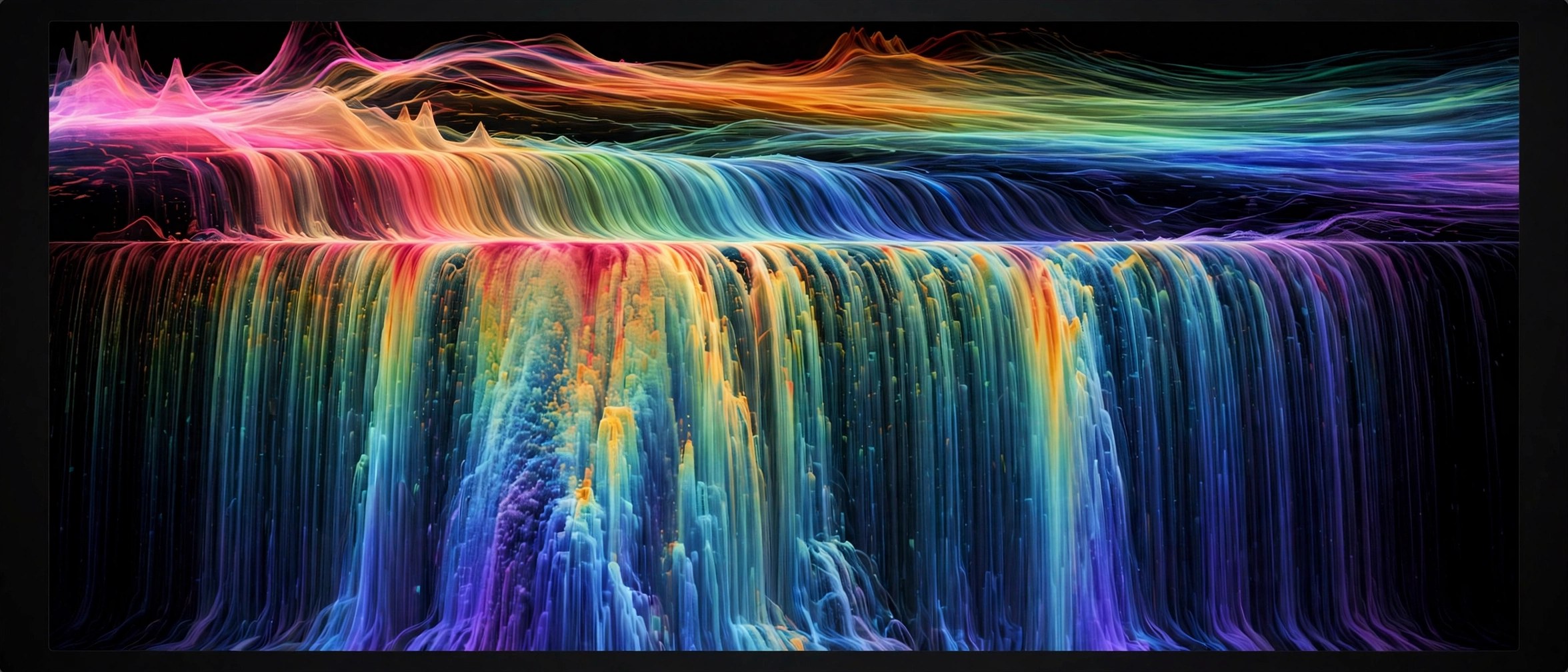
    A file that claims to be lossless is not always what it seems. Some tracks began life as small lossy files and were later converted into big WAV or FLAC wrappers, gaining size without gaining quality. Spectro checks the audio itself rather than trusting the file name. It scans single tracks or whole folders on your Mac, studies the frequency content, and gives each file a clear verdict so DJs and collectors can spot suspect tracks before they reach a club system.

    Key Features

    • Give each track a clear lossless, fake or medium verdict based on spectral evidence
    • Scan whole folders in batches while working fully offline on your Mac
    • Check common formats including WAV, FLAC, AIFF, ALAC, MP3 and AAC files
    • Use Finder tags and filters to sort and set aside suspect tracks quickly
    • Import library files from DJ software to check a set before you export it

    How to Download

    1. Download from the official site and open the app, or use the download button on this page.
    2. Move Spectro into your Applications folder and launch it.
    3. Drop in a folder of tracks and review the verdict for each file.

    System Requirements

    Spectro is a native Mac app and the vendor lists macOS 13 or later, with builds for Apple Silicon and Intel Macs. Analysis runs on your machine with no account and no internet connection needed. Check the official site before you install.

    FAQs

    Can Spectro prove where a file came from?

    No tool can prove the full history of a master recording. Spectro shows spectral evidence that a file may have come from a lossy source.

    Does Spectro upload my music?

    No. The analysis runs locally on your Mac, and your tracks stay on your own drive.

    How many tracks can I check for free?

    The vendor offers a free trial covering your first tracks with no account needed. Current trial limits and pricing are listed on the official site.

  • coconutBattery Plus 4.4.0 for Mac

    coconutBattery Plus 4.4.0 for Mac

    coconutBattery Plus 4.4.0 for Mac

    coconutBattery Plus 4.4.0 for Mac

    Mac Utilities
    Updated Aug 16, 2026
    Mac Utilities • Updated Aug 16, 2026

    coconutBattery has been the trusted way to read a Mac battery since 2005, and the Plus edition adds the deeper tracking that careful owners want. It shows current capacity against the original design capacity, the cycle count, temperature and age, all read live. It also reads iPhone and iPad batteries, and Plus keeps a history of readings over time.

    Updated Aug 16, 2026

    Key Features

    • Shows live capacity, cycle count, temperature and battery age for your Mac
    • Reads iPhone and iPad battery health over cable, with WiFi reading in Plus
    • Saves battery readings over time so you can track wear across months
    • Plus adds a lifetime analyser with temperature and voltage history
    • Plus offers custom print templates for clean battery reports

    How to Download

    1. Open the official product page for coconutBattery and check the current version and price details there.
    2. Use Download from the official site to reach the vendor site, then follow the purchase or download steps shown on that page.
    3. Run the installer on your Mac, open your host app, and apply the tool from the effects panel to test it on a short clip.

    System Requirements

    You need a Mac running macOS 12 Monterey or later. Reading an iPhone or iPad needs a cable connection, or WiFi sync for Plus wireless reading.

    FAQs

    Is coconutBattery Plus a subscription?

    No. The vendor sells Plus as a one time purchase, and a trial in the app settings lets you try Plus mode before you pay.

    Can it check my iPhone battery too?

    Yes. Connect an iPhone or iPad and the app reads its battery health, and Plus can do the same over WiFi.

    Where can I buy coconutBattery?

    It is sold only through the vendor site at coconut flavour dot com, not through the Mac App Store.

  • Oka Unarchiver 2.1.17 for Mac

    Oka Unarchiver 2.1.17 for Mac

    Oka Unarchiver 2.1.17 for Mac

    Oka Unarchiver 2.1.17 for Mac

    Mac Utilities
    Updated Aug 16, 2026
    Mac Utilities • Updated Aug 16, 2026

    Macs open ZIP files on their own, but RAR and many other formats still stop Finder cold. Oka Unarchiver fills that gap. It can both open archives and create new ones, so folders can be packed and shared from the same small app. The window stays simple. You drop an archive in, look inside, and pull out only the files you need.

    Key Features

    • Opens ZIP, RAR, 7z, Tar, Gzip, Bzip2, XZ, ISO and many less common archive formats
    • Extracts several archives in one batch so large downloads take less waiting
    • Lets you preview and extract single files without unpacking the whole archive
    • Creates new archives and protects them with password encryption for safer sharing
    • Keeps a password book that stores archive passwords you use again and again

    How to Download

    1. Open the vendor site and find the Oka Unarchiver product listing.
    2. Download from the official site and follow the link through to the Mac App Store.
    3. Install the app, open it once, and set it as your helper for archive files.

    System Requirements

    Oka Unarchiver runs on recent versions of macOS and works on both Intel Macs and Macs with Apple silicon. It needs only a small amount of free storage, plus space for extracted files.

    FAQs

    Can Oka Unarchiver open RAR files on a Mac?

    Yes. RAR support is a main job, including split archives and archives protected with a password.

    Can it create archives as well as open them?

    Yes. You can pack files and folders into a new archive and add password protection before you share it with other people.

    Do I need to extract a whole archive to get one file?

    No. You can browse the contents first and extract only the items you want, which saves time on large archives.

  • Trickster 4.0.1 for Mac

    Trickster 4.0.1 for Mac

    Trickster 4.0.1 for Mac

    Trickster 4.0.1 for Mac

    Mac Utilities
    Updated Aug 16, 2026
    Mac Utilities • Updated Aug 16, 2026

    We have all done it. You download an invoice, export a design, or close a document, and minutes later you cannot find it again. Trickster watches the files, folders and apps you use and keeps them one click away in your menu bar. The newest version also keeps saved web links beside your files, so research pages and online documents live in the same tidy list. Open it, find the item, and drag it straight into an email or chat.

    Key Features

    • Keep recent files, folders and apps ready in one menu bar list
    • Save web links from Safari, Chrome and Firefox beside your local files
    • Drag items straight into Mail, Slack, design apps or upload forms
    • Build filters that gather the files and links for each project together
    • Search and open items with a global shortcut and full keyboard control

    How to Download

    1. Download from the official site and open the app, or use the download button on this page.
    2. Move Trickster into your Applications folder and launch it.
    3. Choose the folders to watch and open the list from your menu bar.

    System Requirements

    The current version of Trickster needs macOS 26 or later, and the vendor offers older versions for Macs on earlier systems. Your files and links stay on your Mac with no account needed. Check the official site for the right download for your system.

    FAQs

    How is Trickster different from Finder recent items?

    It tracks files you created and downloaded as well as files you opened, and it adds folders, apps, favourites and saved web links in one place.

    Does Trickster send my data to a server?

    No. The vendor states that your files and links never leave your Mac, and the browser extensions send links directly to the app.

    Can I try Trickster before paying?

    Yes. It is free to download with a trial period for the full features. Current terms are explained on the official site.

  • MAD PAINTER 1.4.11 for Mac

    MAD PAINTER 1.4.11 for Mac

    MAD PAINTER 1.4.11 for Mac

    MAD PAINTER 1.4.11 for Mac

    Mac Utilities
    Updated Aug 16, 2026
    Mac Utilities • Updated Aug 16, 2026

    MAD PAINTER covers your footage in animated brush strokes, turning an ordinary clip into a moving painting. Strokes follow the shapes and colours in the shot, so a street scene can feel like an oil canvas that still breathes and moves. You control stroke size, style and texture, from a gentle wash to a wild canvas.

    Updated Aug 16, 2026

    Key Features

    • Paints animated brush strokes directly over live footage
    • GPU powered rendering keeps the painterly preview responsive
    • Controls for brush size, style and texture shape the final look
    • Strokes follow the content of the shot for a natural painted feel
    • Great for music videos, titles and stylised social clips

    How to Download

    1. Open the official product page for MAD PAINTER and check the current version and price details there.
    2. Use Download from the official site to reach the vendor site, then follow the purchase or download steps shown on that page.
    3. Run the installer on your Mac, open your host app, and apply the tool from the effects panel to test it on a short clip.

    System Requirements

    You need a Mac with After Effects or Premiere Pro installed, a recent version of macOS and a GPU suited to effects work.

    FAQs

    Does the painting animate or stay still?

    It animates with your footage. The strokes are generated from the moving image, so the painted look flows from frame to frame.

    Can I make the effect more gentle?

    Yes. Larger soft strokes and lower intensity settings give a calm wash, while small rough strokes create a bold canvas feel.

    Is it only for art projects?

    Mostly it shines on creative work, but editors also use a light touch of it to give plain footage a warm hand made character.

  • Version Tracker 1.3 for Mac

    Version Tracker 1.3 for Mac

    Version Tracker 1.3 for Mac

    Version Tracker 1.3 for Mac

    Mac Utilities
    Updated Aug 16, 2026
    Mac Utilities • Updated Aug 16, 2026

    Most Macs collect software from everywhere. Some apps come from the App Store, some from a vendor site, and developer tools arrive through package managers that each update in their own way. Version Tracker pulls all of that into one dashboard. It scans dozens of sources, shows what is current and what has fallen behind, and marks versions with known security problems so you can fix the risky ones first. No account is needed to start.

    Key Features

    • Scans 51 update sources, from the App Store and Sparkle apps to Homebrew and npm
    • Shows installed version, latest version and the gap between them in one view
    • Flags versions linked to known security issues using public vulnerability data
    • Updates supported apps and packages in one click instead of app by app
    • Runs fully on your Mac with no sign up and no inventory sent to a server

    How to Download

    1. Visit the vendor site and read the current feature and pricing details.
    2. Download from the official site and open the downloaded file.
    3. Move the app to Applications, launch it, and run your first full scan.

    System Requirements

    Version Tracker needs macOS 15 Sequoia or later and runs natively on Apple silicon and Intel Macs. A typical scan takes under a minute, and the app may ask for disk access to find every installed app.

    FAQs

    Is scanning free?

    Yes. Scanning every source and seeing what is outdated costs nothing. Paying unlocks one click updating and scheduled scans.

    Does Version Tracker upload my app list anywhere?

    No. The vendor states that checks run locally on your Mac and your software inventory stays on the machine.

    Can it update tools installed with Homebrew or npm?

    Yes. Package managers are among its sources, alongside App Store apps, direct downloads and development runtimes.

  • Atlas 1.0.10 for Mac

    Atlas 1.0.10 for Mac

    Atlas 1.0.10 for Mac

    Atlas 1.0.10 for Mac

    Mac Utilities
    Updated Aug 16, 2026
    Mac Utilities • Updated Aug 16, 2026

    Atlas is a web browser from OpenAI with ChatGPT built into its core. Instead of switching between tabs and a separate chat window, you browse as usual and call on the assistant right beside the page you are reading. It can sum up a long article, compare details across pages and answer questions about what is on screen. Updated Aug 16, 2026.

    Key Features

    • ChatGPT panel that reads the current page and answers in context
    • Import of bookmarks, saved passwords and history from your old browser
    • Optional browser memories that help the assistant recall useful context
    • Agent mode in preview for supported plans to help with tasks online
    • Familiar Chromium based browsing with tabs, extensions and downloads

    How to Download

    1. Go to Download from the official site and follow the download link for Mac.
    2. Open the downloaded file and move Atlas into your Applications folder.
    3. Launch Atlas, sign in with your ChatGPT account and import your data.

    System Requirements

    Atlas runs on Macs with Apple silicon and a recent version of macOS. You also need a ChatGPT account and an internet connection, since the assistant features work online rather than fully on the device.

    FAQs

    Is Atlas free to use?

    Atlas was offered to Free, Plus, Pro and Go users at launch. Some features such as agent mode were limited to paid plans in preview, so check your plan for what is included.

    Can I bring my data from Chrome or Safari?

    Yes. On first launch Atlas offers to import bookmarks, saved passwords and browsing history from your current browser, which makes the switch much less painful.

    Does Atlas replace my regular browser completely?

    It is a full browser, so it can. Most people try it alongside their usual browser first and move over once they are happy with how it handles daily sites.

  • Topograph 2.0.10 for Mac

    Topograph 2.0.10 for Mac

    Topograph 2.0.10 for Mac

    Topograph 2.0.10 for Mac

    Mac Utilities
    Updated Aug 16, 2026
    Mac Utilities • Updated Aug 16, 2026

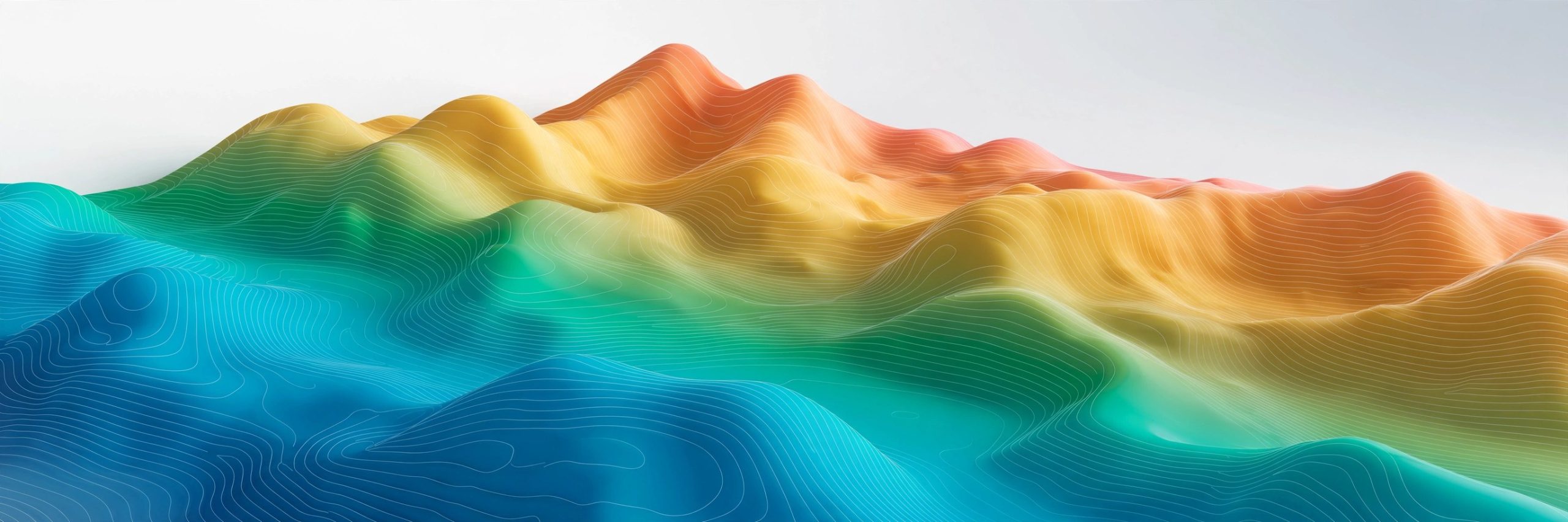
    Topograph draws the language of maps over your footage. Brightness in the image becomes elevation, and the plugin renders contour lines and shaded relief that ripple as the shot moves. A portrait can turn into a landscape of hills, and a city flyover gains the feel of a printed survey map. It works on a single frame for poster style designs and across time for animated map looks.

    Updated Aug 16, 2026

    Key Features

    • Turns footage into elevation style maps with clear contour lines
    • Interactive feedback makes single frame design fast and visual
    • Animates naturally as the source footage moves and changes
    • Controls for line spacing, relief and shading shape the terrain feel
    • Useful for travel edits, data visuals and bold graphic titles

    How to Download

    1. Use the download button on this page to get the Topograph package for your Mac.
    2. Open the downloaded file and follow the install steps shown on screen until setup finishes.
    3. Restart your host app if needed, then open the tool and test it on a small project first.

    System Requirements

    You need a Mac with After Effects installed and a recent version of macOS. A capable GPU helps when you preview detailed contour work at full frame size, especially on longer clips.

    FAQs

    What kind of footage works best?

    Shots with clear light and shade give the strongest terrain feel, because brightness drives the elevation in the map.

    Can I design a still image with it?

    Yes. It gives interactive feedback on one frame, so poster and thumbnail designs are quick to explore.

    Is it a real mapping tool?

    No. It is a creative effect inspired by topography, not a source of real geographic data.

  • Awesome Copy 7.0 for Mac

    Awesome Copy 7.0 for Mac

    Awesome Copy 7.0 for Mac

    Awesome Copy 7.0 for Mac

    Mac Utilities
    Updated Aug 16, 2026
    Mac Utilities • Updated Aug 16, 2026

    The Mac clipboard normally remembers one thing. Copy something new and the last item is gone, even if you needed it two minutes later. Awesome Copy replaces that single slot with a proper history. Text, images, links, files and even music you copy are saved as you go, with previews and time stamps, so you can scroll back and paste it again. Items you use often can be pinned at the top.

    Key Features

    • Keeps a long clipboard history covering text, images, links, files and music
    • Shows clear previews and time stamps so old items are easy to recognise
    • Lets you pin important items so they stay within quick reach
    • Syncs history to iPhone and iPad through encrypted iCloud sync
    • Stores data locally or in your own iCloud account, with no tracking built in

    How to Download

    1. Use the download button on this page to reach the app listing.
    2. Check the listing details, then download and install the app on your Mac.
    3. Open Awesome Copy, grant any access it requests, and copy something to test the history.

    System Requirements

    Awesome Copy is built for current versions of macOS and Apple devices. The iCloud sync features need you to be signed in to iCloud on your Mac and on any iPhone or iPad you want to keep in step.

    FAQs

    What kinds of items does Awesome Copy save?

    It saves what you copy during normal work: text, links, images, files and music, each with a preview.

    Does my clipboard history leave my own accounts?

    The app is described as storing data locally or in your iCloud account with Apple encryption, rather than on the developer servers.

    Can I keep an item from getting lost in the list?

    Yes. Pinning suits addresses, links and snippets you paste many times a week.