
Category: Mac Utilities

  • Mole 1.20.0 for Mac

    Mole 1.20.0 for Mac

    Mole 1.20.0 for Mac

    Mole 1.20.0 for Mac

    Mac Utilities
    Updated Aug 15, 2026
    Mac Utilities • Updated Aug 15, 2026

    Mole for Mac brings several care jobs into one native app. It clears caches and logs, uninstalls apps along with leftover files, shows where disk space has gone, and displays live system status. Its tone is careful rather than dramatic. Lists appear for review first, and you stay in charge of what gets removed. That matters, because careless cleaning can cause trouble. Mole also helps with app updates and routine maintenance, making it a useful place to check when your Mac feels cluttered or storage runs low.

    Key Features

    • Clean caches, logs and leftover files with review first
    • Uninstall apps fully, finding support files and preferences
    • Disk analysis showing large folders and files clearly
    • Live status for storage, memory and system health
    • Update help for many apps installed outside the App Store

    How to Download

    1. Download from the official site and download Mole for Mac from the official releases page.
    2. Open the file, move Mole to Applications, and grant asked permissions.
    3. Run a scan, review each category carefully, and remove only what you recognise.

    System Requirements

    Mole for Mac needs macOS 14 or later on Apple silicon or Intel, as listed by the vendor. Keep a current backup before any big cleanup, and grant disk access when macOS asks for it.

    FAQs

    Is Mole safe to run?

    It is built around review before removal. Still, read each list, keep a backup, and skip items you do not recognise.

    How does the app differ from the free tool?

    The free Mole tool runs in Terminal. Mole for Mac is the paid native app with guided windows and a dashboard.

    Will cleaning speed up my Mac?

    Freeing storage helps when a disk is nearly full. It will not fix failing hardware or a broken system.

  • Farrago 2.2.0 for Mac

    Farrago 2.2.0 for Mac

    Farrago 2.2.0 for Mac

    Farrago 2.2.0 for Mac

    Mac Utilities
    Updated Aug 15, 2026
    Mac Utilities • Updated Aug 15, 2026

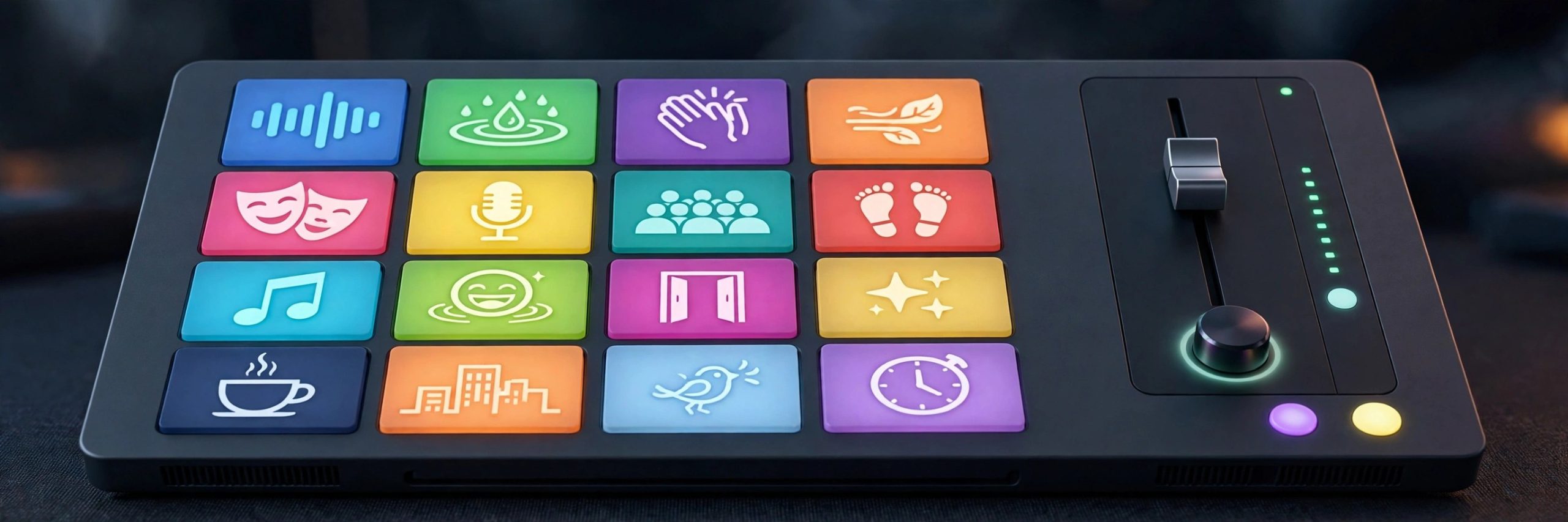
    Farrago is a soundboard built for moments when timing matters. Podcasters use it to fire an intro theme, a laugh, or a sponsor sting at the exact second it is needed, while theatre teams use it to run cues through a whole show. Sounds sit on tiles in tidy sets, and a single key press or mouse click plays them at once. It feels simple on the surface, yet there is enough depth underneath for people who run audio live every week.

    Key Features

    • Trigger sounds instantly from a grid of tiles using keyboard, mouse or MIDI control
    • Organise clips into sets for different shows, episodes or scenes
    • Edit clips inside the app with trimming and fades for clean starts and ends
    • Search a large free sound library from inside the app to find new effects fast
    • Control playback with Shortcuts, Stream Deck and a master volume with limiting

    How to Download

    1. Download from the official site and open the app, or use the download button on this page.
    2. Move Farrago into your Applications folder and launch it.
    3. Add your first sounds to a set and assign them to tiles.

    System Requirements

    Farrago runs on modern versions of macOS and the vendor lists support for recent systems including the latest macOS releases. Check the official site for the minimum version that matches your Mac before you install.

    FAQs

    Who is Farrago made for?

    It suits podcasters, streamers, teachers and theatre crews who need reliable instant playback of short audio clips during recording or performance.

    Can I edit a clip without another app?

    Yes. Basic editing lives inside each tile, so you can trim a clip and add fades without leaving Farrago.

    Can I try Farrago before paying?

    The vendor offers a trial download from its site. Trial limits and current pricing are explained there, so read them before you decide.

  • Pixel Sorter for Photoshop 4.2.14 for Mac

    Pixel Sorter for Photoshop 4.2.14 for Mac

    Pixel Sorter for Photoshop 4.2.14 for Mac

    Pixel Sorter for Photoshop 4.2.14 for Mac

    Mac Utilities
    Updated Aug 15, 2026
    Mac Utilities • Updated Aug 15, 2026

    Pixel sorting rearranges the rows or columns of an image by brightness or colour, so solid areas stretch into long streaks while edges stay readable. Pixel Sorter for Photoshop, from Pixel Sorter Studio and sold through aescripts, brings that effect into Photoshop as an interactive plugin. You work on your actual image, watch the result update as you adjust it, and build glitch style artwork in place.

    Key Features

    • Sorts pixels by brightness, hue or other values into long flowing streaks
    • Fully interactive inside Photoshop, with the effect updating as you work
    • Direction and length controls for horizontal, vertical and angled sorting
    • Threshold controls that keep parts of the image clean while others melt
    • Works on photos, type and graphics for posters, covers and social artwork

    How to Download

    1. Use the download button on this page to get the installer package for your Mac.
    2. Run the installer or follow the included steps, which usually involve the aescripts manager app.
    3. Open Photoshop, load an image, and apply Pixel Sorter from the plugin menus.

    System Requirements

    Pixel Sorter runs inside Adobe Photoshop on macOS, so a current Photoshop install is required. Large images sort faster on Apple Silicon Macs with more memory.

    FAQs

    What is pixel sorting?

    It is a glitch art technique where pixels are reordered by value along lines, so areas stretch into streaks with a melted digital look.

    Can I protect part of a photo from the effect?

    Threshold and range controls let you limit where sorting happens, so a face or logo can stay mostly intact while the background breaks up around it.

    Is this the same tool as the video version?

    It shares the same core features as the Pixel Sorter video plugin, but this edition is built for still images and works interactively inside Photoshop itself.

  • Notepad.exe 1.6.4 for Mac

    Notepad.exe 1.6.4 for Mac

    Notepad.exe 1.6.4 for Mac

    Notepad.exe 1.6.4 for Mac

    Mac Utilities
    Updated Aug 15, 2026
    Mac Utilities • Updated Aug 15, 2026

    Notepad.exe has a playful name and a serious point. On a Mac, it is a light code editor for times when you want to try an idea without setting up a full project. Open a blank note, write a few lines of Swift, Python, JavaScript, Go or Rust, and run it right there. That suits learning, testing snippets and writing small tools. As an idea grows, add packages and keep going in the same editor. A notes library keeps scraps findable, and a built in assistant helps when you get stuck.

    Key Features

    • Run Swift, Python, JavaScript, Go and Rust with no project setup
    • Prototype SwiftUI screens in the iOS Simulator beside your code
    • Notes library with search, tags and pinned windows
    • Add packages as a note grows into a tool or Mac app
    • Assistant options including an on device model for privacy

    How to Download

    1. Download from the official site and download Notepad.exe from the official site.
    2. Open the download, move the app to Applications, and launch it.
    3. Start a new note, pick a language, write code, and run it.

    System Requirements

    The vendor lists macOS 15.6 or later and a universal build. Some features need extra tools, for example the iOS Simulator needs Xcode, and language runtimes must be present or set up as guided.

    FAQs

    Is this Windows Notepad on a Mac?

    No. It is a native Mac code editor. The name nods to simple, fast note style editing.

    Do I need a project first?

    No. Start with one blank file, run it, and add structure later only if the idea grows.

    Is the core app free?

    Yes. The vendor offers a free core version with no account, plus a Pro option for full features.

  • SlapMac 1.4.6 for Mac

    SlapMac 1.4.6 for Mac

    SlapMac 1.4.6 for Mac

    SlapMac 1.4.6 for Mac

    Mac Utilities
    Updated Aug 15, 2026
    Mac Utilities • Updated Aug 15, 2026

    SlapMac is a small novelty app with one joyful idea. Give your MacBook a light slap and it yells back. The app listens to the motion sensor inside Apple Silicon MacBooks, judges how firm the tap was, and plays a sound that matches. A soft tap might earn a squeak. A firmer slap gets a bigger reaction. It lives quietly in the menu bar, asks for almost no setup, and exists purely to make you and anyone nearby smile.

    Key Features

    • Detect real slaps and taps using the motion sensor in supported MacBooks
    • Play different sounds based on how hard the laptop was tapped
    • Choose from dozens of sound effects grouped in several voice packs
    • Adjust sensitivity so typing and desk bumps do not trigger sounds by mistake
    • Load your own audio files to create personal reactions and jokes

    How to Download

    1. Download from the official site and open the app, or use the download button on this page.
    2. Move SlapMac into your Applications folder and launch it.
    3. Pick a voice pack, set the sensitivity and try a gentle tap first.

    System Requirements

    SlapMac needs an Apple Silicon MacBook with a motion sensor and a recent version of macOS. Intel Macs and desktop Macs cannot detect slaps in the same way. Check the official site for the supported models before you install.

    FAQs

    Will slapping damage my MacBook?

    Use gentle taps only. The app responds to light contact, and treating your laptop kindly is always the sensible choice.

    Does SlapMac work on Intel Macs?

    No. It relies on the motion sensor found in supported Apple Silicon MacBooks, so Intel models are not supported.

    Can I use my own sounds?

    Yes. The app lets you load your own audio files, so you can record a friend, a pet, or a favourite silly noise.

  • HydroChrome 1.4.9 for Mac

    HydroChrome 1.4.9 for Mac

    HydroChrome 1.4.9 for Mac

    HydroChrome 1.4.9 for Mac

    Mac Utilities
    Updated Aug 15, 2026
    Mac Utilities • Updated Aug 15, 2026

    HydroChrome, from Pixel Sorter Studio and sold through aescripts, is a GPU effect for After Effects and Premiere Pro that bends footage into flowing liquid metal. It can turn a plain clip into an abstract moving background, or push titles and logos into a glossy chrome world where highlights slide and ripple as the shot moves. Because it renders on the graphics card, previews stay responsive while you shape the look.

    Key Features

    • Creates abstract flowing backgrounds from colour, gradients and movement
    • Chromifies footage, giving clips a liquid metal surface with moving highlights
    • GPU accelerated rendering that previews live in After Effects and Premiere Pro
    • Colour and distortion controls for tuning ripples, reflections and flow
    • Works on footage, text and graphics for titles, loops and music visuals

    How to Download

    1. Use the download button on this page to get the installer package for your Mac.
    2. Run the installer or follow the included steps, which usually involve the aescripts manager app.
    3. Open After Effects or Premiere Pro, apply HydroChrome to a layer, and shape the effect.

    System Requirements

    HydroChrome runs inside Adobe After Effects or Premiere Pro on macOS and leans on the GPU, so a Mac with a capable graphics card previews heavy looks more smoothly.

    FAQs

    What kind of work suits HydroChrome?

    Abstract backgrounds, liquid chrome titles, lyric videos and loopable visuals. It is at its best when movement matters more than fine detail.

    Does it need special hardware?

    It is a GPU effect, so it uses your graphics card to render. Recent Apple Silicon Macs handle it well, though very large frames still take longer.

    Can I use it on text?

    Yes. Apply it to a text layer or a logo and the surface treatment follows the shapes, which makes glossy animated titles quick to build.

  • Expenses 4.1.10 for Mac

    Expenses 4.1.10 for Mac

    Expenses 4.1.10 for Mac

    Expenses 4.1.10 for Mac

    Mac Utilities
    Updated Aug 15, 2026
    Mac Utilities • Updated Aug 15, 2026

    Expenses is a spending tracker that keeps money logging simple and private. Add expenses and income by hand, in any currency, and sort them by category and merchant so patterns become easy to see. Sheets split life into areas such as personal spending, travel or a shared household list. Receipt scanning helps you enter details faster, and stats and trends views show where money goes over time. Your data syncs through iCloud across Mac, iPhone and iPad, so you can log a cost on the go and review it later on a bigger screen.

    Key Features

    • Log expenses and income in any currency by category and merchant
    • Receipt scanning to capture details faster with less typing
    • Stats and trends views showing spending habits over time
    • Sheets for personal, travel or shared household tracking
    • Private by design, with iCloud sync across Apple devices

    How to Download

    1. Download from the official site and install Expenses from the App Store listing.
    2. Open Expenses, create your first sheet, and set your main currency.
    3. Add recent expenses, assign categories, and check the stats view.

    System Requirements

    Expenses needs macOS 13 or later as listed on the App Store, plus iCloud if you want sync with iPhone or iPad. Entry is mostly manual, suiting people who prefer privacy over bank connections.

    FAQs

    Does Expenses connect to my bank?

    Its core flow is manual entry rather than bank import. That keeps things private, though you log costs yourself.

    Can I track more than one currency?

    Yes. Log entries in different currencies, which helps for travel sheets and life across countries.

    Does it sync with iPhone?

    Yes. With iCloud, sheets stay in sync across Mac, iPhone, iPad and other supported Apple devices.

  • Substage 1.2.3 for Mac

    Substage 1.2.3 for Mac

    Substage 1.2.3 for Mac

    Substage 1.2.3 for Mac

    Mac Utilities
    Updated Aug 15, 2026
    Mac Utilities • Updated Aug 15, 2026

    Substage sits below your Finder windows and lets you describe file jobs in plain words. Select a few videos and type a request to convert them, ask what codec a file uses, or tell it to tidy a messy folder. Substage turns your words into the right Terminal command, shows you what will happen, and runs it only when you are happy. It brings the power of the command line to people who never wanted to memorise its syntax.

    Key Features

    • Turn plain language requests into Terminal commands that act on selected Finder items
    • Preview what a command will create, change, move or delete before it runs
    • Convert images, video and documents and inspect file details with short prompts
    • Use your choice of AI models, including local models through Ollama or LM Studio
    • Save custom rules and instant actions for jobs you repeat every day

    How to Download

    1. Download from the official site and open the app, or use the download button on this page.
    2. Move Substage into your Applications folder and launch it.
    3. Select files in Finder and type your first request in the bar.

    System Requirements

    Substage needs a recent version of macOS, and the vendor lists macOS 15 or later. Some tasks use AI services or local models, so check the official site for setup details and current requirements before you install.

    FAQs

    Do I need to know Terminal commands?

    No. You describe the job in everyday words and Substage builds the command. Reading the preview before it runs is still a wise habit.

    Does Substage send my file contents to AI services?

    The vendor says it sends your prompt and file paths as context, not the contents of your files. Local models can keep even more of the work on your Mac.

    What jobs suit Substage best?

    Quick single tasks suit it best, such as converting a file, resizing images, zipping a folder, or asking questions about selected files.

  • Stacher 7.1.13 for Mac

    Stacher 7.1.13 for Mac

    Stacher 7.1.13 for Mac

    Stacher 7.1.13 for Mac

    Mac Utilities
    Updated Aug 15, 2026
    Mac Utilities • Updated Aug 15, 2026

    Stacher is a desktop front end for yt-dlp, the widely used open source tool for saving video and audio from a huge range of sites. Instead of typing commands into Terminal, you paste a link, pick a format and quality, and let Stacher handle the rest. Version 7 is a ground up rebuild with a queue, subscriptions, media conversion and a searchable library.

    Key Features

    • Paste a link and download video or audio without touching the command line
    • Format and quality choices for each download, including high resolution video
    • Playlist and channel downloads with subscriptions that watch for new posts
    • Library with search, tags and a built in player for your saved media
    • Media conversion between common formats such as MP4, MP3, MOV and GIF

    How to Download

    1. Download from the official site and choose the macOS build for your Mac.
    2. Open the downloaded file and move Stacher into your Applications folder.
    3. Launch the app, let it set up yt-dlp on first run, then paste your first link.

    System Requirements

    Stacher runs on macOS with builds for both Apple Silicon and Intel Macs. It needs an internet connection for downloads, and it uses ffmpeg for some conversions and merges.

    FAQs

    Is Stacher free?

    The base app is free with no ads and no download limits. An optional Premium tier, offered through Patreon, adds extras such as themes and the full library mode.

    Which sites does it work with?

    It is powered by yt-dlp, so it covers the same very large range of sites as that tool. Only save content you have the right to keep, since site terms vary.

    Do I need to install yt-dlp myself?

    No. Stacher guides you through setting up yt-dlp on first launch, and it can reinstall it later from the tools menu if something breaks.

  • Tellie 1.7 for Mac

    Tellie 1.7 for Mac

    Tellie 1.7 for Mac

    Tellie 1.7 for Mac

    Mac Utilities
    Updated Aug 15, 2026
    Mac Utilities • Updated Aug 15, 2026

    Tellie is a teleprompter that sits at the Mac notch, close to your camera, so your eyes stay up while you speak. Its clever part is listening. Instead of scrolling at a fixed speed you must chase, Tellie follows the words you actually say and keeps your place when you pause, skip a line or phrase a point in your own words. It stays hidden from screen sharing and recordings, which suits video calls, lessons and recorded talks. Mark the points you must cover, and Tellie tracks what is left.

    Key Features

    • Prompter at the notch near the camera, or top centre without one
    • Voice follow scrolling that tracks real words and pauses
    • Coverage tracking for key points with gentle time prompts
    • Hidden from Zoom, Teams, Meet and screen recordings
    • Script import from text, Markdown, Word, PDF and Pages files

    How to Download

    1. Download from the official site and download Tellie from the official site.
    2. Open the app, grant microphone access for voice follow, and load your script.
    3. Place Tellie at the notch, start speaking, and let it follow along.

    System Requirements

    Tellie needs macOS 14 or later on an Apple silicon Mac, as listed by the vendor. Voice follow runs on the device, and a quiet room with a decent microphone gives the clearest results.

    FAQs

    Can people on my call see Tellie?

    No. The vendor says macOS keeps its window out of screen capture, so call apps never show your notes.

    What if I go off script?

    Tellie listens for what you covered, keeps your place, and tracks points you still need to say.

    Is there a free version?

    Yes. The base teleprompter is free. Pro adds voice follow and coaching with a one time purchase.