
AVAide DVD Ripper 1.0.12 for Mac
Mac VideoAVAide DVD Ripper is AVAide's tool for turning a DVD collection into digital files on your Mac. It loads discs, DVD folders and ISO images, then converts them to formats like MP4, MKV and MOV for playback on modern devices that no longer have optical drives. It is aimed at people digitising their own movie and home-video discs before the discs or drives disappear.
Key Features
- Rips DVD discs, folders and ISO images to MP4, MKV, MOV and many other formats
- 1:1 backup option that keeps the original video, audio tracks, chapters and subtitles
- GPU acceleration from NVIDIA, Intel and AMD for much faster conversions
- Choose audio tracks and subtitle streams, and adjust codec, bitrate and resolution
- Batch processing for working through several discs in one session
How to Download
- Connect a DVD drive to your Mac if it does not have a built-in one.
- Download from the official site and install AVAide DVD Ripper for Mac.
- Load your disc, pick an output format, and click Rip All to start the conversion.
System Requirements
AVAide lists its Mac tools for macOS 10.12 and later, running on Intel and Apple silicon processors with at least 2 GB of RAM. You will also need a DVD drive — most current Macs require an external USB one.
FAQs
Is it legal to rip my DVDs?
Ripping discs you own for personal backup is treated differently in different countries, and bypassing copy protection is restricted in some places. Check your local rules, and only rip media you own.
Is AVAide DVD Ripper free?
There is a free trial with limits; full use requires a paid licence from AVAide. This page does not provide registration codes or modified versions.
AV Recorder & Screen Capture 2.2.0 for Mac
AV Recorder & Screen Capture 2.2.0 for Mac
Mac VideoAV Recorder & Screen Capture is a Mac App Store screen recording app for tutorials, gameplay and demos. It captures everything on your display or just a region you select, records your voice from a microphone alongside the system sound, and lets you trim the result before saving or sharing it — the essentials of screen recording without a full video editor attached.
Key Features
- Record the full screen or a custom selected area
- Capture microphone narration and system audio together
- High-resolution recording, up to the full resolution of your display
- Optional frame-rate settings suited to gameplay capture
- Auto-stop after a set time, plus basic trimming of recordings
How to Download
- Check your Mac meets the requirements below.
- Use the green Download button on this page to reach the developer's website, or find AV Recorder & Screen Capture in the Mac App Store.
- Install it, grant screen recording and microphone permissions in System Settings, and press record.
System Requirements
The app was built for Intel-era Macs running OS X and early macOS versions, so on a modern Mac you should confirm the current App Store listing still supports your macOS version before buying. Any recent version of macOS also requires you to allow screen recording in Privacy & Security settings.
FAQs
Is AV Recorder & Screen Capture free?
No, it is an inexpensive paid app in the Mac App Store. The built-in macOS Screenshot toolbar (Shift-Command-5) covers basic recording for free if you do not need its extra options.
Can it record system audio and my voice at the same time?
Yes, that is one of its main selling points compared with QuickTime Player: it can capture the Mac's sound output and microphone narration in the same recording.

Autopano Video Pro 2.5.3 for Mac
Autopano Video Pro 2.5.3 for Mac
Mac VideoAutopano Video Pro was Kolor's professional tool for stitching video from multi-camera rigs — most famously arrays of GoPro cameras — into one seamless 360 x 180 degree spherical video. You import the clips from each camera, let the software synchronize and stitch them, fine-tune the result, and render a panoramic video ready for VR headsets or interactive players. It was a standard tool in early 360-degree video production.
Key Features
- Stitches multiple camera feeds into a single 360 x 180 degree video
- Automatic synchronization using audio, motion or manual alignment
- Deep integration with Autopano Giga to fix parallax and refine stitch lines
- Multiple projections, color correction and horizon correction tools
- Batch rendering, so several 360 projects can be queued and processed later
How to Download
- Note the honest status below: Kolor closed in 2018, so there is no current official store for this software.
- Use the green Download button on this page for guidance, and only obtain legacy installers from sources you trust, since the developer's website no longer sells it.
- If you install a legacy copy, pair it with Autopano Giga for full stitch-editing control, and expect to run it on an older macOS setup.
System Requirements
Autopano Video Pro was a 64-bit Mac application from the OS X era and relies on OpenGL for its preview and rendering. It predates Apple silicon and modern macOS, so it is realistic only on older Intel Macs kept for legacy 360 work.
FAQs
Can I still buy Autopano Video Pro?
No. GoPro acquired Kolor and shut it down in 2018, ending sales and development. Anyone offering new licences or "activated" copies today is not the developer.
What replaced it?
Most 360 creators moved to camera makers' own stitching tools or to editors with built-in 360 support. This post keeps the information available for people maintaining older rigs and projects, and offers no downloads of the software itself.
Automatic Duck Ximport AE for Final Cut Pro X and After Effects 1.1.1 for Mac
Automatic Duck Ximport AE for Final Cut Pro X and After Effects 1.1.1 for Mac
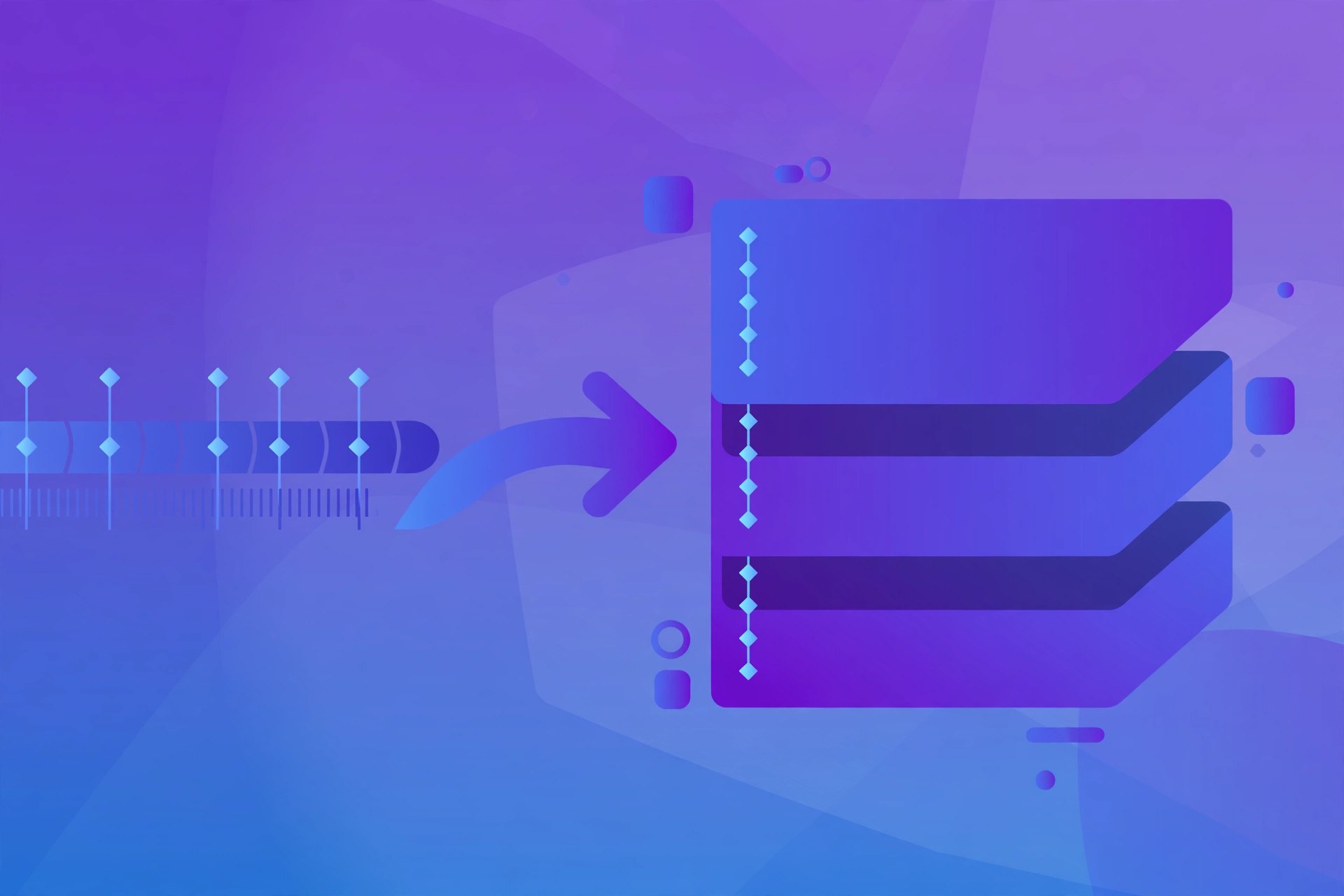
Mac VideoXimport AE is an After Effects plugin from Automatic Duck that rebuilds a Final Cut Pro X timeline inside Adobe After Effects. You export an FCPXML file from Final Cut Pro X, open it in After Effects through the plugin, and your edit comes across as a composition — clips as layers, with cuts, transitions and many effects preserved. It exists for the common handoff where a project is edited in Final Cut but needs finishing, titles or compositing work in After Effects.
Key Features
- Imports FCPXML exports from Final Cut Pro X directly into After Effects
- Rebuilds each clip as its own layer with edit points intact
- Translates many built-in and third-party effects and transitions with their settings
- Carries across transform properties such as position, scale and opacity
- Much faster than rebuilding an edit by hand or via intermediate renders
How to Download
- In Final Cut Pro X, select your project and export its XML file.
- Use the green Download button on this page to reach the developer's website and obtain Ximport AE from the official seller.
- Install the plugin, then in After Effects use its import option to open the FCPXML and review the rebuilt composition.
System Requirements
Ximport AE runs as a plugin inside Adobe After Effects on a Mac, and needs projects exported from Final Cut Pro X (or Motion) as FCPXML. It comes from an older generation of both apps, so verify the current compatibility list with the seller before purchasing for a modern setup.
FAQs
Will everything in my FCP X timeline translate perfectly?
Not everything — Automatic Duck publishes a list of what does and does not translate. Common edits, transforms and many popular third-party effects carry over, but some Final Cut-specific features will need manual fixes in After Effects.
Is Ximport AE free?
No, it is a paid plugin. It was distributed through Red Giant with a trial period, so you can test it against your own timeline before committing. No licence keys are offered on this page.

Automatic Duck Media Copy for Final Cut Pro X and Motion 4.1.1 for Mac
Automatic Duck Media Copy for Final Cut Pro X and Motion 4.1.1 for Mac
Mac VideoMedia Copy is a standalone media-management app from Automatic Duck, the team known for moving projects between editing systems. Instead of hunting through folders by hand, you feed it an XML, FCPXML or AAF export of a sequence — including Final Cut Pro X projects and the Motion projects tied to them — and it copies every media file that sequence actually uses to a destination you choose. It is built for archiving, handing projects to another editor, or moving a job between drives.
Key Features
- Reads FCPXML, FCP 7 XML, AAF and OMF files, plus Avid projects and bins
- Copies all media referenced by a sequence to a folder or drive you select
- Handles several projects in one run, useful for archiving a whole job
- Copies complete files as they are, so nothing is trimmed or re-encoded
- Standalone app — no need to open the original project in an editor
How to Download
- Export an XML, FCPXML or AAF file from your editing project first.
- Use the green Download button on this page to reach the developer's website and get Media Copy from the official seller.
- Install the app, add your exported sequence file, pick a destination, and start the copy.
System Requirements
Media Copy is a Mac app designed for systems running Final Cut Pro X or Avid Media Composer workflows, and it works with exports from Final Cut Pro 7 as well. Because it dates from an older generation of macOS, check the seller's current listing for the exact macOS versions supported before buying.
FAQs
Does Media Copy shrink or consolidate my project?
No. It copies the entire file for every clip a sequence references; it does not trim handles or transcode anything. That makes archives safe, but they can be large.
Is Media Copy free?
No, it is a paid product; it was sold through Red Giant with a time-limited trial so editors could test it on a real project first. This page does not provide licence keys or modified copies.

Autokroma BRAW Studio for Premiere and Media Encoder 3.5.0 for Mac
Autokroma BRAW Studio for Premiere and Media Encoder 3.5.0 for Mac
Mac VideoThis edition of Autokroma's BRAW Studio focuses on the Premiere Pro and Media Encoder side of the workflow: editing Blackmagic RAW footage directly on a Premiere timeline. Older versions of BRAW Studio were sold as separate licences per Adobe app, but Autokroma merged them, so the current release covers Premiere Pro, Media Encoder, After Effects and Audition in one installer, with a dedicated panel inside Premiere.
Key Features
- Native .braw import in Premiere Pro and Media Encoder, no transcoding needed first
- Source settings panel to change ISO, white balance, tint and exposure after import
- Batch apply RAW settings to many selected clips at once
- Metadata organizer and white balance picker tools in the Premiere panel
- Free import and decoding; Premium licence unlocks the full panel feature set
How to Download
- Confirm your Mac runs a supported macOS and Premiere Pro version (see below).
- Download from the official site and open the downloaded .dmg file.
- Run the .pkg installer, relaunch Premiere Pro, and import a .braw clip to check the workflow.
System Requirements
BRAW Studio currently requires macOS 11 Big Sur or newer and a recent version of Premiere Pro or Media Encoder, on either an Intel or Apple silicon Mac. Because it works with RAW footage, a fast SSD and a capable GPU make a noticeable difference to playback smoothness.
FAQs
Do I still need DaVinci Resolve for .braw files?
Not for editing in Premiere Pro. BRAW Studio decodes the files inside Premiere and Media Encoder, although Resolve remains an option if you prefer its color page for finishing.
What does the free version include?
Importing, decoding and basic source settings are free. The paid Premium licence adds the advanced panel features such as batch grading tools. There are no licence keys or modified installers offered here.
Autokroma BRAW Studio 3.5.0 for Mac
Autokroma BRAW Studio 3.5.0 for Mac
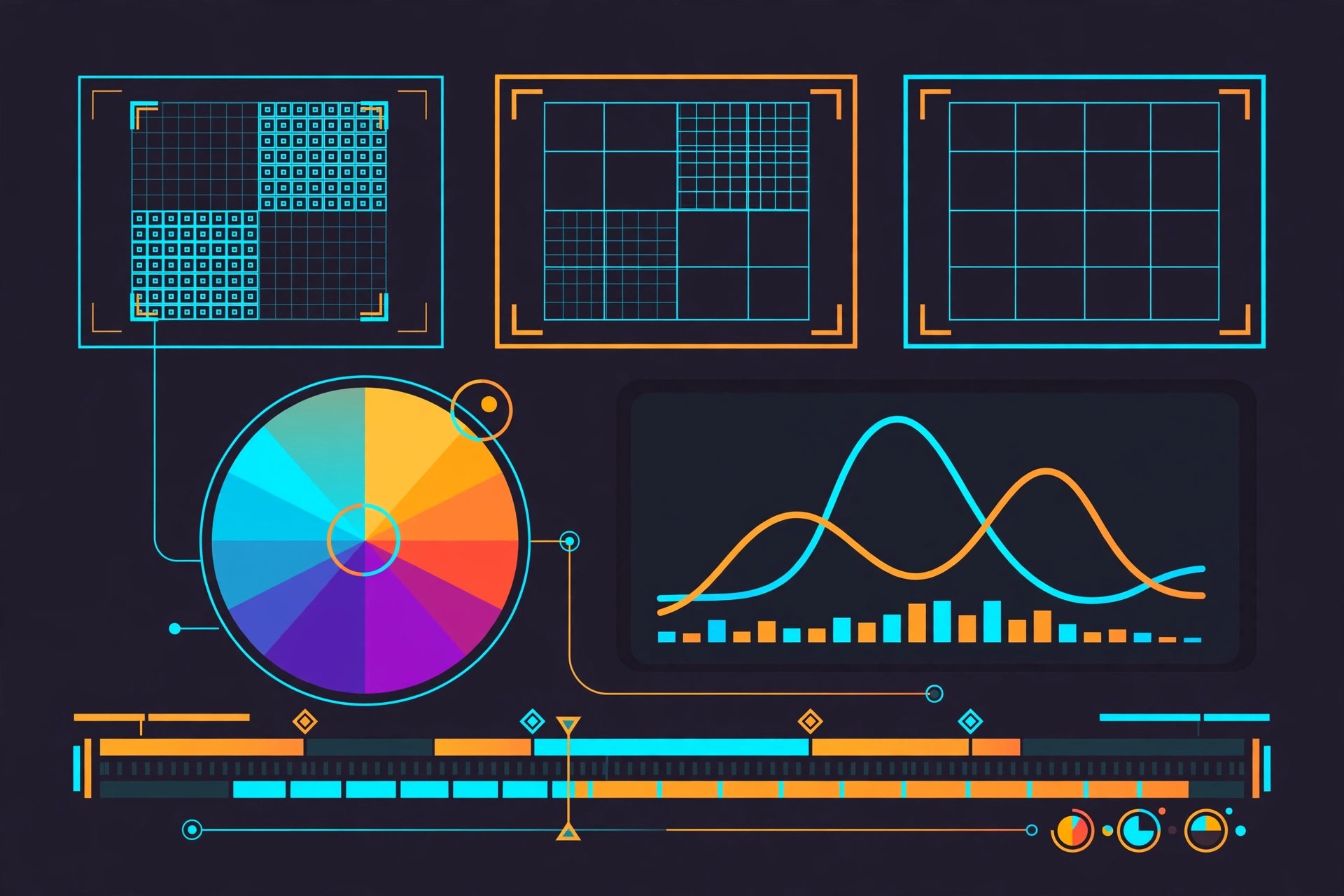
Mac VideoBRAW Studio from Autokroma is a Blackmagic RAW importer for Adobe Premiere Pro, After Effects and Media Encoder. If you shoot on Blackmagic cameras, it lets you bring .braw files straight into Adobe apps and adjust the RAW settings there, instead of round-tripping everything through DaVinci Resolve first. Version 3 also adds a standalone desktop app for playing and grading .braw clips from the Finder.
Key Features
- Import .braw footage natively into Premiere Pro, After Effects, Media Encoder and Audition
- Full control over RAW settings such as ISO, white balance, exposure and color space
- Premiere Pro panel with batch grading, white balance picker and metadata tools
- Standalone desktop app to play, trim and grade .braw files outside Adobe apps
- Free decoding tier, with a Premium licence unlocking the advanced panel features
How to Download
- Check that your Mac and Adobe apps meet the requirements below.
- Download from the official site and open the macOS .dmg installer.
- Run the installer, restart Premiere Pro or After Effects, and import a .braw clip to test it before buying a Premium licence.
System Requirements
BRAW Studio needs macOS 11 Big Sur or later because of the Blackmagic RAW SDK it is built on, plus a supported version of Premiere Pro, After Effects or Media Encoder. It runs on both Intel and Apple silicon Macs; RAW playback performance depends heavily on your GPU and storage speed.
FAQs
Is BRAW Studio free?
Partly. Importing and decoding .braw files, and adjusting basic source settings, is free. The Premium licence adds the advanced panel tools and batch features. Pricing and upgrade options are listed on Autokroma's site.
Does BRAW Studio work with .dng files?
No. BRAW Studio is specifically for Blackmagic RAW (.braw) footage; CinemaDNG files are not supported.

Autokroma AfterCodecs for After Effects, Premiere and Media Encoder 1.12.2 for Mac
Autokroma AfterCodecs for After Effects, Premiere and Media Encoder 1.12.2 for Mac
Mac VideoAfterCodecs is a native export plugin from Autokroma for Adobe After Effects, Premiere Pro and Media Encoder. It fills the codec gaps in Adobe's own exporters, letting you render ProRes, H.264, H.265 and HAP files directly from your timeline or composition without going through QuickTime or a separate conversion step. It is aimed at editors and motion designers who deliver files to clients, broadcasters and the web from a Mac.
Key Features
- Native ProRes, H.264, H.265 and HAP exports inside After Effects, Premiere Pro and Media Encoder
- Quality and file-size controls, including x264-style encoding options for H.264
- MultiRender Markers in Premiere Pro to batch export several ranges in one pass
- Progress shown in the After Effects taskbar icon while renders run
- Regular updates that track new Adobe Creative Cloud releases, including Apple silicon Macs
How to Download
- Make sure you have a supported version of After Effects, Premiere Pro or Media Encoder installed on your Mac.
- Download from the official site and run the macOS installer from the downloaded package.
- Restart your Adobe app, choose AfterCodecs as the export format, and activate a licence or start the trial from the settings window.
System Requirements
AfterCodecs needs a Mac running a recent version of macOS and a current Adobe Creative Cloud installation of After Effects, Premiere Pro or Media Encoder. Autokroma supports both Intel and Apple silicon Macs; check the official download page for the exact macOS and Adobe versions supported by the current release.
FAQs
Is AfterCodecs free?
There is a trial mode so you can test exports before buying, and some limited encoding options have historically been offered free. The full feature set requires a paid licence from Autokroma; this post does not offer any licence keys or modified versions.
Does AfterCodecs replace Media Encoder?
No. It works inside Media Encoder, Premiere Pro and After Effects as an export format, so it fits into the workflow you already have rather than replacing it.
Autokroma AfterCodecs 1.12.2 for AE, PP & ME for Mac
Autokroma AfterCodecs 1.12.2 for AE, PP & ME for Mac
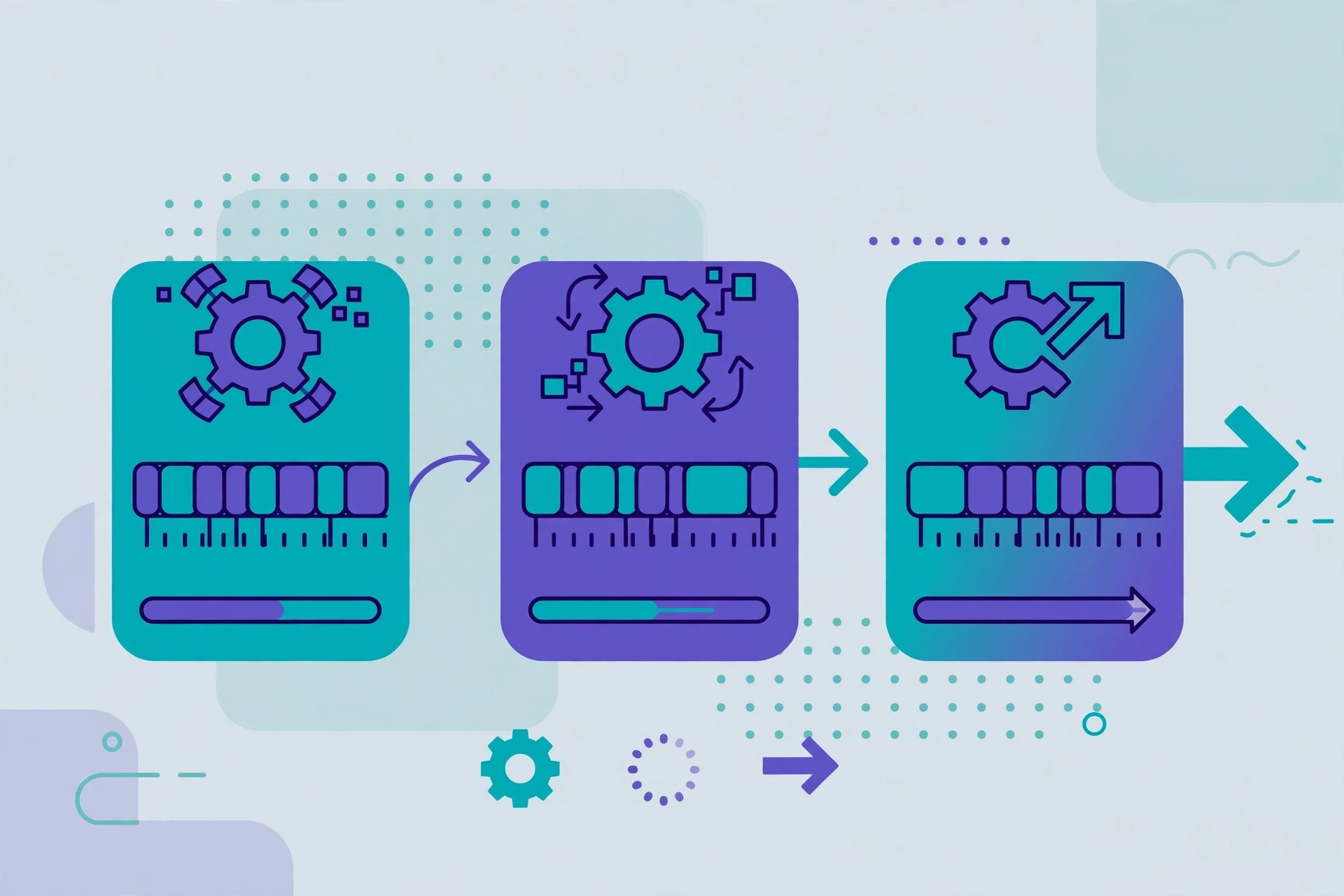
Mac VideoAutokroma AfterCodecs 1.12.2 for AE, PP & ME for Mac is the edition of Autokroma's exporter aimed squarely at the three Adobe video applications: After Effects, Premiere Pro and Media Encoder. One installation gives all three apps the same extended codec set, so a motion designer rendering from After Effects and an editor exporting from Premiere share identical ProRes, H.264, H.265 and HAP options. Version 1.12.2 is the current release from Autokroma.
Key Features
- One exporter plugin shared by After Effects, Premiere Pro and Media Encoder
- ProRes, H.264, H.265 and HAP codecs with detailed quality controls
- Consistent export settings across all three Adobe applications
- Batch-friendly features such as MultiRender markers in Premiere Pro
- Updated for current Adobe releases, including the 2027 beta line
How to Download
- Check that your After Effects, Premiere Pro and Media Encoder versions are on Autokroma's supported list first.
- Get it from Autodesk or the developer: Download from the official site
- Run the installer, sign in or enter your licence details if asked, and launch the app from your Applications folder.
System Requirements
This AfterCodecs release needs a recent version of macOS on an Apple silicon or Intel Mac, plus supported versions of Adobe After Effects, Premiere Pro or Media Encoder; version 1.12.2 covers Adobe releases up to the 2027 beta applications. See Autokroma's official download page for the precise compatibility table.
FAQs
Does one licence cover all three Adobe apps?
AfterCodecs is licensed per product from Autokroma, and its plugins are built for After Effects, Premiere Pro and Media Encoder. Check the official site for how licensing applies to the applications you use.
What does trial mode do?
The official installer can be used in trial mode to test exports before buying. Autokroma explains any trial limitations in the message written during trial exports and on its website.

Autokroma AfterCodecs 1.12.2 for Mac
Autokroma AfterCodecs 1.12.2 for Mac
Mac VideoAutokroma AfterCodecs 1.12.2 for Mac is Autokroma's exporter plugin suite for Adobe After Effects, Premiere Pro and Media Encoder. It adds codecs and containers that Adobe's built-in exporters handle poorly or not at all, including ProRes on any system, H.264 and H.265 with strong quality controls, and HAP for real-time playback workflows. Version 1.12.2 is the current release, adding support for the Adobe 2027 beta applications.
Key Features
- Export ProRes, H.264, H.265 and HAP directly from Adobe applications
- Works inside After Effects, Premiere Pro and Media Encoder
- Quality and file-size controls beyond the built-in exporters
- MultiRender markers in Premiere Pro for batch section exports
- Regular updates for new Adobe Creative Cloud releases
How to Download
- Confirm your Adobe application versions are supported, then download the macOS installer from Autokroma's official site.
- Get it from Autodesk or the developer: Download from the official site
- Run the installer, sign in or enter your licence details if asked, and launch the app from your Applications folder.
System Requirements
AfterCodecs runs on a recent version of macOS on Apple silicon and Intel Macs, inside supported Adobe After Effects, Premiere Pro and Media Encoder versions; the current 1.12.2 release supports Adobe releases up to the 2027 beta line. Check Autokroma's official download page for the exact compatibility list for your Adobe versions.
FAQs
Why use AfterCodecs instead of Adobe's exporter?
It fills codec gaps: for example ProRes export with more control, HAP codecs for playback servers, and H.264/H.265 settings aimed at better quality at smaller sizes, all without leaving your Adobe application.
Is AfterCodecs free?
AfterCodecs is a paid plugin from Autokroma, and the installer can run in trial mode so you can test exports before buying a licence. Pricing and trial details are on the official Autokroma site.