Category: Mac Utilities

  • Espanso 2.4.1 for Mac

    Espanso 2.4.1 for Mac

    Espanso 2.4.1 for Mac

    Espanso 2.4.1 for Mac

    Mac Utilities
    Updated Aug 22, 2026
    Mac Utilities • Updated Aug 22, 2026

    Espanso is a text expander that works everywhere you type. You define short triggers in simple text files, and Espanso replaces them with longer text as you type: email templates, addresses, code blocks, signatures and replies you send every day. It goes further with fill in forms, dynamic dates, shell scripts and community packages that add ready made snippet sets. Updated Aug 22, 2026.

    Key Features

    • Expands short triggers into long text in any app
    • Simple YAML files that are easy to back up and share
    • Fill in forms for snippets that need custom details
    • Dynamic content such as dates, clipboard and shell output
    • Community packages for emoji, accents and common phrases
    • Free, open source and private, with everything stored locally

    How to Download

    1. Download from the official site and open the installation guide.
    2. Download the macOS build or install it with Homebrew.
    3. Register and start the Espanso service as the guide shows.
    4. Edit the default configuration and add your first triggers.

    System Requirements

    Espanso runs on Mac, Windows and Linux. On a Mac it needs macOS 11 or later and accessibility permission so it can detect typing and insert expansions in your apps. It is light and runs quietly in the background.

    FAQs

    Does Espanso need the internet?

    No. Snippets live in local files on your Mac and expansions happen on the device, so it also works fully offline.

    Is Espanso hard to set up?

    The basic setup is quick. You edit plain text files, and the official guide and examples cover the common patterns well.

  • Voxel Buddy Pro 1.0 for Mac

    Voxel Buddy Pro 1.0 for Mac

    Voxel Buddy Pro 1.0 for Mac

    Voxel Buddy Pro 1.0 for Mac

    Mac Utilities
    Updated Aug 22, 2026
    Mac Utilities • Updated Aug 22, 2026

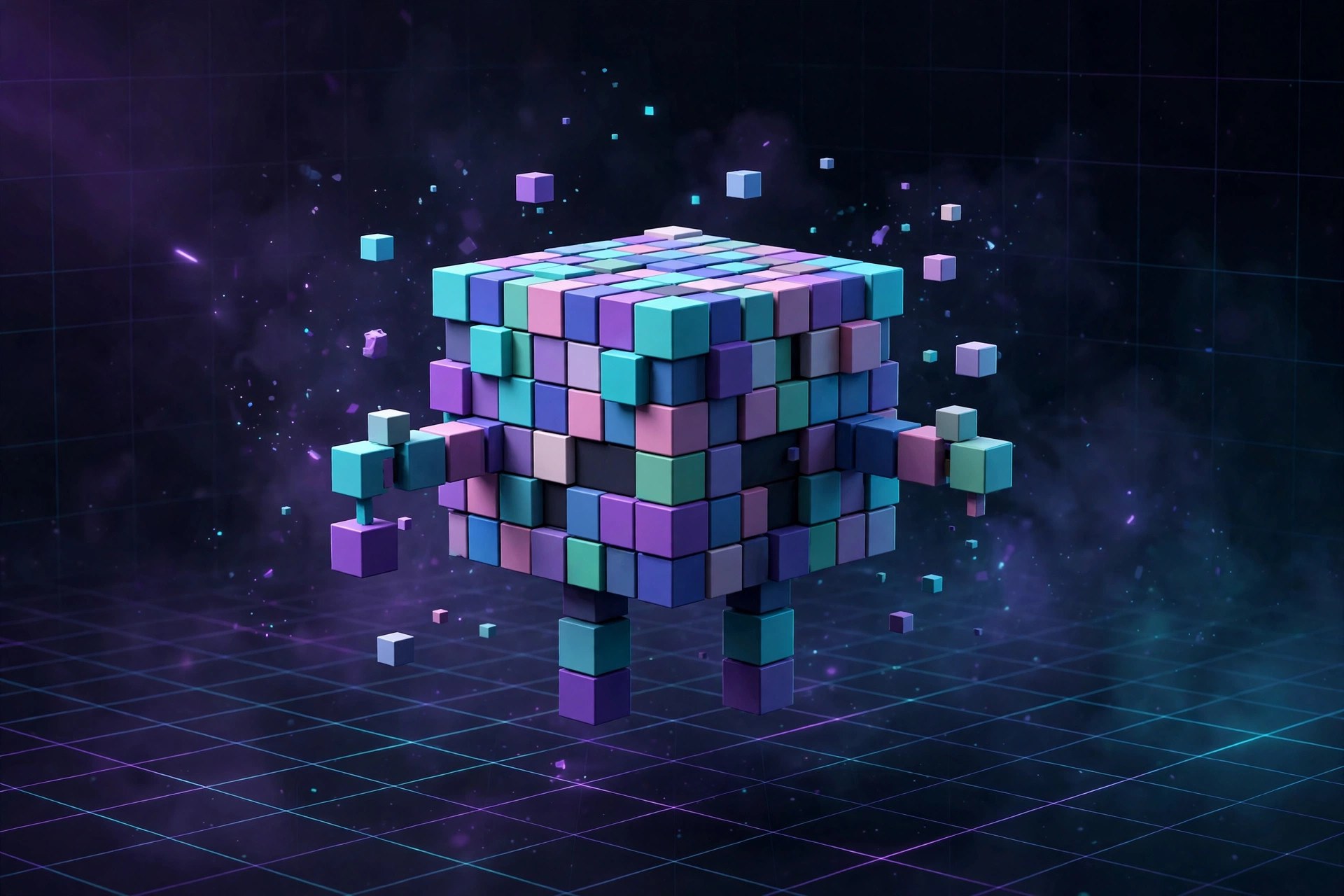
    Voxel Buddy Pro 1.0, made by SubPixel LLC and sold through aescripts, brings voxel rendering inside Adobe After Effects. Instead of faking blocky 3D with layers of shapes, it runs a GPU accelerated ray marching engine that draws voxels in real time, with no simulations to bake. It integrates with the After Effects 3D camera, so camera moves carry straight into the voxel scene, and it responds to scene lights like other 3D layers. It can use primitive shapes from the newer shape system while staying compatible with older versions. Updated Aug 22, 2026.

    Key Features

    • Real time GPU accelerated ray marching voxel engine
    • No simulations to bake before previewing results
    • Integration with the After Effects 3D camera
    • Responds to After Effects lights for scene shading
    • Uses primitive shapes as voxel sources
    • Compatible with older and current After Effects versions

    How to Download

    1. Make sure you have a supported copy of After Effects on your Mac.
    2. Use this link to get the installer: Download from the official site and save the file.
    3. Buy or register the plugin on aescripts, install it, then restart After Effects.

    System Requirements

    You need a Mac running Adobe After Effects, a graphics processor strong enough for GPU based rendering, and enough memory for your compositions. An internet connection is needed for purchase, download and license activation through aescripts.

    FAQs

    Does it work with the After Effects camera?

    Yes. It integrates with the 3D camera and lighting systems, so moves and lights affect voxels like 3D content.

    Do I need to run simulations first?

    No. The engine renders in real time with no simulations, keeping the workflow fast and interactive.

    Where do I manage the license?

    Voxel Buddy Pro is sold by SubPixel LLC through aescripts, where license and downloads live in your account.

  • PrusaSlicer 2.9.7 for Mac

    PrusaSlicer 2.9.7 for Mac

    PrusaSlicer 2.9.7 for Mac

    PrusaSlicer 2.9.7 for Mac

    Mac Utilities
    Updated Aug 22, 2026
    Mac Utilities • Updated Aug 22, 2026

    PrusaSlicer is the free slicing software from Prusa Research. It takes 3D models in formats such as STL, OBJ and 3MF and turns them into G code instructions your printer can follow, or into layer images for resin printers. It ships with tuned profiles for Prusa printers and works with many printers from other brands as well. Updated Aug 22, 2026.

    Key Features

    • Slices models for FFF printers and resin printers
    • Ready made profiles for Prusa and many third party printers
    • Paint on supports, seams and multi material areas
    • Multiple build plates in a single project
    • Organic and classic support styles with fine control
    • Sends prints to Prusa Connect and other printer hosts

    How to Download

    1. Download from the official site and open the download section.
    2. Choose the macOS build for your Mac.
    3. Open the disk image and move PrusaSlicer to Applications.
    4. Run the configuration wizard and pick your printer to begin.

    System Requirements

    PrusaSlicer runs on Intel and Apple silicon Macs with a recent macOS release. A mouse with a scroll wheel helps with model work, and larger models benefit from more memory and a faster processor.

    FAQs

    Is PrusaSlicer really free?

    Yes. It is free and open source, with no account needed and no paid tier for the core slicing tools.

    Does it only work with Prusa printers?

    No. It includes profiles for many other brands, and you can build a custom profile for almost any FFF printer.

  • Steinberg WaveLab Pro 13.0.30 for Mac

    Steinberg WaveLab Pro 13.0.30 for Mac

    Steinberg WaveLab Pro 13.0.30 for Mac

    Steinberg WaveLab Pro 13.0.30 for Mac

    Mac Utilities
    Updated Aug 22, 2026
    Mac Utilities • Updated Aug 22, 2026

    WaveLab Pro is Steinberg flagship audio editing and mastering suite. Engineers use it to edit audio with sample accuracy, master albums in the montage, restore recordings and prepare files for release. Version 13 adds a full Dolby Atmos mastering workflow with montage based album assembly, plus a redesigned MasterRig and fast multicore rendering for heavy projects. Updated Aug 22, 2026.

    Key Features

    • Sample accurate audio editing with spectral tools
    • Dolby Atmos mastering with album assembly in the montage
    • Audio montage for album sequencing and final touches
    • Redesigned MasterRig mastering chain and new plugins
    • Batch processing for converting and fixing many files
    • Loudness metering and detailed audio analysis

    How to Download

    1. Download from the official site and check the trial and buying options.
    2. Download the Steinberg Download Assistant for Mac.
    3. Install WaveLab 13 through the assistant.
    4. Activate your license with the Steinberg Activation Manager.

    System Requirements

    WaveLab Pro 13 runs on Macs with macOS 14, 15 or 26, on Intel and Apple silicon machines. Mastering work benefits from fast storage and plenty of memory, and an audio interface is recommended for accurate monitoring.

    FAQs

    What is WaveLab Pro mainly used for?

    It is used for mastering, audio editing, restoration and podcast production, where precise editing and loudness control matter most.

    Can I try WaveLab Pro first?

    Yes. Steinberg offers a trial version, so you can test the full workflow before buying a license.

  • WhyFi 1.4.4 for Mac

    WhyFi 1.4.4 for Mac

    WhyFi 1.4.4 for Mac

    WhyFi 1.4.4 for Mac

    Mac Utilities
    Updated Aug 21, 2026
    Mac Utilities • Updated Aug 21, 2026

    WhyFi answers the question every Mac user asks when the internet feels broken: is it my WiFi, my router, my provider or something else? The app lives in your menu bar and watches the connection continuously, testing the separate links in the chain between your Mac and the wider internet. When something goes wrong it points at the likely weak spot, whether that is the wireless signal, the router, the internet provider or the DNS service, and explains in plain language what to try. Updated Aug 21, 2026.

    Key Features

    • Sits in the menu bar and monitors your connection while you work
    • Separates the chain into WiFi, router, provider and DNS stages
    • Explains each problem in plain words and suggests a practical fix
    • Sold for a single one off payment rather than a subscription

    How to Download

    1. Open the official WhyFi site and read what the current release covers.
    2. Use this link to get the installer: Download from the official site and save the file to your Mac.
    3. Open the download and move WhyFi into your Applications folder.
    4. Launch the app, then open it the next time your connection misbehaves.

    System Requirements

    WhyFi is a small macOS menu bar utility. You need a Mac with a wireless connection for its WiFi checks to be meaningful. It observes your network rather than changing router settings, so there is nothing to configure on your other equipment.

    FAQs

    What does WhyFi actually check?

    It tests the stages your connection passes through, so it can say whether the trouble looks like WiFi, the router, your provider or DNS.

    Will WhyFi fix my router for me?

    No. It diagnoses the problem and tells you how to fix it, but the changes stay in your hands.

  • Extendo 1.5.5 for Mac

    Extendo 1.5.5 for Mac

    Extendo 1.5.5 for Mac

    Extendo 1.5.5 for Mac

    Mac Utilities
    Updated Aug 21, 2026
    Mac Utilities • Updated Aug 21, 2026

    Extendo is an edge extension plugin for After Effects. When you key or roto a plate, the edges often need work, and the usual fix of eroding the matte eats into fine detail like hair. Extendo takes the opposite approach: it pushes the colour from the edge pixels outward, extending clean detail into the area beyond the edge. The idea is similar to PixelSpread in Flame and EdgeExtend in Nuke, tools compositors have relied on for years, brought into After Effects. The result is a plate that composites more naturally over a new background. Updated Aug 21, 2026.

    Key Features

    • Extends edge pixels outward to preserve fine detail
    • Helps keyed and roto plates sit naturally over new backgrounds
    • Keeps hair and soft edges that erosion would destroy
    • Works as an effect inside After Effects compositions

    How to Download

    1. Open After Effects on your Mac and save your current project first.
    2. Use this link to get the installer: Download from the official site and save the file to your Mac.
    3. Run the installer or place the plugin as directed, then restart After Effects.
    4. Apply Extendo to your cleaned plate, extend the edges and preview the composite.

    System Requirements

    Extendo needs a Mac with a recent version of macOS and a supported version of Adobe After Effects, with recent releases listing After Effects 2023 to 2026. It runs as a plugin inside After Effects, so it uses the memory and graphics power of your Mac.

    FAQs

    Why extend edges instead of eroding them?

    Eroding a matte removes the fringe but also removes real detail. Extending the edge colour outward keeps that detail.

    Is Extendo similar to tools in Nuke or Flame?

    Yes, it brings the same idea as EdgeExtend in Nuke and PixelSpread in Flame to After Effects compositing work.

  • Nik Collection by DxO 9.1.0 for Mac

    Nik Collection by DxO 9.1.0 for Mac

    Nik Collection by DxO 9.1.0 for Mac

    Nik Collection by DxO 9.1.0 for Mac

    Mac Utilities
    Updated Aug 21, 2026
    Mac Utilities • Updated Aug 21, 2026

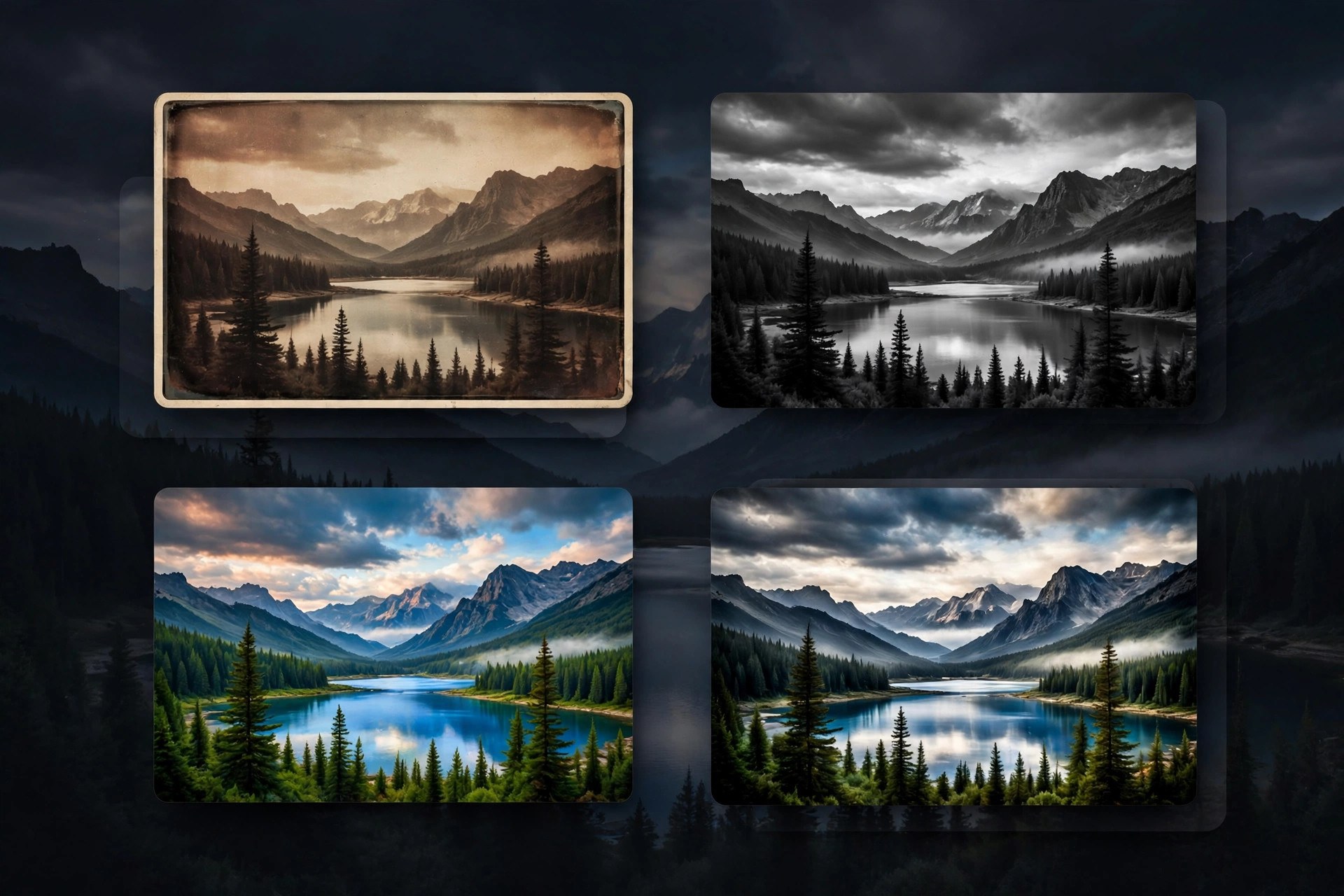
    Nik Collection by DxO is a suite of creative photo editing plugins used to finish images with a distinct look. The collection includes tools for creative color effects, black and white conversion, analog film styles, local adjustments, sharpening, noise reduction and HDR. Version 9 adds AI assisted masking, depth masks, a redesigned color grading tool in Nik Color Efex and new filters, while keeping the preset driven workflow photographers like. Updated Aug 21, 2026.

    Key Features

    • Creative plugins covering color, mono, analog and HDR work
    • AI masks and depth masks for faster local adjustments
    • Color grading tool for shadows, midtones and highlights
    • Control points for precise local edits without selections
    • Large preset library with full manual control
    • Plugins for Photoshop, Lightroom Classic and PhotoLab

    How to Download

    1. Check that your Mac runs a supported host app such as Photoshop.
    2. Use this link to get the installer: Download from the official site and choose the trial or a license.
    3. Run the installer and pick the host apps you want to connect.
    4. Open your photo editor and launch a Nik plugin from its filters menu.

    System Requirements

    You need a Mac running a recent version of macOS and a supported host application such as Adobe Photoshop, Lightroom Classic, Affinity Photo or DxO PhotoLab. Photo editing is memory hungry work, so plenty of RAM helps.

    FAQs

    Can I use Nik Collection without Photoshop?

    Yes. The plugins also work with Lightroom Classic, Affinity Photo and DxO PhotoLab.

    Is there a free trial?

    Yes. DxO offers a free trial of the full suite, so you can test every plugin on your own photos before buying.

    Is it a subscription?

    No. Nik Collection is sold as a perpetual license. Owners of recent earlier versions can usually upgrade at a lower price.

  • Minimal 1.26 for Mac

    Minimal 1.26 for Mac

    Minimal 1.26 for Mac

    Minimal 1.26 for Mac

    Mac Utilities
    Updated Aug 21, 2026
    Mac Utilities • Updated Aug 21, 2026

    Minimal is a notes and writing app designed to feel calm. Where most note apps crowd the screen with sidebars and badges, Minimal gives your words a spacious page and keeps its tools out of sight until you need them. It suits quick notes and longer writing projects alike, with Markdown style formatting, to do lists and features such as Note Lifetime, which lets a note fade away after a time you set. Everything syncs across Mac, iPhone, iPad and Apple Watch. Updated Aug 21, 2026.

    Key Features

    • A spacious, quiet writing space that hides tools until the moment they are needed
    • Cloud Sync across Mac, iPhone, iPad and Apple Watch, with Handoff support
    • Markdown style formatting for structure without leaving the keyboard
    • To do lists inside notes, next to the thinking behind them
    • Note Lifetime lets notes expire when you want a clean slate

    How to Download

    1. Visit the official Minimal site to see how the app looks on Mac.
    2. Use this link to get the installer: Download from the official site and save the file to your Mac.
    3. Follow the link to the App Store listing and install Minimal.
    4. Open the app, start your trial, and turn on sync.

    System Requirements

    Minimal for Mac requires macOS 14 or later, according to its App Store listing. Cloud Sync needs an internet connection and then works quietly in the background.

    FAQs

    Is Minimal only for quick notes?

    No. It handles short notes well, but it is a full writing app too, with formatting, projects and publishing for longer pieces.

    How does pricing work?

    There is a free trial first. After that it moves to a monthly or yearly plan, with discounts for students, educators and nonprofit workers.

  • Growly Draw 1.5.16 for Mac

    Growly Draw 1.5.16 for Mac

    Growly Draw 1.5.16 for Mac

    Growly Draw 1.5.16 for Mac

    Mac Utilities
    Updated Aug 21, 2026
    Mac Utilities • Updated Aug 21, 2026

    Growly Draw is a drawing app for Mac from GrowlyBird, made for people who are not artists but still need to draw things. You work with shapes that stay editable at any time, and you can mix those vector shapes with bitmap images like photos in the same document. It opens a wide range of image formats, including Photoshop, Illustrator, JPEG, TIFF, PNG, PDF, EPS and SVG files, and it can save in common formats too. Draw is not a photo editor, and it has no layers or fancy painting brushes, which keeps it simple. Updated Aug 21, 2026.

    Key Features

    • Mixes editable vector shapes and bitmap images in one document
    • Shapes stay adjustable at any time
    • Opens common formats including PNG, JPEG, TIFF, PDF, EPS and SVG
    • Saves in its own format plus JPEG, TIFF, PNG, PDF and SVG
    • Simple tools aimed at everyday drawing, diagrams and plans

    How to Download

    1. Check that your Mac runs a supported version of macOS.
    2. Use this link to get the installer: Download from the official site and save the file to your Mac.
    3. Open the downloaded disk image and move Growly Draw to your Applications folder.
    4. Launch Draw and try combining a shape with a photo.

    System Requirements

    Growly Draw needs a Mac with an Intel or Apple Silicon processor and macOS 10.10 Yosemite or later, according to the developer. It is a light app, so it runs comfortably on older Macs as well as new ones.

    FAQs

    Is Growly Draw a photo editor?

    No, it is a drawing app. It can place photos inside a document, but it has no photo retouching tools or layers.

    Does Growly Draw cost anything?

    No, GrowlyBird apps are free to use. The developer accepts donations, but you never need to pay.

  • DxO PureRAW 6.8.1 for Mac

    DxO PureRAW 6.8.1 for Mac

    DxO PureRAW 6.8.1 for Mac

    DxO PureRAW 6.8.1 for Mac

    Mac Utilities
    Updated Aug 21, 2026
    Mac Utilities • Updated Aug 21, 2026

    DxO PureRAW improves your RAW files before you start editing them in another app. It applies DxO demosaicing, DeepPRIME noise reduction and lens corrections based on lab measurements of camera and lens pairs, then exports a clean DNG that behaves like a normal RAW file in Lightroom or Photoshop. Version 6 brings DeepPRIME XD3 to Bayer cameras as well as Fujifilm X Trans models, adds automatic dust removal and offers compressed DNG output. Updated Aug 21, 2026.

    Key Features

    • DeepPRIME XD3 denoising and detail recovery
    • Optical corrections matched to your camera and lens pair
    • Automatic detection and removal of sensor dust spots
    • Compressed DNG export that keeps output files smaller
    • Batch processing for a whole shoot in one run
    • A first step before Lightroom, Photoshop and other editors

    How to Download

    1. Check that your camera and lens are on the DxO supported modules list.
    2. Use this link to get the installer: Download from the official site and choose the trial or a license.
    3. Open the downloaded file and move DxO PureRAW to your Applications folder.
    4. Launch the app and process your RAW files into DNG files.

    System Requirements

    You need a Mac running a recent macOS, a capable processor and graphics card, and plenty of free storage for DNG files and batches.

    FAQs

    Does PureRAW replace my photo editor?

    No. It is a preparation step. PureRAW cleans up the RAW file first, then you do your creative editing in the app you already use.

    Which cameras are supported?

    DxO supports a wide range of cameras and lenses through its optical modules. Check the supported list on the DxO site for your gear.

    Is there a free trial?

    Yes. A time limited free trial with all features lets you compare results on your own photos first.