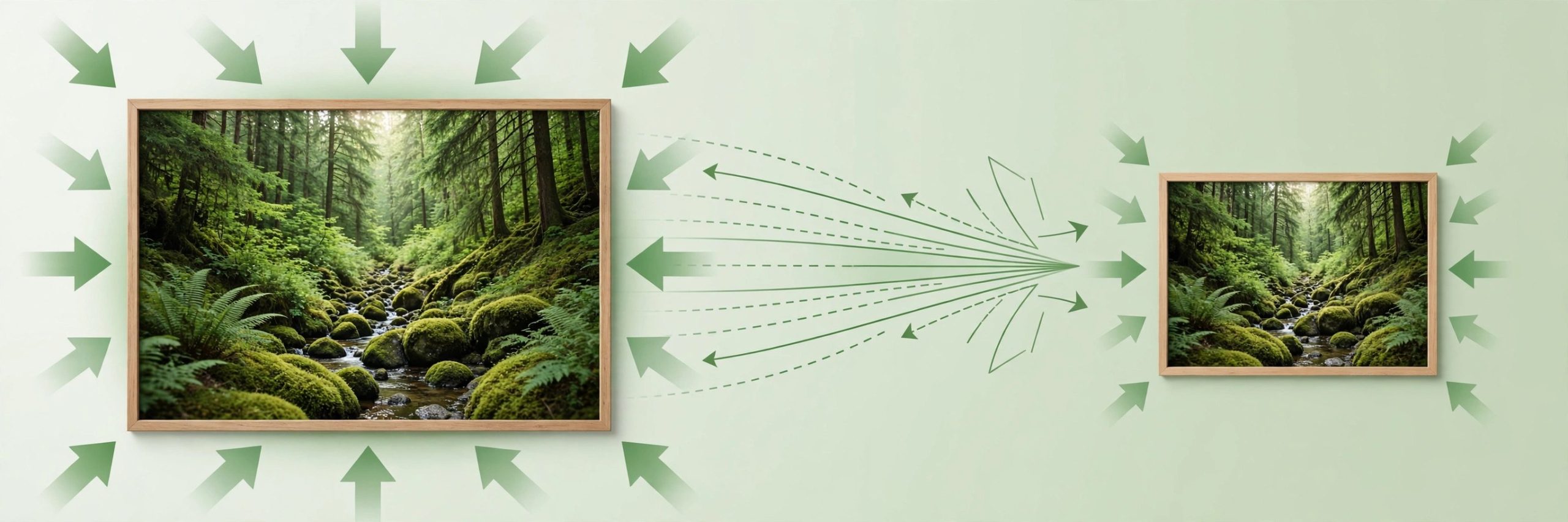
Zipic 1.10.8 for Mac
Mac UtilitiesZipic is a Mac app for shrinking image files without making them look worse. If you prepare pictures for a website, a store or email, file size matters every day. You drag a folder of images into Zipic, choose a preset, and it compresses them in one batch. It can also convert formats, resize dimensions and rename output files. Everything is processed locally on your Mac, so your images never leave your machine.
Key Features
- Batch compression for JPEG, PNG, WebP, AVIF, HEIC and more formats
- Format conversion while compressing, so output arrives ready to use
- Presets save your favourite quality and resize settings for reuse
- Folder watching compresses new images automatically as they arrive
- Comparison preview lets you check quality before you keep the result
How to Download
- Download from the official site to get the Mac version.
- Open the downloaded file and drag Zipic into your Applications folder.
- Launch the app, drop in some images and run your first batch.
System Requirements
Zipic needs macOS 13 or later according to the developer, and it is a light app that runs comfortably on Intel and Apple Silicon Macs alike. Batch jobs on large photos will use more memory, but everyday image work is quick.
FAQs
Will compression ruin my image quality?
You control the quality level, and the preview shows the result before you commit. Sensible settings shrink files a lot while keeping images looking clean on screen.
Can Zipic handle a whole folder at once?
Yes. Batch work is its main purpose. Drop in a folder, pick a preset, and it processes every supported image inside with the same settings.
Are my images uploaded anywhere?
No. Zipic processes everything locally on your Mac, which makes it a good fit for client work and private photo collections.



Leave a Reply