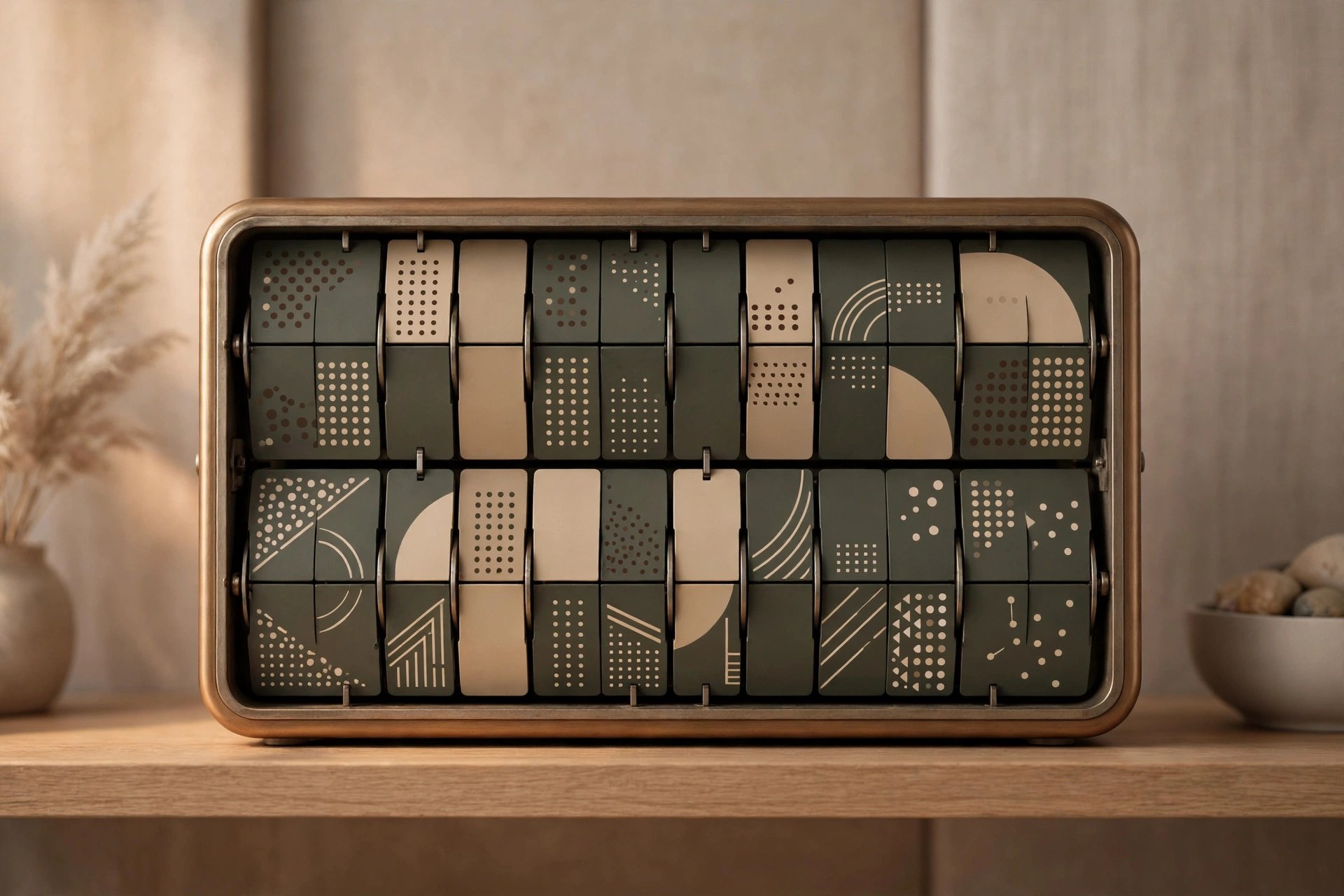
Flip Clock Screensaver for Mac
Mac UtilitiesA flip clock is one of the most recognisable clock designs ever made, first seen in stations and later on bedside tables. This screensaver brings that look to your Mac. When your screen sits idle, large digits on a dark background take over the display, and each card flips over as the minute changes, leaving a calm, tidy clock face on screen.
Key Features
- Large split flap digits that flip over as each minute passes
- Clear white numerals on a dark background, readable from a distance
- Time shown in 12 hour or 24 hour format to match your preference
- Clock fills the whole screen and scales to your display size
- Starts on its own through the screen saver settings in macOS
How to Download
- Use the download button on this page to get the screensaver file.
- Open the downloaded file and follow the steps shown to add it to your Mac.
- Open the screen saver settings in System Settings and select the flip clock as your active screensaver.
System Requirements
Flip Clock Screensaver works with the screen saver support built into macOS. Any Mac running a current version of macOS has all it needs, and the clock scales to fit any display.
FAQs
How do I turn the screensaver on?
After installing, open System Settings and go to the screen saver section. Pick the flip clock from the list, then set how long your Mac waits before it starts.
Does it show seconds as well?
The classic design focuses on hours and minutes in very large digits, which is what makes it so easy to read at a glance.
Will it work on a second display?
macOS can show screensavers across connected displays, so a second monitor simply shows the clock as well when your Mac goes idle.



Leave a Reply