Disk Graph 3.3.1 for Mac
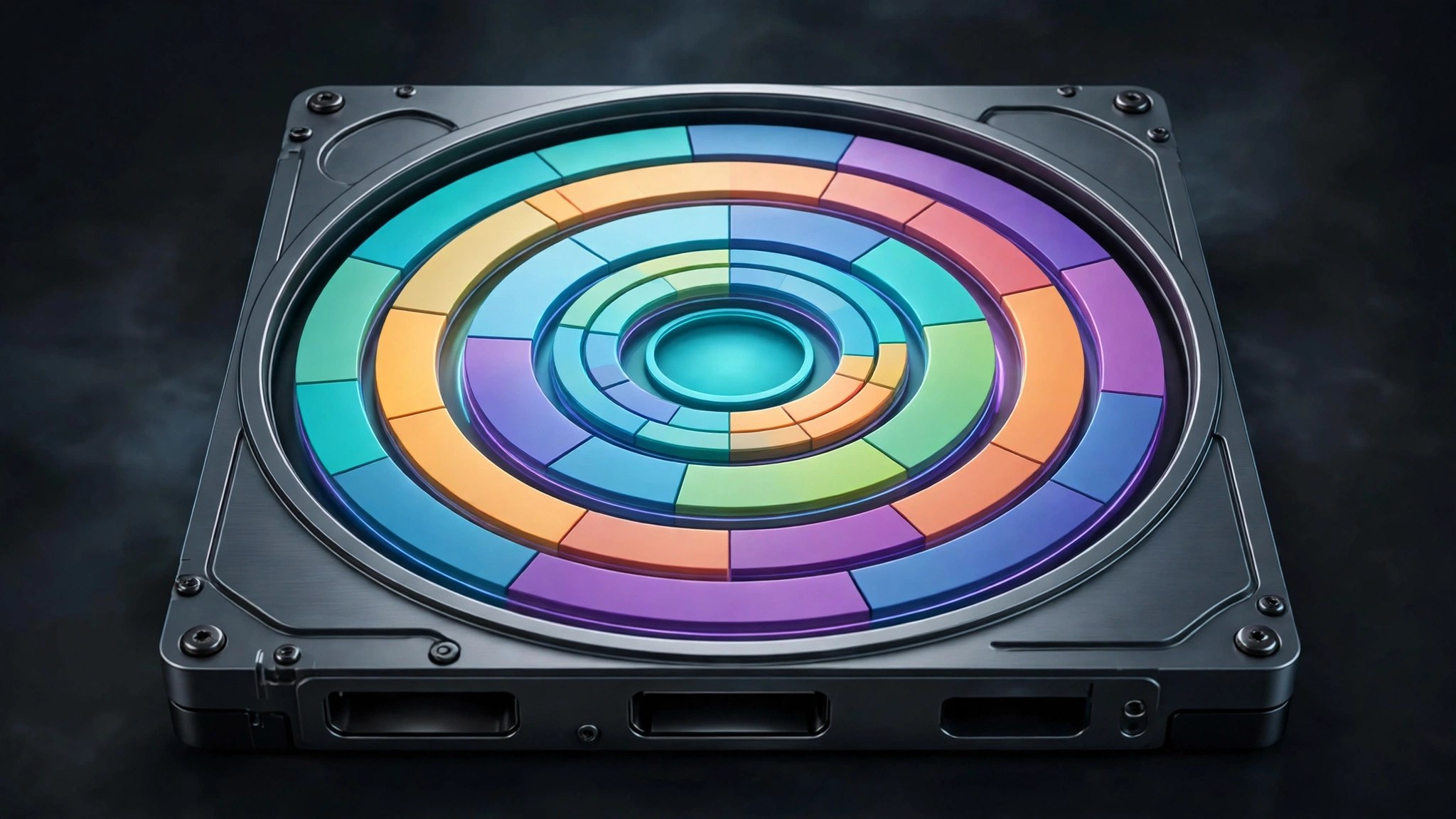
Mac UtilitiesDisk Graph answers a common question: where did all my space go? Pick any volume or folder and it draws a chart where each section matches the size of a file, so the big items stand out. Click into a folder to look closer, check how old a file is by its color, and clear out what you no longer need.
Key Features
- Pie chart and tree map views that scale each section to the size of the file
- Color modes that show file age, so stale downloads and old projects are easy to spot
- Preview a file, reveal it in Finder or move it to the bin from the chart
- Snapshot export saves a scan as JSON or TSV to open later and compare
- Favorite folders give you one click scans of the places you check most often
How to Download
- Use the download button on this page to get the app, or Download from the official site instead.
- Open the download and move Disk Graph to your Applications folder.
- Launch it, choose a volume or folder and start your first scan.
System Requirements
Needs a Mac running a current version of macOS. To include protected folders in a scan, allow Disk Graph under Full Disk Access in the Privacy and Security settings.
FAQs
Does Disk Graph delete files on its own?
No. It only shows what uses space. You choose each file and send it to the bin yourself, so nothing goes without your say so.
What is a snapshot used for?
A snapshot saves the state of a folder at one moment. Open two later and watch an animated view of what grew or shrank.
Can it scan external drives?
Yes. Any volume or folder you can reach in Finder can be scanned, including external drives.

Leave a Reply