Dato 5.8.4 for Mac
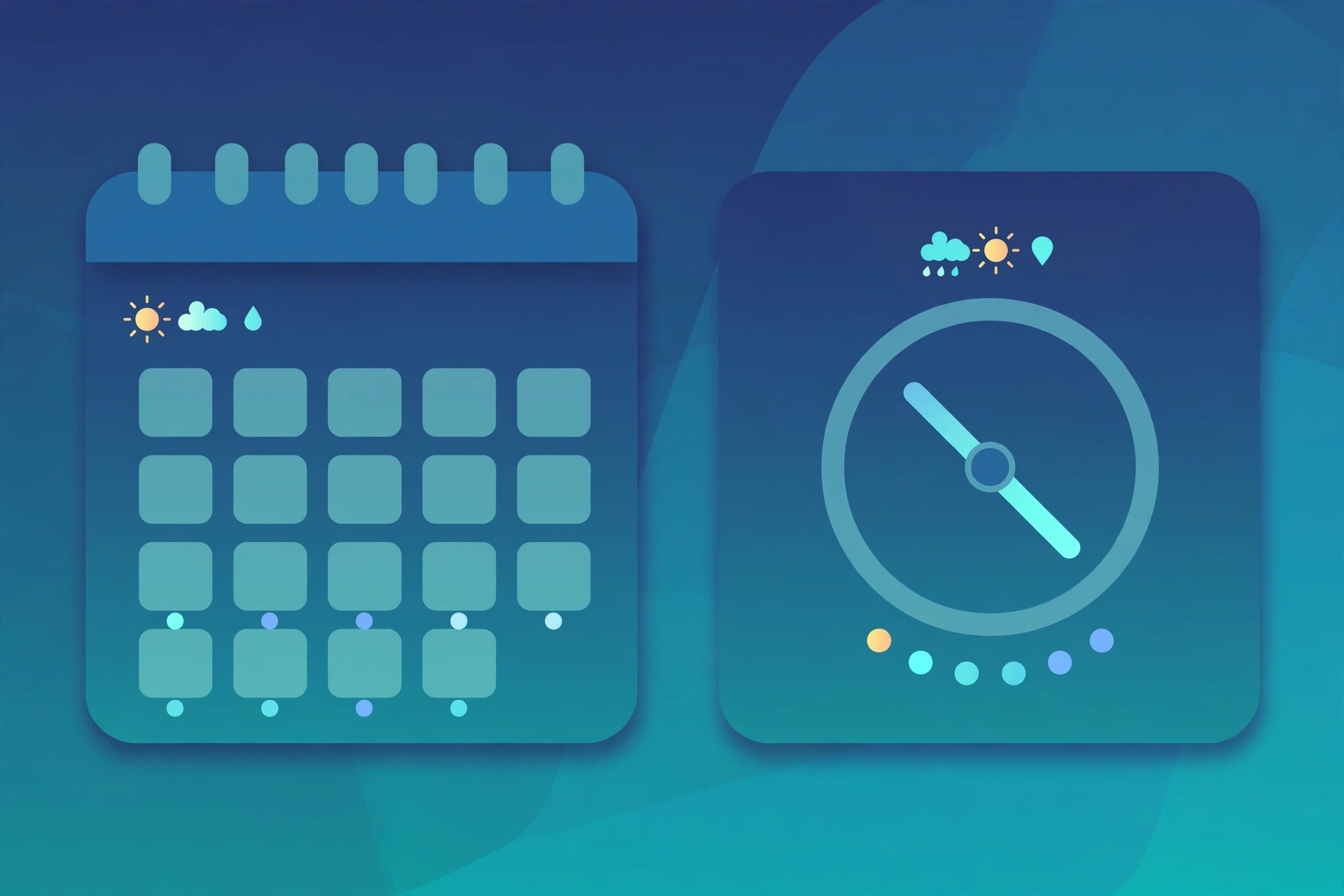
Mac UtilitiesDato by Sindre Sorhus turns the clock in your Mac menu bar into something far more useful. Click it and you get a calendar, your events for the week ahead and your reminders, along with the time in other places. It works with the calendars you already keep in the Calendar app, such as iCloud, Google and Outlook, so there is nothing new to set up. It suits anyone who plans their day around meetings in more than one time zone.
Key Features
- See the date, the time and world clocks right in the menu bar
- Open a calendar with your events and reminders for the days ahead
- Add world clocks by searching a huge list of cities that works offline
- Get a full screen notification when a meeting starts, so it is hard to miss
- Join the next video call with a shortcut, with support for many services
How to Download
- Click the download button on this page or Download from the official site to reach the app and its trial.
- Try the trial first if you wish, or buy Dato from the store listing the site links to.
- Open Dato, allow access to your calendars, and shape the menu bar to your taste.
System Requirements
Dato requires macOS 26 or later.
FAQs
Is Dato a subscription?
No. Dato is a one time purchase with free upgrades forever, and the developer states it will never move to a subscription.
Can I try Dato before I buy it?
Yes. The trial is fully functional. Its only limits are a reminder to buy every 12 hours and no automatic updates.
Which calendars does Dato work with?
Dato uses the calendars already set up on your Mac, such as iCloud, Google and Outlook.



Leave a Reply