Category: Mac Utilities

  • AutoMounter 1.14.1 for Mac

    AutoMounter 1.14.1 for Mac

    AutoMounter 1.14.1 for Mac

    AutoMounter 1.14.1 for Mac

    Mac Utilities
    Updated Nov 6, 2026
    Mac Utilities • Updated Nov 6, 2026

    AutoMounter is a menu bar utility from Pixeleyes that keeps your network shares mounted. If you work from a NAS at home or a file server at the office, macOS often drops those mounts after sleep, a reboot or a network change. AutoMounter watches for your servers, mounts the shares you configured, and can wake a sleeping NAS with Wake-on-LAN so your files are just there when you need them.

    Key Features

    • Automatically mounts shares when the server becomes available, and remounts dropped shares
    • Supports SMB, NFS, WebDAV and FTP shares, with server and share discovery
    • Mount rules based on conditions such as the Wi-Fi network you are connected to
    • Wake-on-LAN can power up a sleeping NAS before mounting
    • Optional helper adds custom mount points and running scripts or commands on mount

    How to Download

    1. Check your Mac runs a supported macOS version (see below).
    2. Download from the official site — AutoMounter is sold through the Mac App Store, with a direct version also available from the developer.
    3. Open the app, use the configuration assistant to add your server and shares, and set any mount rules you need.

    System Requirements

    The current App Store version of AutoMounter requires macOS 13.5 or later. It is a small native app that runs on both Intel and Apple silicon Macs, and some advanced features need the free helper app offered by the developer.

    FAQs

    Is AutoMounter free?

    No. It is a paid app on the Mac App Store, and some Pro features, such as custom mount points, are an additional in-app purchase. There is no subscription.

    Can it avoid mounting my work shares on public Wi-Fi?

    Yes. Mount rules let you tie a server to conditions like a specific Wi-Fi network name, so shares only mount when you are on a trusted network.


  • Auto Invert 2.2 for Mac

    Auto Invert 2.2 for Mac

    Auto Invert 2.2 for Mac

    Auto Invert 2.2 for Mac

    Mac Utilities
    Updated Nov 6, 2026
    Mac Utilities • Updated Nov 6, 2026

    Auto Invert is a small extension for Safari that gives websites a dark appearance, including the many sites that still offer no dark mode of their own. It works by inverting the brightness of the page rather than its colours, so text becomes light on a dark background while photos and videos keep looking normal. For anyone who reads on a Mac at night, it is a simple way to cut glare and make long pages easier on the eyes.

    Key Features

    • Turns bright websites into a dark, night-friendly view in Safari
    • Inverts brightness without altering the colour palette of the page
    • Leaves images and videos looking natural instead of negatively inverted
    • Aimed at reducing eye strain and improving readability at night
    • Distributed through the App Store as a Safari extension for Apple devices

    How to Download

    1. Make sure your Mac runs macOS 10.14 or later, as the App Store listing requires.
    2. Download from the official site listing on the App Store.
    3. Install the app, then enable the extension in Safari's settings and reload a bright page to see the effect.

    System Requirements

    The App Store listing states the Mac version requires macOS 10.14 or later, with iPhone and iPad versions needing iOS 15 or later. It is a tiny extension, so storage and memory needs are minimal.

    FAQs

    Does it work on every website?

    It works broadly in Safari, but pages with unusual designs can occasionally look odd. Sites that already have a proper dark mode usually look best with their own setting.

    How is it different from macOS Dark Mode?

    macOS Dark Mode only changes apps and sites that support it. Auto Invert applies its effect to web pages in Safari whether or not the site offers a dark theme of its own.

  • Auto Highlight 6.08 for Mac

    Auto Highlight 6.08 for Mac

    Auto Highlight 6.08 for Mac

    Auto Highlight 6.08 for Mac

    Mac Utilities
    Updated Nov 6, 2026
    Mac Utilities • Updated Nov 6, 2026

    Auto Highlight is a small text-highlighting tool by Juraj Mäsiar, the developer behind the FastAddons browser extensions. You define the words that matter to you and the pages where they matter, and the tool highlights those words automatically whenever the page loads. If you spend your day scanning dashboards, listings, support queues or documents for a few key terms, it saves you from running the same find-in-page search over and over again.

    Key Features

    • Automatically highlights words you define, on the pages you define
    • Regular expression support for more flexible matching
    • Custom highlight styles, so different terms can stand out differently
    • Can also hide distracting text by shrinking it or making it transparent
    • Rules can sync between your devices through browser sync in the extension version

    How to Download

    1. Check that your Mac and browser are up to date.
    2. Use the green Download button on this page, or look for Auto Highlight by FastAddons in your browser's official add-on store.
    3. Install it, add your first word and page rule, then reload a page to see the highlighting in action.

    System Requirements

    Auto Highlight is a lightweight tool that runs on a recent version of macOS, on Intel and Apple silicon Macs, together with a current web browser. It needs very little storage or memory compared with full applications.

    FAQs

    Why not just use find in page?

    Find works once, on one page. Auto Highlight applies your rules automatically on every visit, so recurring terms are already marked when the page opens.

    Is Auto Highlight free?

    The browser extension is offered free by its independent developer, who accepts voluntary support. Check the listing in your browser's add-on store for the current terms.

  • AudioSwitcher 3.08 for Mac

    AudioSwitcher 3.08 for Mac

    AudioSwitcher 3.08 for Mac

    AudioSwitcher 3.08 for Mac

    Mac Utilities
    Updated Nov 6, 2026
    Mac Utilities • Updated Nov 6, 2026

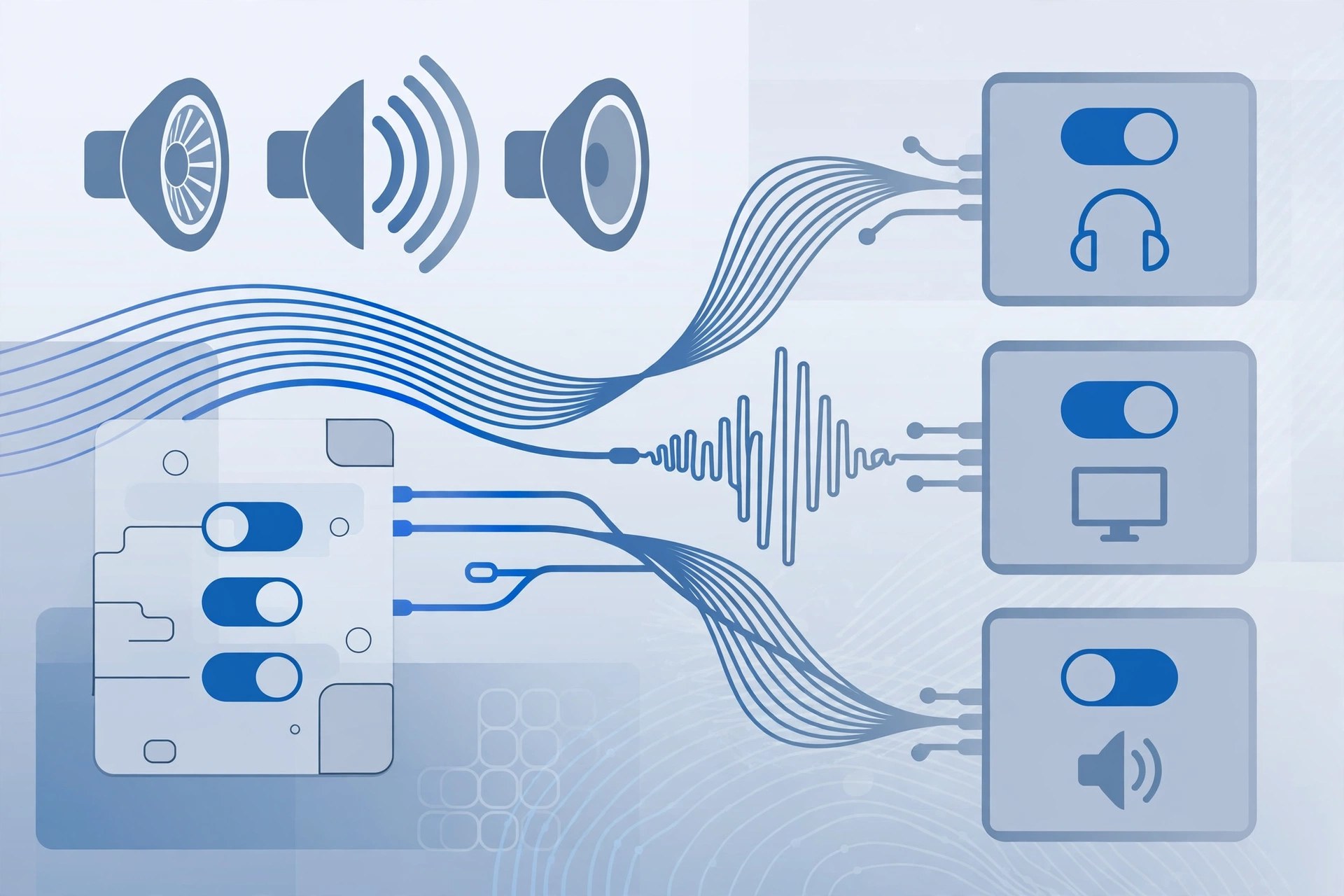
    AudioSwitcher is a small menu bar utility for Mac that makes changing audio devices far quicker than opening System Settings. Version 3.08 sits in your status bar and lists every connected input and output device in real time, so you can jump between speakers, headphones, USB interfaces and microphones as your setup changes through the day. It is a handy tool for anyone who regularly plugs and unplugs audio gear, records voice, or joins calls on different headsets.

    Key Features

    • Switch input and output devices directly from the menu bar
    • Adjust the volume of a device even when it is not currently active
    • Real-time device list that updates as hardware connects or disconnects
    • Option to ignore devices you never use, keeping the list tidy
    • Set default volume levels and show the level as a percentage in the status bar

    How to Download

    1. Confirm you are running a recent version of macOS.
    2. To get the app, use the green Download button on this page to reach the developer's website and follow the link to the developer's download or store page.
    3. Open the app, grant any permissions macOS asks for, and pick your devices from the new menu bar icon.

    System Requirements

    AudioSwitcher 3.08 needs a recent version of macOS and runs as a lightweight menu bar app, so it works comfortably on both Intel and Apple silicon Macs without using noticeable system resources in the background.

    FAQs

    Does AudioSwitcher replace the macOS Sound settings?

    No. It sits alongside them and simply gives you faster access to the same input, output and volume controls from the menu bar, without opening Settings each time.

    Can I control a device that is not selected?

    Yes. One of its most useful tricks is changing the volume of an inactive device in advance, so levels are already right when you switch over to it.

  • attn LED 1.0 for Mac

    attn LED 1.0 for Mac

    attn LED 1.0 for Mac

    attn LED 1.0 for Mac

    Mac Utilities
    Updated Nov 6, 2026
    Mac Utilities • Updated Nov 6, 2026

    attn LED is a small Mac utility with one focused idea: it turns your MacBook's camera LED into a physical notification light. When an important notification arrives, the LED flashes — and keeps flashing until you actually open the app that sent it, which makes messages much harder to miss while you are focused or have sound off. You choose which apps may trigger the light, so only notifications you care about get the flashing treatment.

    Key Features

    • Flashes the MacBook camera LED when chosen apps post notifications
    • Keeps flashing until you open the notifying app, not just glance at it
    • Per-app control with automatic discovery of apps that send notifications
    • Works even in Do Not Disturb and Focus modes, according to the developer
    • Automatically pauses during FaceTime and phone calls, with a one-click LED test

    How to Download

    1. Make sure you use a MacBook with a camera LED and a supported macOS version.
    2. Get the app from the developer: Download from the official site
    3. Install it, grant the accessibility permission it requests, and pick which apps may trigger the LED.

    System Requirements

    attn LED is a native SwiftUI app that works on macOS 12 or later, and it needs a MacBook with a camera LED — desktop Macs without that LED cannot show the effect. It requires accessibility permission so it can observe notifications as they arrive.

    FAQs

    Does it record anything with my camera?

    According to the developer, the app briefly opens the camera hardware only to switch the LED on and closes it immediately; the point of the app is the light, not video.

    Will it flash during calls?

    No. The developer states that flashing is automatically disabled during FaceTime and phone calls so the LED does not interfere while the camera is in real use.

  • ATOM RPG: Trudograd 0.5.8 for Mac

    ATOM RPG: Trudograd 0.5.8 for Mac

    ATOM RPG: Trudograd 0.5.8 for Mac

    ATOM RPG: Trudograd 0.5.8 for Mac

    Mac Utilities
    Updated Nov 6, 2026
    Mac Utilities • Updated Nov 6, 2026

    ATOM RPG: Trudograd is a turn-based post-apocalyptic role-playing game from AtomTeam, released first in early access — version 0.5.8 was one of those early access builds — and launched in full in September 2021. It works as a standalone sequel to ATOM RPG: two years after the first game, your character travels to Trudograd, a vast ruined city, to find a way to save humanity from an approaching asteroid, following the traditions of classic RPGs such as the early Fallout titles.

    Key Features

    • A standalone sequel — you do not need to own the first ATOM RPG to play
    • A large city setting with districts, factions and dozens of quests
    • Turn-based combat and a deep character system carried over from ATOM RPG
    • New equipment including power armour and new weapons and items
    • Choices, skill checks and multiple approaches throughout the story

    How to Download

    1. Install the Steam client on your Mac and sign in to your account.
    2. Find the game on the developer's official store page: Download from the official site
    3. Buy the game, download the current full-release build through Steam and start a new character — or import one where the game offers it.

    System Requirements

    Trudograd has modest requirements similar to the first game and runs on a recent version of macOS with an Intel or Apple silicon Mac. Check the Steam store page for the current full version's requirements before buying.

    FAQs

    Is Trudograd still in early access?

    No. After its early access period it reached full release in September 2021, so buying it today gets you the complete game rather than an unfinished build.

    Do I need to play ATOM RPG first?

    It helps with the story background, but Trudograd is a standalone game with its own campaign, and new players can start here.

  • ATOM RPG: Post-apocalyptic Indie Game 1.1 for Mac

    ATOM RPG: Post-apocalyptic Indie Game 1.1 for Mac

    ATOM RPG: Post-apocalyptic Indie Game 1.1 for Mac

    ATOM RPG: Post-apocalyptic Indie Game 1.1 for Mac

    Mac Utilities
    Updated Nov 6, 2026
    Mac Utilities • Updated Nov 6, 2026

    ATOM RPG is a post-apocalyptic role-playing game from indie studio AtomTeam, released in December 2018 for PC and Mac. It is openly inspired by the classic computer RPGs of the past — Fallout, Wasteland, Deus Ex and Baldur's Gate. You play an operative of the secret ATOM organisation, sent into the Soviet wasteland nineteen years after a nuclear war to find a lost expedition and investigate a conspiracy. Expect a large hand-built world, turn-based combat and choices that change the story.

    Key Features

    • A large post-apocalyptic world with towns, wilderness and hidden locations to explore
    • Turn-based tactical combat built on a classic SPECIAL-style character system
    • Deep character creation with skills, traits and many possible builds
    • Branching quests and dialogue where choices and skill checks matter
    • Crafting, survival elements and a distinctive Soviet-era atmosphere

    How to Download

    1. Install the Steam client on your Mac and sign in to your account.
    2. Get the game from its official store page: Download from the official site
    3. Buy or redeem the game, download it through Steam and launch it from your library.

    System Requirements

    ATOM RPG is a modest game by modern standards and runs on a recent version of macOS with a mid-range Intel or Apple silicon Mac and a few gigabytes of free storage. Check the system requirements on the Steam store page for the exact minimum for the current build.

    FAQs

    Is ATOM RPG like the old Fallout games?

    Yes, that is its stated inspiration: an isometric viewpoint, turn-based combat, skill-based dialogue and a bleak but often darkly funny wasteland, presented as a Soviet counterpart to that setting.

    How long is the game?

    It is a substantial RPG. A thorough playthrough with exploration and side quests can take several dozen hours, and different character builds open different solutions and endings.

  • aText 3.21 for Mac

    aText 3.21 for Mac

    aText 3.21 for Mac

    aText 3.21 for Mac

    Mac Utilities
    Updated Nov 6, 2026
    Mac Utilities • Updated Nov 6, 2026

    aText is a text expansion utility for the Mac developed by Tran Ky Nam. It speeds up everyday typing by replacing short abbreviations you define with the full text you actually want: type a few letters and aText inserts a complete email reply, an address, a code snippet or a formatted block of text, in almost any application. For people who write the same phrases all day — support replies, signatures, form text, code — it removes a surprising amount of repetitive typing for a very modest one-time price.

    Key Features

    • Expand typed abbreviations into phrases, paragraphs and formatted text
    • Insert pictures and formatted snippets, not just plain text
    • Advanced snippet fields such as date, time and clipboard placeholders
    • Works across applications, including mail clients, browsers and editors
    • Sync snippets between Macs using iCloud or a shared folder service

    How to Download

    1. Check that your Mac runs a macOS version the current release supports.
    2. Get the trial from the developer: Download from the official site
    3. Install aText, grant it the accessibility permission macOS asks for, and create your first abbreviation.

    System Requirements

    aText is a lightweight native Mac app that runs on a recent version of macOS, on both Intel and Apple silicon Macs. It needs accessibility permission in System Settings so it can watch your typing and insert expansions in other apps.

    FAQs

    Is aText a subscription?

    No. aText is sold as a one-time licence after a free trial period, and the Mac and Windows versions are licensed separately, according to the developer's site.

    How is aText different from macOS text replacement?

    The built-in macOS feature handles simple word swaps. aText goes further with formatted text, images, dynamic fields and organised snippet groups, and it works in more applications.

  • Astro Gold 6.2.1 for Mac

    Astro Gold 6.2.1 for Mac

    Astro Gold 6.2.1 for Mac

    Astro Gold 6.2.1 for Mac

    Mac Utilities
    Updated Nov 6, 2026
    Mac Utilities • Updated Nov 6, 2026

    Astro Gold is astrology software for the Mac from Cosmic Apps Pty Ltd, the team behind the well-known Solar Fire program for PC. It calculates and displays a wide range of astrological charts with high precision, using the Swiss Ephemeris for its astronomical calculations and the ACS Atlas for place and timezone data. It is aimed at everyone from keen students to professional astrologers, and its chart files are compatible with the Astro Gold apps on other platforms and with Solar Fire, so work can move between devices.

    Key Features

    • Natal, transit, solar return, lunar return, progression and synastry charts
    • Built-in interpretations for natal, transit, progression and relationship charts
    • Swiss Ephemeris calculations and the full ACS Atlas of locations and timezones
    • Chart files compatible with Astro Gold on iOS and with Solar Fire for PC
    • Save charts locally or in iCloud Drive and customise chart displays

    How to Download

    1. Make sure your Mac runs a macOS version the current release supports.
    2. Buy or download it from the developer: Download from the official site
    3. Install the app, enter your licence details when asked, and cast your first chart from the main screen.

    System Requirements

    Astro Gold for Mac has required macOS 10.13 or later and is a universal app that runs natively on both Intel and Apple silicon Macs. Check the official site for the requirements of the newest release before installing.

    FAQs

    Is Astro Gold suitable for beginners?

    Yes. It includes built-in chart interpretations that help newcomers read a chart, while the calculation and customisation options go deep enough for professional use.

    Can I exchange charts with Solar Fire users?

    Yes. Astro Gold chart files are compatible and interchangeable with Solar Fire on PC and with the Astro Gold mobile apps, according to the developer.

  • Asterix & Obelix XXL 3: The Crystal Menhir 1.56 for Mac

    Asterix & Obelix XXL 3: The Crystal Menhir 1.56 for Mac

    Asterix & Obelix XXL 3: The Crystal Menhir 1.56 for Mac

    Asterix & Obelix XXL 3: The Crystal Menhir 1.56 for Mac

    Mac Utilities
    Updated Nov 6, 2026
    Mac Utilities • Updated Nov 6, 2026

    Asterix & Obelix XXL 3: The Crystal Menhir is an action-adventure game developed by OSome Studio and published by Microids, released for PC and Mac in November 2019. Asterix and Obelix set out from their village on a new adventure built around a mysterious crystal menhir and its strange powers. The game mixes exploration, puzzle solving and Roman-bashing combat, and it was the first in the XXL series with two-player co-op.

    Key Features

    • Play as both Asterix and Obelix, switching between their different abilities
    • Two-player co-operative mode, a first for the Asterix XXL series
    • Use the Crystal Menhir in its stone, ice, fire and magnetic forms
    • Explore five environments with varied levels, puzzles and collectibles

    How to Download

    1. Check that your Mac meets the game's requirements listed below.
    2. Use the green Download button on this page to reach the download options for the Mac version.
    3. The game is also sold through official digital stores for PC and Mac — buy it there, install it through the store's app and launch it from your library.

    System Requirements

    For Mac, the game originally required macOS 10.13 or later, an Intel Core i5 processor, 8 GB of RAM and a graphics card in the AMD R9 M390 class. It is an Intel-era release, so on Apple silicon Macs check the store page for current compatibility notes before buying.

    FAQs

    Can two people play together on one Mac?

    Yes. The Crystal Menhir added a two-player co-op mode to the series, so a second player can join locally with an additional controller.

    Is this a free game?

    No, it is a paid commercial game from Microids. Buy it from an official digital store — this page does not offer a free copy of the full game.