
Category: Mac Utilities

  • ToneCraft 1.0.0 for Mac

    ToneCraft 1.0.0 for Mac

    ToneCraft 1.0.0 for Mac

    ToneCraft 1.0.0 for Mac

    Mac Utilities
    Updated Aug 18, 2026
    Mac Utilities • Updated Aug 18, 2026

    Small shifts in tone can change how a scene feels, yet building the same look again and again inside an edit takes time. ToneCraft is a compact tool for Adobe video work that focuses on tone shaping, giving editors a small set of controls for adjusting the mood and colour character of footage without a long chain of effects. It suits short form editors and motion designers who want a repeatable look they can apply, adjust and reuse across a project. Updated Aug 18, 2026.

    Key Features

    • Focused controls for shaping the tone of footage
    • Fast way to give clips a consistent mood and feel
    • Small footprint inside your existing editing setup
    • Settings are easy to revisit and adjust per clip

    How to Download

    1. Check the vendor listing for this tool and follow its stated steps for macOS.
    2. Download the package and install it as the vendor directs for your host app.
    3. Restart your editing app and look for the tool in its usual panel or effects area.

    System Requirements

    You need a Mac running a recent version of macOS with a supported Adobe host app installed. Apple silicon and Intel Macs are fine in general, and the tool needs only a small amount of free disk space alongside your editor.

    FAQs

    What is ToneCraft meant for?

    It is a tone shaping tool for video work. Editors use it to set the mood and colour character of clips quickly and keep that look consistent.

    Is it a standalone app?

    No. Tools of this kind run inside a host editing app, so you apply the effect to clips on your timeline rather than editing in a separate window.

  • CRTX 1.3.0 for Mac

    CRTX 1.3.0 for Mac

    CRTX 1.3.0 for Mac

    CRTX 1.3.0 for Mac

    Mac Utilities
    Updated Aug 18, 2026
    Mac Utilities • Updated Aug 18, 2026

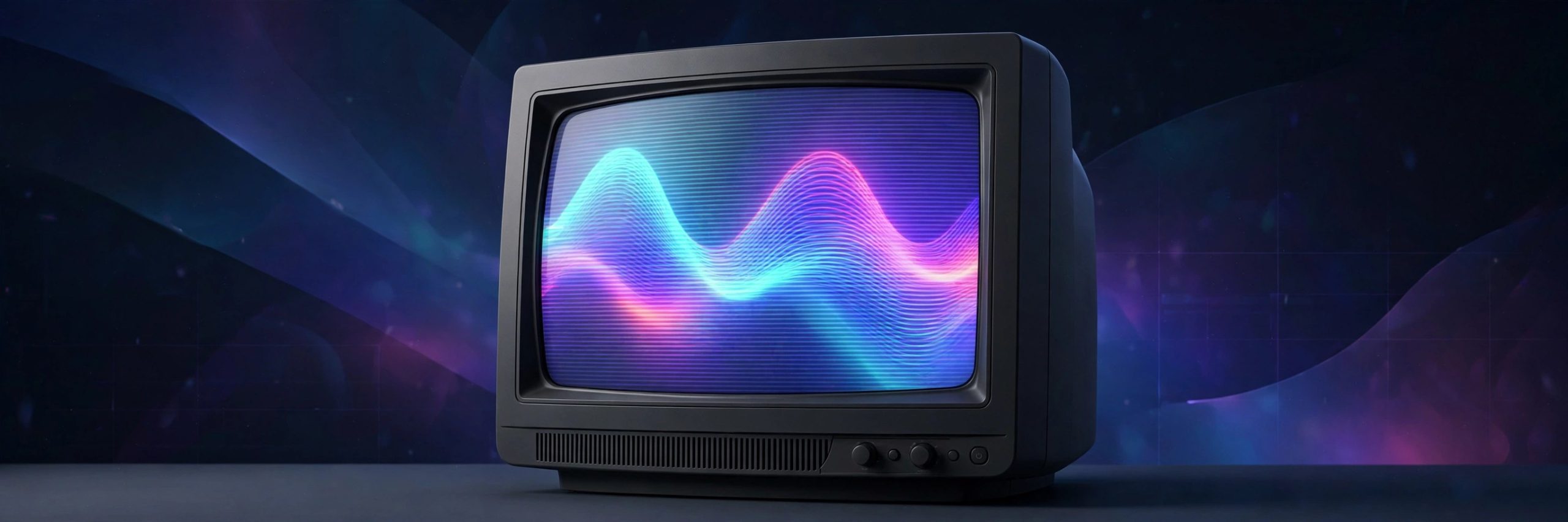
    Most CRT looks are just a static overlay pasted over clean footage, and the eye spots the trick in seconds. CRTX works differently. It redraws every frame the way a real tube would, so the image reacts to the motion, brightness and edges in your shot. Highlights bloom into nearby phosphors, colours smear like an aging set, and sync can tear when you ask it to. The current release adds rendering in real time. Aim for a polished broadcast monitor, a worn family TV, an arcade cabinet, or full RF damage and VHS decay.

    Key Features

    • Reactive CRT simulation that responds to motion and brightness
    • More than 150 presets for TVs monitors arcade screens and VHS
    • Detailed controls for scan structure masks phosphor bloom and glow
    • Analog damage tools for RF noise ghosting and sync failure
    • Rendering in real time in After Effects and Premiere Pro

    How to Download

    1. Download from the official site and check the version notes there.
    2. Install CRTX using the aescripts manager app.
    3. Restart your host app, apply CRTX, and start from a preset.

    System Requirements

    You need a Mac with After Effects or Premiere Pro. For 1080p the vendor suggests at least four cores, 16 GB of memory and a compatible graphics card, with stronger hardware for 4K.

    FAQs

    How is CRTX different from a scanline overlay?

    An overlay sits still while footage moves under it. CRTX rebuilds the image as a signal, so bloom and instability follow each frame.

    Can I build a clean broadcast monitor look instead of heavy damage?

    Yes. The presets include polished professional monitors, and every damage control can be dialled down or off for a subtle result.

    Does it work in Premiere Pro as well as After Effects?

    Yes. Recent versions support both hosts with the same controls and presets.

  • List Validator Pro 1.0.45 for Mac

    List Validator Pro 1.0.45 for Mac

    List Validator Pro 1.0.45 for Mac

    List Validator Pro 1.0.45 for Mac

    Mac Utilities
    Updated Aug 18, 2026
    Mac Utilities • Updated Aug 18, 2026

    List Validator Pro is aimed at anyone who sends email to a list and wants cleaner data before a campaign goes out. Tools in this class check each address for valid format, spot duplicates that waste sends, and flag entries that look risky, such as obvious typing errors in common domains. Working through a list in advance can lower bounce rates and give a clearer picture of how many contacts are truly reachable. Updated Aug 18, 2026.

    Key Features

    • Checks addresses for correct format and structure
    • Finds and removes duplicate entries from a list
    • Flags common domain typing errors for review
    • Handles lists in common file formats such as CSV
    • Exports a cleaned list ready for your mail tool

    How to Download

    1. Search for the app by name and open a trusted vendor or store page that clearly lists the version you need.
    2. Check that the version and system needs match your Mac before you download anything.
    3. Download the installer, open it, and follow the on screen steps to install the app.
    4. Launch the app from the Applications folder and complete any first run setup it shows.

    System Requirements

    You need a Mac running a recent version of macOS, on Apple silicon or Intel, with enough free disk space for your list files and the cleaned copies the app creates. Large lists need more room and more time to process.

    FAQs

    Why should I validate an email list?

    Old lists gather typing errors, closed accounts and duplicates over time. Cleaning them first helps protect your sender reputation and makes campaign reports more honest.

    Does validation guarantee every address will receive mail?

    No tool can promise that. Validation removes clear problems and highlights risk, but mailboxes can close or reject mail for reasons no checker can fully predict.

  • Internet Speed Test 4.4 for Mac

    Internet Speed Test 4.4 for Mac

    Internet Speed Test 4.4 for Mac

    Internet Speed Test 4.4 for Mac

    Mac Utilities
    Updated Aug 18, 2026
    Mac Utilities • Updated Aug 18, 2026

    When a video call stutters or a download crawls, the first question is whether the connection itself is slow. Internet Speed Test is a small Mac utility that answers that question in one run. It measures your download speed, upload speed and ping, then shows the results in a clear readout you can compare over time. It is handy before a call, after changing a router, or when you want proof of what your provider is really delivering. Updated Aug 18, 2026.

    Key Features

    • Measures download and upload speed in one run
    • Reports ping so you can judge delay for calls and games
    • Clear results that are easy to read and compare
    • Quick repeat tests help spot slow periods in the day

    How to Download

    1. Find the vendor download for this utility and save the Mac version to your computer.
    2. Open the downloaded file and move the app into your Applications folder.
    3. Launch the app and close heavy downloads or streams for a fair result.

    System Requirements

    You need a Mac running a recent version of macOS and an internet connection to test. Apple silicon and Intel Macs are fine in general. The app itself is small, and a wired connection gives the most honest reading when you want to check your full line speed.

    FAQs

    What do the three numbers mean?

    Download is how fast data reaches you, upload is how fast you send data, and ping is the delay before a response. All three shape how your connection feels.

    Why do results change between runs?

    Networks vary with time of day, other devices and wireless conditions. Run a few tests at different times and compare the general pattern rather than one result.

  • Xliff Editor 4.1 for Mac

    Xliff Editor 4.1 for Mac

    Xliff Editor 4.1 for Mac

    Xliff Editor 4.1 for Mac

    Mac Utilities
    Updated Aug 18, 2026
    Mac Utilities • Updated Aug 18, 2026

    Localizing an app means living inside XLIFF files for days, and a heavy editor makes that work drag. Xliff Editor from SweetP Productions takes the opposite route. The app is tiny, opens fast and uses very little memory, yet it handles the jobs translators face. Its custom XML parser reads complex XLIFF 1.2 and 2.0 files, plus SDLXLIFF, XLZ and Xcode XLOC packages. Inline tags stay protected while you type, and translation memory keeps repeated phrases consistent.

    Key Features

    • Native and lightweight editor with a small memory footprint and fast loading
    • Support for XLIFF 1.2 and 2.0 plus SDLXLIFF XLZ and Xcode XLOC files
    • Custom XML parser with segmentation and alternate translation support
    • Inline tag protection with fuzzy search regex search and search and replace
    • Translation memory support plus optional AI translation

    How to Download

    1. Download from the official site to read the full feature list and current version details.
    2. Download the trial or buy the app from the vendor site or the Mac App Store.
    3. Install Xliff Editor, open your first XLIFF file, and set your preferred workflow options.

    System Requirements

    The vendor lists macOS 14 or later, with Apple silicon and Intel both supported. The app is under 6 MB, so space and memory needs are minimal.

    FAQs

    Which file formats can Xliff Editor open?

    It opens XLIFF 1.2 and 2.0 files and also reads SDLXLIFF, XLZ and Xcode XLOC packages from development and translation tools.

    Does it protect code tags while I translate?

    Yes. Inline elements are protected in the editor, so placeholders and formatting tags stay intact while you work on the visible text around them.

    Can it help with repeated phrases across projects?

    Yes. Translation memory can be imported and exported, so approved translations can be reused and kept consistent in new files.

  • SnapNDrag Pro Screenshot 4.5.6 for Mac

    SnapNDrag Pro Screenshot 4.5.6 for Mac

    SnapNDrag Pro Screenshot 4.5.6 for Mac

    SnapNDrag Pro Screenshot 4.5.6 for Mac

    Mac Utilities
    Updated Aug 18, 2026
    Mac Utilities • Updated Aug 18, 2026

    SnapNDrag Pro from Yellow Mug Software keeps screenshots deliberately simple. You take a shot of a selection, a window, the whole screen or a timed capture, and the result appears in a small shelf where you can rename it, annotate it and drag it straight into an email, a document or a chat. A library view keeps older shots organised and easy to find again later. Updated Aug 18, 2026.

    Key Features

    • Selection, window, screen and timed capture modes
    • Drag screenshots straight into other apps after capture
    • Annotation tools that keep the original shot intact
    • Library and folders to organise captures over time
    • Scaling and format choices when you share a shot

    How to Download

    1. Open the official vendor page linked below and check that the version and system needs match your Mac.
    2. Use this link to get the installer: Download from the official site and save the file to your Mac.
    3. Open the downloaded file and follow the on screen steps to install the app.
    4. Launch the app from the Applications folder and complete any first run setup it shows.

    System Requirements

    You need a Mac running a recent version of macOS, on Apple silicon or Intel. The app is only a few megabytes, but your screenshot library will grow over time, so keep some free disk space for saved images.

    FAQs

    What does the Pro version add?

    Pro adds annotation, better organisation and sharing options on top of the basic capture tools in the free version, which many users find enough for daily work.

    Can I capture a menu or a timed event?

    Yes. The timed mode waits before it takes the shot, which gives you time to open menus or set up the screen exactly as you want it.

  • Transcript Converter 2.6.0 for Mac

    Transcript Converter 2.6.0 for Mac

    Transcript Converter 2.6.0 for Mac

    Transcript Converter 2.6.0 for Mac

    Mac Utilities
    Updated Aug 18, 2026
    Mac Utilities • Updated Aug 18, 2026

    Premiere Pro and its text based editing are powerful, but the built in transcription only covers a limited set of languages and voices. Transcript Converter bridges that gap. It takes transcript files from external speech services and converts them into the format Premiere Pro needs, so you can edit by text in far more situations. Recent versions also transcribe media from inside the panel using several well known services, and bring subtitles back into your project in an organised way. Updated Aug 18, 2026.

    Key Features

    • Converts external transcript files for Premiere Pro
    • Opens text based editing to many more languages
    • Transcribe media from inside the panel in newer versions
    • Works with services such as ElevenLabs Sonix and Deepgram

    How to Download

    1. Open the product page and use the Download from the official site link to get the extension.
    2. Install it with the manager app or the installer the vendor provides.
    3. Restart Premiere Pro and open the panel from the extensions menu.

    System Requirements

    You need a Mac running a recent version of macOS with Adobe Premiere Pro installed. Apple silicon and Intel Macs are fine in general. Some transcription services need an account and an internet connection, and their own terms apply to usage and quotas.

    FAQs

    Why would I need this if Premiere Pro transcribes?

    The built in tools cover a limited range of languages and accuracy levels. This extension lets you use external services and bring their transcripts into the same editing workflow.

    What file does it convert?

    It works with transcript data in JSON form from supported services and turns it into the format Premiere Pro uses for text based editing.

  • XLN Audio Addictive Trigger Drum Vault Bundle 1.3.10 for Mac

    XLN Audio Addictive Trigger Drum Vault Bundle 1.3.10 for Mac

    XLN Audio Addictive Trigger Drum Vault Bundle 1.3.10 for Mac

    XLN Audio Addictive Trigger Drum Vault Bundle 1.3.10 for Mac

    Mac Utilities
    Updated Aug 18, 2026
    Mac Utilities • Updated Aug 18, 2026

    Replacing weak live drums used to mean endless threshold tweaking and fixing false hits by hand. Addictive Trigger was built to end that routine. Its Audio Fingerprint system identifies real drum hits even when microphone bleed is heavy, while SuperStart studies the track for a few seconds and sets sensible detection values on its own. This bundle pairs the plugin with Drum Vault, an expansion drawn from XLN Audio studio recordings, with a broad choice of kicks, snares and toms plus more than 200 presets.

    Key Features

    • Audio Fingerprint detection finds hits accurately even with mic bleed
    • SuperStart listens and sets detection values automatically
    • Drum Vault adds kicks snares toms and extra kit pieces
    • More than 200 presets and over 30 trigger kit pieces
    • Works as VST AU and AAX and can trigger third party drum tools

    How to Download

    1. Download from the official site to check bundle contents.
    2. Buy the bundle and install it with the XLN Online Installer.
    3. Load Addictive Trigger on a drum track and let SuperStart learn the part.

    System Requirements

    The vendor lists macOS 10.13 or later in 64 bit form and an internet connection during installation. You need a host with 64 bit VST, AU or AAX support, such as Logic Pro or Pro Tools.

    FAQs

    What does Drum Vault add to the standard plugin?

    It adds extra kit pieces recorded in well known studios, including kicks, snares and full tom sets, giving you more voices for replacement work.

    Can I use sounds from Addictive Drums 2 inside it?

    Yes. Your Addictive Drums 2 presets and expansion sounds can be used in Addictive Trigger without conversion.

    Does it only work with its own built in sounds?

    No. It can also trigger most popular third party drum instruments, so you can keep a favourite sampler.

  • Trellix Endpoint Security 26.8.0 for Mac

    Trellix Endpoint Security 26.8.0 for Mac

    Trellix Endpoint Security 26.8.0 for Mac

    Trellix Endpoint Security 26.8.0 for Mac

    Mac Utilities
    Updated Aug 18, 2026
    Mac Utilities • Updated Aug 18, 2026

    Trellix Endpoint Security for Mac is business protection software that guards company laptops against malware and other threats. It combines threat prevention, a desktop firewall and web control in one client, and it is normally deployed and managed by an IT team through a central console. That way policies, updates and alerts stay consistent across every Mac in the organisation, whether people work in the office or at home. Updated Aug 18, 2026.

    Key Features

    • Threat prevention that scans for malware and risky files
    • Adaptive protection that reacts to suspicious behaviour
    • Desktop firewall controls for network traffic
    • Web control that helps block harmful or unwanted sites
    • Central management through the Trellix console for IT teams

    How to Download

    1. Open the official vendor page linked below and check that the version and system needs match your Mac.
    2. Use this link to get the installer: Download from the official site and save the file to your Mac.
    3. Open the downloaded file and follow the on screen steps to install the app.
    4. Launch the app from the Applications folder and complete any first run setup it shows.

    System Requirements

    This is enterprise software. You need a Mac running a supported recent version of macOS, a valid company licence, and usually an installer provided by your IT team. Allow enough free disk space and follow your organisation policy for setup.

    FAQs

    Can I install Trellix Endpoint Security on my personal Mac?

    It is designed for company managed devices and needs a business licence and grant access. Most home users should choose a consumer security app instead.

    Who manages the settings and updates?

    Your IT or security team manages policies centrally, so individual users usually cannot change key settings. That keeps every device in line with company rules.

  • Versa 1.0.2 for Mac

    Versa 1.0.2 for Mac

    Versa 1.0.2 for Mac

    Versa 1.0.2 for Mac

    Mac Utilities
    Updated Aug 18, 2026
    Mac Utilities • Updated Aug 18, 2026

    Serious edits rarely move in a straight line. A client asks for the earlier cut, a producer wants two endings compared, and the project folder slowly fills with copies that nobody can tell apart. Versa is a small tool for Adobe Premiere Pro that helps editors keep their versions in order. The aim is simple: know which version you are in, keep earlier work safe, and get back to any stage of the edit without hunting through renamed project files. Updated Aug 18, 2026.

    Key Features

    • Keeps versions of a Premiere Pro project organised
    • Makes earlier cuts easy to find and reopen
    • Reduces the mess of renamed duplicate project files
    • Supports a calm handover between editors and clients

    How to Download

    1. Look for the vendor listing for this tool and follow its download steps for macOS.
    2. Install the extension as the vendor directs, using its manager or installer.
    3. Restart Premiere Pro and open the tool from the extensions menu.

    System Requirements

    You need a Mac running a recent version of macOS with Adobe Premiere Pro installed. Apple silicon and Intel Macs are fine in general, and the tool needs only a small amount of free disk space beyond your project media.

    FAQs

    What problem does Versa solve?

    It tackles version confusion. Instead of a folder full of copies with unclear names, your project versions stay organised and easy to return to.

    Does it replace saving my project?

    No. You still save as normal. The tool sits alongside Premiere Pro and helps you manage the versions that build up during an edit.