Author: admin

  • WhyFi 1.4.4 for Mac

    WhyFi 1.4.4 for Mac

    WhyFi 1.4.4 for Mac

    WhyFi 1.4.4 for Mac

    Mac Utilities
    Updated Aug 21, 2026
    Mac Utilities • Updated Aug 21, 2026

    WhyFi answers the question every Mac user asks when the internet feels broken: is it my WiFi, my router, my provider or something else? The app lives in your menu bar and watches the connection continuously, testing the separate links in the chain between your Mac and the wider internet. When something goes wrong it points at the likely weak spot, whether that is the wireless signal, the router, the internet provider or the DNS service, and explains in plain language what to try. Updated Aug 21, 2026.

    Key Features

    • Sits in the menu bar and monitors your connection while you work
    • Separates the chain into WiFi, router, provider and DNS stages
    • Explains each problem in plain words and suggests a practical fix
    • Sold for a single one off payment rather than a subscription

    How to Download

    1. Open the official WhyFi site and read what the current release covers.
    2. Use this link to get the installer: Download from the official site and save the file to your Mac.
    3. Open the download and move WhyFi into your Applications folder.
    4. Launch the app, then open it the next time your connection misbehaves.

    System Requirements

    WhyFi is a small macOS menu bar utility. You need a Mac with a wireless connection for its WiFi checks to be meaningful. It observes your network rather than changing router settings, so there is nothing to configure on your other equipment.

    FAQs

    What does WhyFi actually check?

    It tests the stages your connection passes through, so it can say whether the trouble looks like WiFi, the router, your provider or DNS.

    Will WhyFi fix my router for me?

    No. It diagnoses the problem and tells you how to fix it, but the changes stay in your hands.

  • MaskMotion 1.0 for Mac

    MaskMotion 1.0 for Mac

    MaskMotion 1.0 for Mac

    MaskMotion 1.0 for Mac

    Mac Utilities
    Updated Aug 21, 2026
    Mac Utilities • Updated Aug 21, 2026

    MaskMotion is an After Effects tool that brings masks to life, letting a mask shape move, grow and change across a composition. Masks are often used to hide or reveal parts of a layer, and MaskMotion makes that motion easy to shape with clear controls instead of a long list of manual keyframes. It suits title reveals, wipe transitions and product highlights where the visible area needs to travel with purpose. Updated Aug 21, 2026.

    Key Features

    • Animates mask shapes across a composition with smooth motion
    • Creates reveals, wipes and travelling highlights from masks
    • Clear controls that reduce the need for manual keyframes
    • Works with masks on footage, shapes and text layers
    • Keeps the mask editable so you can refine the result later

    How to Download

    1. Open After Effects on your Mac and save your current project first.
    2. Install the tool through the aescripts manager or copy it into the Scripts folder, then restart After Effects.
    3. Draw a mask on a layer, open the MaskMotion panel and choose the motion you want.
    4. Preview the animation, adjust the timing and render when it looks right.

    System Requirements

    MaskMotion needs a Mac with a recent version of macOS and a supported version of Adobe After Effects. It runs inside After Effects as a script, so it shares the memory and processor of your Mac with your project. Larger compositions benefit from a faster Mac.

    FAQs

    Do I need to know expressions to use MaskMotion?

    No, the tool uses simple panel controls, so you can shape mask motion without writing expressions.

    Can I still edit the mask after animating it?

    Yes, the mask stays editable in your composition, so you can change its shape or timing at any point in the project.

  • Excite Audio Bloom Synth Analogue 1.0.0 for Mac

    Excite Audio Bloom Synth Analogue 1.0.0 for Mac

    Excite Audio Bloom Synth Analogue 1.0.0 for Mac

    Excite Audio Bloom Synth Analogue 1.0.0 for Mac

    Mac Utilities
    Updated Aug 21, 2026
    Mac Utilities • Updated Aug 21, 2026

    Bloom Synth Analogue from Excite Audio is a virtual instrument built from sounds sampled from vintage hardware synthesisers. Instead of programming an analogue synth from a blank patch, you start from recorded chords, leads, basses, arps and phrases, and the Bloom engine plays them back in key and in time with your project. A sequencer layers one shots and looping phrases into quick song starters, and four macros named Tube, Age, Circuit and Expand reshape the tone in seconds. Updated Aug 21, 2026.

    Key Features

    • Eight sample banks with 112 samples recorded from vintage synthesisers
    • More than 250 presets organised into seven categories
    • Import up to 112 of your own samples in the full edition
    • Four macros called Tube, Age, Circuit and Expand for quick tone shaping
    • Sequencer for layering phrases and one shots into song ideas

    How to Download

    1. Open the Excite Audio page and compare the full and Lite editions.
    2. Use this link to get the installer: Download from the official site and save the file to your Mac.
    3. Run the installer and pick the plugin formats your DAW needs.
    4. Activate the licence online, then load Bloom Synth Analogue on a track.

    System Requirements

    On a Mac you need macOS 10.15 or higher, with Intel and Apple Silicon both supported, and a 64 bit host such as Logic Pro, Ableton Live, Cubase or Pro Tools. An internet connection is required to authorise the software.

    FAQs

    What does the Lite edition leave out?

    It keeps the core sound with a smaller library. Sample import, the full sequencer and the deeper editing tools are in the full edition.

    Does it work in Logic Pro?

    Yes. The Audio Unit format is included, and Logic Pro is among the hosts Excite Audio lists.

  • Apple Pages 15.4.2 for Mac

    Apple Pages 15.4.2 for Mac

    Apple Pages 15.4.2 for Mac

    Apple Pages 15.4.2 for Mac

    Mac Utilities
    Updated Aug 21, 2026
    Mac Utilities • Updated Aug 21, 2026

    Apple Pages is a word processor that treats design as part of writing. Reports, letters, resumes, posters and even digital books start from templates that already look considered. You can flow text around images, add charts and shapes, build page layout documents where every element sits exactly where you place it, and export the result as a Word document, a PDF or an EPUB book. Pages opens and edits Microsoft Word files and keeps documents in step across devices through iCloud. Updated Aug 21, 2026.

    Key Features

    • More than ninety templates designed by Apple for reports, letters and books
    • Word processing and page layout modes in one app
    • Add photos, charts and shapes, with text wrapping neatly around them
    • Import and edit Word files, export to Word, PDF, EPUB and more
    • Live collaboration through iCloud on Mac, iPad, iPhone and browser

    How to Download

    1. Check the official Pages page for current features and requirements.
    2. Use this link to get the installer: Download from the official site and save the file to your Mac.
    3. Continue to the App Store listing for Pages: Create Documents and install it.
    4. Open Pages, choose a template or a blank document, and enable iCloud for syncing.

    System Requirements

    Pages runs on Mac, iPhone and iPad, and the latest builds require a current release of macOS, with the App Store listing naming macOS 26 or later. Downloading and iCloud features need an Apple Account.

    FAQs

    Is Pages free?

    Writing, editing and collaborating on documents needs no subscription. Extra templates, content and advanced tools belong to Apple Creator Studio.

    Can Pages work with Word documents?

    Yes. Pages imports and edits Microsoft Word files and exports in Word format, along with PDF, EPUB and other formats.

  • Dust Transition 1.1.2 for Mac

    Dust Transition 1.1.2 for Mac

    Dust Transition 1.1.2 for Mac

    Dust Transition 1.1.2 for Mac

    Mac Utilities
    Updated Aug 21, 2026
    Mac Utilities • Updated Aug 21, 2026

    Dust Transition is a GPU accelerated plugin for After Effects that dissolves an image into millions of pixel sized particles, turning a plain cut into a cinematic change of scene. The particles are shaped by noise algorithms, so the dissolve feels organic rather than mechanical, and forces like wind and gravity can push the dust in a chosen direction. You can build up to ten layers of particles for a richer, sand like effect, and render the result in 3D space with camera depth of field. Updated Aug 21, 2026.

    Key Features

    • Dissolves images into millions of pixel sized particles
    • GPU accelerated for smooth previews on modern Macs
    • Three transition styles: linear, radial and image based
    • Up to ten particle layers for detailed, sand like effects
    • Wind and gravity controls shape how the dust moves
    • Renders in 3D space with camera depth of field support

    How to Download

    1. Check that your Mac runs a supported version of After Effects.
    2. Use this link to get the installer: Download from the official site and save the file to your Mac.
    3. Run the installer, enter your licence details and restart After Effects.
    4. Apply Dust Transition to a layer, choose a style and preview the dissolve.

    System Requirements

    Dust Transition needs a Mac with a recent version of macOS and a supported version of Adobe After Effects, from 2020 through 2026. Because it is GPU accelerated, a capable graphics processor gives the smoothest previews on larger compositions.

    FAQs

    Does Dust Transition work in Premiere Pro?

    No, this edition is built for After Effects. A separate edition exists for DaVinci Resolve and Fusion.

    Can I shape the transition with my own image?

    Yes, the image based style lets a black and white image or a precomposition control the shape of the dissolve.

  • PathSmear 1.0 for Mac

    PathSmear 1.0 for Mac

    PathSmear 1.0 for Mac

    PathSmear 1.0 for Mac

    Mac Utilities
    Updated Aug 21, 2026
    Mac Utilities • Updated Aug 21, 2026

    PathSmear is an After Effects tool that adds a smear effect to moving layers, giving fast motion a soft, painted trail instead of a hard, frozen frame. It works from the motion path of a layer, so the smear follows the direction of travel and fades as the movement slows. The result feels fluid and handmade, which suits character animation, title moves and quick graphic transitions. Updated Aug 21, 2026.

    Key Features

    • Creates smear trails that follow the motion path of a layer
    • Adjustable smear strength for subtle or bold results
    • Keeps the original layer intact so you can refine the timing later
    • Works with shape layers, text and footage in After Effects

    How to Download

    1. Open After Effects on your Mac and make sure your project is saved.
    2. Install the tool through the aescripts manager or copy it into the Scripts folder, then restart After Effects.
    3. Select a moving layer, open the PathSmear panel and set the smear amount.
    4. Preview the motion, adjust the strength and render when you are happy with the look.

    System Requirements

    PathSmear needs a Mac with a recent version of macOS and a supported version of Adobe After Effects. It runs as a script inside After Effects, so it uses the memory and processor of your Mac like a normal project. A faster Mac gives smoother previews.

    FAQs

    Does PathSmear work with any layer?

    Yes, it works with shapes, text and footage, as long as the layer has motion to follow.

    Can I control how strong the smear looks?

    Yes, the smear strength is adjustable, so you can keep the trail faint for a clean look or make it strong for a stylised, hand drawn feel.

  • Apple Numbers 15.4.2 for Mac

    Apple Numbers 15.4.2 for Mac

    Apple Numbers 15.4.2 for Mac

    Apple Numbers 15.4.2 for Mac

    Mac Utilities
    Updated Aug 21, 2026
    Mac Utilities • Updated Aug 21, 2026

    Apple Numbers takes a different approach to spreadsheets. Instead of an endless grid, it gives you a blank canvas where tables, charts, text and images go wherever they make sense. Under that friendly surface sit hundreds of functions, pivot tables and Smart Categories that organise and summarise your data. Numbers opens and edits Microsoft Excel files, exports to Excel, CSV, TSV and PDF, and syncs through iCloud to your iPhone and iPad. Updated Aug 21, 2026.

    Key Features

    • Free form canvas for arranging tables, charts, text and images on one page
    • Hundreds of functions, from simple sums to advanced logic and lookups
    • Pivot tables and Smart Categories to group and summarise data
    • Import and edit Excel and CSV files, then export in several formats
    • Live collaboration through iCloud on Mac, iPad and iPhone

    How to Download

    1. Open the official Numbers page to read the current features and requirements.
    2. Use this link to get the installer: Download from the official site and save the file to your Mac.
    3. Continue to the App Store listing and install Numbers: Make Spreadsheets.
    4. Open the app, start from a template or a blank canvas, and sign in to iCloud for syncing.

    System Requirements

    Numbers runs on Mac, iPhone and iPad, and the newest builds ask for a current release of macOS. An Apple Account is needed for downloading and for iCloud features. Some advanced tools tied to Apple Creator Studio need a subscription.

    FAQs

    Is Numbers free to use?

    Creating, viewing and editing spreadsheets needs no subscription. Some advanced features are reserved for Apple Creator Studio subscribers.

    Can Numbers open Excel files?

    Yes. You can import and edit Excel spreadsheets, including files with pivot tables, and save your work back in Excel format.

  • Nik Collection by DxO 9.1.0 for Mac

    Nik Collection by DxO 9.1.0 for Mac

    Nik Collection by DxO 9.1.0 for Mac

    Nik Collection by DxO 9.1.0 for Mac

    Mac Utilities
    Updated Aug 21, 2026
    Mac Utilities • Updated Aug 21, 2026

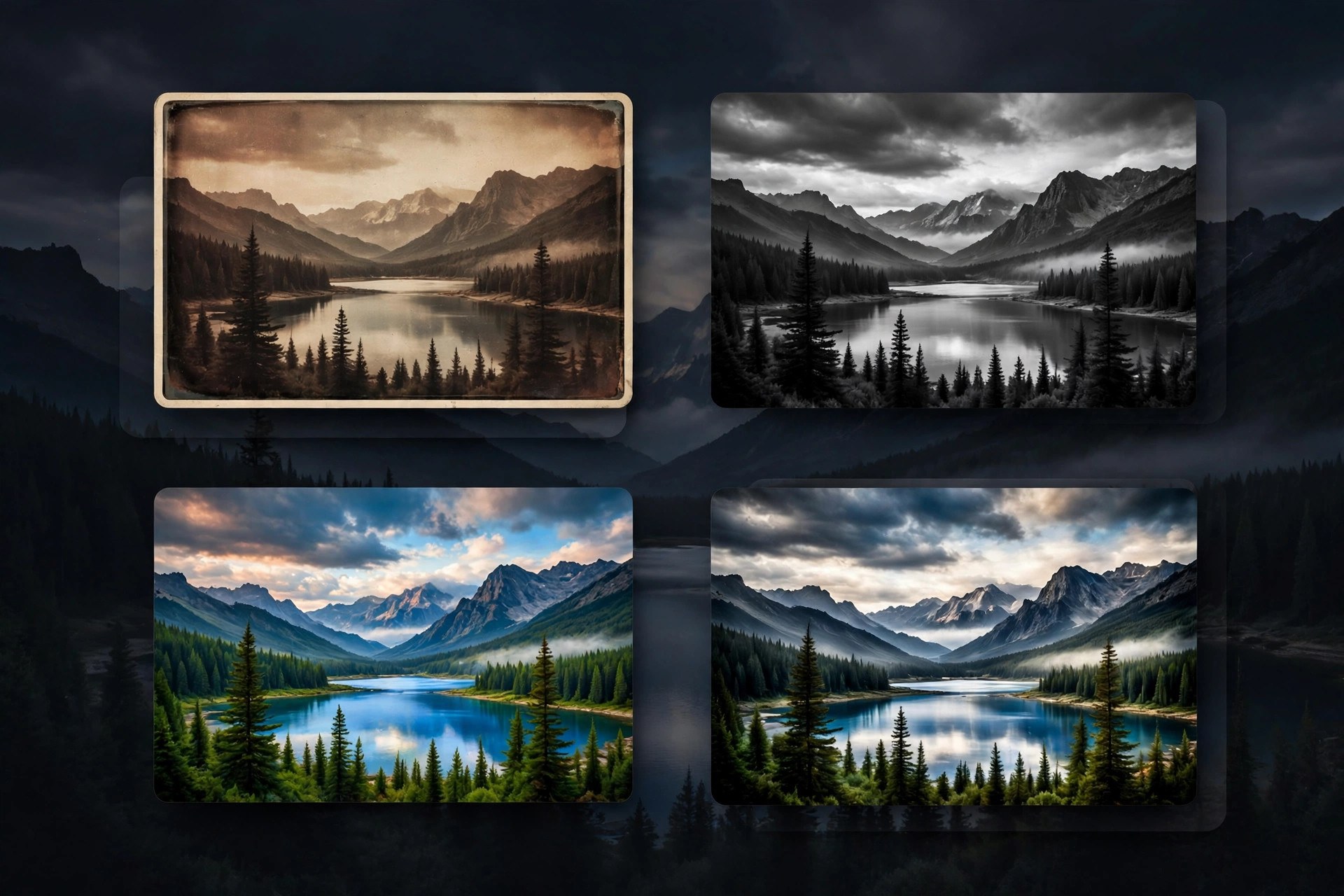
    Nik Collection by DxO is a suite of creative photo editing plugins used to finish images with a distinct look. The collection includes tools for creative color effects, black and white conversion, analog film styles, local adjustments, sharpening, noise reduction and HDR. Version 9 adds AI assisted masking, depth masks, a redesigned color grading tool in Nik Color Efex and new filters, while keeping the preset driven workflow photographers like. Updated Aug 21, 2026.

    Key Features

    • Creative plugins covering color, mono, analog and HDR work
    • AI masks and depth masks for faster local adjustments
    • Color grading tool for shadows, midtones and highlights
    • Control points for precise local edits without selections
    • Large preset library with full manual control
    • Plugins for Photoshop, Lightroom Classic and PhotoLab

    How to Download

    1. Check that your Mac runs a supported host app such as Photoshop.
    2. Use this link to get the installer: Download from the official site and choose the trial or a license.
    3. Run the installer and pick the host apps you want to connect.
    4. Open your photo editor and launch a Nik plugin from its filters menu.

    System Requirements

    You need a Mac running a recent version of macOS and a supported host application such as Adobe Photoshop, Lightroom Classic, Affinity Photo or DxO PhotoLab. Photo editing is memory hungry work, so plenty of RAM helps.

    FAQs

    Can I use Nik Collection without Photoshop?

    Yes. The plugins also work with Lightroom Classic, Affinity Photo and DxO PhotoLab.

    Is there a free trial?

    Yes. DxO offers a free trial of the full suite, so you can test every plugin on your own photos before buying.

    Is it a subscription?

    No. Nik Collection is sold as a perpetual license. Owners of recent earlier versions can usually upgrade at a lower price.

  • ZOUTLINER for ZBrush for Mac

    ZOUTLINER for ZBrush for Mac

    ZOUTLINER for ZBrush for Mac

    ZOUTLINER for ZBrush for Mac

    Mac Utilities
    Updated Aug 21, 2026
    Mac Utilities • Updated Aug 21, 2026

    ZOUTLINER is a helper plugin that works inside ZBrush, the digital sculpting program from Maxon. Anyone who has built a character or a hard surface model in ZBrush knows how fast a project fills with tools, subtools and parts, and how much time goes into finding the piece you want to edit next. ZOUTLINER is made for that side of the job: it gives sculptors a clearer way to view and manage the structure of their work from within the interface. Updated Aug 21, 2026.

    Key Features

    • Works inside ZBrush as a plugin, with no separate app to switch to
    • Shows the structure of projects with many tools and subtools at a glance
    • Makes finding and selecting the part you want faster in busy scenes
    • Suits character, creature and hard surface work with many pieces
    • Small and focused, aimed at one organisational problem

    How to Download

    1. Find the seller page for ZOUTLINER where it is listed.
    2. Confirm the version on sale supports your release of ZBrush and your Mac.
    3. Download the plugin files and keep the included instructions open.
    4. Copy the files into the ZPlugs folder of your ZBrush install, restart ZBrush, and check the ZPlugin menu.

    System Requirements

    ZOUTLINER needs a licensed copy of ZBrush on your Mac, since it is a plugin rather than a standalone program. ZBrush itself asks for a recent version of macOS. Plugin compatibility can vary between ZBrush releases, so match the plugin build to your ZBrush version.

    FAQs

    Is ZOUTLINER a standalone application?

    No. It is a plugin for ZBrush and only works inside a ZBrush installation.

    Where does the plugin appear in ZBrush?

    Plugins normally appear under the ZPlugin menu once their files sit in the correct ZPlugs folder and ZBrush has restarted.

  • Clop 3.7.1 for Mac

    Clop 3.7.1 for Mac

    Clop 3.7.1 for Mac

    Clop 3.7.1 for Mac

    Mac Utilities
    Updated Aug 21, 2026
    Mac Utilities • Updated Aug 21, 2026

    Clop, from the Low Tech Guys, is a Mac optimiser with a simple idea: copy big, paste small. While it runs, every image you copy to the clipboard is compressed to the smallest sensible size before you paste it. Drop in videos, images, GIFs or PDFs and Clop optimises them, converts them to modern formats such as JPEG XL, AVIF and AV1, and can squeeze a file until it fits under a size limit you choose. All processing happens on your own Mac. Updated Aug 21, 2026.

    Key Features

    • Clipboard optimisation shrinks copied images automatically, ready to paste
    • Compresses videos, images, GIFs and PDFs dropped in or in watched folders
    • Converts to JPEG XL, WebP, AVIF, AV1, WebM and HEVC formats
    • Fit under size mode keeps compressing until a file meets your limit
    • Screen recordings are optimised as soon as recording stops

    How to Download

    1. Visit the official Clop page to compare the free and Pro feature sets.
    2. Use this link to get the installer: Download from the official site and save the file to your Mac.
    3. Open the download and install Clop.
    4. Launch Clop, copy an image, and paste it anywhere to see the smaller result.

    System Requirements

    Clop needs a Mac running macOS 14 or later, according to the developer page. It runs on Apple Silicon and Intel machines. Since all processing is local, no account or internet connection is needed for compression.

    FAQs

    Is Clop free?

    Partly. Clipboard optimisation and downscaling stay free. After a trial of the Pro features, other tools are limited per session unless you buy the licence.

    Does Clop upload my files?

    No. The developer states that Clop uses no cloud services and sends no file data to the internet.