Author: admin

  • MacWhisper 15.10 for Mac

    MacWhisper 15.10 for Mac

    MacWhisper 15.10 for Mac

    MacWhisper 15.10 for Mac

    Mac Utilities
    Updated Aug 21, 2026
    Mac Utilities • Updated Aug 21, 2026

    MacWhisper is a transcription app for Mac from Good Snooze that turns audio and video into text on your own machine. It uses speech models such as Whisper and Parakeet that run on the device, so recordings do not need to be uploaded anywhere. You can drop in an interview or a lecture, edit the transcript in the app, and export it as text or subtitles. Newer Pro features add batch work, automatic speaker recognition, translation, live meeting transcription and dictation. A free version covers basic transcription, and Pro is a one time purchase. Updated Aug 21, 2026.

    Key Features

    • Transcribes audio and video files on the device itself
    • Choice of speech models, including Whisper and Parakeet
    • Exports transcripts as text or subtitle files
    • Pro adds batch transcription and speaker recognition
    • Live meeting transcription on Pro

    How to Download

    1. Check that your Mac runs macOS 15 or later for current releases.
    2. Use this link to get the installer: Download from the official site and save the file to your Mac.
    3. Open the download, move MacWhisper to Applications and launch it.
    4. Drop in an audio file, pick a model and read your transcript.

    System Requirements

    MacWhisper needs a Mac running a recent version of macOS, and the current 15 series requires macOS 15 or later; older builds remain available for macOS 14. Apple Silicon Macs give the fastest results with the larger speech models.

    FAQs

    Does MacWhisper send my recordings to the cloud?

    Core transcription runs on your Mac, so files stay on your device. Optional features that use outside AI services only run when you choose them.

    Is MacWhisper a subscription?

    The direct version has a free tier and a one time Pro licence with lifetime updates. A separate App Store edition offers other pricing.

  • Growly Draw 1.5.16 for Mac

    Growly Draw 1.5.16 for Mac

    Growly Draw 1.5.16 for Mac

    Growly Draw 1.5.16 for Mac

    Mac Utilities
    Updated Aug 21, 2026
    Mac Utilities • Updated Aug 21, 2026

    Growly Draw is a drawing app for Mac from GrowlyBird, made for people who are not artists but still need to draw things. You work with shapes that stay editable at any time, and you can mix those vector shapes with bitmap images like photos in the same document. It opens a wide range of image formats, including Photoshop, Illustrator, JPEG, TIFF, PNG, PDF, EPS and SVG files, and it can save in common formats too. Draw is not a photo editor, and it has no layers or fancy painting brushes, which keeps it simple. Updated Aug 21, 2026.

    Key Features

    • Mixes editable vector shapes and bitmap images in one document
    • Shapes stay adjustable at any time
    • Opens common formats including PNG, JPEG, TIFF, PDF, EPS and SVG
    • Saves in its own format plus JPEG, TIFF, PNG, PDF and SVG
    • Simple tools aimed at everyday drawing, diagrams and plans

    How to Download

    1. Check that your Mac runs a supported version of macOS.
    2. Use this link to get the installer: Download from the official site and save the file to your Mac.
    3. Open the downloaded disk image and move Growly Draw to your Applications folder.
    4. Launch Draw and try combining a shape with a photo.

    System Requirements

    Growly Draw needs a Mac with an Intel or Apple Silicon processor and macOS 10.10 Yosemite or later, according to the developer. It is a light app, so it runs comfortably on older Macs as well as new ones.

    FAQs

    Is Growly Draw a photo editor?

    No, it is a drawing app. It can place photos inside a document, but it has no photo retouching tools or layers.

    Does Growly Draw cost anything?

    No, GrowlyBird apps are free to use. The developer accepts donations, but you never need to pay.

  • FractalMapper 1.6 for Mac

    FractalMapper 1.6 for Mac

    FractalMapper 1.6 for Mac

    FractalMapper 1.6 for Mac

    Mac Utilities
    Updated Aug 21, 2026
    Mac Utilities • Updated Aug 21, 2026

    FractalMapper is an After Effects plugin that maps your layers onto fractals, wrapping footage, text or graphics around endlessly detailed mathematical patterns. It projects your own layer across the fractal surface, so the artwork bends and flows with the pattern as it moves. Its morph feature can blend between fractal states, which makes it a natural fit for hypnotic transitions, music visuals and abstract title backgrounds. The plugin is GPU accelerated, so exploring different patterns stays responsive while you work. You can zoom into the detail, shift the colours and animate the evolution to build many looks. Updated Aug 21, 2026.

    Key Features

    • Maps After Effects layers onto detailed fractal patterns
    • Morph feature blends fractal states for flowing transitions
    • GPU accelerated rendering for responsive previews
    • Works with footage, text, shapes and graphics
    • Animatable controls for movement, zoom and colour

    How to Download

    1. Open After Effects on your Mac and save your current project first.
    2. Install the plugin through the aescripts manager or follow the supplied installer steps, then restart After Effects.
    3. Apply FractalMapper to a layer and choose a fractal pattern to start from.
    4. Adjust the morph, zoom and colour controls, preview the result and render your composition.

    System Requirements

    FractalMapper needs a Mac with a recent version of macOS and a supported version of Adobe After Effects. Because the plugin is GPU accelerated, a capable graphics processor gives smoother previews at high resolutions.

    FAQs

    Can FractalMapper use my own footage?

    Yes, the idea of the plugin is to map your own layers, including footage and text, onto the fractal so the pattern carries your artwork.

    What is the morph feature for?

    Morph blends between fractal states over time, which creates smooth, flowing transitions that are useful between scenes or inside a title sequence.

  • Clop 3.7.1 for Mac

    Clop 3.7.1 for Mac

    Clop 3.7.1 for Mac

    Clop 3.7.1 for Mac

    Mac Utilities
    Updated Aug 21, 2026
    Mac Utilities • Updated Aug 21, 2026

    Clop, from the Low Tech Guys, is a Mac optimiser with a simple idea: copy big, paste small. While it runs, every image you copy to the clipboard is compressed to the smallest sensible size before you paste it. Drop in videos, images, GIFs or PDFs and Clop optimises them, converts them to modern formats such as JPEG XL, AVIF and AV1, and can squeeze a file until it fits under a size limit you choose. All processing happens on your own Mac. Updated Aug 21, 2026.

    Key Features

    • Clipboard optimisation shrinks copied images automatically, ready to paste
    • Compresses videos, images, GIFs and PDFs dropped in or in watched folders
    • Converts to JPEG XL, WebP, AVIF, AV1, WebM and HEVC formats
    • Fit under size mode keeps compressing until a file meets your limit
    • Screen recordings are optimised as soon as recording stops

    How to Download

    1. Visit the official Clop page to compare the free and Pro feature sets.
    2. Use this link to get the installer: Download from the official site and save the file to your Mac.
    3. Open the download and install Clop.
    4. Launch Clop, copy an image, and paste it anywhere to see the smaller result.

    System Requirements

    Clop needs a Mac running macOS 14 or later, according to the developer page. It runs on Apple Silicon and Intel machines. Since all processing is local, no account or internet connection is needed for compression.

    FAQs

    Is Clop free?

    Partly. Clipboard optimisation and downscaling stay free. After a trial of the Pro features, other tools are limited per session unless you buy the licence.

    Does Clop upload my files?

    No. The developer states that Clop uses no cloud services and sends no file data to the internet.

  • Extendo 1.5.5 for Mac

    Extendo 1.5.5 for Mac

    Extendo 1.5.5 for Mac

    Extendo 1.5.5 for Mac

    Mac Utilities
    Updated Aug 21, 2026
    Mac Utilities • Updated Aug 21, 2026

    Extendo is an edge extension plugin for After Effects. When you key or roto a plate, the edges often need work, and the usual fix of eroding the matte eats into fine detail like hair. Extendo takes the opposite approach: it pushes the colour from the edge pixels outward, extending clean detail into the area beyond the edge. The idea is similar to PixelSpread in Flame and EdgeExtend in Nuke, tools compositors have relied on for years, brought into After Effects. The result is a plate that composites more naturally over a new background. Updated Aug 21, 2026.

    Key Features

    • Extends edge pixels outward to preserve fine detail
    • Helps keyed and roto plates sit naturally over new backgrounds
    • Keeps hair and soft edges that erosion would destroy
    • Works as an effect inside After Effects compositions

    How to Download

    1. Open After Effects on your Mac and save your current project first.
    2. Use this link to get the installer: Download from the official site and save the file to your Mac.
    3. Run the installer or place the plugin as directed, then restart After Effects.
    4. Apply Extendo to your cleaned plate, extend the edges and preview the composite.

    System Requirements

    Extendo needs a Mac with a recent version of macOS and a supported version of Adobe After Effects, with recent releases listing After Effects 2023 to 2026. It runs as a plugin inside After Effects, so it uses the memory and graphics power of your Mac.

    FAQs

    Why extend edges instead of eroding them?

    Eroding a matte removes the fringe but also removes real detail. Extending the edge colour outward keeps that detail.

    Is Extendo similar to tools in Nuke or Flame?

    Yes, it brings the same idea as EdgeExtend in Nuke and PixelSpread in Flame to After Effects compositing work.

  • Camera Tracker 6 for Mac

    Camera Tracker 6 for Mac

    Camera Tracker 6 for Mac

    Camera Tracker 6 for Mac

    Mac Utilities
    Updated Aug 21, 2026
    Mac Utilities • Updated Aug 21, 2026

    Camera Tracker, made by CGMatter and sold on Superhive, is a Blender addon that works out camera movement from real footage so you can place 3D objects into a shot. It uses photogrammetry to solve the camera automatically, which saves hours of manual tracking. Current versions add a rebuilt tripod solver that handles zoom shots, object tracking through masks, dense point clouds, tools for ground alignment and pins, and support for Apple Silicon Macs in Blender. Updated Aug 21, 2026.

    Key Features

    • Automatic camera solving based on photogrammetry
    • Tripod solver for rotation only shots, including zoom moves
    • Object tracking by masking a moving subject
    • Dense point clouds that show the shape of the scene
    • Pin, point and ground tools to align your scene
    • Lens undistortion output for cleaner compositing

    How to Download

    1. Check that your Mac is an Apple Silicon model running a supported Blender version.
    2. Open the Superhive marketplace and search for Camera Tracker by CGMatter.
    3. Buy the addon and download the zip file from your account library.
    4. In Blender, open Preferences, install the zip and enable Camera Tracker.

    System Requirements

    You need a Mac with an Apple Silicon processor, a recent version of Blender, and free storage for footage and tracking data. Longer and higher resolution shots benefit from more memory.

    FAQs

    Does Camera Tracker replace Blender built in tracking?

    It sits alongside it. The addon focuses on automatic solving, while the native tracker gives full manual control for difficult shots.

    Can it track a tripod shot?

    Yes. The tripod solver is made for rotation only camera moves and can handle shots where the camera zooms during the move.

    Where do updates come from?

    Updates are delivered through your Superhive account, where you can download the newest version when the creator publishes one.

  • LayerQ 1.0.0 for Mac

    LayerQ 1.0.0 for Mac

    LayerQ 1.0.0 for Mac

    LayerQ 1.0.0 for Mac

    Mac Utilities
    Updated Aug 21, 2026
    Mac Utilities • Updated Aug 21, 2026

    LayerQ is a layer set management and batch rendering tool for After Effects. It lets you save layer visibility setups as reusable sets, so one composition can hold many variations of a design, such as different languages or colours. You can preview a set instantly with Solo, and then render every variation in one click, including nested precomps. That removes the old routine of duplicating compositions by hand and queuing each render one at a time, which is slow and easy to get wrong. Updated Aug 21, 2026.

    Key Features

    • Saves layer visibility setups as reusable sets
    • Instant preview of any set using Solo
    • Renders every variation in one click
    • Handles nested precomps as part of each variation
    • No manual composition duplicating or repeated queueing

    How to Download

    1. Open After Effects on your Mac and save your current project first.
    2. Use this link to get the installer: Download from the official site and save the file to your Mac.
    3. Install the tool through the aescripts manager or copy it into place, then restart After Effects.
    4. Open the LayerQ panel, save your first layer set and try a batch render of your variations.

    System Requirements

    LayerQ needs a Mac with a recent version of macOS and a supported version of Adobe After Effects. It runs inside After Effects, so it shares the memory and processor of your Mac with your project. Batch rendering benefits from a faster Mac.

    FAQs

    What kind of work is LayerQ best for?

    It suits projects with many versions of one design, such as language variants, colour options or size variations, where each version differs by which layers are visible.

    Does it work with nested precomps?

    Yes, LayerQ includes nested precomps when it renders variations, so sets can reach layers deep inside your project structure.

  • Shutter Encoder 20.5 for Mac

    Shutter Encoder 20.5 for Mac

    Shutter Encoder 20.5 for Mac

    Shutter Encoder 20.5 for Mac

    Mac Utilities
    Updated Aug 21, 2026
    Mac Utilities • Updated Aug 21, 2026

    Shutter Encoder is a free and open source media converter built on FFmpeg, made by Paul Pacifico for video editors. It converts video, audio and image files between a wide range of formats, including professional editing codecs, and it can also trim clips, merge files, handle subtitles. The FFmpeg engine handles almost any codec you are likely to meet, while the friendly interface keeps common jobs quick. Updated Aug 21, 2026.

    Key Features

    • Converts video, audio and images between many formats
    • Professional editing codecs for smoother work in editing apps
    • Lossless trim, merge, rewrap and replace audio functions
    • Subtitle editing, conversion and burning into video
    • Batch processing for a whole folder at once
    • Media analysis tools that show detailed file information

    How to Download

    1. Check that your Mac has free space for the app and output files.
    2. Use this link to get the installer: Download from the official site and choose the Mac build for your processor.
    3. Open the downloaded package and follow the install steps.
    4. Launch Shutter Encoder, add files, pick a function and start.

    System Requirements

    You need a Mac running a current version of macOS, with Intel and Apple Silicon builds available. Converting large video files uses disk space and processor time, so a modern Mac gives the best experience.

    FAQs

    Is Shutter Encoder really free?

    Yes. It is free and open source under the GPL license, and the developer accepts voluntary donations from people who find it useful.

    Do I need FFmpeg installed separately?

    No. Shutter Encoder bundles the tools it needs, so you can install the app and start converting right away.

    Can it convert files without losing quality?

    Rewrapping and lossless trimming keep the original streams unchanged. Format conversion always re encodes, so use high quality settings when quality matters.

  • Fender Studio Pro 8.2 for Mac

    Fender Studio Pro 8.2 for Mac

    Fender Studio Pro 8.2 for Mac

    Fender Studio Pro 8.2 for Mac

    Mac Utilities
    Updated Aug 21, 2026
    Mac Utilities • Updated Aug 21, 2026

    Fender Studio Pro is a full digital audio workstation that grew out of the PreSonus Studio One platform and now carries the Fender name. It brings recording, editing, mixing and mastering together in one program, with Fender amp models, virtual instruments, loops and a fast drag and drop workflow. Version 8.2 expands the mixing tools, adds MIDI 2.0 support on macOS, widens stem separation and adds a marker track. Updated Aug 21, 2026.

    Key Features

    • Multitrack recording, editing, mixing and mastering in one app
    • Fender Mustang guitar and Rumble bass amp models
    • Drag and drop arranging with loops and instruments
    • Stem separation and audio to MIDI tools
    • MIDI 2.0 support for compatible controllers on macOS
    • Chord track and harmony tools for songwriting

    How to Download

    1. Check that your Mac meets the system needs on the Fender product page.
    2. Use this link to get the installer: Download from the official site and choose a license or a trial.
    3. Open the downloaded file and follow the install steps.
    4. Launch Fender Studio Pro, sign in and activate your license.

    System Requirements

    You need a recent Mac running a current version of macOS, a fast processor, plenty of RAM and enough free storage for the app and your projects. An audio interface is optional.

    FAQs

    Is Fender Studio Pro the same as Studio One?

    It is the next step of the Studio One platform under the Fender brand. Existing Studio One owners can upgrade, and projects carry over.

    Can I buy it outright?

    Yes. Fender sells a perpetual license, and a Pro Plus subscription adds extra content and cloud tools.

    Does it include guitar amp sounds?

    Yes. The Fender Mustang and Rumble models are included, so guitar and bass players can record with familiar Fender amp tones.

  • Nik Collection by DxO 9.1.0 for Mac

    Nik Collection by DxO 9.1.0 for Mac

    Nik Collection by DxO 9.1.0 for Mac

    Nik Collection by DxO 9.1.0 for Mac

    Mac Utilities
    Updated Aug 21, 2026
    Mac Utilities • Updated Aug 21, 2026

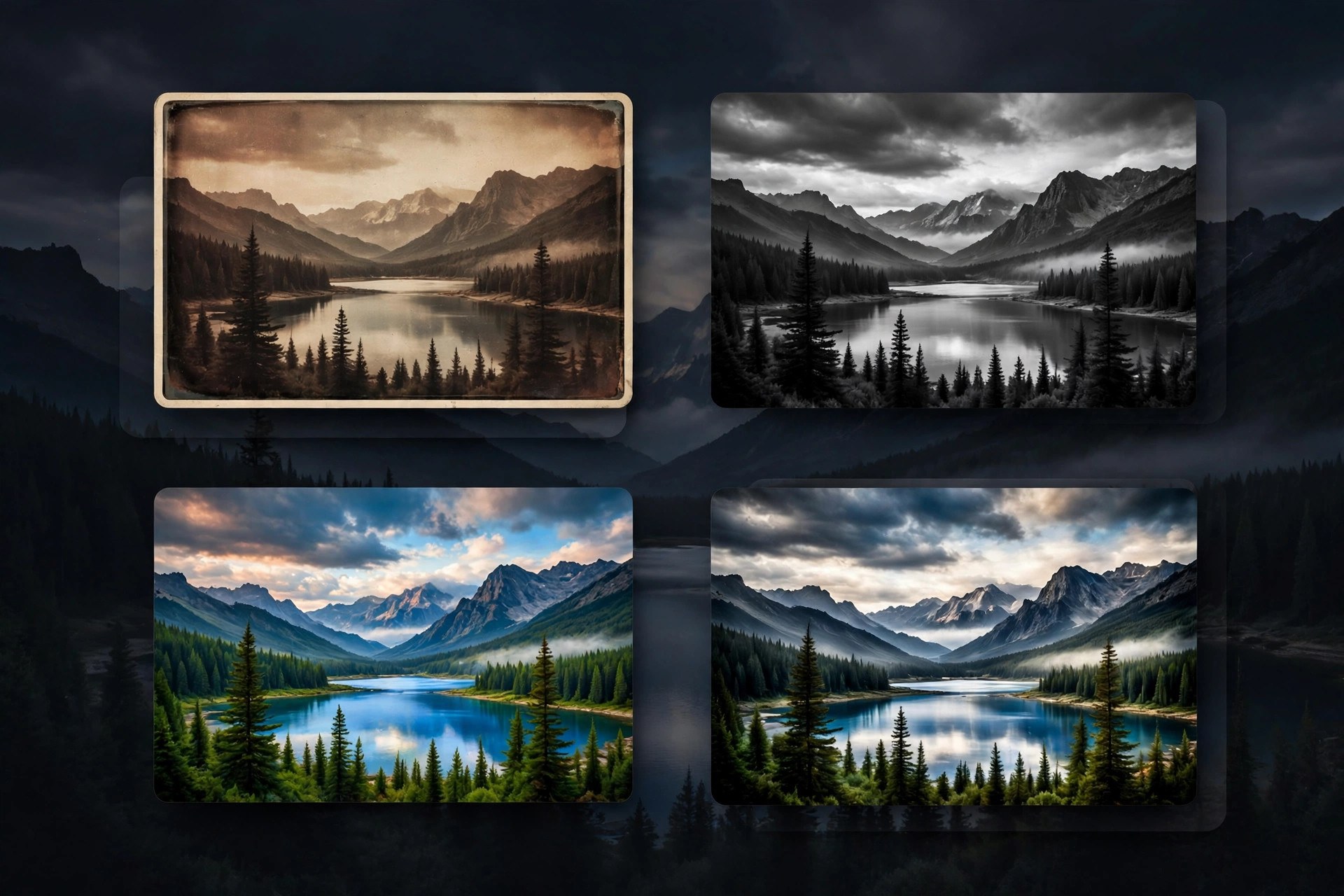
    Nik Collection by DxO is a suite of creative photo editing plugins used to finish images with a distinct look. The collection includes tools for creative color effects, black and white conversion, analog film styles, local adjustments, sharpening, noise reduction and HDR. Version 9 adds AI assisted masking, depth masks, a redesigned color grading tool in Nik Color Efex and new filters, while keeping the preset driven workflow photographers like. Updated Aug 21, 2026.

    Key Features

    • Creative plugins covering color, mono, analog and HDR work
    • AI masks and depth masks for faster local adjustments
    • Color grading tool for shadows, midtones and highlights
    • Control points for precise local edits without selections
    • Large preset library with full manual control
    • Plugins for Photoshop, Lightroom Classic and PhotoLab

    How to Download

    1. Check that your Mac runs a supported host app such as Photoshop.
    2. Use this link to get the installer: Download from the official site and choose the trial or a license.
    3. Run the installer and pick the host apps you want to connect.
    4. Open your photo editor and launch a Nik plugin from its filters menu.

    System Requirements

    You need a Mac running a recent version of macOS and a supported host application such as Adobe Photoshop, Lightroom Classic, Affinity Photo or DxO PhotoLab. Photo editing is memory hungry work, so plenty of RAM helps.

    FAQs

    Can I use Nik Collection without Photoshop?

    Yes. The plugins also work with Lightroom Classic, Affinity Photo and DxO PhotoLab.

    Is there a free trial?

    Yes. DxO offers a free trial of the full suite, so you can test every plugin on your own photos before buying.

    Is it a subscription?

    No. Nik Collection is sold as a perpetual license. Owners of recent earlier versions can usually upgrade at a lower price.