Author: admin

  • Tellie 1.7 for Mac

    Tellie 1.7 for Mac

    Tellie 1.7 for Mac

    Tellie 1.7 for Mac

    Mac Utilities
    Updated Aug 15, 2026
    Mac Utilities • Updated Aug 15, 2026

    Tellie is a teleprompter that sits at the Mac notch, close to your camera, so your eyes stay up while you speak. Its clever part is listening. Instead of scrolling at a fixed speed you must chase, Tellie follows the words you actually say and keeps your place when you pause, skip a line or phrase a point in your own words. It stays hidden from screen sharing and recordings, which suits video calls, lessons and recorded talks. Mark the points you must cover, and Tellie tracks what is left.

    Key Features

    • Prompter at the notch near the camera, or top centre without one
    • Voice follow scrolling that tracks real words and pauses
    • Coverage tracking for key points with gentle time prompts
    • Hidden from Zoom, Teams, Meet and screen recordings
    • Script import from text, Markdown, Word, PDF and Pages files

    How to Download

    1. Download from the official site and download Tellie from the official site.
    2. Open the app, grant microphone access for voice follow, and load your script.
    3. Place Tellie at the notch, start speaking, and let it follow along.

    System Requirements

    Tellie needs macOS 14 or later on an Apple silicon Mac, as listed by the vendor. Voice follow runs on the device, and a quiet room with a decent microphone gives the clearest results.

    FAQs

    Can people on my call see Tellie?

    No. The vendor says macOS keeps its window out of screen capture, so call apps never show your notes.

    What if I go off script?

    Tellie listens for what you covered, keeps your place, and tracks points you still need to say.

    Is there a free version?

    Yes. The base teleprompter is free. Pro adds voice follow and coaching with a one time purchase.

  • Bloom 1.5.42 for Mac

    Bloom 1.5.42 for Mac

    Bloom 1.5.42 for Mac

    Bloom 1.5.42 for Mac

    Mac Utilities
    Updated Aug 15, 2026
    Mac Utilities • Updated Aug 15, 2026

    Bloom is a Finder companion for people who move files all day and feel the limits of the stock app. It looks familiar, but adds tools Finder users often wish they had. Work in two, three or four panes, jump to any folder with a quick shortcut panel, and search the real file system rather than an index alone. A floating Portal window acts as a shelf for files in transit. Columns resize to show full names, workspaces save layouts per project, and Footprints records file operations so mistakes are easier to undo.

    Key Features

    • Multi pane layouts with saved workspaces for each project
    • Fast keyword search plus live search inside open folders
    • Portal floating shelf for files moving between windows
    • Footprints history to revert file operations you regret
    • Batch rename, archive preview and cloud folder support

    How to Download

    1. Download from the official site and download Bloom from the official site.
    2. Open the download, move Bloom to Applications, and grant disk access if asked.
    3. Set your layout and workspace, then try the jump panel shortcut.

    System Requirements

    Bloom needs a recent version of macOS as listed on the vendor site. Some features, such as reading all system tags, need Full Disk Access granted in System Settings on your Mac.

    FAQs

    Does Bloom fully replace Finder?

    It can be your main file manager for daily work, while Finder still exists on the system for other tasks.

    Can I undo a file move?

    Footprints records operations and lets you revert many changes. Check the history prompt before confirming any undo.

    Does it work with cloud storage?

    Yes. iCloud Drive, Dropbox and OneDrive folders browse in Bloom as mounted folders on your Mac.

  • Gitfox 5.4.2 for Mac

    Gitfox 5.4.2 for Mac

    Gitfox 5.4.2 for Mac

    Gitfox 5.4.2 for Mac

    Mac Utilities
    Updated Aug 15, 2026
    Mac Utilities • Updated Aug 15, 2026

    Gitfox is a Git client written only for the Mac, and it feels like it from the first minute. Built in Swift with native controls, it opens fast and stays light even when a repository grows large. Changes, the commit log and your branches sit where you expect them, with nothing extra shouting for attention. Review a diff line by line, stage only what you want, and push with confidence.

    Key Features

    • Clean diff view with split and unified layouts and clear line counts
    • Stage whole files or single lines, with helpful commit message autocomplete
    • Branch, tag and stash tools in the sidebar, with push and pull nearby
    • Guided conflict view to keep one side, the other side, both or neither
    • Built in accounts for GitHub, GitLab, Bitbucket and Gitea, plus SSH support

    How to Download

    1. Download from the official site and start the free trial or add your licence.
    2. Open the downloaded file and move Gitfox into your Applications folder.
    3. Launch Gitfox, open or clone a repository, and sign in if needed.

    System Requirements

    The maker states that Gitfox needs macOS 15.0 or later and runs on Apple Silicon and Intel Macs as one universal app. Existing Git setups and SSH keys keep working.

    FAQs

    Is there a free trial of Gitfox?

    Yes. The official site offers a 30 day trial with full features and no card required.

    Does Gitfox work with the Git hosts I already use?

    It supports GitHub, GitLab, Bitbucket and Gitea accounts, and plain SSH remotes work as usual.

    Is Gitfox a native Mac app or a web wrapper?

    It is native, written in Swift with AppKit, so it opens quickly and follows normal Mac behaviour.

  • Thorium Reader 3.4.0 for Mac

    Thorium Reader 3.4.0 for Mac

    Thorium Reader 3.4.0 for Mac

    Thorium Reader 3.4.0 for Mac

    Mac Utilities
    Updated Aug 15, 2026
    Mac Utilities • Updated Aug 15, 2026

    Thorium Reader is a free reading app from EDRLab, a non profit group that works on open reading standards. It opens EPUB books, PDF documents, DAISY titles and audiobooks in one tidy library, and it takes accessibility seriously. Text size, spacing, fonts and colour themes can all be adjusted, and it works well with VoiceOver. There are no ads and no account is needed. Library users will also value its support for LCP protected loans.

    Key Features

    • Reads EPUB 2 and EPUB 3 books in flowing text and fixed layout forms
    • Opens PDF documents, DAISY books and Readium audiobooks in one library
    • Supports LCP protected books, so library loans open correctly
    • Bookmarks, annotations, full text search and a read aloud option
    • Rich display controls for font, spacing and themes, plus OPDS browsing

    How to Download

    1. Download from the official site and choose the macOS build.
    2. Open the downloaded disk image and move Thorium Reader into Applications.
    3. Launch the app, import your first book, and start reading.

    System Requirements

    Thorium Reader runs on current versions of macOS on Intel and Apple Silicon Macs. It is a modest app, so any Mac used for reading and study will run it well.

    FAQs

    Is Thorium Reader really free?

    Yes. EDRLab gives the app away with no ads. Grants, members and reader donations fund the project.

    Can Thorium Reader open books borrowed from my library?

    In most cases, yes. It supports LCP protected publications, the system many public libraries use for lending.

    Does Thorium Reader work with a screen reader?

    Yes. It works with VoiceOver on macOS and offers keyboard navigation and larger text options.

  • Seagate Toolkit 2.44.0.3 for Mac

    Seagate Toolkit 2.44.0.3 for Mac

    Seagate Toolkit 2.44.0.3 for Mac

    Seagate Toolkit 2.44.0.3 for Mac

    Mac Utilities
    Updated Aug 15, 2026
    Mac Utilities • Updated Aug 15, 2026

    Seagate Toolkit is the companion app for Seagate and LaCie external drives, and its job is to make routine drive care feel simple. Instead of copying folders by hand and hoping you remembered everything, you set up a plan once and let the app handle the repetition. Back up chosen folders on a schedule, mirror a folder so both copies always match, and manage drive security from one window. The app shows which activities your own drive model supports.

    Key Features

    • Backup plans that copy chosen folders to your drive on your schedule
    • Mirror folders that keep the drive copy in step with the original
    • Sync Plus on supported drives for ongoing sync with your computer
    • Seagate Secure tools on supported drives to set a protective password
    • Restore tools that bring backed up files back when you need them

    How to Download

    1. Download from the official site and choose the Toolkit build for macOS.
    2. Open the downloaded archive and run the Seagate Toolkit installer.
    3. Connect your drive, open Toolkit and create your first plan.

    System Requirements

    Toolkit needs a current version of macOS, a supported Seagate or LaCie drive and an internet connection for install and updates. Some activities are limited to certain models.

    FAQs

    Is Seagate Toolkit free?

    Yes. Seagate provides Toolkit as a free download for owners of its drives.

    What is the difference between Backup and Mirror?

    Backup copies files on a schedule and keeps versions you can restore. Mirror keeps one drive folder matching your Mac folder.

    Does Toolkit work with drives from other brands?

    No. It is built for Seagate and LaCie drives. Other brands need their own maker software.

  • Kdenlive 26.08.3 for Mac

    Kdenlive 26.08.3 for Mac

    Kdenlive 26.08.3 for Mac

    Kdenlive 26.08.3 for Mac

    Mac Utilities
    Updated Aug 15, 2026
    Mac Utilities • Updated Aug 15, 2026

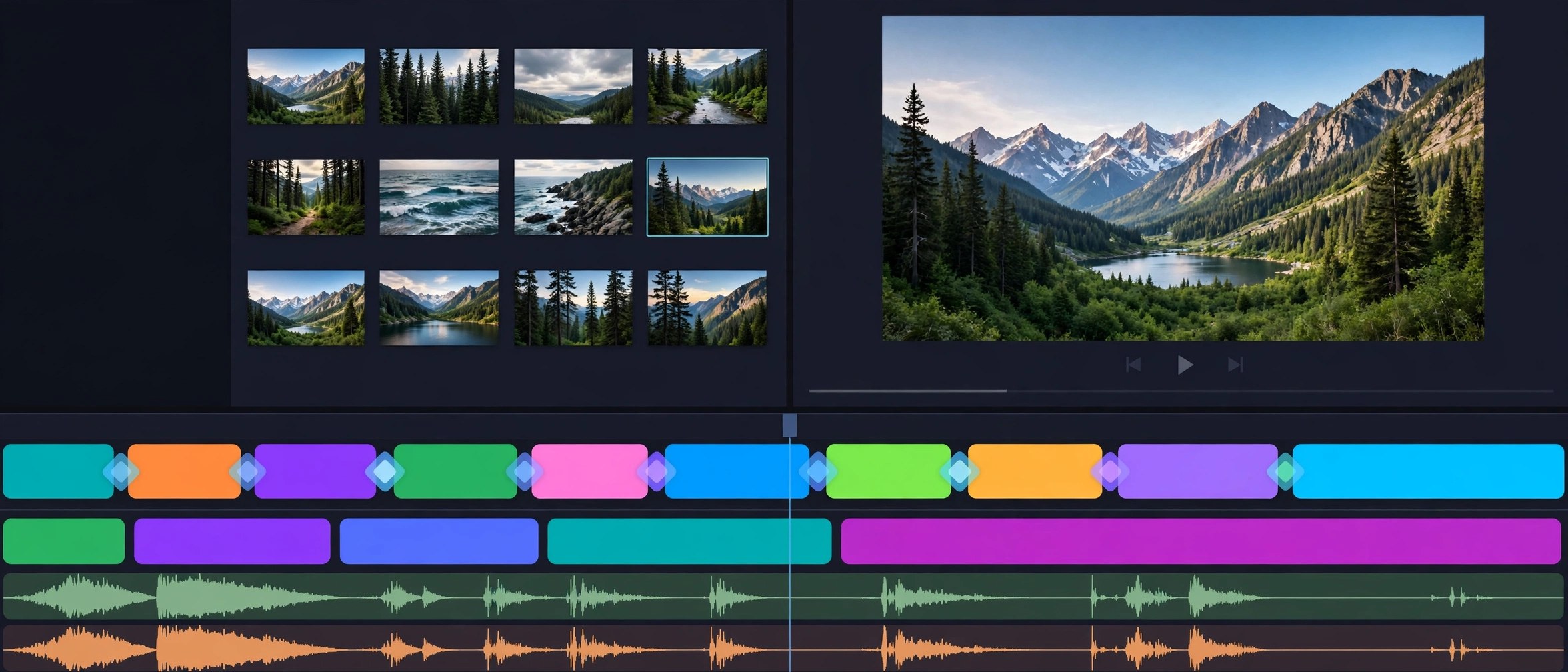
    Kdenlive is a free and open source video editor from the KDE community, built for people who have outgrown a basic trim tool but do not want a subscription. The timeline holds many video and audio tracks, so a project can grow from a simple family clip into a layered production with music, voice and titles. Effects, transitions and colour tools sit close to the timeline. No watermark, no fee, and renders in the formats sharing sites expect.

    Key Features

    • Multi track timeline for video and audio with snapping and markers
    • Wide library of effects and transitions, with keyframes for control
    • Title and subtitle tools for captions and on screen text
    • Colour scopes and correction tools for clips shot in mixed light
    • Proxy clips for smooth editing of large camera files

    How to Download

    1. Download from the official site and pick the macOS build for your Mac.
    2. Open the downloaded disk image and move Kdenlive into Applications.
    3. Launch Kdenlive, create a project, add clips and start editing.

    System Requirements

    Current Kdenlive builds for Mac need macOS 13 or later, with builds for Intel and Apple Silicon Macs. Editing rewards memory and free disk space for projects and renders.

    FAQs

    Is Kdenlive really free with no limits?

    Yes. It is free and open source under the GPL, with no paid tier, watermark or trial timer.

    Can Kdenlive handle 4K footage on a Mac?

    It can. Proxy editing uses light stand in clips while you edit, then full quality files for the render.

    Is Kdenlive good for beginners?

    Expect a short learning curve. Simple cuts, titles and music are easy to learn, and the manual helps.

  • Structured 4.6.7 for Mac

    Structured 4.6.7 for Mac

    Structured 4.6.7 for Mac

    Structured 4.6.7 for Mac

    Mac Utilities
    Updated Aug 15, 2026
    Mac Utilities • Updated Aug 15, 2026

    Structured is a day planner built around one simple idea. Your whole day sits on a single visual timeline, so you can see what happens next at a glance. Tasks, calendar events and focus time live together instead of being scattered across three apps. Adding a task takes seconds. Give it a time and a length, pick an icon and a colour, and it drops into the day in the right place. Gaps in the day are easy to spot.

    Key Features

    • One visual timeline combining tasks, events and focus sessions
    • Calendar import that brings appointments into the same plan
    • Fast task entry with icons, colours, notes and sub tasks
    • Weekly and monthly views for planning beyond today
    • Sync across Mac, iPhone, iPad and the web, with reminders

    How to Download

    1. Download from the official site and follow the link for Mac.
    2. Install Structured from the App Store listing the site directs you to.
    3. Open the app, import your calendar if you wish, and plan your day.

    System Requirements

    Structured runs on current versions of macOS, with companion apps for iPhone, iPad and Apple Watch plus a web version. Check the App Store listing for the minimum macOS version.

    FAQs

    Is Structured free to use?

    The core planner is free with no ads. An optional Pro plan adds extra flexibility and customisation.

    Can Structured show my existing calendar?

    Yes. Imported events sit on the same timeline as your tasks, giving you one honest view of the day.

    Does Structured sync between my Mac and my phone?

    Yes. Cloud sync keeps the plan on your Mac and phone the same throughout the day.

  • Compresto 1.32 for Mac

    Compresto 1.32 for Mac

    Compresto 1.32 for Mac

    Compresto 1.32 for Mac

    Mac Utilities
    Updated Aug 15, 2026
    Mac Utilities • Updated Aug 15, 2026

    Compresto tackles a familiar problem. Video clips, photos and PDFs quietly eat your disk until sharing a file means a long upload and a grumpy recipient. This native Mac app compresses all of them in one place. Drop in a mixed batch and it works through the queue while you do something else. Everything happens on your Mac, with no uploads to a web service, which matters for client work and family videos alike.

    Key Features

    • Batch compression for video, images, GIFs and PDFs in one app
    • Folder monitoring that compresses new files as they land
    • Floating drop zone and Raycast support for a fast workflow
    • Quality presets and a target file size option for images
    • Video to GIF conversion, with fully local processing throughout

    How to Download

    1. Download from the official site and get Compresto for macOS.
    2. Open the downloaded file and move Compresto into Applications.
    3. Launch the app, drop in a test file and check the result.

    System Requirements

    The maker states that Compresto needs macOS 13 or later and runs on Intel and Apple Silicon Macs. PDF compression also needs Ghostscript, which the official documentation explains.

    FAQs

    Does Compresto upload my files to a server?

    No. Compression runs locally on your Mac, and files are not uploaded or stored elsewhere.

    How much smaller will my files get?

    It depends on the source and preset. The maker describes savings up to 90 percent in some cases.

    Can Compresto watch a folder for me?

    Yes. Point it at a folder and new files are compressed on their own.

  • Screens 5.10.1 for Mac

    Screens 5.10.1 for Mac

    Screens 5.10.1 for Mac

    Screens 5.10.1 for Mac

    Mac Utilities
    Updated Aug 15, 2026
    Mac Utilities • Updated Aug 15, 2026

    Screens by Edovia turns your Mac into a comfortable window onto your other computers. Reach a Mac at home, a Windows PC at work, a Linux box or a Raspberry Pi, and control it as if you were sitting in front of it. On modern Macs remote access is built into the app itself, and Screens Connect handles the tricky network side for machines reached over the internet. New builds add high performance sharing for recent Apple Silicon Macs.

    Key Features

    • Connect to Mac, Windows, Linux and Raspberry Pi computers
    • Remote access built in on modern Macs, plus Screens Connect
    • Clipboard sharing and file transfers with a remote Mac
    • Multiple display support, with your last choice remembered
    • SSH tunnelling, custom keys and Curtain Mode for privacy

    How to Download

    1. Download from the official site and follow the link to get Screens.
    2. Install Screens on your Mac and any other Apple device you use.
    3. Sign in, add your first computer, and test a local connection.

    System Requirements

    Edovia states that Screens needs macOS 14.6 or later on the Mac you connect from. Windows and Linux machines need a VNC server, and remote Macs can run older systems.

    FAQs

    Is there a free trial of Screens?

    Yes. Edovia offers a 7 day free trial. Paid plans include subscription and lifetime choices.

    Can Screens connect to a Windows PC?

    Yes, as long as that PC runs a compatible VNC server. Screens Connect also helps with setup.

    Is my connection private away from home?

    Screens supports secure connections and SSH tunnelling, and Curtain Mode can blank the remote screen.

  • MovieBox for Mac

    MovieBox for Mac

    MovieBox for Mac

    MovieBox for Mac

    Mac Utilities
    Updated Aug 15, 2026
    Mac Utilities • Updated Aug 15, 2026

    MovieBox is a name that appears in Mac software listings as a media viewing app, but it needs an honest note first. We could not verify an official vendor page or a confirmed current version for a native Mac release, so this page claims nothing about a publisher, a version number or a feature set we cannot stand behind. The name is also used by unrelated apps in different stores. Use the download button on this page only, and check exactly what you installed.

    Key Features

    • Listed in Mac catalogues as an app for viewing video on a larger screen
    • No verified vendor feature list exists, so expect only basic playback controls
    • Library, search or subtitle behaviour should be checked after install
    • The name is shared by unrelated products, so builds may differ
    • No account claim is made here, as none could be verified for Mac

    How to Download

    1. Use the download button on this page to get the MovieBox file for Mac.
    2. Note the publisher name shown by macOS and stop if it looks wrong.
    3. Install only if you trust the source, then test with one harmless file.

    System Requirements

    No trustworthy requirement list could be verified for a native Mac version. Keep macOS updated and be ready for the possibility that the app expects an emulator.

    FAQs

    Is there an official MovieBox app for Mac?

    We could not verify one. The well known app under this name was built for phones.

    Why is there no version number in the title?

    No version could be confirmed from a vendor source, so this page uses the name only.

    Is MovieBox safe to install?

    That depends on the source. Read every macOS security prompt and remove anything suspicious at once.