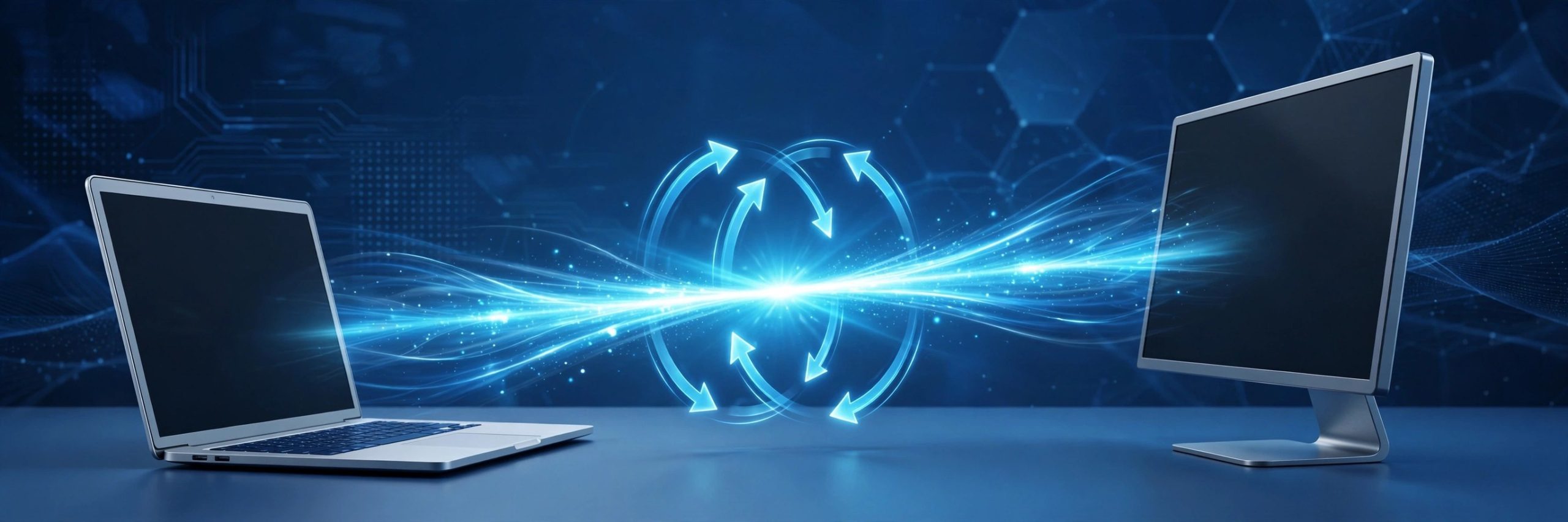
TeamViewer 15.83.5 for Mac
Mac UtilitiesTeamViewer is a remote access tool for Mac that lets you connect to another computer as if you were sitting at it. Support staff use it to fix problems on a distant machine, and many people use it to reach their own office or home computer while away, move files and help family with their Macs.
Key Features
- Remote control of another computer with its screen shown live on your Mac
- File transfer between the two machines during a remote session
- Unattended access to your own computers with a password you set
- Screen sharing and online meetings for showing work to other people
- Connections that work across Mac, Windows and mobile devices in both directions
How to Download
- Open the official TeamViewer download portal for macOS.
- Use Download from the official site and choose the full client or QuickSupport.
- Open the downloaded file, install TeamViewer and grant the macOS permissions it requests.
System Requirements
TeamViewer runs on recent macOS versions. The vendor keeps a supported systems page that lists which TeamViewer release matches each macOS version, so check it if your Mac runs an older system.
FAQs
Is TeamViewer free?
TeamViewer is free for personal use, such as helping family or reaching your own computer. Business use requires a paid licence from the vendor.
Does the other person need TeamViewer installed?
They need some TeamViewer module running. The QuickSupport module runs without a full install, which suits one time help sessions with family or customers.
Is a TeamViewer session private?
Sessions run between the two machines with sign in protection, and you should only accept connections from people you know and trust.




Leave a Reply