Category: Mac Utilities

  • JixiPix Happy Holidaze 1.0.10 for Mac

    JixiPix Happy Holidaze 1.0.10 for Mac

    JixiPix Happy Holidaze 1.0.10 for Mac

    JixiPix Happy Holidaze 1.0.10 for Mac

    Mac Utilities
    Updated Aug 6, 2026
    Mac Utilities • Updated Aug 6, 2026

    JixiPix Happy Holidaze turns your own photos into personal holiday greetings. Instead of sending a plain picture, you place it inside a festive design with painted artwork, seasonal papers and gentle snow, then adjust every piece until it feels like your family card. It suits anyone who enjoys making Christmas and winter greetings at home on a Mac.

    Key Features

    • Premade templates with elements you can move, flip, resize and restack freely
    • Library of custom painted holiday artwork and embellishments for your designs
    • Festive and elegant background papers plus seven texture settings for the finish
    • Snow effect and photo tint options that add a soft antique winter feeling
    • Save your own presets and export in high resolution for print quality cards

    How to Download

    1. Browse the product page to view sample greetings and the tools included in the app.
    2. Download from the official site and follow the steps shown in the JixiPix store.
    3. Install Happy Holidaze, open a favourite photo and customise a template for your greeting.

    System Requirements

    Happy Holidaze runs on macOS 10.13 or later. Because output can be high resolution for printing, a Mac with comfortable free storage and memory will handle large greeting projects smoothly.

    FAQs

    Can I print the greetings I make?

    Yes. Designs can be saved in high resolution, which keeps them sharp enough for home printing or a local print service.

    Can I change a template after choosing it?

    Yes. Every element in a preset can be adjusted, moved or removed, and you can save your finished layout as a preset for future photos.

    Does it only cover Christmas designs?

    The artwork focuses on the winter holiday season, so it fits Christmas and general seasonal greetings best, with papers and textures that suit both.

  • Thonny 5.0.1 for Mac

    Thonny 5.0.1 for Mac

    Thonny 5.0.1 for Mac

    Thonny 5.0.1 for Mac

    Mac Utilities
    Updated Aug 6, 2026
    Mac Utilities • Updated Aug 6, 2026

    Thonny is a Python editor built for people who are learning to program. Instead of a crowded professional IDE, you get a clean window, a bundled copy of Python, and tools that show what your code is doing while it runs. Teachers, students and hobbyists use it for first scripts, school work and small projects, and it is also popular for MicroPython boards.

    Key Features

    • Simple editor with syntax highlighting and code completion for Python
    • Visual debugger that steps through code and shows each call in detail
    • Variable view that updates live as your program runs
    • Bundled Python, so there is nothing extra to install before you start
    • Support for MicroPython devices such as Raspberry Pi Pico and ESP boards

    How to Download

    1. Open the official product page and use Download from the official site to get the Mac installer for your chip type.
    2. Open the downloaded package and follow the on screen steps to install Thonny.
    3. Launch Thonny from your Applications folder and write your first script.

    System Requirements

    The Mac installer for Thonny 5 needs macOS 10.15 Catalina or later. Separate installers are published for Intel Macs and for Macs with Apple silicon, so pick the one that matches your machine.

    FAQs

    Is Thonny good for complete beginners?

    Yes. It was designed for learners, hides advanced clutter, and explains program flow with its stepper instead of assuming prior experience.

    Do I need to install Python separately?

    No. The Mac bundle includes its own Python, so you can run code right after installing Thonny.

    Can Thonny program microcontroller boards?

    Yes. Thonny speaks MicroPython and CircuitPython, and it can write code to boards and run it on the device.

  • Pale Moon 35.0.3 for Mac

    Pale Moon 35.0.3 for Mac

    Pale Moon 35.0.3 for Mac

    Pale Moon 35.0.3 for Mac

    Mac Utilities
    Updated Aug 6, 2026
    Mac Utilities • Updated Aug 6, 2026

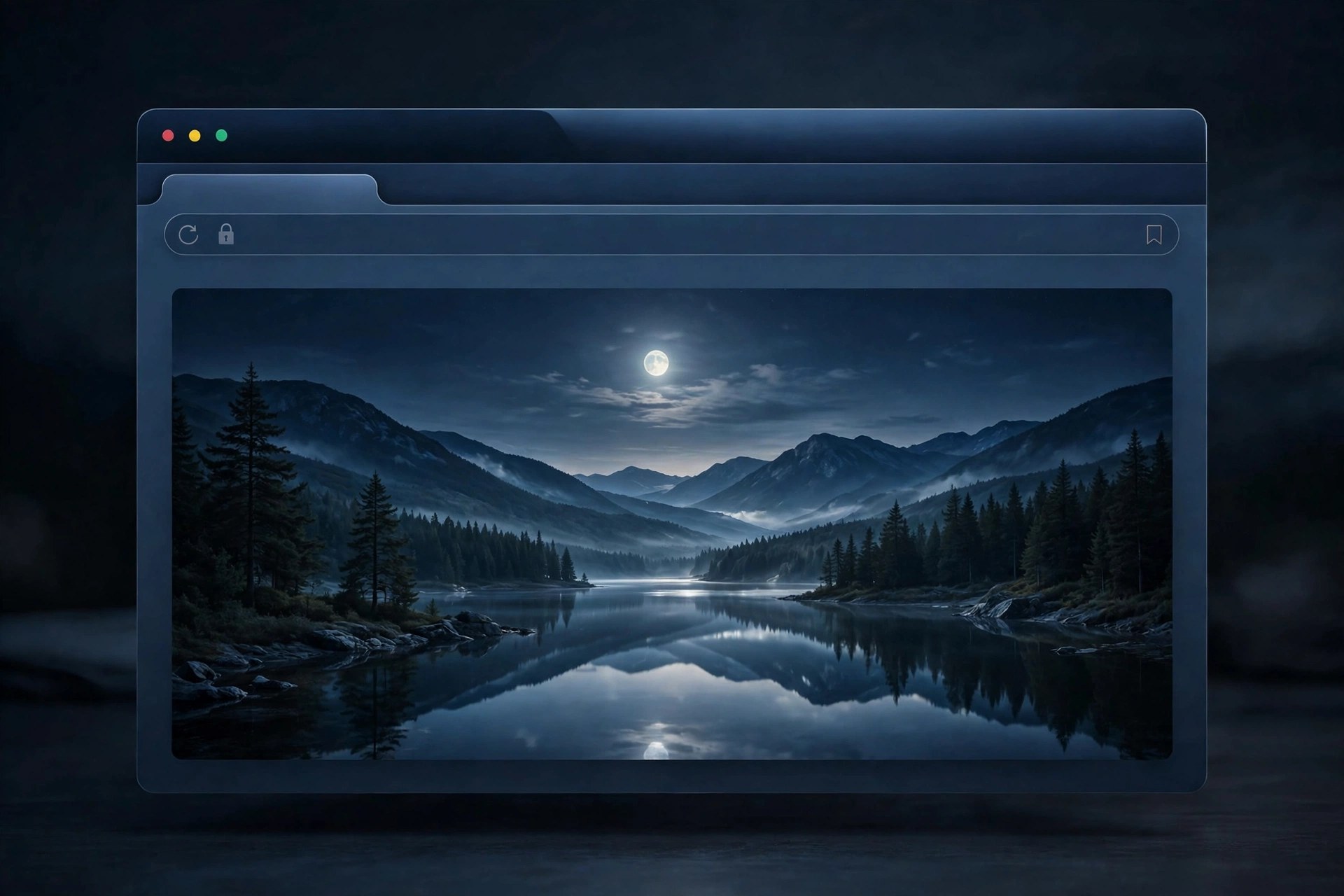
    Pale Moon is a free and open source web browser for Mac users who want real control over how their browser looks and behaves. It runs on its own Goanna rendering engine and keeps a classic, highly customisable interface instead of following every trend set by the larger browsers. People who value privacy choices, older style extensions and a browser that leaves decisions to them are its natural audience, at home and at work.

    Key Features

    • Built on the Goanna engine, maintained by the Pale Moon project itself
    • Highly customisable interface with themes and many settings to shape
    • Supports older style extensions and complete themes for the browser
    • Puts privacy and user choice at the centre of its design
    • Receives regular security and bug fix updates from the project team

    How to Download

    1. Open the official Pale Moon website using the link below.
    2. Download from the official site and choose the Mac build for your Mac.
    3. Open the downloaded disk image and move Pale Moon to your Applications folder.

    System Requirements

    The official download page lists Intel Macs with OS X 10.7 or later and Macs with Apple silicon with macOS 11.0 or later.

    FAQs

    Is Pale Moon free?

    Yes. Pale Moon is free to download and use, and its source code is open for anyone to inspect under its open source licence terms.

    Will my Chrome extensions work in Pale Moon?

    No. Pale Moon uses its own extension system in the classic style, so Chrome extensions and modern Firefox web extensions do not run in it.

    Is Pale Moon still updated?

    Yes. The project still publishes new releases, and its release notes show regular security and bug fix updates for the current version line.

  • Photo Mosaic 1.1.0 for Mac

    Photo Mosaic 1.1.0 for Mac

    Photo Mosaic 1.1.0 for Mac

    Photo Mosaic 1.1.0 for Mac

    Mac Utilities
    Updated Aug 6, 2026
    Mac Utilities • Updated Aug 6, 2026

    Photo Mosaic is a tool for Adobe After Effects that builds a single large picture out of many smaller images. From a distance the viewer sees the main image, and up close the surface is made of hundreds or thousands of tiny photos. Motion designers use it for logo reveals, event openers and tribute videos.

    Key Features

    • Build a mosaic where one chosen image is formed from many smaller source pictures
    • Control the grid so tiles can be fine and detailed or bold and graphic
    • Use your own photo collections as the source material for a personal result
    • Animate the mosaic inside After Effects for reveals, zooms and transitions
    • Works within your normal After Effects workflow alongside layers and effects

    How to Download

    1. Use the download button on this page to get the installer package for your Mac.
    2. Close After Effects, run the installer and follow the instructions it presents.
    3. Open After Effects again, load a project and apply Photo Mosaic to begin a composition.

    System Requirements

    Photo Mosaic needs a Mac with a supported version of Adobe After Effects installed and a current macOS release that After Effects itself supports. Large mosaics render faster on Macs with more memory and a capable graphics processor.

    FAQs

    Does Photo Mosaic work outside After Effects?

    No. It is made to run inside Adobe After Effects, so you need that application installed before the tool can be used in a project.

    Can I use my own photos as tiles?

    Yes. Using your own image collection is the point of the effect, since the small pictures are what give a finished mosaic its personal character.

    Is it suitable for logo reveals?

    Yes. A logo or portrait formed from many small images is a classic use for it.

  • TagSpaces Lite 6.14.3 for Mac

    TagSpaces Lite 6.14.3 for Mac

    TagSpaces Lite 6.14.3 for Mac

    TagSpaces Lite 6.14.3 for Mac

    Mac Utilities
    Updated Aug 6, 2026
    Mac Utilities • Updated Aug 6, 2026

    TagSpaces Lite is a file organiser for people whose folders have grown messy. Rather than moving files into a new library, it adds tags directly to file names and sidecar files on your own disk, so your collection stays portable and works offline. Photographers, researchers and anyone with large document archives use it to browse, preview and find local files without a cloud account.

    Key Features

    • Tag based organisation that keeps files in your own folders on disk
    • Previews for photos, documents, audio, video and many other file types
    • Full text search across file names, tags, descriptions and contents
    • Multiple views including grid, list, gallery and kanban style perspectives
    • Works fully offline with no account and no lock in to a database

    How to Download

    1. Open the official product page and use Download from the official site to get the free Lite package for Mac.
    2. Open the downloaded file and move TagSpaces into your Applications folder.
    3. Launch the app and add a folder as a location to start tagging.

    System Requirements

    TagSpaces Lite runs on current macOS versions and works on Macs with Apple silicon and on Intel Macs. It manages files where they already live, so it needs access only to the folders you choose to add.

    FAQs

    Does TagSpaces move or upload my files?

    No. Your files stay in their folders on your Mac. TagSpaces reads them in place and stores tags with the files themselves.

    What is the difference between Lite and Pro?

    Lite is the free edition and covers tagging, browsing and search. Pro adds extras such as advanced perspectives and extra file operations for heavier use.

    Can I use it without an internet connection?

    Yes. The desktop app is built for local files and works fully offline, which suits private archives and field work.

  • Diorama 3D 0.8.4 for Mac

    Diorama 3D 0.8.4 for Mac

    Diorama 3D 0.8.4 for Mac

    Diorama 3D 0.8.4 for Mac

    Mac Utilities
    Updated Aug 6, 2026
    Mac Utilities • Updated Aug 6, 2026

    Diorama 3D adds a live three dimensional viewport inside Adobe After Effects, giving Mac artists a clearer way to work with 3D layers. Instead of guessing from flat views, you can orbit the scene and move layers, cameras and lights with a gizmo. Every change is written back as normal layers and keyframes. It suits motion designers who build layered 3D scenes and want a faster, more visual way to arrange them.

    Key Features

    • Shows a live 3D view of your composition inside After Effects
    • Lets you orbit the scene and move layers with an on screen gizmo
    • Moves cameras and lights in the viewport alongside your layers
    • Writes every edit back as standard layers and keyframes
    • Can estimate scene depth from footage to give you geometry to build on

    How to Download

    1. Use the download button at the top of this page to get the plugin package.
    2. Install it with the aescripts and aeplugins manager app, or follow the install steps in the package.
    3. Open After Effects and dock the Diorama 3D viewport next to your comp panel.

    System Requirements

    Diorama 3D runs inside After Effects on a Mac. Listings point to After Effects 2025 or later, so check your host version first.

    FAQs

    Does Diorama 3D change my project format?

    No. Edits made in the viewport are written back as normal layers and keyframes, so the project remains a standard After Effects project file.

    Do I need a separate 3D app to use it?

    No. The viewport lives inside After Effects, so you arrange your scene without another program.

    What work does it suit best?

    It suits layered 3D compositions where you place many elements in space and judge depth by eye as you work.

  • ScaleUp 1.4.5 for Mac

    ScaleUp 1.4.5 for Mac

    ScaleUp 1.4.5 for Mac

    ScaleUp 1.4.5 for Mac

    Mac Utilities
    Updated Aug 6, 2026
    Mac Utilities • Updated Aug 6, 2026

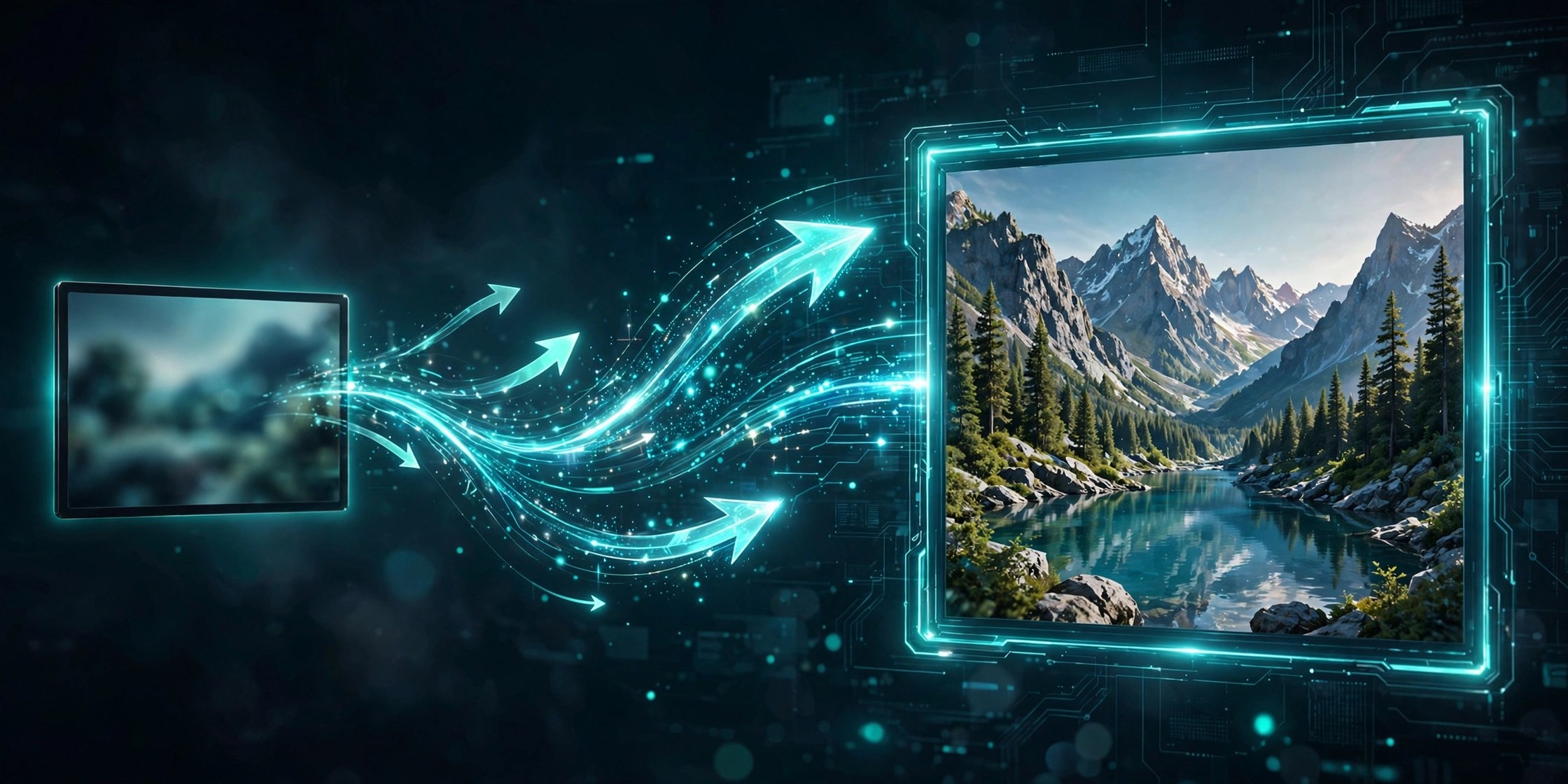
    ScaleUp is a plugin for Adobe After Effects and Adobe Premiere Pro that enlarges video footage using AI based processing. Editors reach for it when a clip is smaller than the timeline needs, such as archive material, screen recordings or phone footage placed inside a larger project. Instead of a plain stretch that quickly looks soft, ScaleUp works to rebuild detail as the picture grows.

    Key Features

    • Enlarge footage up to ten times its original size with AI assisted processing
    • Works as a plugin inside both After Effects and Premiere Pro projects
    • GPU acceleration helps processing move faster on supported graphics hardware
    • Aims to keep edges and detail cleaner than ordinary scaling methods
    • Useful for archive clips, cropped shots and low resolution source material

    How to Download

    1. Use the download button on this page to obtain the installer for your Mac.
    2. Quit After Effects and Premiere Pro, then run the installer and follow its prompts.
    3. Launch your Adobe app, apply ScaleUp to a clip and set the enlargement you need.

    System Requirements

    ScaleUp needs macOS 10.15 or later with a supported version of After Effects or Premiere Pro installed. Performance depends heavily on your graphics processor, and some GPU models are not supported.

    FAQs

    How much can ScaleUp enlarge a clip?

    It can enlarge footage up to ten times, although the sensible amount depends on the source quality and how the clip will be viewed.

    Does it work in Premiere Pro as well?

    Yes. ScaleUp is built for both After Effects and Premiere Pro, so editors can upscale inside whichever Adobe app holds their project.

    Will every old clip look perfect after scaling?

    No tool can invent detail that was never recorded. ScaleUp can improve small footage, but very poor sources will still show limits.

  • Gideros 2026.11 for Mac

    Gideros 2026.11 for Mac

    Gideros 2026.11 for Mac

    Gideros 2026.11 for Mac

    Mac Utilities
    Updated Aug 6, 2026
    Mac Utilities • Updated Aug 6, 2026

    Gideros is a game development framework for people who want to write a game once and ship it on many platforms. You code in Lua, a small and fast scripting language, inside Gideros Studio on your Mac, then export the same project to phones, desktops, the web and more. It suits solo developers, small teams and learners who want real published games without a heavy engine.

    Key Features

    • Lua based development with instant testing on connected devices
    • Exports to iOS, Android, macOS, Windows, HTML5 and other platforms
    • 2D engine with sprites, particles, physics and rich text support
    • 3D support with shaders, lighting and model loading built in
    • Plugin system covering ads, in app purchases, storage and more

    How to Download

    1. Open the official product page and use Download from the official site to get the Mac package.
    2. Open the downloaded file and install Gideros Studio on your Mac.
    3. Launch Studio, open one of the sample projects, and run it in the player.

    System Requirements

    Gideros Studio runs on current macOS versions on Macs with Apple silicon and on Intel Macs. Exporting to iOS also needs Xcode, and exporting to Android needs the Android tools on your machine.

    FAQs

    Is Gideros free?

    Yes. Gideros is free and open source, with no royalties and no limits on publishing or selling the games you make with it.

    Do I need to know Lua before starting?

    Not deeply. Lua is a small language that is quick to pick up, and the sample projects and guides show common game patterns.

    Can one project ship on phones and desktops?

    Yes. That is the core idea of the framework. You keep one code base and export builds for each platform you target.

  • Kid3 Tag Editor 3.10.2 for Mac

    Kid3 Tag Editor 3.10.2 for Mac

    Kid3 Tag Editor 3.10.2 for Mac

    Kid3 Tag Editor 3.10.2 for Mac

    Mac Utilities
    Updated Aug 6, 2026
    Mac Utilities • Updated Aug 6, 2026

    Kid3 is a free audio tag editor for people who keep their own music files and want them named and labelled properly. It edits tags inside MP3, FLAC, Ogg Vorbis, MP4 and many other formats, and it shines when a whole album needs the same artist or year at once. Collectors, DJs and anyone ripping a CD collection will find it quicker than editing tracks one by one.

    Key Features

    • Edit ID3 tags and tags in FLAC, Vorbis, MP4 and other audio formats
    • Change the tags of many files together when album details are shared
    • Create tags from file names and rename files based on their tags
    • Import album details from online databases such as Discogs and MusicBrainz
    • Create and edit playlists and export tag data

    How to Download

    1. Visit the project site and open the download area for the Mac build. Download from the official site
    2. Open the disk image and move Kid3 into your Applications folder.
    3. Launch Kid3, point it at a music folder and save your first edits.

    System Requirements

    Kid3 runs on macOS, Windows and Linux. On the Mac you need a recent macOS release and free space for the app plus your music library. An internet connection is only needed to import album details from online databases.

    FAQs

    Is Kid3 free to use?

    Yes. Kid3 is free software under an open licence, and the full editor is available at no cost from the project site.

    Can Kid3 edit a whole album at once?

    Yes. You can select many files and set shared fields such as artist, album and year in one action, then save them all together.

    Does Kid3 change my audio quality?

    No. Kid3 edits tag data in the file, such as titles and cover art. It does not re encode the audio itself.

  • Pika 2.0.2 for Mac

    Pika 2.0.2 for Mac

    Pika 2.0.2 for Mac

    Pika 2.0.2 for Mac

    Mac Utilities
    Updated Aug 6, 2026
    Mac Utilities • Updated Aug 6, 2026

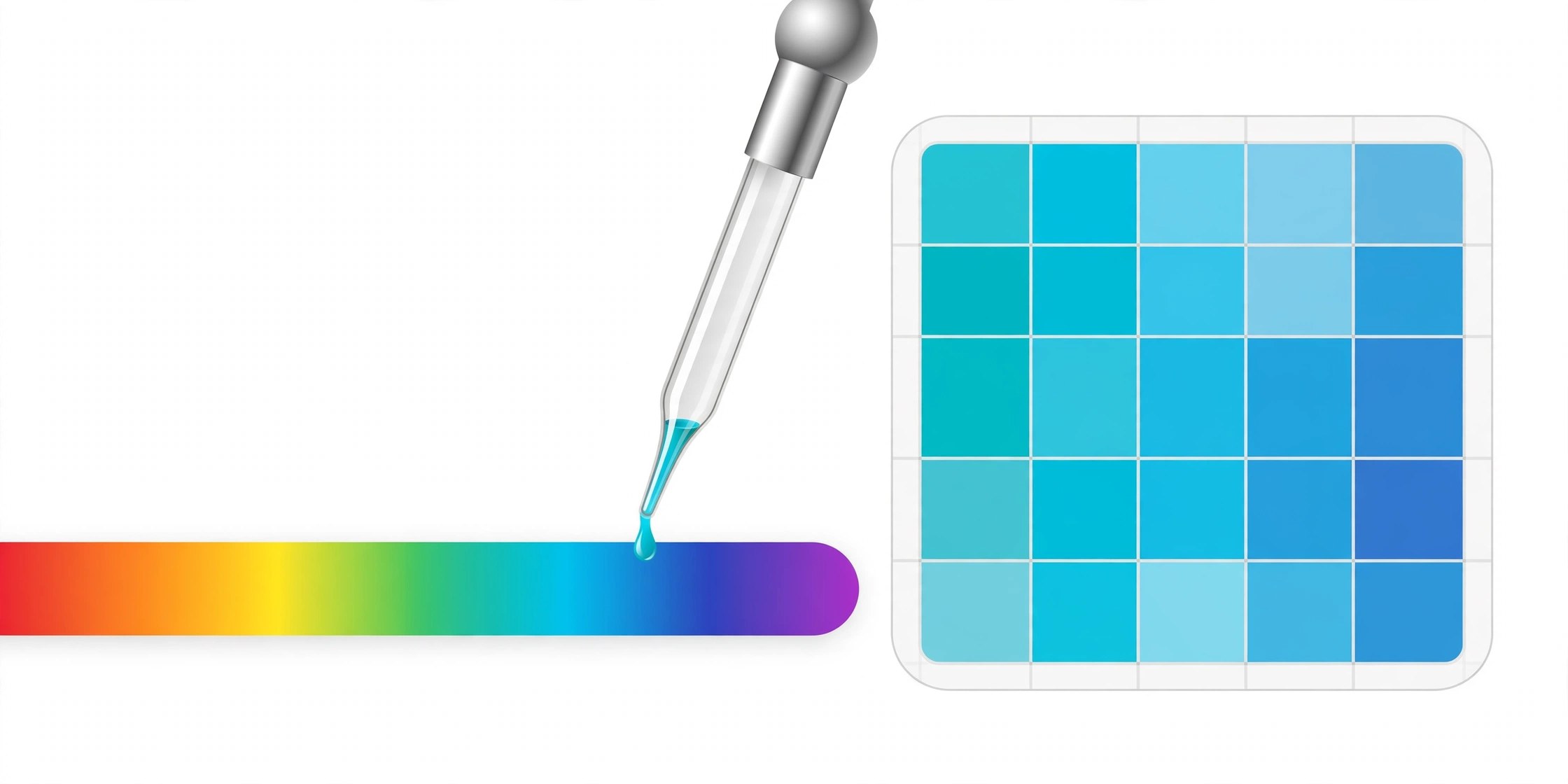
    Pika is a small open source color picker made for macOS by the Super High Fives project. Designers and developers use it to grab the exact color of anything on screen and copy that color in a useful format. It lives quietly on your Mac and appears the moment color work begins.

    Key Features

    • Pick any color on screen with an eyedropper style tool and a magnified view
    • Copy colors in formats such as Hex, RGB, HSL and other common notations
    • Compare a foreground and background color pair within the same tidy window
    • Launch quickly from the menu bar or Dock and trigger picking with shortcuts
    • Open source code that anyone can inspect, learn from or help improve

    How to Download

    1. Open the project page to read about the app and check the latest release information.
    2. Download from the official site and get the Mac build offered by the project.
    3. Install Pika, launch it and pick your first color from anywhere on the screen.

    System Requirements

    Pika runs on current macOS versions on both Intel Macs and Macs with Apple silicon. It is a native and lightweight utility, so it needs very little storage or memory to run well.

    FAQs

    Is Pika really free?

    Yes. Pika is free and open source, released by its developer for anyone to download and use on their Mac without a subscription.

    Which color formats can it copy?

    It covers the formats designers and developers reach for most often, including Hex, RGB and HSL, so colors move easily into design tools and code.

    Does it replace the macOS color picker?

    It complements it. Pika focuses on fast picking from anywhere on screen and quick copying, while the system picker remains available inside your apps.