Category: Mac Utilities

  • Texmaker 6.0.2 for Mac

    Texmaker 6.0.2 for Mac

    Texmaker 6.0.2 for Mac

    Texmaker 6.0.2 for Mac

    Mac Utilities
    Updated Aug 20, 2026
    Mac Utilities • Updated Aug 20, 2026

    Texmaker is a free editor for writing documents in LaTeX, the typesetting system used for papers, theses, books and technical reports. It brings the source editor, a document structure view and a PDF viewer together in one window, so you can write code, compile with a click, and check the finished pages. Updated Aug 20, 2026.

    Key Features

    • A Unicode editor with syntax highlighting and code folding for LaTeX
    • An integrated PDF viewer with SyncTeX support for jumping between source and output
    • Quick build commands that run your chosen tools in one step
    • A structure view, symbol panels and wizards for tables and common parts
    • Spell checking while you type and helpful error messages after a build
    • Free and open to all users on Mac, Windows and Linux systems

    How to Download

    1. Make sure a LaTeX distribution such as MacTeX is installed on your Mac.
    2. Use this link to get the installer: Download from the official site and save the file to your Mac.
    3. Open the Mac package for your chip type and install the app.
    4. Launch Texmaker, open a sample document and run Quick Build to test it.

    System Requirements

    Texmaker needs a Mac running a recent version of macOS. Current Mac builds are made for Apple silicon, with an older build kept for Intel machines. You also need a LaTeX distribution installed, since Texmaker is the editor and not the typesetting engine itself.

    FAQs

    Is Texmaker free?

    Yes. Texmaker is free software. You can use it for study, work and publishing without paying for a licence.

    Why will my document not compile?

    Most often the LaTeX distribution is missing or a package is absent. Install MacTeX, reopen Texmaker, and check the log panel, which points to the exact line with the error.

  • Chromabba 1.3.6 for Mac

    Chromabba 1.3.6 for Mac

    Chromabba 1.3.6 for Mac

    Chromabba 1.3.6 for Mac

    Mac Utilities
    Updated Aug 20, 2026
    Mac Utilities • Updated Aug 20, 2026

    Chromabba is an After Effects plugin that adds chromatic aberration the way a real camera lens creates it, instead of simply sliding the red, green and blue channels apart. It simulates how light bends around edges, so highlights and fine detail pick up soft color fringing like footage shot through real glass. Controls let you keep the effect subtle for realism or push it further for stylized work. Updated Aug 20, 2026.

    Key Features

    • Realistic aberration based on how light bends at edges
    • Natural color fringing instead of a flat channel shift
    • Controls for amount, falloff and effect center
    • Works on live action footage and motion graphics
    • Fast preview while you adjust inside the composition
    • Good for lens looks, glitch accents and film style finishes

    How to Download

    1. Open the aescripts store and search for Chromabba.
    2. Read the product page for version and compatibility details.
    3. Buy the plugin and download it with the aescripts manager app.
    4. Install it in After Effects and apply it to a footage layer.

    System Requirements

    Chromabba runs inside Adobe After Effects on a Mac with a recent macOS and enough graphics power to preview effects comfortably. It needs no standalone application, since it works as a plugin in your existing installation.

    FAQs

    How is Chromabba different from shifting RGB channels?

    Channel shifting gives a flat offset, while Chromabba models light bending at edges for softer, believable fringing.

    Can I use it on real camera footage?

    Yes, it suits footage as well as graphics, for matching a lens look or adding character.

    Is Chromabba a standalone app?

    No, it is a plugin that lives inside After Effects compositions.

  • Fission 2.9.5 for Mac

    Fission 2.9.5 for Mac

    Fission 2.9.5 for Mac

    Fission 2.9.5 for Mac

    Mac Utilities
    Updated Aug 20, 2026
    Mac Utilities • Updated Aug 20, 2026

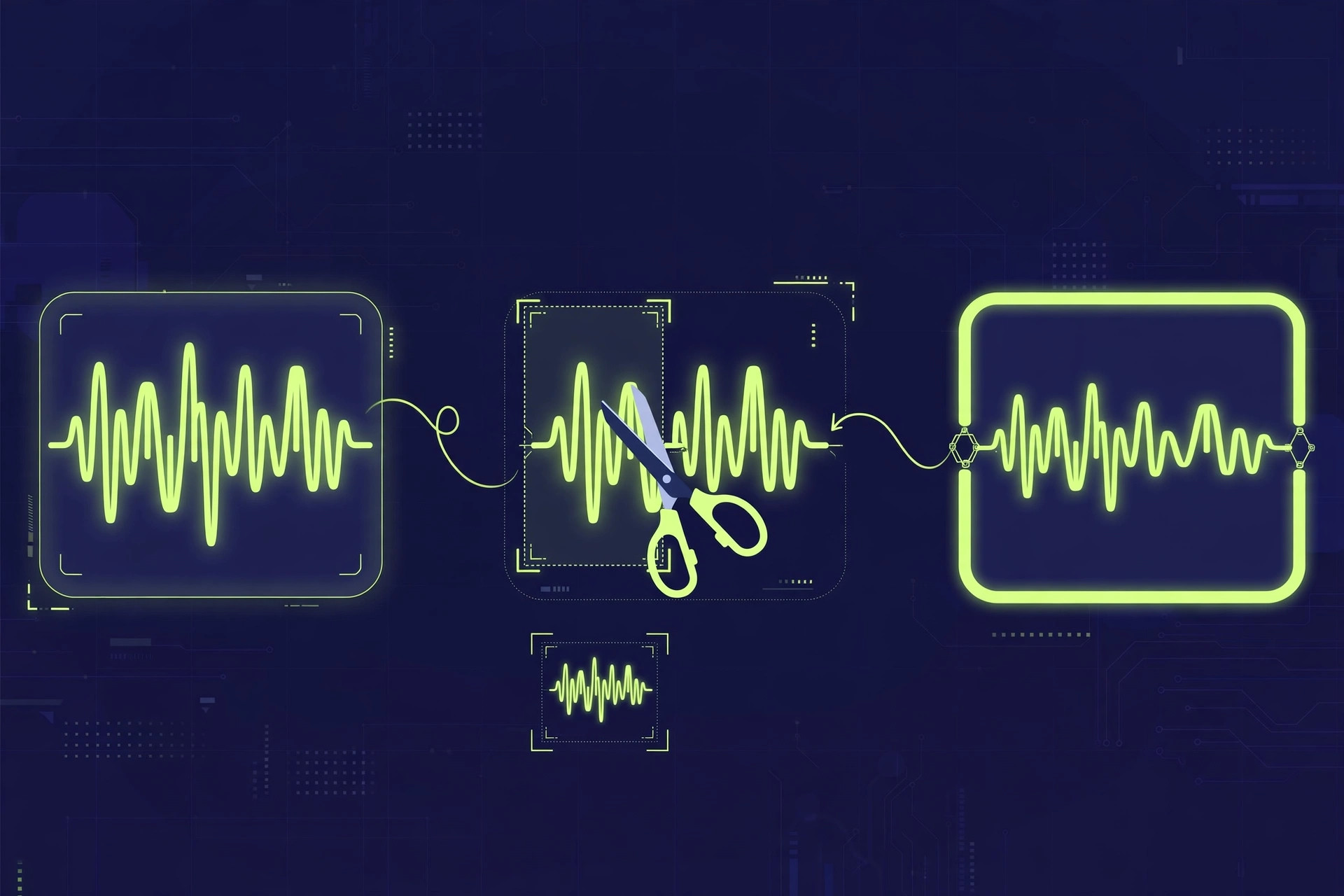
    Fission from Rogue Amoeba is a fast audio editor for Mac that focuses on the jobs people do most often. You can trim the ends of a recording, cut out a section in the middle, split a long file into parts, or join clips together, all without decoding and encoding the audio again. That keeps the original quality intact and makes saving almost instant, even on long recordings. Updated Aug 20, 2026.

    Key Features

    • Lossless editing for popular audio formats such as MP3 and AAC
    • Trim, split and join audio with simple selections
    • Batch converter changes many files in one pass
    • Chapter tools suit podcasts and long spoken recordings
    • Clear waveform view makes precise cuts easy to place

    How to Download

    1. Open the Rogue Amoeba website in your browser.
    2. Download from the official site from the Fission product page.
    3. Open the download and launch Fission on your Mac.
    4. Drop in an audio file and try a simple trim to learn the flow.

    System Requirements

    Fission runs on recent versions of macOS, and the current release lists macOS 14 or higher. It works on Macs with Apple silicon and Intel chips. Disk needs are modest, though large audio projects will need free space for copies and exports.

    FAQs

    Does editing reduce sound quality?

    For supported formats, Fission edits without decoding the audio, so the sound stays as it was in the original file.

    Can Fission convert file formats?

    Yes. It can save audio in other formats, and the batch converter handles folders of files in one go.

  • Ultra Audio Ultra 1.1.6 for Mac

    Ultra Audio Ultra 1.1.6 for Mac

    Ultra Audio Ultra 1.1.6 for Mac

    Ultra Audio Ultra 1.1.6 for Mac

    Mac Utilities
    Updated Aug 20, 2026
    Mac Utilities • Updated Aug 20, 2026

    Ultra is the flagship synthesizer from Ultra Audio, built by composer Nigel Stanford and his small team in New Zealand. It places five oscillators, dual filters and deep modulation inside one clear interface, and its UltraWave engine blends wavetable ideas with sample based playback so sounds can move and change as you play. Updated Aug 20, 2026.

    Key Features

    • Five oscillators per voice, including the UltraWave stereo wavetable engine
    • A sampler and multisample playback alongside analog style sound sources
    • Dual filters, rich modulation and effects for shaping movement in a patch
    • A sound browser with a growing library of factory and community sounds
    • Runs as a standalone app and as an AU and VST3 plugin in your DAW
    • Support for expressive controllers, including MPE in recent updates

    How to Download

    1. Open the official Ultra Audio site in your browser.
    2. Use this link to get the installer: Download from the official site and save the file to your Mac.
    3. Run the installer and follow the steps for the standalone app and plugins.
    4. Launch Ultra, try the demo or sign in with your licence, and load a preset.

    System Requirements

    Ultra needs a Mac that can run current audio software, with support for both Apple silicon and Intel machines as listed by the vendor. You need a compatible DAW for plugin use, enough storage for the app and its sound library, and an internet connection for setup.

    FAQs

    Can I try Ultra before buying?

    Yes. The vendor offers a trial so you can test the sound and workflow on your Mac before you buy a licence.

    Does Ultra need a subscription?

    No. It is sold with a perpetual licence, and the vendor states that updates are free for existing owners. Always confirm the current terms on the official site.

  • Native Instruments Komplete Kontrol 3.5.5 for Mac

    Native Instruments Komplete Kontrol 3.5.5 for Mac

    Native Instruments Komplete Kontrol 3.5.5 for Mac

    Native Instruments Komplete Kontrol 3.5.5 for Mac

    Mac Utilities
    Updated Aug 20, 2026
    Mac Utilities • Updated Aug 20, 2026

    Komplete Kontrol is a free Native Instruments application for Mac that gathers your instruments, effects, loops and samples into one clear browser, so you spend less time hunting through folders and more time playing. It maps controls to your keyboard or controller, lets you search and preview presets in one place, and adds tools such as scales and an arpeggiator. It works with Native Instruments products and many NKS ready third party plugins. Updated Aug 20, 2026.

    Key Features

    • One browser for instruments, effects, loops and samples
    • Smart mapping to Kontrol keyboards and other controllers
    • Search, tags and previews for faster preset hunting
    • Scale engine and arpeggiator for playing in key
    • Works with NKS plugins from many partner makers
    • Runs standalone or as a plugin, and it is free

    How to Download

    1. Visit the official Native Instruments page for Komplete Kontrol.
    2. Use this link to get the installer: Download from the official site and save the file to your Mac.
    3. Install with Native Access and sign in to your account.
    4. Open it, let it scan your plugins, and browse your sounds.

    System Requirements

    Komplete Kontrol needs a recent macOS on an Intel or Apple silicon Mac, with space for the software and your libraries. It runs in common DAWs and standalone, and download and activation through Native Access need an internet connection.

    FAQs

    Is Komplete Kontrol really free?

    Yes, the software is free, and you pay only for instruments and sound packs you add.

    Do I need a Kontrol keyboard to use it?

    No, it works with mouse, keyboard or any MIDI controller, with the deepest integration on Kontrol keyboards.

    Can I use third party plugins in it?

    Yes, many NKS ready plugins appear in the browser with mapped controls and previews.

  • StartupManager for Mac

    StartupManager for Mac

    StartupManager for Mac

    StartupManager for Mac

    Mac Utilities
    Updated Aug 20, 2026
    Mac Utilities • Updated Aug 20, 2026

    StartupManager is a small Mac utility for people who want more control over what opens when they log in. macOS lets you add login items, but it gives you little say over how they behave. This app lets you build startup lists, hide an app once it has launched, and delay heavy apps so they do not all compete for attention at the same moment. It is a calm fix for a busy login. Updated Aug 20, 2026.

    Key Features

    • Create one or more startup lists for different kinds of work
    • Hide applications automatically after they launch
    • Add a delay before an item starts to spread the load
    • Add apps by browsing or by dropping them into the window
    • Simple list view shows what will open at login

    How to Download

    1. Find the StartupManager listing from its publisher.
    2. Download the Mac version and open the file you receive.
    3. Move the app to your Applications folder and launch it.
    4. Add your first app, set its behaviour, and test with a fresh login.

    System Requirements

    StartupManager is a light utility that runs on macOS and needs very little free disk space. It works alongside the login items system built into macOS, so a standard user account is enough for everyday use on Apple silicon or Intel Macs.

    FAQs

    Why delay apps at startup?

    Delays stop every app from demanding processor time and memory in the same first minute, which makes login feel smoother.

    Can an app start hidden?

    Yes. You can set an item to hide after launch, so it runs in the background without filling your screen with windows.

  • Sound Radix SurferEQ 2.1.2 for Mac

    Sound Radix SurferEQ 2.1.2 for Mac

    Sound Radix SurferEQ 2.1.2 for Mac

    Sound Radix SurferEQ 2.1.2 for Mac

    Mac Utilities
    Updated Aug 20, 2026
    Mac Utilities • Updated Aug 20, 2026

    SurferEQ 2 from Sound Radix is an equalizer with a clever twist. Instead of leaving its bands fixed at set frequencies, it listens to the pitch of a monophonic vocal or instrument and moves the selected bands along with the notes. That keeps boosts and cuts tied to the music, which makes shaping tone feel more natural. Updated Aug 20, 2026.

    Key Features

    • Pitch tracking equalizer bands that follow the notes being played
    • Seven EQ bands that can also work as a normal static equalizer
    • High pass and low pass filter sections for cleaning up a source
    • Surf Time and pitch detection controls for tuning the movement
    • MIDI control options for creative, played equalizer effects
    • Plugin formats for major DAWs on Mac, including AU, VST3 and AAX

    How to Download

    1. Open the official Sound Radix product page in your browser.
    2. Use this link to get the installer: Download from the official site and save the file to your Mac.
    3. Run the installer, choosing the plugin formats your DAW needs.
    4. Open your DAW, rescan plugins if needed, and load SurferEQ on a track.

    System Requirements

    You need a Mac running a supported version of macOS and a DAW that hosts AU, VST, VST3 or AAX plugins. The vendor notes Apple silicon support in recent versions, and a licence managed through iLok is required for full use after any trial.

    FAQs

    What kind of source works best with SurferEQ?

    It works best on monophonic sources such as a vocal, bass or lead line, where its tracker can follow one note at a time.

    Can I use it as a normal equalizer?

    Yes. You can turn the surfing behaviour off for a band and use SurferEQ for ordinary static equalizer work when a track does not need moving bands.

  • GifGun 2.2.1 for Mac

    GifGun 2.2.1 for Mac

    GifGun 2.2.1 for Mac

    GifGun 2.2.1 for Mac

    Mac Utilities
    Updated Aug 20, 2026
    Mac Utilities • Updated Aug 20, 2026

    GifGun 2 is an After Effects tool that turns a composition into a GIF in one click, without the long trip through other apps. The current version also exports WEBP, WEBM and MP4 files, includes compression that keeps files small, and can render several comps in a batch. The same license also covers a standalone desktop app and a web app, so you can convert existing videos when After Effects is closed. Updated Aug 20, 2026.

    Key Features

    • One click GIF export from an After Effects composition
    • Also exports WEBP, WEBM and MP4 from the same panel
    • Smart compression for smaller files at similar quality
    • Batch rendering for several compositions in one run
    • Target file size option for strict upload limits
    • Shareable presets, plus desktop and web apps included

    How to Download

    1. Visit the official aescripts page for GifGun 2.
    2. Use this link to get the installer: Download from the official site and save the file to your Mac.
    3. Install GifGun 2 with the aescripts manager app and activate it.
    4. Open the GifGun panel in After Effects and export your comp.

    System Requirements

    GifGun 2 needs After Effects 2021 or later on a Mac, and the standalone app needs macOS 15 or later on Apple silicon. A free trial is offered, so you can check compatibility with your own setup before buying.

    FAQs

    Why do I need GifGun if I have After Effects?

    After Effects cannot render a GIF from its render queue, so GifGun adds that step inside the app.

    Can GifGun export formats other than GIF?

    Yes, it also exports WEBP, WEBM and MP4, with alpha where the format supports it.

    Does one license cover the standalone app?

    Yes, the same license activates the plugin, the desktop app and the web app.

  • Codepoint 1.23 for Mac

    Codepoint 1.23 for Mac

    Codepoint 1.23 for Mac

    Codepoint 1.23 for Mac

    Mac Utilities
    Updated Aug 20, 2026
    Mac Utilities • Updated Aug 20, 2026

    Codepoint is a Mac reference app for anyone who works with special characters. Designers, developers and writers use it to search a vast library of Unicode characters, glyphs, SF Symbols and emoji, then copy the exact item they need into their work. Instead of hunting through web pages or character tables, you type a few letters, preview the result in different styles, and export it in the format your project expects. Updated Aug 20, 2026.

    Key Features

    • Search tens of thousands of Unicode characters and glyphs
    • Browse SF Symbols and emoji alongside regular characters
    • Export as symbols, strings, hex values, HTML entities or Swift code
    • Preview characters at useful sizes before you copy them
    • Fast keyboard friendly search for frequent character work

    How to Download

    1. Open the Codepoint page on the Mac App Store.
    2. Download from the official site and install the app.
    3. Launch Codepoint and search for a character you use often.
    4. Copy or export the character into your document or project.

    System Requirements

    Codepoint runs on recent versions of macOS, and listings note macOS 13.5 or later for current builds. It works on Macs with Apple silicon or Intel chips and needs only a modest amount of free disk space for the app and its character library.

    FAQs

    Who is Codepoint for?

    It suits designers, app developers and writers who often need symbols, glyphs or emoji that are hard to find on a normal keyboard.

    Can I copy a character as code?

    Yes. Export options include forms such as hex values, HTML entities and Swift code, which saves manual conversion.

  • AIR Music Technology Mini D 1.2.1.14 for Mac

    AIR Music Technology Mini D 1.2.1.14 for Mac

    AIR Music Technology Mini D 1.2.1.14 for Mac

    AIR Music Technology Mini D 1.2.1.14 for Mac

    Mac Utilities
    Updated Aug 20, 2026
    Mac Utilities • Updated Aug 20, 2026

    Mini D from AIR Music Technology is a plugin synth inspired by a famous American analog synthesizer from the seventies. It keeps the warm, punchy character of that era, then adds modern touches the original never had, such as four voice polyphony, built in effects and a large preset library. Updated Aug 20, 2026.

    Key Features

    • A four voice poly synth based on a classic American synthesizer design
    • Three oscillators per voice with eight modelled oscillator shapes
    • The classic ladder filter sound for warm and punchy tones
    • Hundreds of presets across bass, lead, percussion and synth effect groups
    • Built in effects rack with EQ, chorus and delay style tools
    • Works in your DAW and can also unlock on Akai MPC and Force hardware

    How to Download

    1. Open the official AIR Music Technology page for Mini D.
    2. Use this link to get the installer: Download from the official site and save the file to your Mac.
    3. Run the installer and follow the vendor steps to authorise the plugin.
    4. Open your DAW, rescan plugins, and load Mini D on an instrument track.

    System Requirements

    Mini D needs a recent Mac as listed on the vendor page, with a DAW that hosts AU, VST or AAX plugins. An internet connection is required to authorise the software, and you may need the MPC desktop software for use with Akai hardware.

    FAQs

    Is Mini D only for vintage style music?

    No. The preset library covers modern and retro sounds, and the synth controls let you shape basses, leads and effects for many current styles of production.

    Can I use Mini D without a DAW?

    On Akai MPC and Force hardware it can run in standalone form when supported. On a Mac it is mainly used as a plugin inside a compatible host app.