Category: Mac Utilities

  • Sublime Merge Dev 2 Build 2135 for Mac

    Sublime Merge Dev 2 Build 2135 for Mac

    Sublime Merge Dev 2 Build 2135 for Mac

    Sublime Merge Dev 2 Build 2135 for Mac

    Mac Utilities
    Updated Aug 2, 2026
    Mac Utilities • Updated Aug 2, 2026

    Sublime Merge is a Git client from Sublime HQ, the makers of Sublime Text, and the Dev build is its faster moving channel with the newest fixes and features. It is made for developers who review history, stage changes and resolve conflicts every day and want a client that stays quick on large repositories. Dev builds update often and use less tested code, so they suit users who like early access and frequent update prompts.

    Key Features

    • A clear commit graph shows branches, merges and history so you can follow a project at a glance.
    • Powerful search finds commits by message, author, file and content across the whole repository.
    • An integrated merge tool helps you work through conflicts with both sides in view.
    • Blame and file history views trace when each line changed and who changed it.
    • Worktree support and a locations bar make it simple to jump between repositories and checkouts.
    • Syntax highlighting in diffs keeps code readable while you review changes line by line.

    How to Download

    1. Open the official Sublime Merge dev page using the link below.
    2. Download from the official site and pick the macOS build.
    3. Open the download, move Sublime Merge to Applications, and open your first repository.

    FAQs

    Is Sublime Merge free?

    You can download and evaluate it for free. The vendor says a licence must be purchased for continued use, with no enforced time limit on the evaluation.

    What is the Dev build?

    Dev builds are in progress versions that update more often than the stable channel. They may carry fresh fixes, and also less tested code.

    Who makes Sublime Merge?

    Sublime HQ makes it, the same team behind the Sublime Text editor.

  • Calibre 9.18.0 for Mac

    Calibre 9.18.0 for Mac

    Calibre 9.18.0 for Mac

    Calibre 9.18.0 for Mac

    Mac Utilities
    Updated Aug 2, 2026
    Mac Utilities • Updated Aug 2, 2026

    Calibre is a free ebook library manager for people who collect books in many formats and want one calm place to keep them all. It gathers your ebooks into a searchable library, tidies their details and converts them for the device you actually read on, whether that is a dedicated reader, a tablet or your Mac itself.

    Key Features

    • Build a searchable library with covers, authors, series and tags for every book
    • Convert ebooks between common formats such as EPUB, PDF and AZW3
    • Edit book details by hand or fetch fresh details from online sources
    • Read books in the built in viewer with bookmarks and reading settings
    • Send books to many popular ebook readers and manage what sits on them
    • Run your own content server to browse your library from a web browser

    How to Download

    1. Visit the vendor page here: Download from the official site and choose the macOS option.
    2. Open the downloaded disk image and drag the Calibre app into your Applications folder.
    3. Launch Calibre, point it at the folder where your ebooks live and let it build your library.

    FAQs

    Is Calibre free to use?

    Yes. Calibre is free and open source software, so you can download it and use its full library and conversion tools without paying.

    Can Calibre convert a book for my reader?

    In most cases, yes. Pick the book, choose convert, select the format your reader prefers and then send the finished file to the device.

    Does Calibre work without the internet?

    Reading, organising and converting books you already own works fully offline. The internet is only needed for tasks like fetching book details.

  • Browsers 0.8.6 for Mac

    Browsers 0.8.6 for Mac

    Browsers 0.8.6 for Mac

    Browsers 0.8.6 for Mac

    Mac Utilities
    Updated Aug 2, 2026
    Mac Utilities • Updated Aug 2, 2026

    Browsers by BrowsersSoft is a small Mac utility for people who use more than one web browser. Many of us keep work in one browser and personal browsing in another, or test pages across several browsers during the day. Browsers helps you open a link in the browser you actually want, instead of always landing in the single default browser your Mac has chosen.

    Key Features

    • Open links in a browser other than your system default
    • Keep work and personal browsing apart in separate browsers
    • Handy for testing how a web page looks in several browsers
    • Skip the routine of copying an address and pasting it into another browser
    • A light, single purpose tool that stays focused on one job
    • Fits naturally into the day of anyone who juggles Safari, Chrome and Firefox

    How to Download

    1. Use the download button on this page to get Browsers for your Mac.
    2. Open the downloaded file and follow the on screen prompts to finish the install.
    3. Open Browsers and put it to work the next time a link deserves a different browser.

    FAQs

    Is Browsers itself a web browser?

    No. Browsers is a helper utility. The browsing still happens in the browsers you already have installed, such as Safari, Chrome or Firefox.

    Why not simply change my default browser?

    A single default suits only one habit. If some links belong in your work browser and others in your personal one, choosing per link is far more flexible.

    Who is Browsers for?

    Anyone who juggles several browsers will feel at home, especially web developers, researchers and people who split work and personal browsing.

  • Mp3tag 1.15.0 for Mac

    Mp3tag 1.15.0 for Mac

    Mp3tag 1.15.0 for Mac

    Mp3tag 1.15.0 for Mac

    Mac Utilities
    Updated Aug 2, 2026
    Mac Utilities • Updated Aug 2, 2026

    Mp3tag for Mac is a tag editor by Florian Heidenreich for people who keep a real music library on disk. If your folders hold MP3, FLAC, MP4 and other formats with mixed or missing titles, artists and artwork, Mp3tag fixes them in batches instead of one file at a time. Musicians, DJs, podcasters and collectors use it to keep large collections consistent, named well and easy to browse in any player.

    Key Features

    • Batch editing writes the same change to many files at once across a wide range of audio formats.
    • Cover art tools add, resize and convert embedded artwork so albums look right in every player.
    • Online lookups pull tags and artwork from Discogs and MusicBrainz for your releases.
    • Rename files from tag values, and import tag values back from file names when you need to.
    • Action groups combine repeated tasks into reusable workflows that keep a library tidy over time.
    • The Tag Panel can hold bold headings and information fields, so big collections stay organized.

    How to Download

    1. Open the official Mp3tag page using the link below.
    2. Download from the official site to start the trial or buy the Mac app.
    3. Install the app, open a folder of audio files, select them and edit the tags in the panel.

    System Requirements

    Mp3tag for Mac needs macOS 10.14 or later, as listed on its Mac App Store page.

    FAQs

    Is Mp3tag free on Mac?

    No. The Mac app is a paid product, and the vendor offers a trial that counts only the days you actually use the app.

    Which formats does Mp3tag support?

    It covers MP3, MP4, M4V, FLAC, OGG, OPUS, AIF, DSF, MPC, WAV and Matroska audio and video files.

  • VectorStyler 1.3.033 for Mac

    VectorStyler 1.3.033 for Mac

    VectorStyler 1.3.033 for Mac

    VectorStyler 1.3.033 for Mac

    Mac Utilities
    Updated Aug 2, 2026
    Mac Utilities • Updated Aug 2, 2026

    VectorStyler is a serious vector illustration app for designers who draw logos, icons, lettering and print artwork on a Mac. It goes far beyond basic pen tools, with live effects and editors that keep every shape editable, so it suits illustrators and graphic designers who want depth without giving up control.

    Key Features

    • Draw with pen, curvature and Bezigon tools plus a wide set of live shapes
    • Use repeaters and vector halftones to build patterns and textured artwork
    • Apply live mirror groups, intertwine effects and vector drop shadows
    • Shape text freely and work with detailed typography controls
    • Import and export common design formats, including DWG and DXF in the 1.3 line
    • Keep objects editable with effects that update as you change the artwork

    How to Download

    1. Go to the vendor page here: Download from the official site and start the free trial download for Mac.
    2. Open the downloaded file and follow the steps to place the app on your Mac.
    3. Launch VectorStyler and use the trial with all features enabled before you decide on a licence.

    FAQs

    Is VectorStyler free?

    No. VectorStyler is a paid app, but the vendor offers a free trial with all features enabled for up to 42 days, which gives you time to test it properly.

    Who is VectorStyler made for?

    It is made for illustrators, logo designers and print designers who need advanced vector tools and like keeping every effect editable while they work.

    Can it open files from other design apps?

    It imports and exports a range of common vector and document formats, so artwork can move between VectorStyler and the other tools in your workflow.

  • Unyo Desktop 1.0.0 for Mac

    Unyo Desktop 1.0.0 for Mac

    Unyo Desktop 1.0.0 for Mac

    Unyo Desktop 1.0.0 for Mac

    Mac Utilities
    Updated Aug 2, 2026
    Mac Utilities • Updated Aug 2, 2026

    Unyo Desktop is a desktop app made for people who watch anime and read manga on the same machine. Instead of juggling browser tabs and separate reading apps, it brings browsing, playback and reading into one place, with your progress kept as you move between series. It suits fans who follow several titles at once and want a simple home for all of them on a Mac.

    Key Features

    • Watch anime episodes inside the app with a video player built for series viewing
    • Read manga chapters in a reading screen made for long sessions
    • Keep track of what you have watched and read, title by title
    • Remember the server you chose for a title when you come back to it
    • Shape the look of the app with themes in the settings
    • Open source project, with its code and releases shared in public on GitHub

    How to Download

    1. Use the download button on this page, or go straight to the source with Download from the official site.
    2. On the GitHub project, open the releases area and pick the build made for your Mac.
    3. Download the file, open it, and follow the steps shown on screen to finish setting up.

    FAQs

    Is Unyo Desktop free to use?

    Unyo is an open source project hosted on GitHub, where its code and releases are shared in public for anyone to view and download.

    Why does this page show version 1.0.0?

    The project publishes development builds with long build names full of extra labels. This page uses the short core version, 1.0.0, so the title stays clear and easy to read.

    Can I read manga in Unyo as well as watch anime?

    Yes. Reading is a core part of the app, with its own reading screen alongside the anime browsing and playback tools.

  • SQLPro Studio 2026.301 for Mac

    SQLPro Studio 2026.301 for Mac

    SQLPro Studio 2026.301 for Mac

    SQLPro Studio 2026.301 for Mac

    Mac Utilities
    Updated Aug 2, 2026
    Mac Utilities • Updated Aug 2, 2026

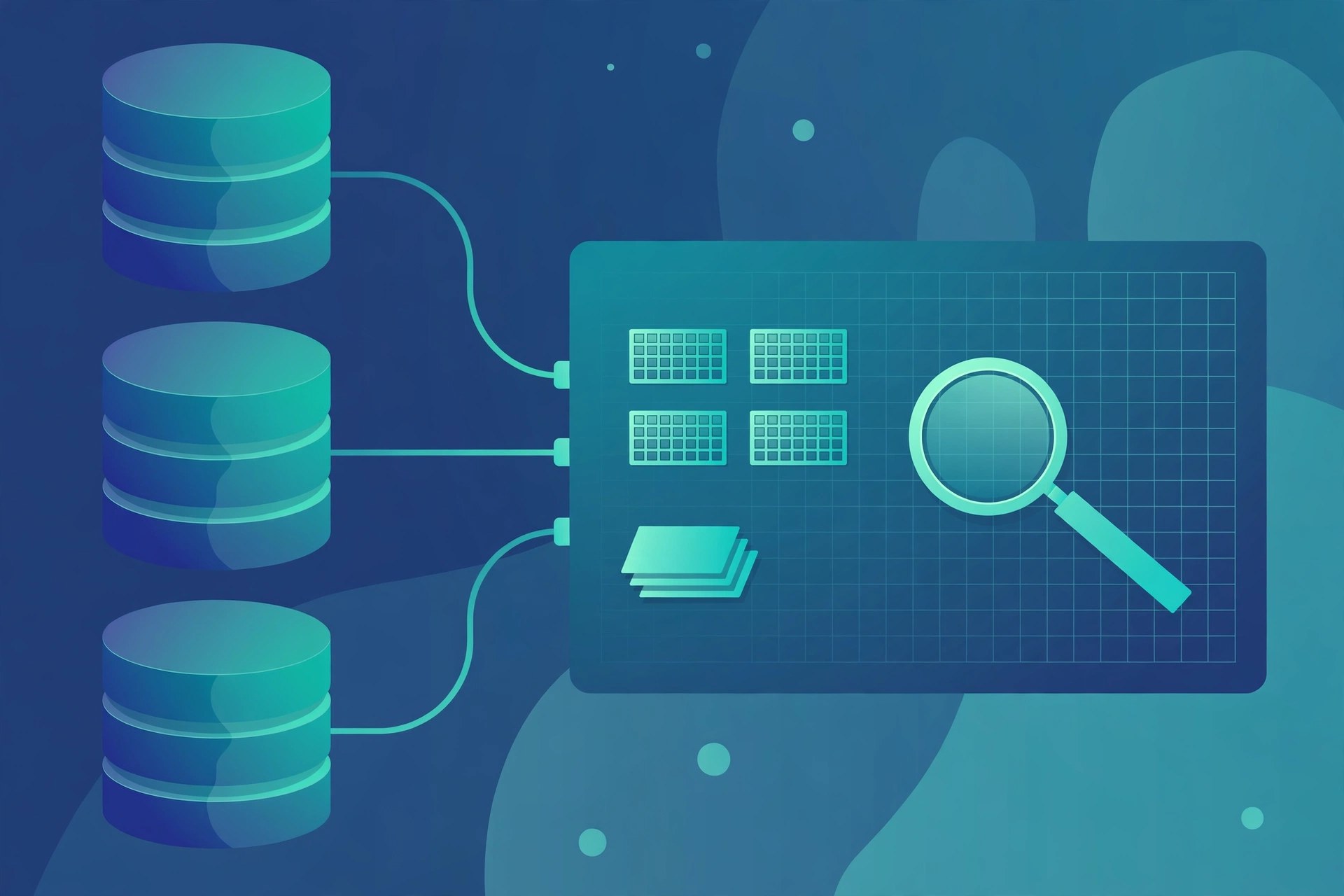
    SQLPro Studio is a native Mac database client from Hankinsoft for people who work with servers every day. Instead of a separate tool for each engine, it connects to MySQL, MariaDB, PostgreSQL, Microsoft SQL Server, SQLite, Oracle, Snowflake, MongoDB and Amazon Redshift from one app. It is built as a true Mac app, so it launches fast and feels light, and it suits developers, analysts and small teams who live inside queries and result grids.

    Key Features

    • One client for many engines, so you can move between projects without swapping tools.
    • Syntax highlighting with themes, plus smart completion that speeds up writing queries.
    • A tabbed interface lets you run several queries and view each result set side by side.
    • A context aware database tree gives quick access to tables, views, columns and indexes.
    • A built in SQL formatter tidies messy queries into a clean and readable layout.
    • Master password support, SSH tunnels and cloud services such as Amazon RDS and Azure are supported.

    How to Download

    1. Open the official SQLPro Studio page using the link below.
    2. Download from the official site or get the app from the Mac App Store.
    3. Install the app, add your first connection, and run a query to see results in the grid.

    System Requirements

    SQLPro Studio for Mac needs macOS 14.0 or later, as listed on its Mac App Store page.

    FAQs

    Is SQLPro Studio free?

    The app is free to download with in app purchases. The vendor says a Premium subscription or a single Lifetime purchase is needed to interact with database result sets.

    Which databases does it support?

    It supports MySQL and MariaDB, PostgreSQL, Microsoft SQL Server, SQLite, Oracle, Snowflake, MongoDB and Amazon Redshift.

  • KiCad 10.0.8 for Mac

    KiCad 10.0.8 for Mac

    KiCad 10.0.8 for Mac

    KiCad 10.0.8 for Mac

    Mac Utilities
    Updated Aug 2, 2026
    Mac Utilities • Updated Aug 2, 2026

    KiCad is a free electronics design suite for anyone who creates printed circuit boards, from hobbyists building a first project to engineers working on products. It covers the full journey in one place, from drawing the circuit diagram to laying out the board and preparing the files a board maker needs.

    Key Features

    • Capture schematics with a large library of symbols for common parts
    • Lay out boards with routing tools made for tidy, correct tracks
    • View your board in 3D to check clearances and how parts sit
    • Run design rule checks that flag shorts, gaps and other board errors
    • Create and edit your own symbols and footprints for custom parts
    • Export the manufacturing files that board makers ask for

    How to Download

    1. Open the vendor page here: Download from the official site to get the current stable Mac release.
    2. Open the downloaded package and follow the steps to install KiCad on your Mac.
    3. Launch KiCad, start a new project and open the schematic editor to begin your design.

    System Requirements

    The KiCad team supports the current stable release on macOS 12 and newer, as stated on its official Mac download page.

    FAQs

    Is KiCad free?

    Yes. KiCad is free and open source, and the full suite is available to everyone, including people who design boards for commercial work.

    Can beginners learn KiCad?

    Yes, though it rewards patience. Start with a small two layer board, follow the official guides and grow from there as your confidence builds.

    Does KiCad include part libraries?

    Yes. It ships with large symbol and footprint libraries, and you can add your own parts or libraries from trusted community sources.

  • Electerm 5.10.0 for Mac

    Electerm 5.10.0 for Mac

    Electerm 5.10.0 for Mac

    Electerm 5.10.0 for Mac

    Mac Utilities
    Updated Aug 2, 2026
    Mac Utilities • Updated Aug 2, 2026

    Electerm is a terminal client for people who look after servers, network gear or remote computers from a Mac. It folds a terminal, a file manager and many kinds of remote connection into one app, so you can stop switching between separate tools for each job. It suits developers, administrators and home lab users alike.

    Key Features

    • Connect by SSH, SFTP, FTP, Telnet and serial port, plus RDP, VNC and Spice remote desktops
    • Work in many terminal tabs at once, with split panes for side by side sessions
    • Move and edit remote files with the built in SFTP file manager
    • Save bookmarks for your regular connections and sync them between machines
    • Tunnel traffic and forward ports for reaching services on private networks
    • Change themes and colours so long terminal sessions stay easy on the eyes

    How to Download

    1. Use the download button on this page, or head to Download from the official site for the vendor page.
    2. Choose the Mac build that matches your machine, for Apple silicon or for Intel.
    3. Open the downloaded file and drag the app into place, then launch it and add your first connection.

    System Requirements

    The vendor lists Electerm for macOS 10.15 or later on Intel and Apple silicon Macs, plus a build for older macOS 10 systems.

    FAQs

    Is Electerm free?

    Yes. Electerm is free and open source, and the vendor offers it as a direct download from its own site and through its public code repository.

    Can Electerm replace separate SSH and file tools?

    For most daily work, yes. Terminal sessions, file transfers and remote desktops all live in one app, with bookmarks for your usual connections.

    Does Electerm work on Apple silicon Macs?

    Yes. The vendor provides a Mac build for Apple silicon machines alongside the Intel build.

  • Telegram Desktop 7.4.1 for Mac

    Telegram Desktop 7.4.1 for Mac

    Telegram Desktop 7.4.1 for Mac

    Telegram Desktop 7.4.1 for Mac

    Mac Utilities
    Updated Aug 2, 2026
    Mac Utilities • Updated Aug 2, 2026

    Telegram Desktop is the official Telegram app for Mac, made for people who chat on their phone all day and want the same conversations on a bigger screen with a real keyboard. Because Telegram chats live in the cloud, your messages, photos and files appear on the Mac as soon as you sign in, and stay in sync when you move back to your phone. The app is free, and its source code is open for anyone to inspect.

    Key Features

    • Cloud chats sync across phone, Mac and other devices, so you can start a chat in one place and finish it in another.
    • Groups, channels and bots cover everything from family chats to huge public communities and handy tools.
    • Fast search finds messages, chats, media and files across your whole history in seconds.
    • Send documents, photos and videos, and pin or save the messages you need to find again.
    • Voice and video calls work from the desktop, with the same account you use on mobile.
    • Stickers, reactions and media editing tools keep everyday chats lively without extra apps.

    How to Download

    1. Open the official Telegram desktop page using the link below.
    2. Download from the official site and save the Mac installer.
    3. Open the installer, move Telegram to Applications, launch it and sign in with your phone number.

    System Requirements

    Telegram Desktop for Mac runs on macOS 10.13 or later, and the app updates itself after install.

    FAQs

    Is Telegram Desktop free?

    Yes. The desktop app is free to download and use with your Telegram account.

    Do I need my phone nearby?

    You sign in with your phone number and a code at first. After that, chats sync through the cloud even when your phone is away.